
Learn how to translate and customize payment method names for different languages using the HidePay application.
This guide walks you through creating a Payment Method Translation customization, selecting your existing payment methods, assigning language-specific names, and activating the configuration.
By following this tutorial, you will learn how to display different payment method names for English and Italian customers, helping provide a more consistent multilingual checkout experience.
Important Note: All languages configured and supported by the store are fully supported.
Let's get started!
Create a New Payment Translation Customization.
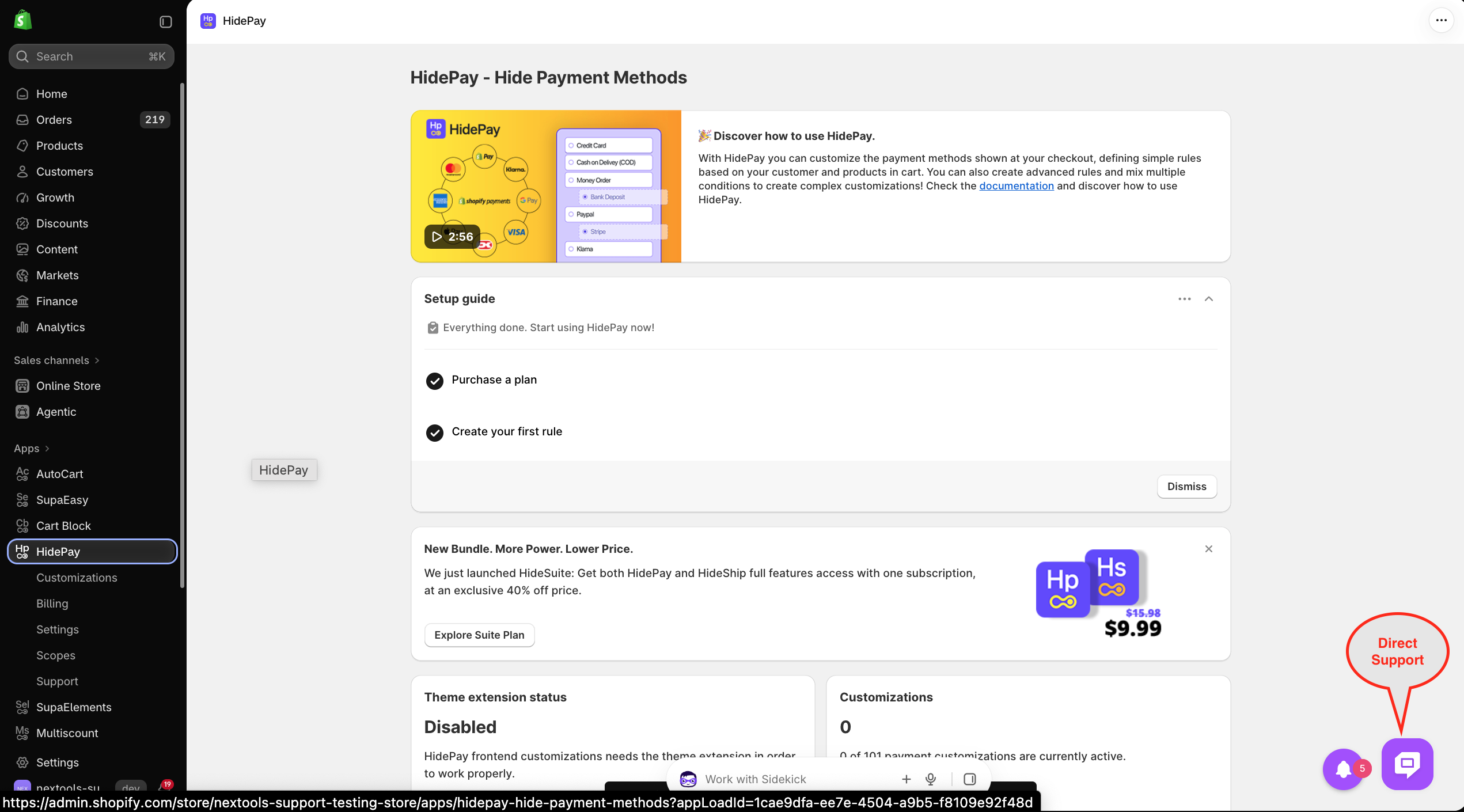
Open the HidePay application from your Shopify Admin.
Navigate to Payment Customization and click the Create button to begin configuring a new rule.
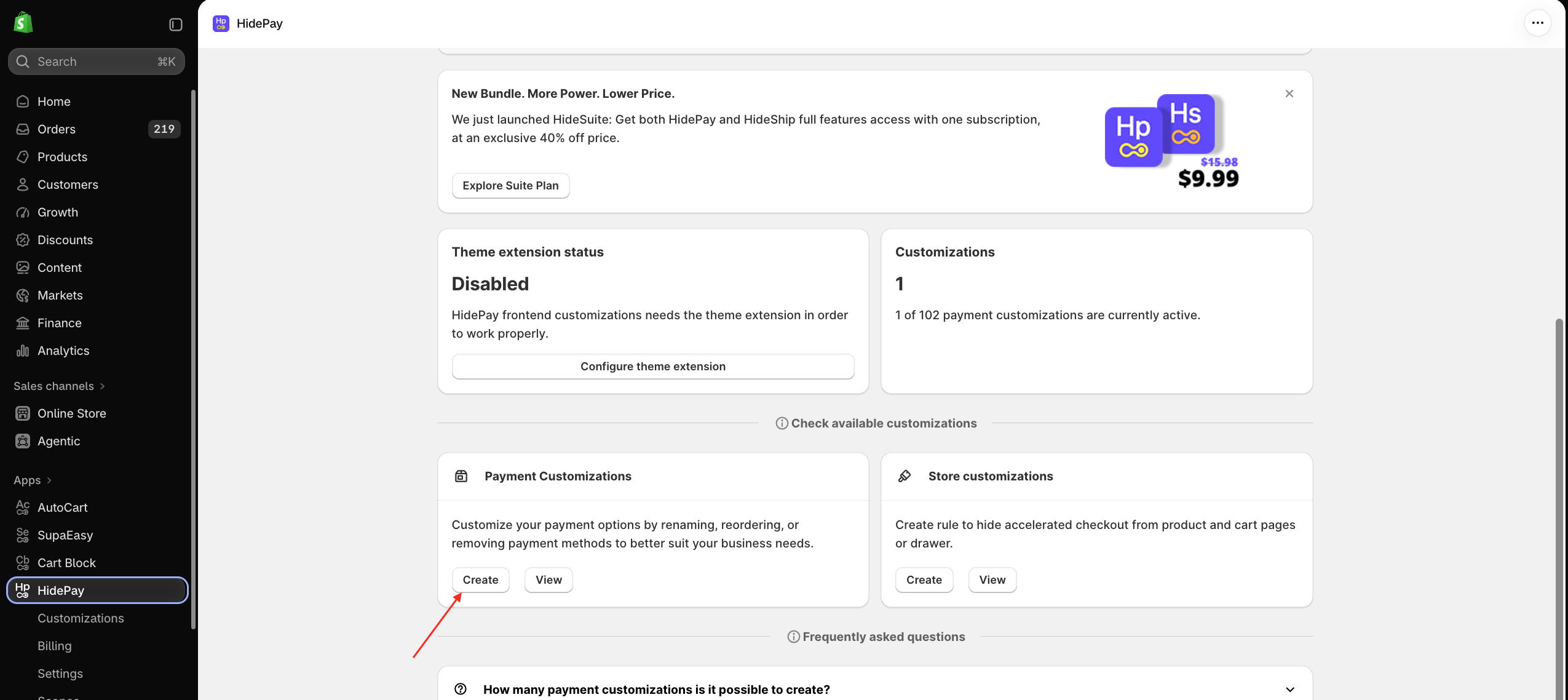
A pop-up window will appear displaying the available customization types.
Select Translate Payment Methods to open the translation configuration interface.
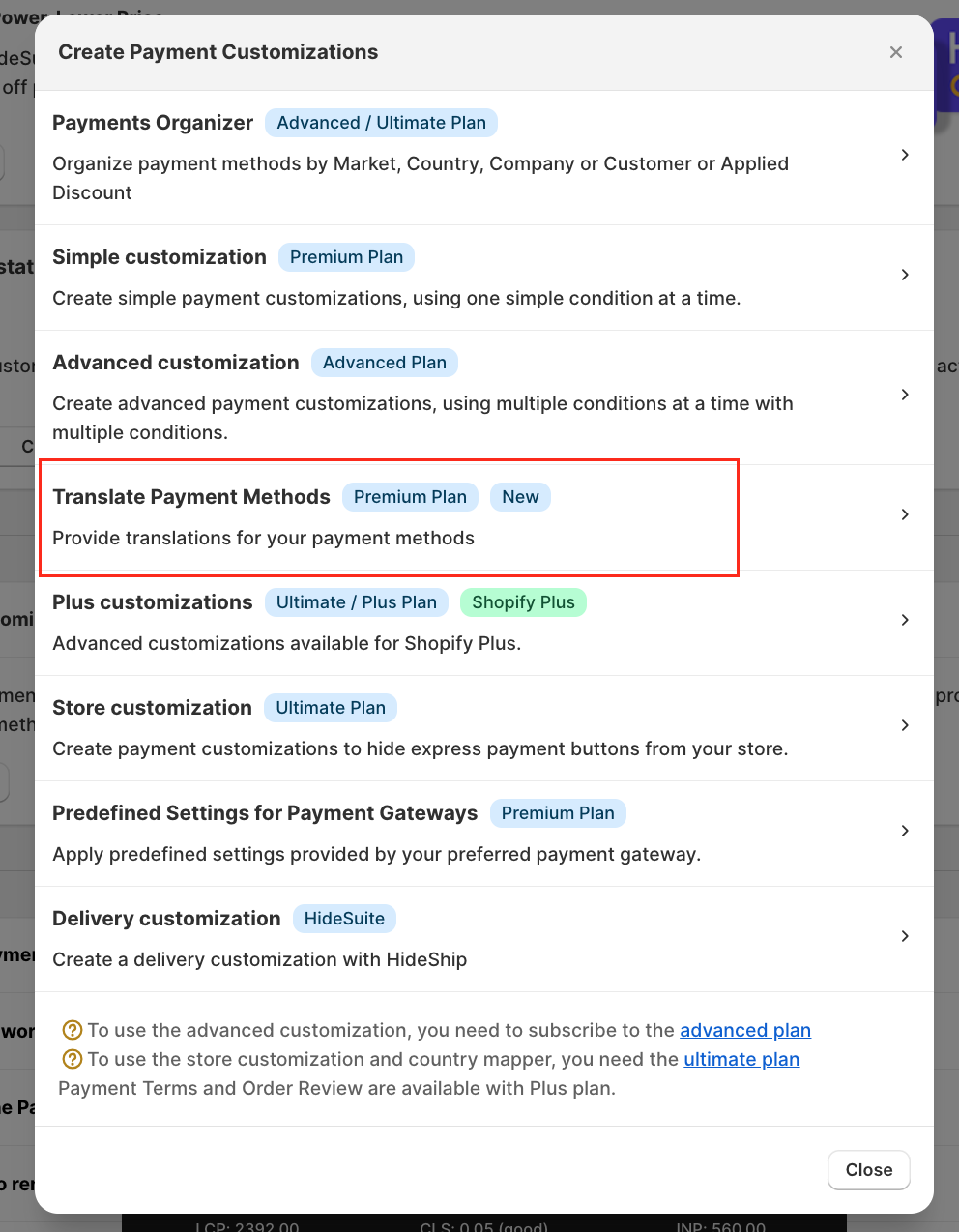
Give Your Translation Rule a Name. Locate the Title field and enter a descriptive name for your customization.
For example, you could use: Payment Method Translations – EN & IT
In this example, we are using: NXT - Payment Translations
A clear title makes it easier to identify, manage, and update your translation rules, especially when your store uses multiple shipping customizations.
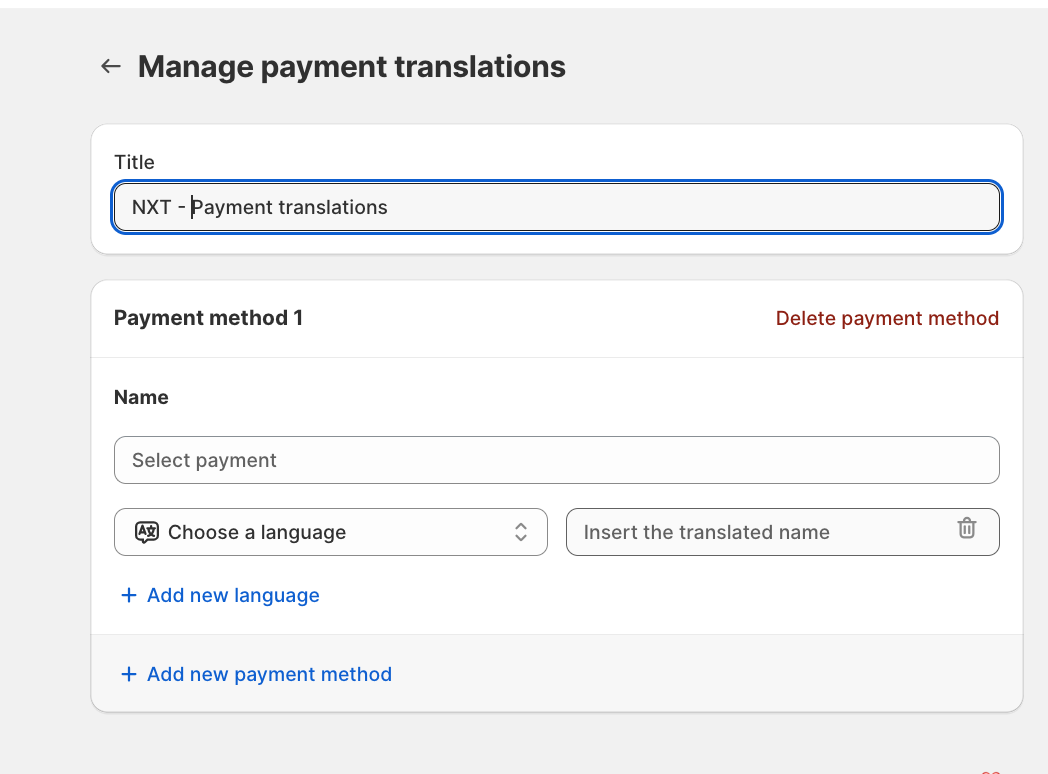
Select the Payment Method You Want to Translate
Click Select Payment to choose the payment method you want to customize.
The dropdown displays the payment methods available from your store's configured payment profiles.
Select the payment method whose name you want to translate.
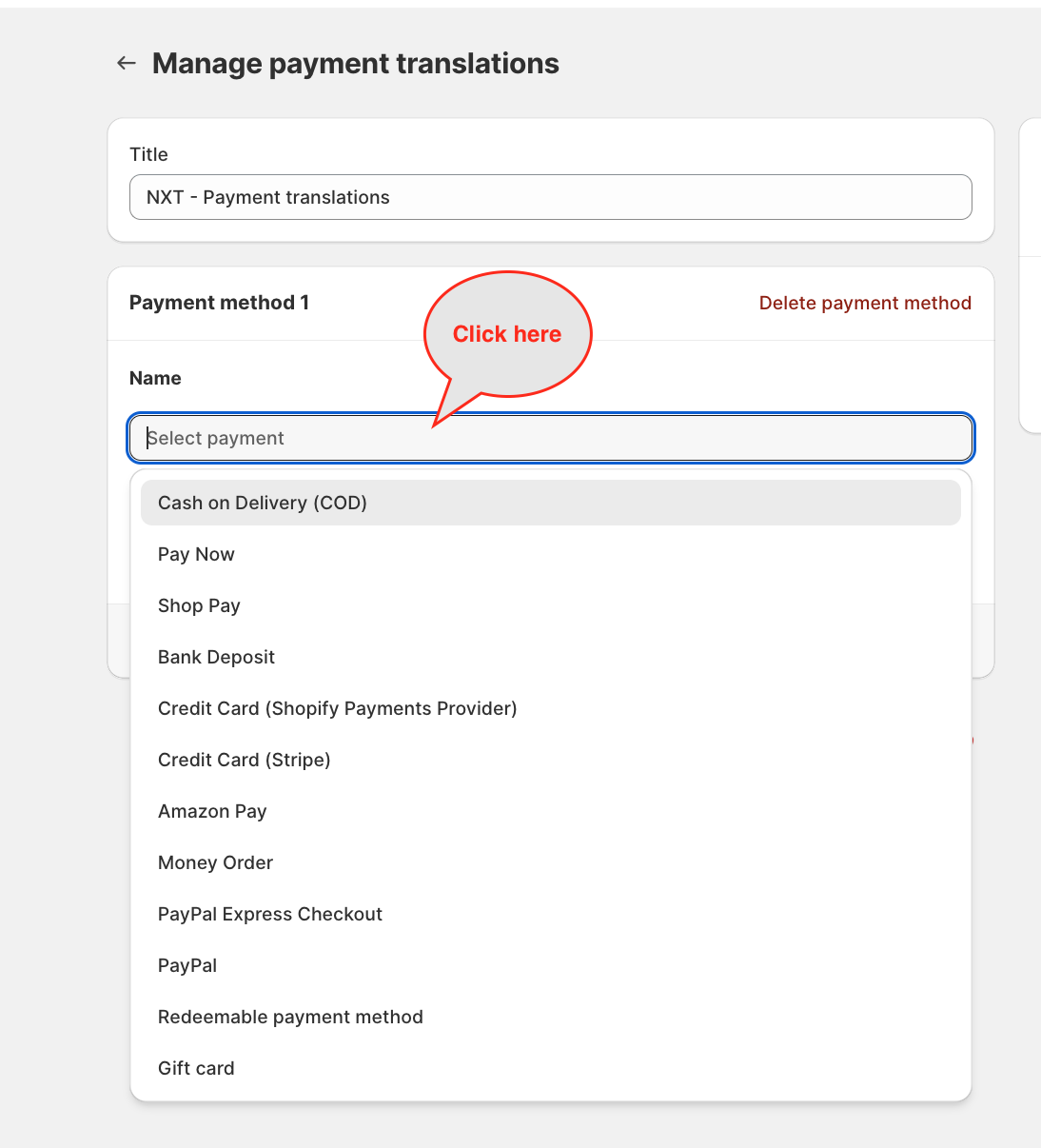
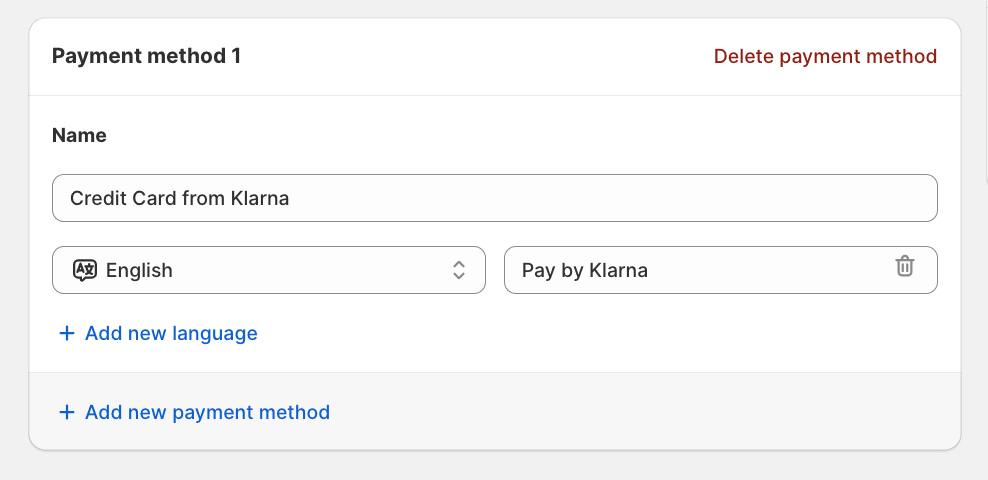
Important Note: Manually Adding Payment Methods for Translation If the payment method you want to translate is not available in the Select Payment dropdown, you can manually enter its exact name in the Name field. For example:
- Original Payment Method: Credit Card from Klarna
- Language: English
- Translated Name: Pay by Klarna
Please Note: The manually entered name must match the payment method name displayed at checkout/logs for HidePay to identify it and apply the translation correctly.
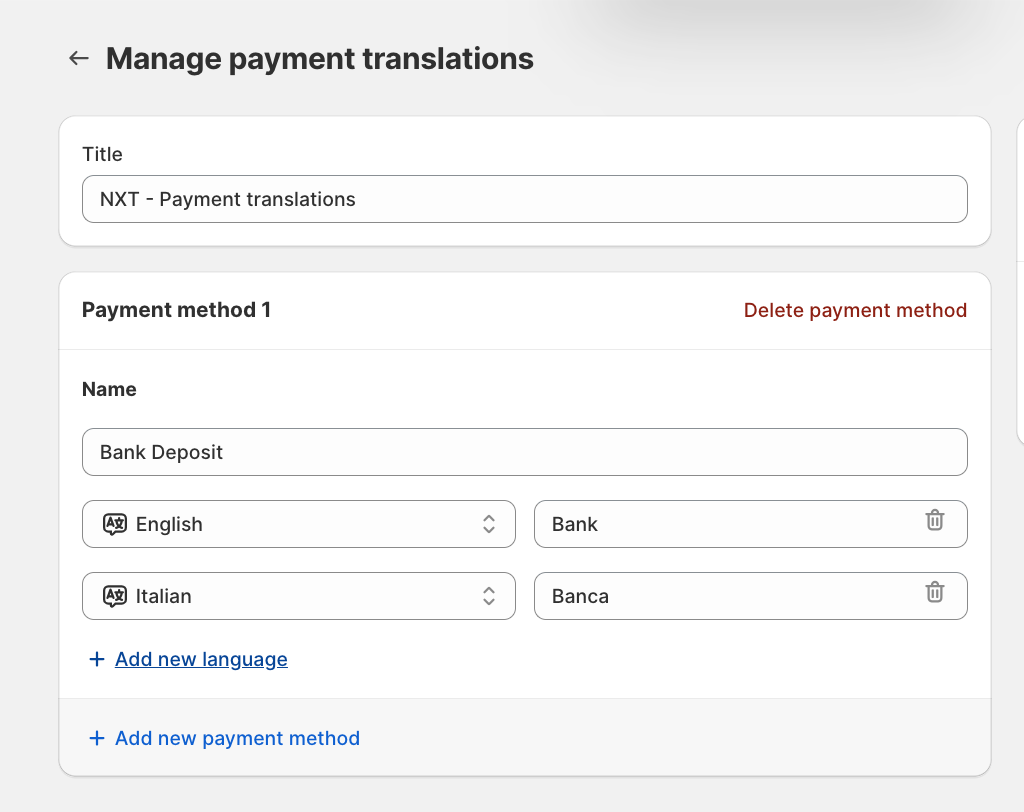
For this tutorial, we will select Bank Deposit from the Name dropdown.
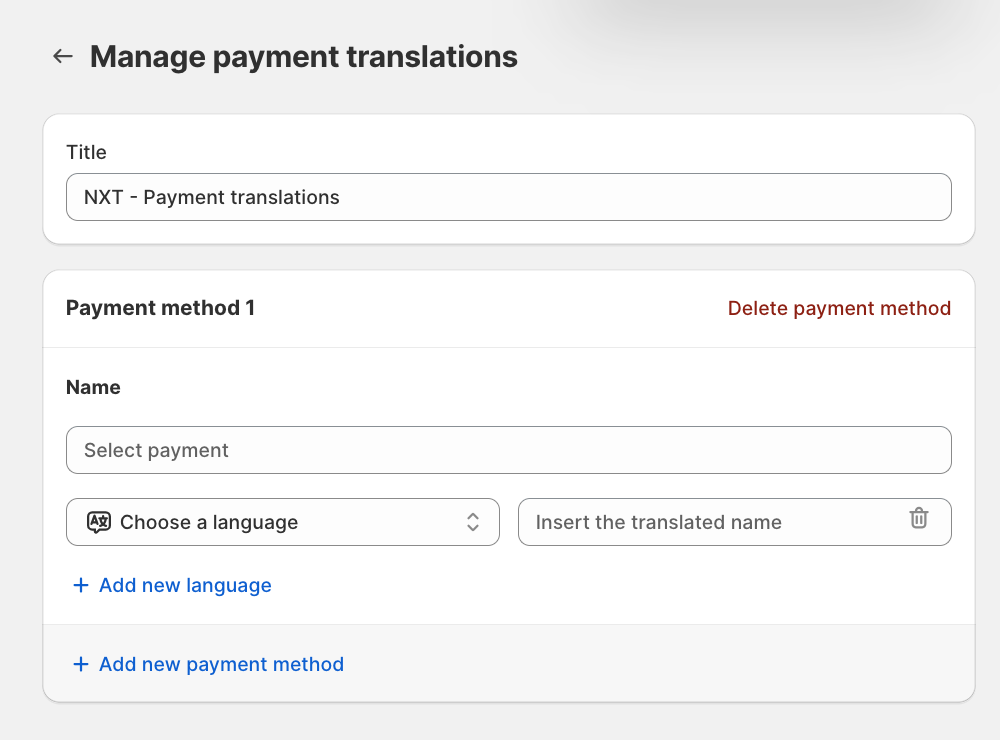
Important: HidePay translates the displayed names of existing payment methods. It does not create a new payment service or change the payment rate itself.
Configure the English Translation
After selecting Bank Deposit, choose English from the language dropdown.
In the translated name field, enter: Bank
This configuration means that when the customer's checkout language is English, the existing Bank Deposit Payment method will be displayed as Bank.
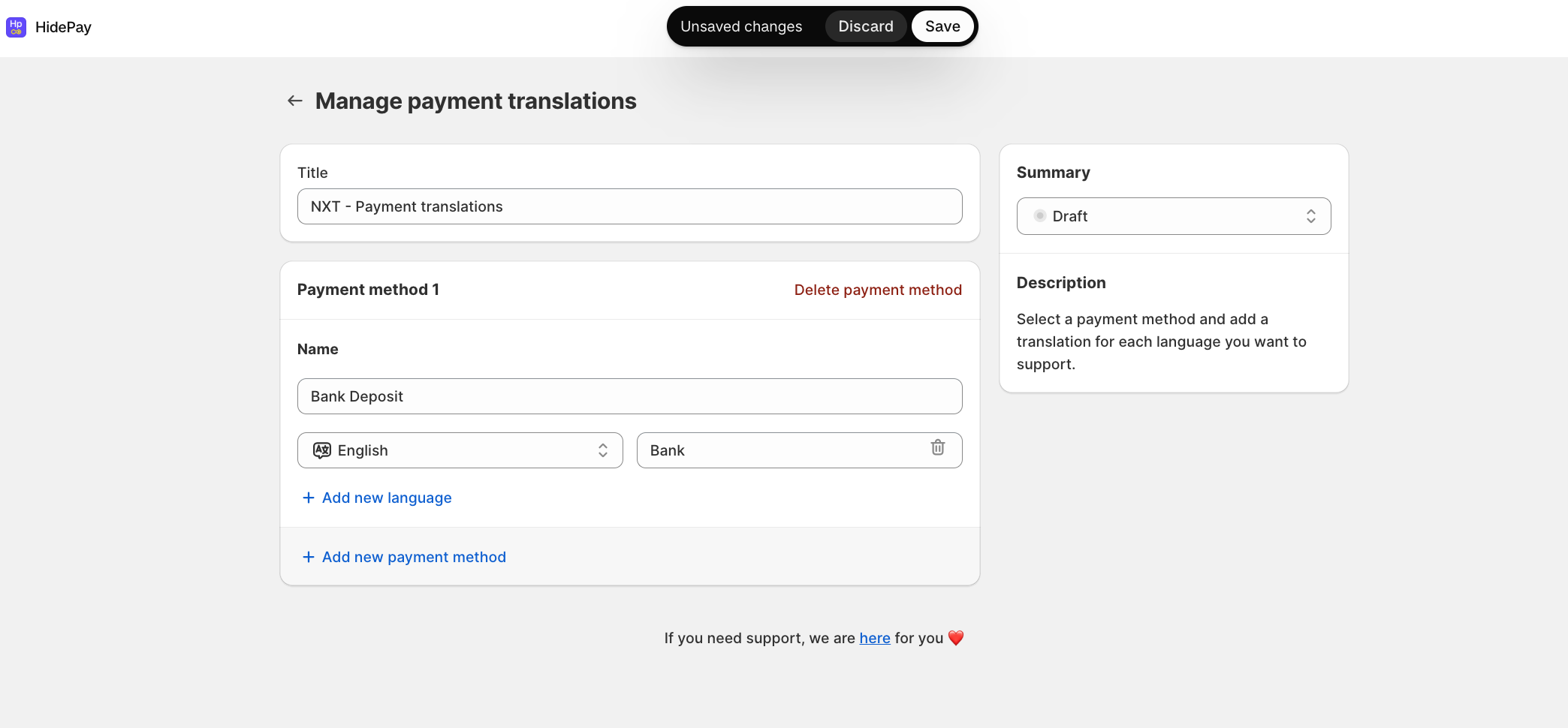
Add an Italian Translation
To configure another language for the same payment method, click + Add new language.
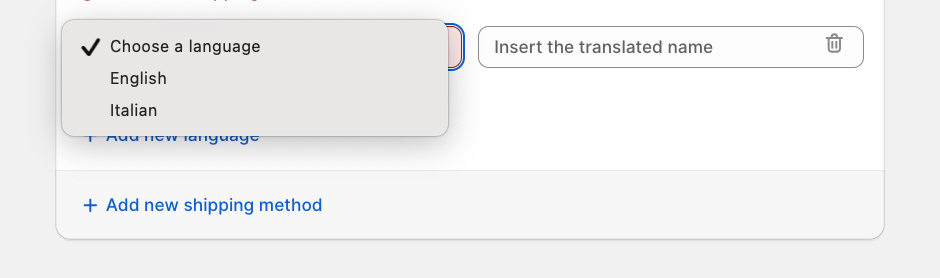
From the language dropdown, select Italian. In the translated name field, enter:
Banca
The Bank Deposit payment method now has two language-specific display names:
Important Note – Language Availability
The languages available for translation depend on your store's configured languages.
Make sure the required languages are enabled in your Shopify store before configuring their translations in HidePay.
Add Another Payment Method
HidePay allows you to configure translations for multiple payment methods within the same customization.
To add another method, click + Add new payment method.
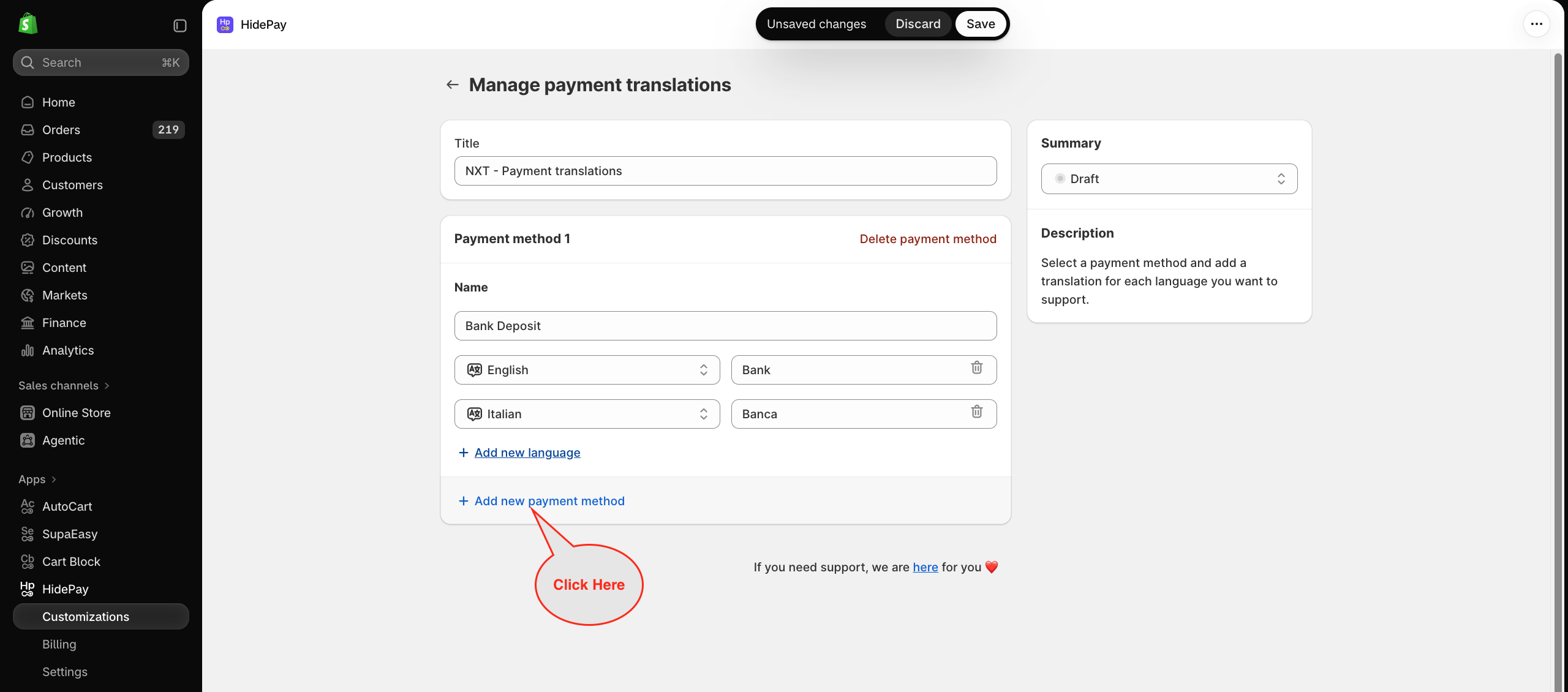
A new payment method configuration section will appear.
Click the Name dropdown and select Shop Pay.
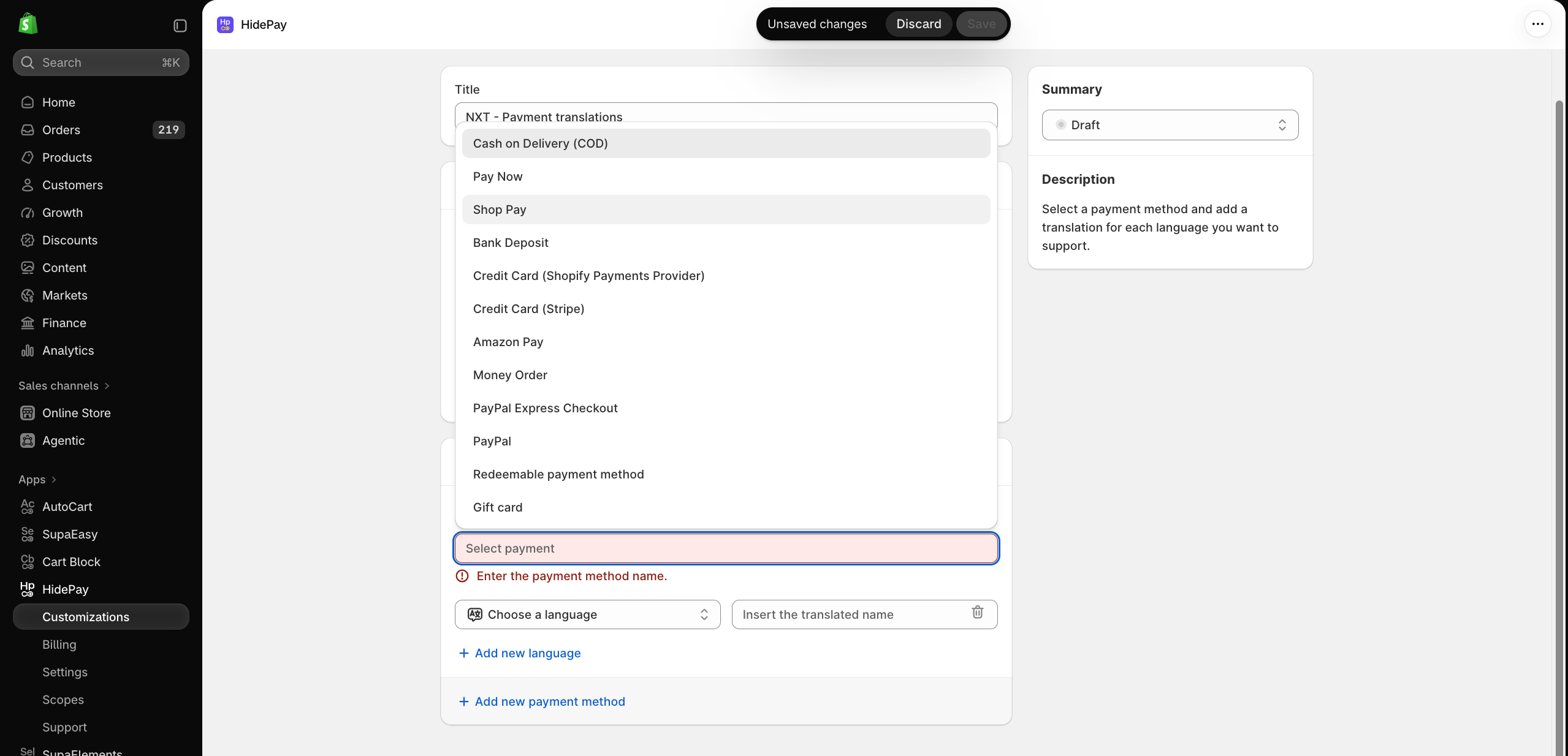
Configure English and Italian Names for Shop Pay
For the English translation:
-
Select English.
-
Enter Shop - Easy Pay as the translated payment method name.
Next, add another language entry and select Italian from the dropdown.
Enter Shop - Italia as the translated name.
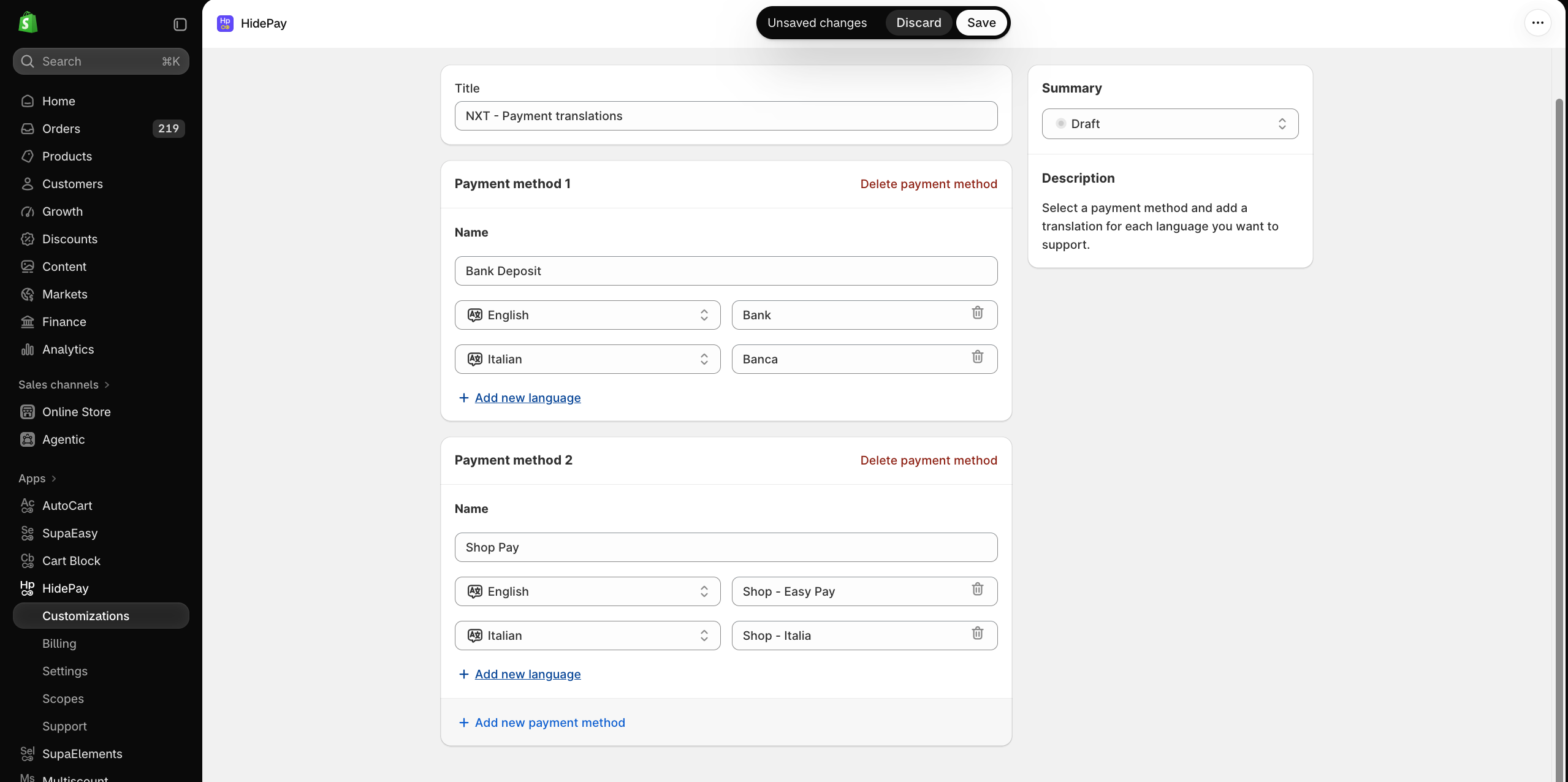
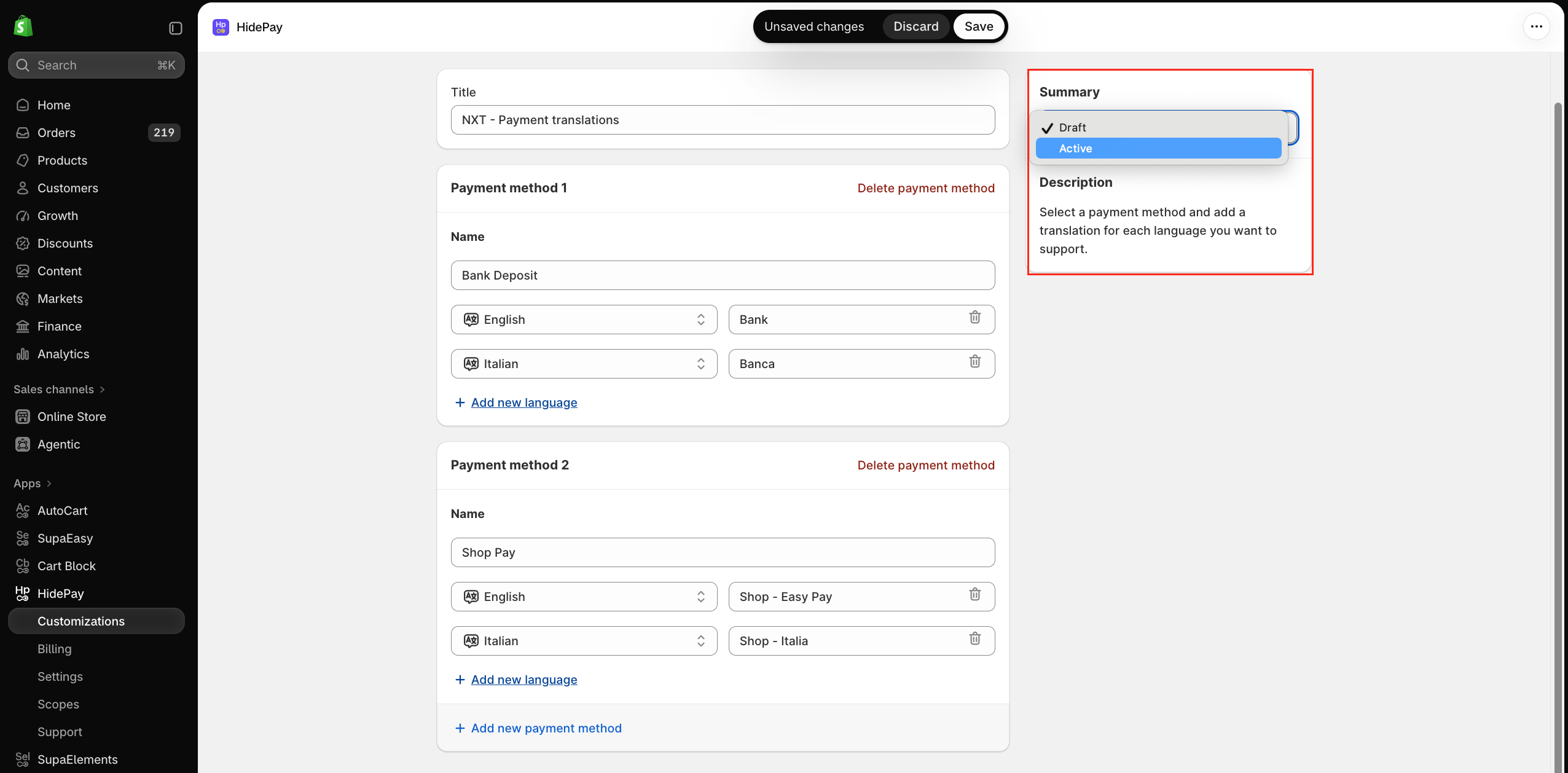
Summary sidebar, click the dropdown and select Active. This action changes the status of the payment method to active, making it available for use in your store.
Click the Save button to ensure all the modifications and translations you have entered are stored in your system.
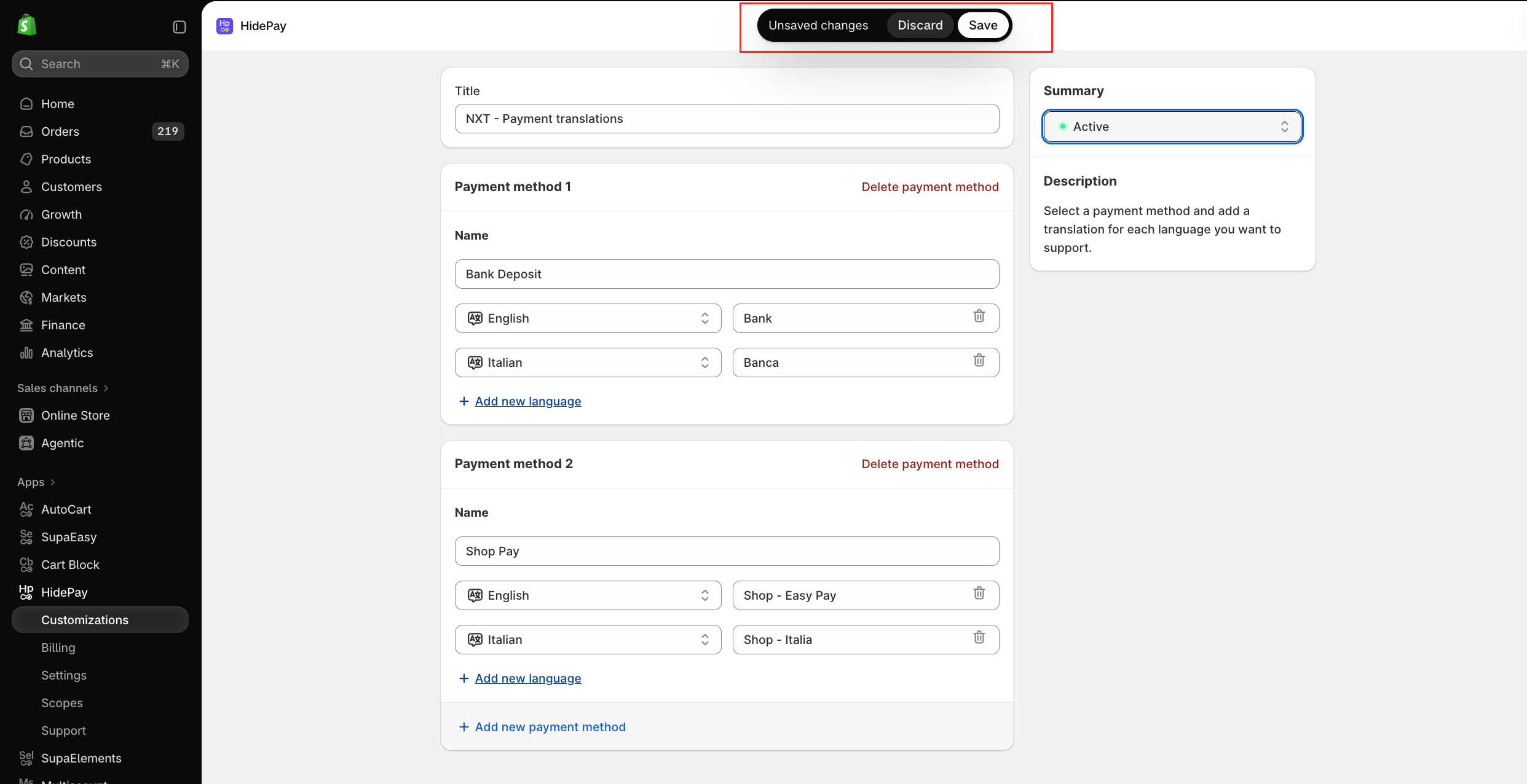
Your translation customization is now saved and, if set to Active, ready to apply to the configured payment methods.
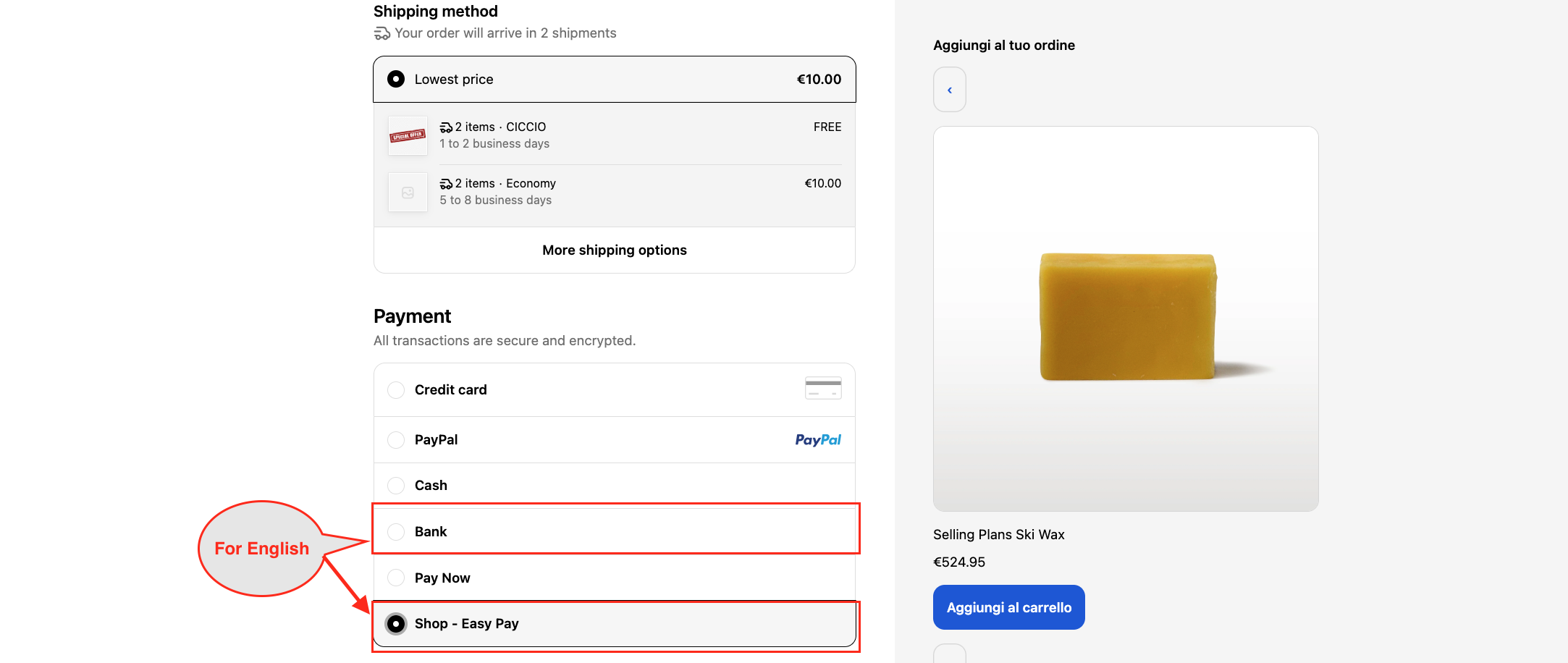
For English Language
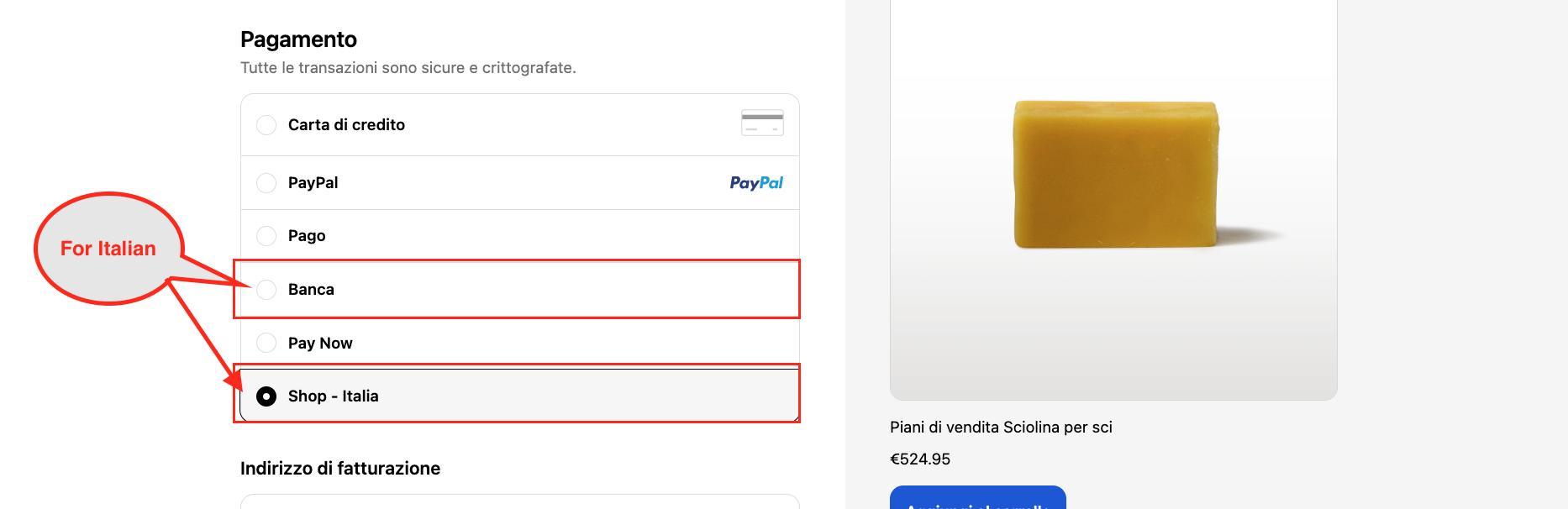
For Italian Language
If you have any questions or need assistance during setup, our team is here to help. You can contact the Nextools Support Team anytime via the in-app live chat or by email. We’ll be happy to assist you.
We’re glad to support you with the HidePay application! 🚀
