In this tutorial, we will show how to use AttributePro to automatically create a cart attribute when an order exceeds a specific value.
We will create a rule that sets a custom cart attribute when the cart total is greater than €1000.
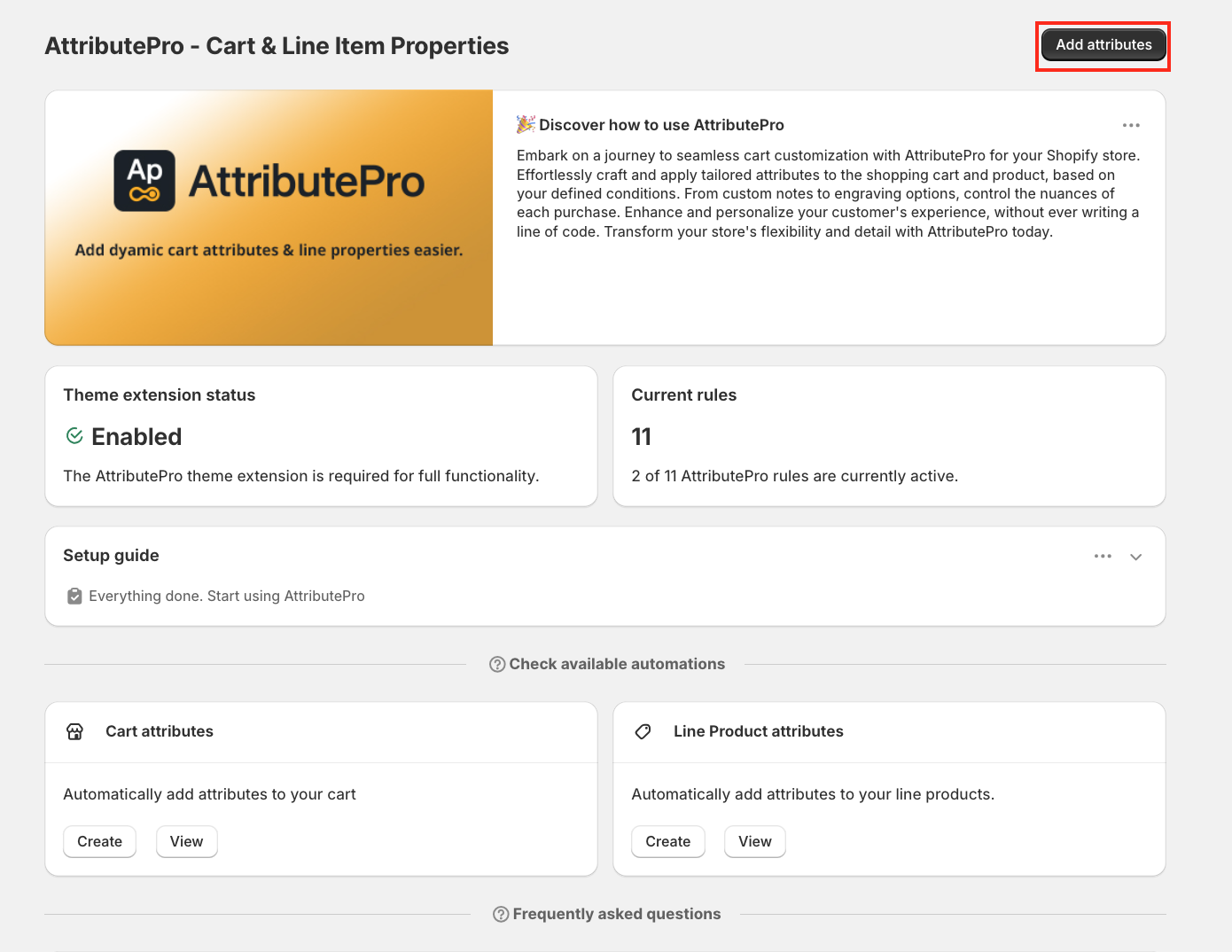
To begin, open the AttributePro app and click Add Attributes to create your first rule.
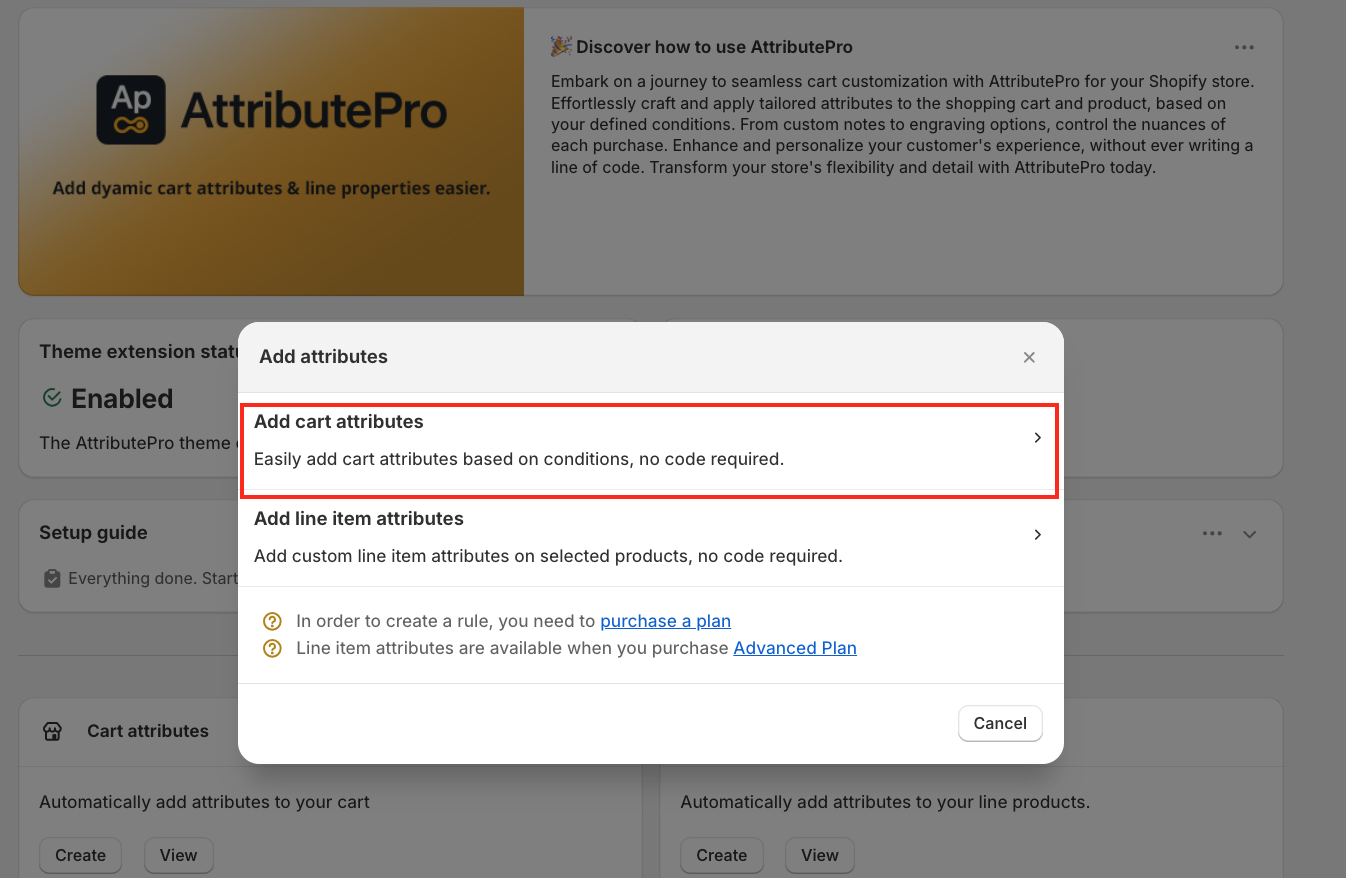
A pop-up window will appear. Select Cart Attribute to continue.
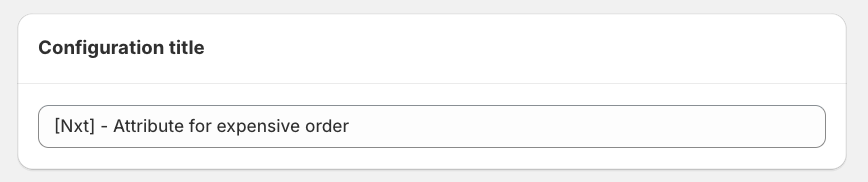
Enter a configuration title, for example: [Nxt] – Attribute for Expensive Order
Under Conditions to set the attributes, configure the following: Select Cart total, Choose Greater than and Enter €1000
This means the rule will trigger whenever the cart value exceeds €1000.
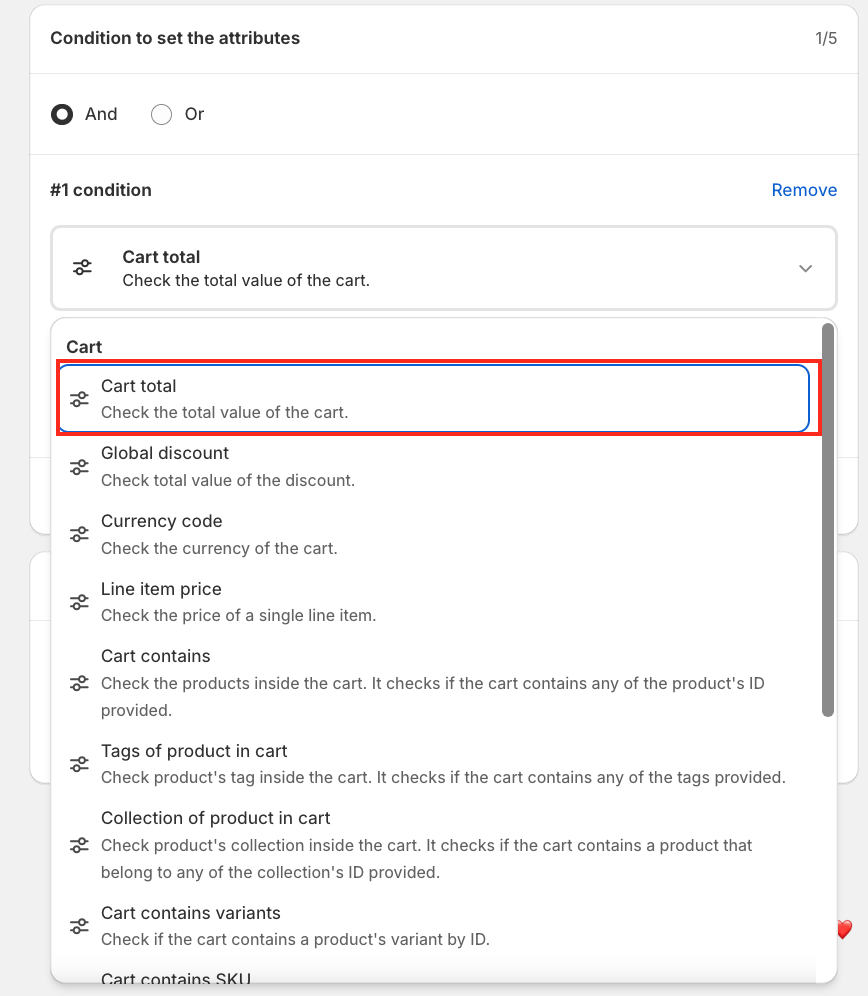
Cart total → Greater than → 1000
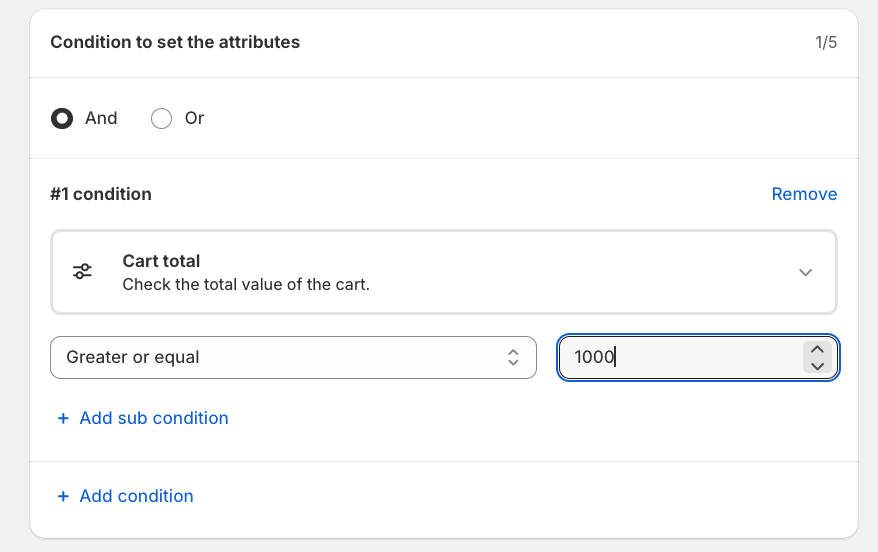
Now, configure the cart attribute for expensive orders.
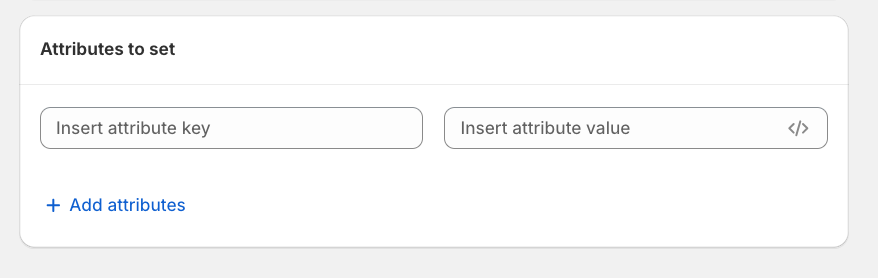
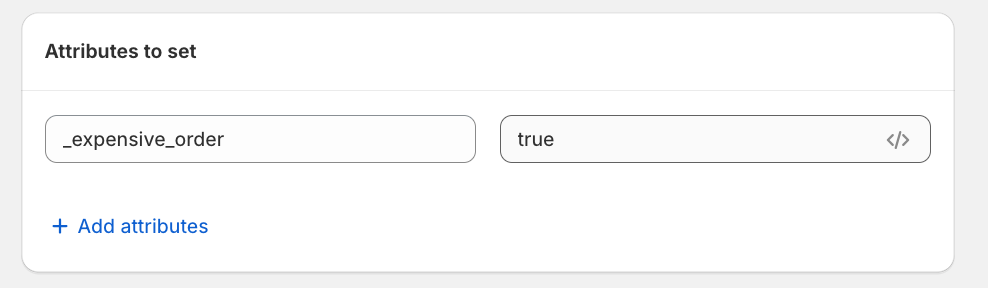
After setting up the attribute for the expensive order
Key: expensive_order --- Abhi - Change the below screenshot
Value: true
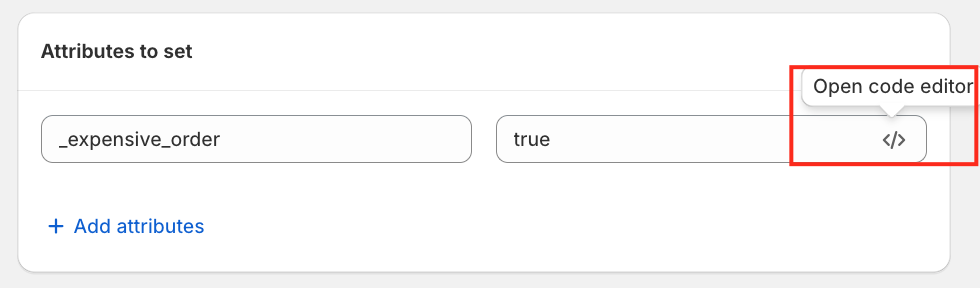
AttributePro also provides a code editor option. Simply hover over the code icon and click it to open the editor. This is useful if you want to write a longer or more complex attribute value.
The code editor is used to set the calculated attribute value using the Liquid language, using one of these values: For example;
"cart", "cart.checkout_charge_amount", "cart.item_count", "cart.note", "cart.total_discount", "cart.total_price", "customer", "customer.b2b", "customer.current_company", "customer.current_company.name", "customer.email", "customer.last_order", "customer.last_order.id",
Click Save, and make sure the rule status is set to Active.
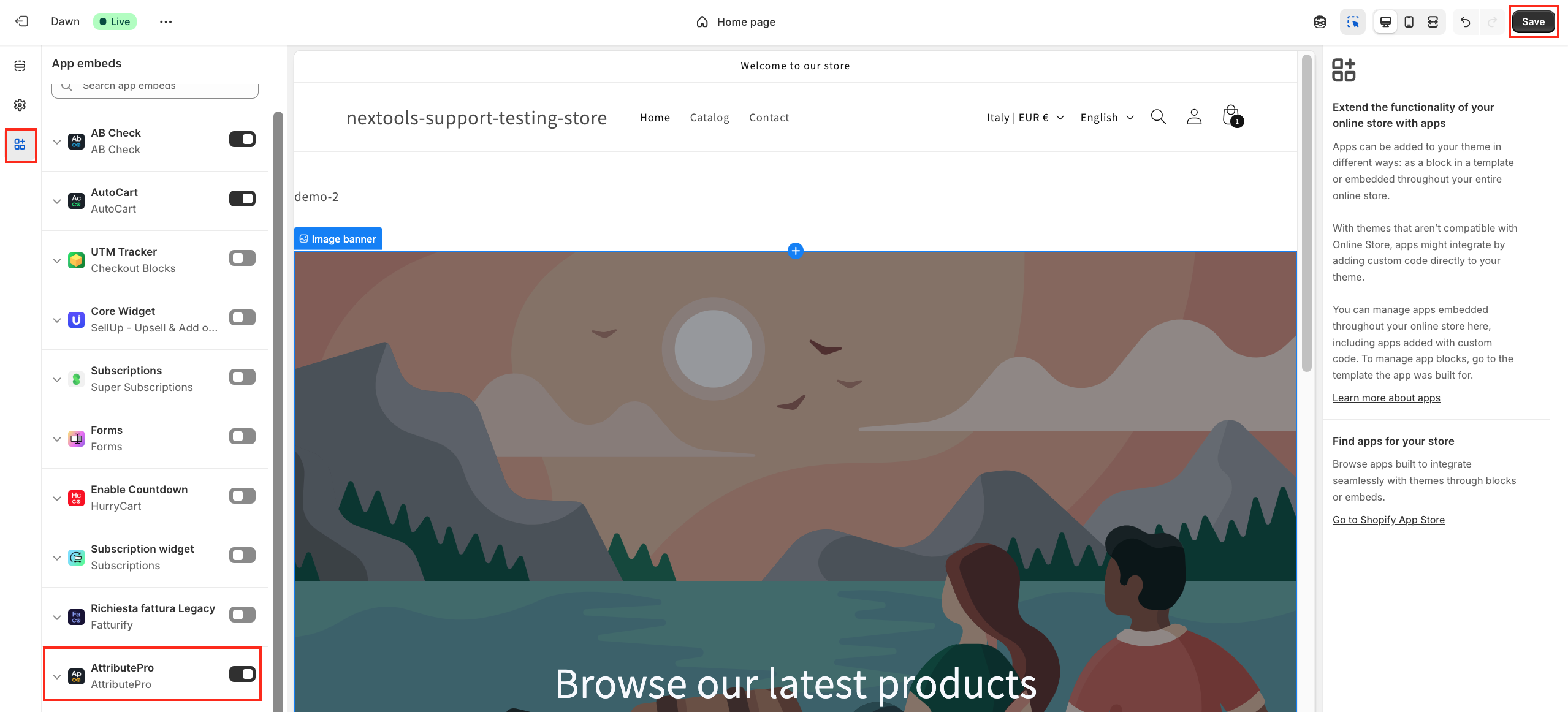
This cart attribute is set from the storefront. To ensure it works correctly, please enable the theme extension, open Theme Customisation, add the AttributePro app block to the checkout page, and save your changes.
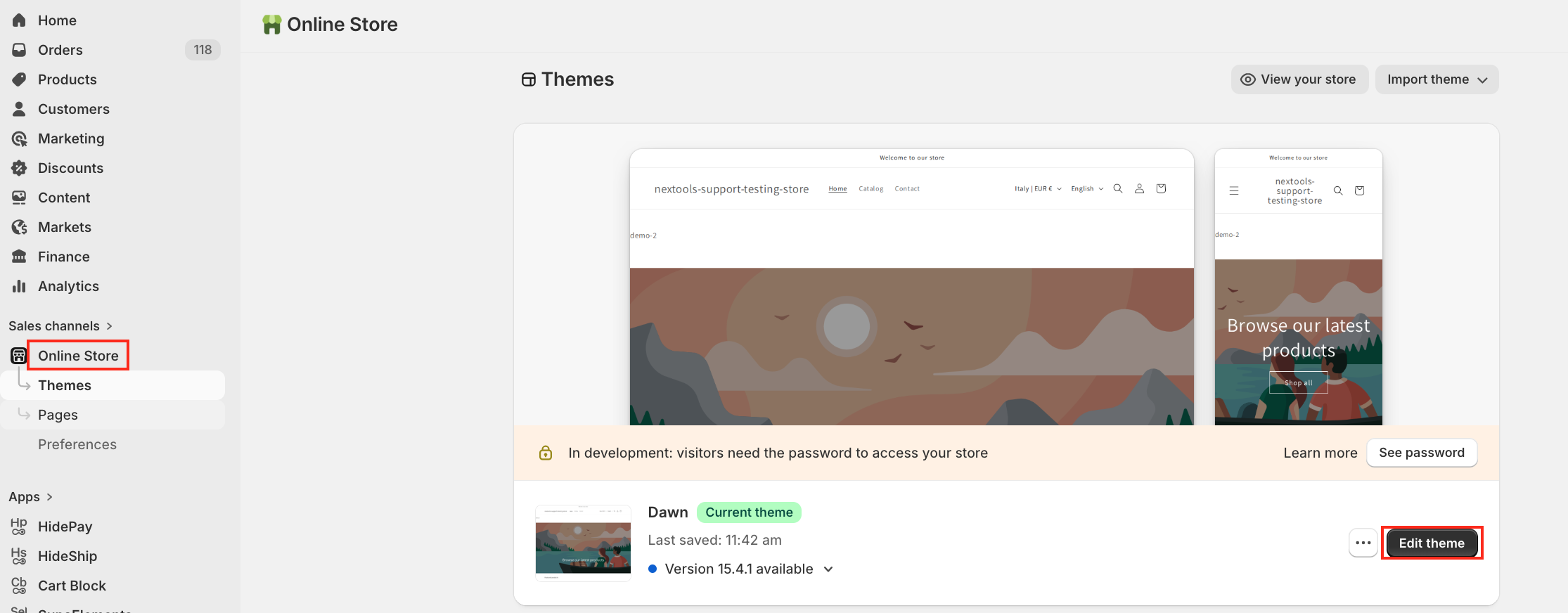
In the next step,
For more information, you can reach us via email or live chat.
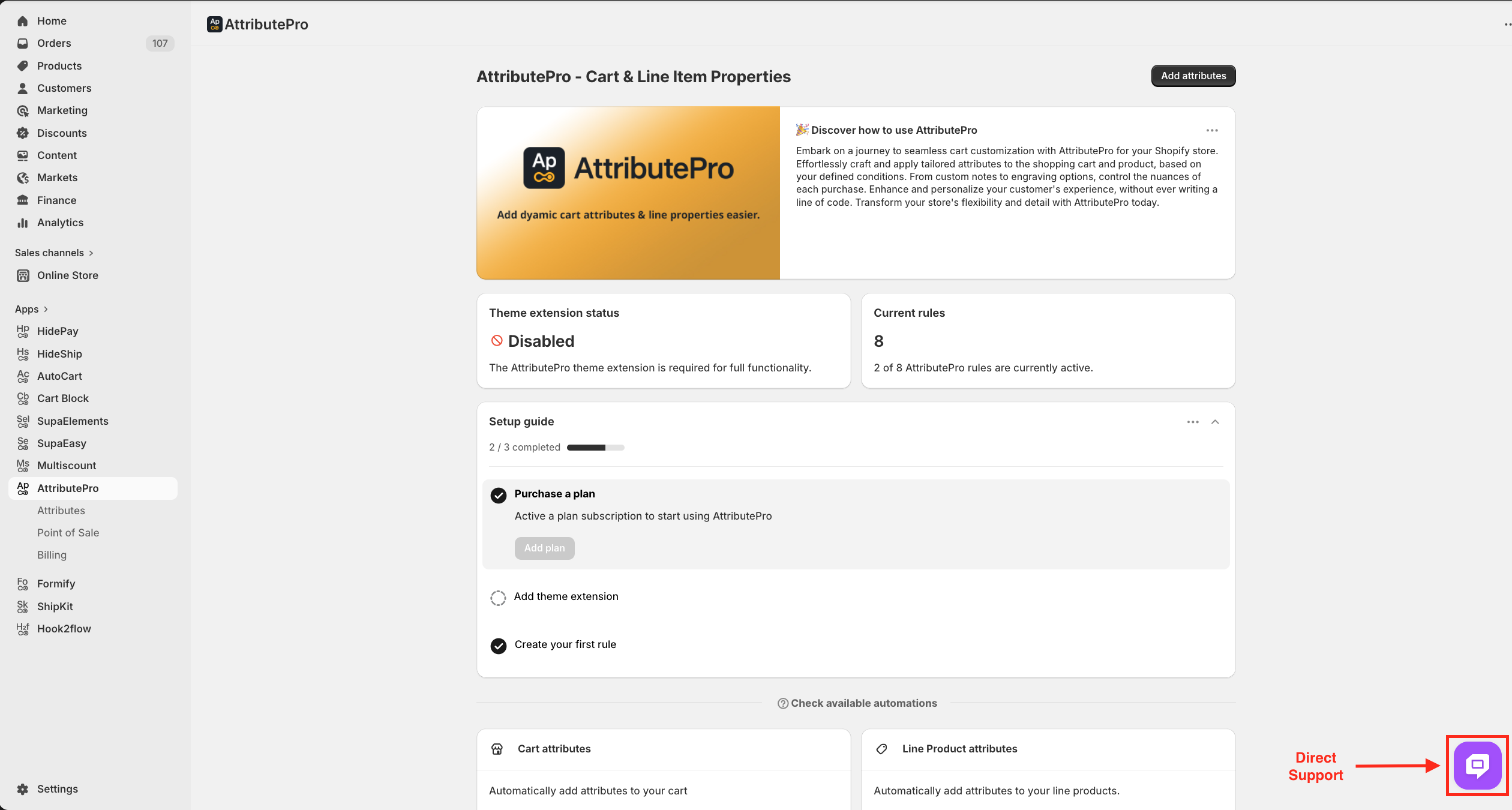
We are always happy to assist you with any questions or concerns.
Thank you for trusting Nextools and using the AttributePro application.
