In this step-by-step tutorial, we will guide you through using CartBlock to block specific shipping methods using the CartBlock application by Nextools.
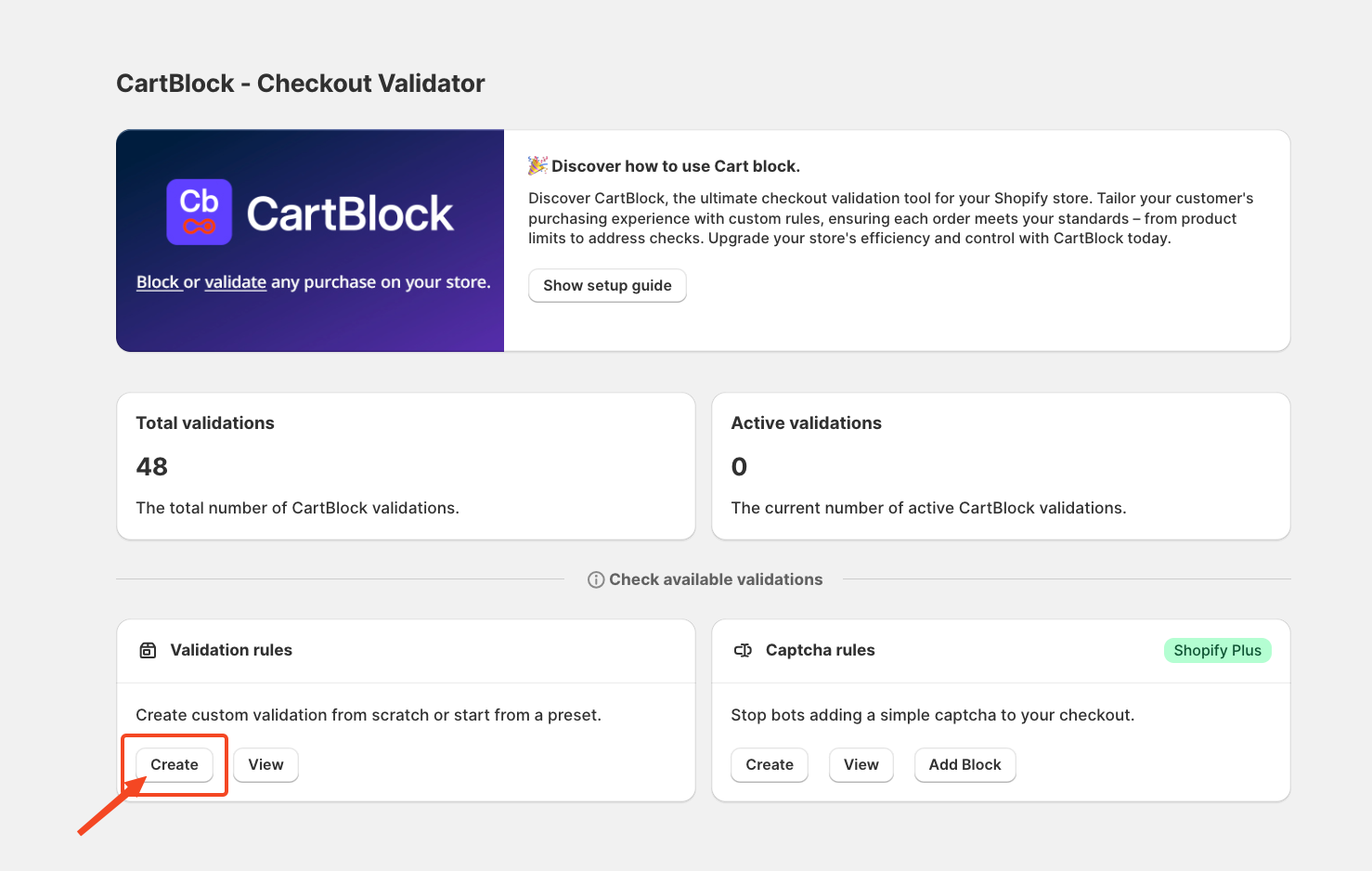
To begin, navigate to Validation Rules and click the Create button.
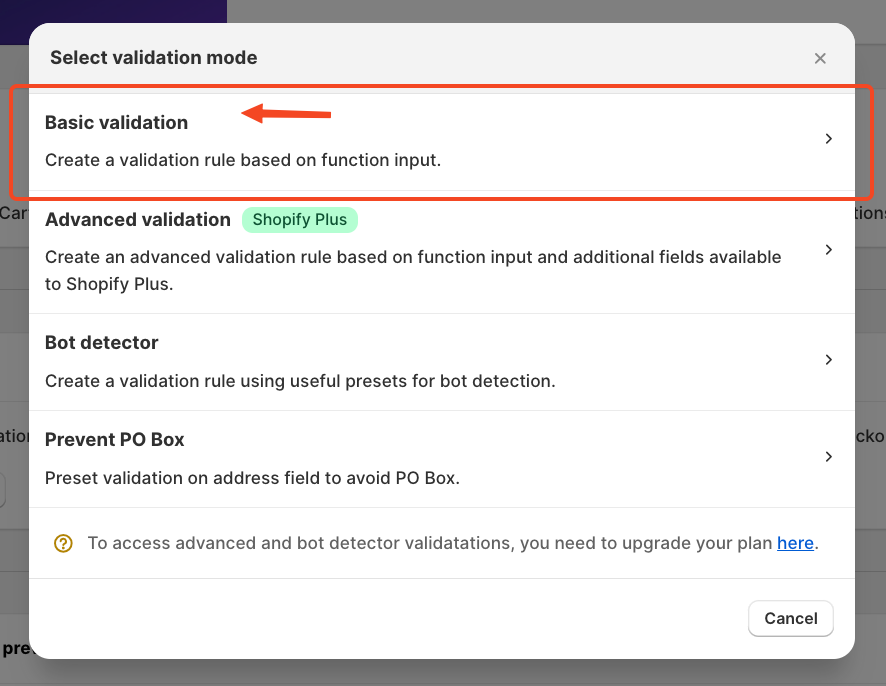
Once you select this option, a pop-up window will appear, prompting you to choose the type of validation you need. After selecting Basic Validation, the setup screen will appear.
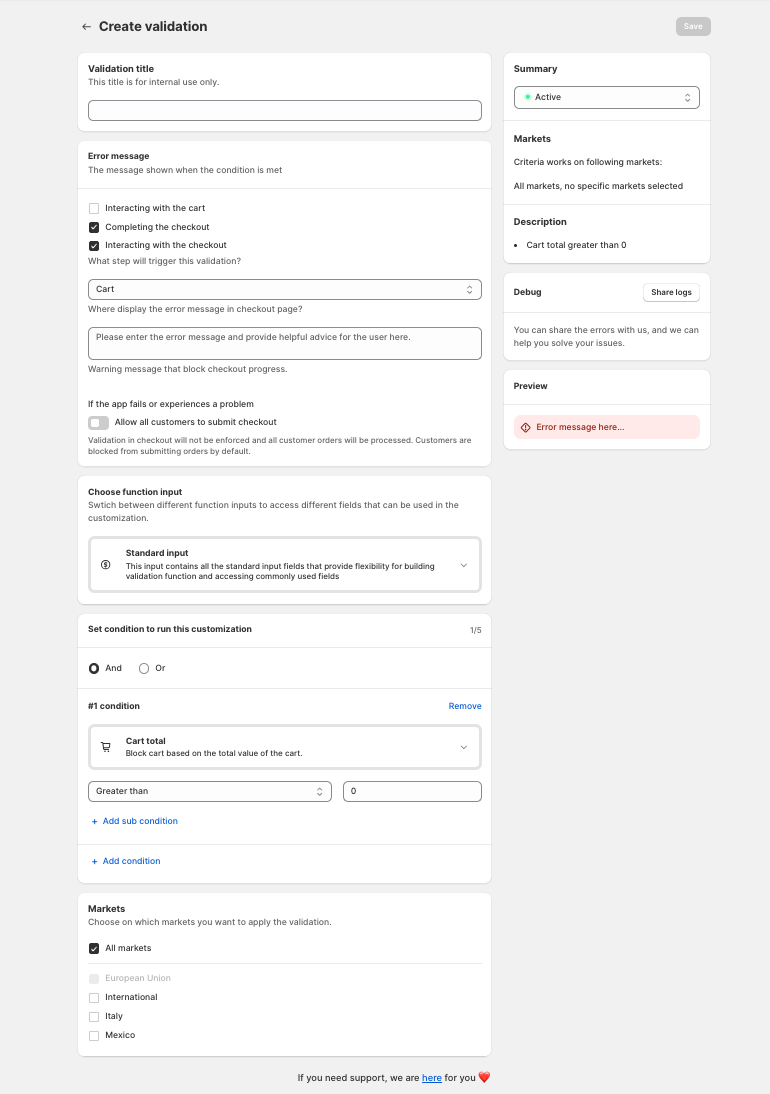
Once you click on the basic validation, the validation will look like this;
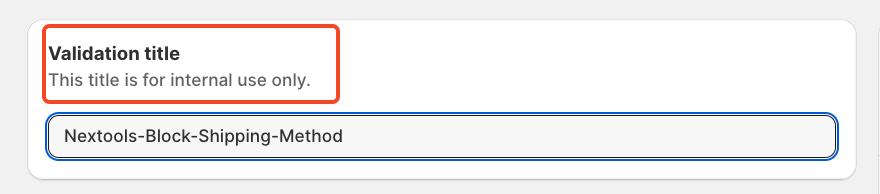
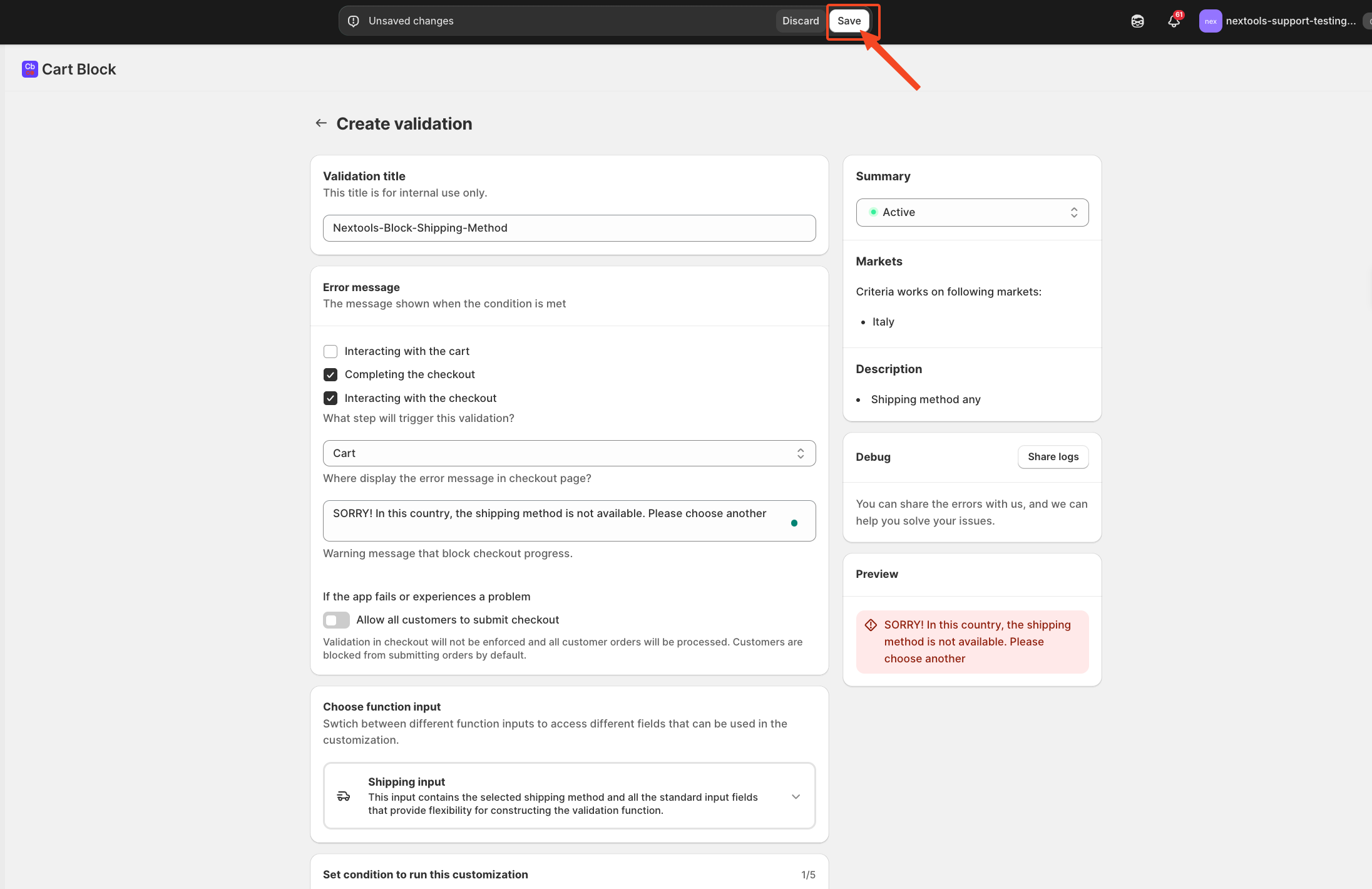
The first step is to assign a Validation title. This title is for internal reference only and will help you manage your rules more efficiently.
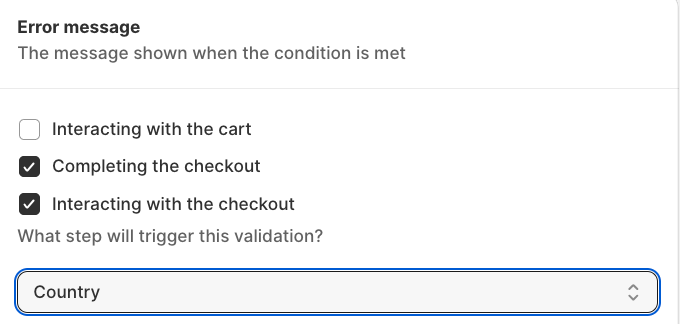
In the next step, we will define the Error Message
Next, determine where the validation should be applied. CartBlock offers three scopes: interactions with the cart, checkout completion and interaction within the checkout process. You can enable one, two or all three, depending on your requirements.
For example, we will enable completing the checkout and interacting with it.
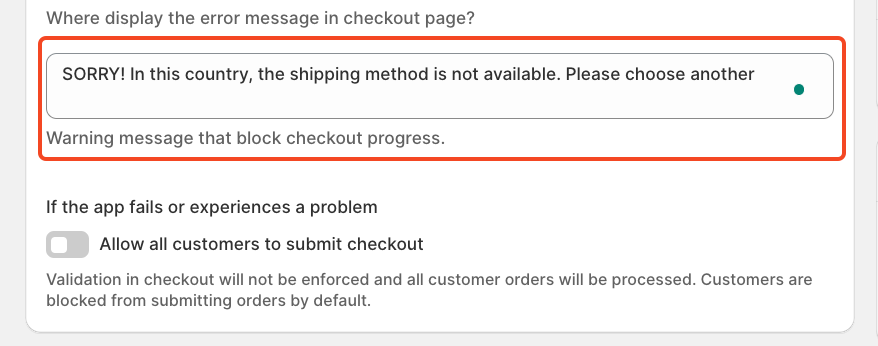
 The configured error message will be displayed on the checkout page whenever a customer selects the blocked shipping method.
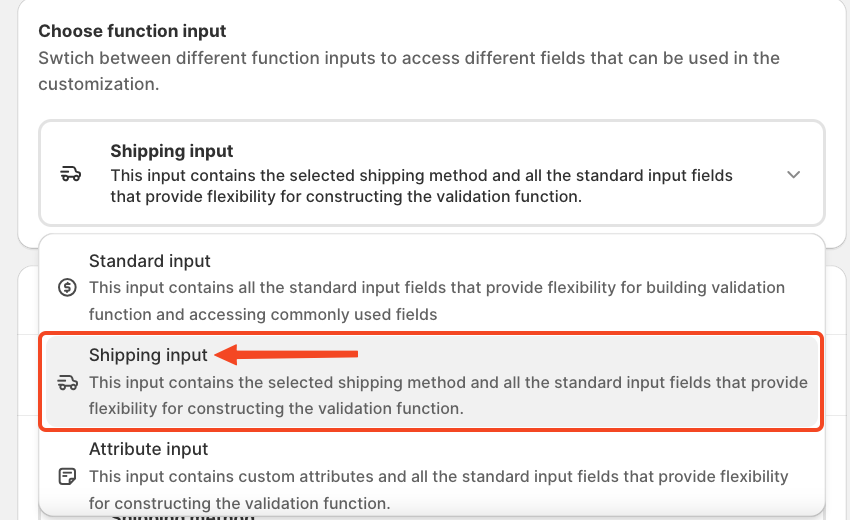
In this step, you need to choose the function input, which allows access to different fields for customisation. Since we are hiding a specific shipping method, we will select the Shipping Input option.
After selecting the input, configure how you want to apply the condition. There are multiple options available.
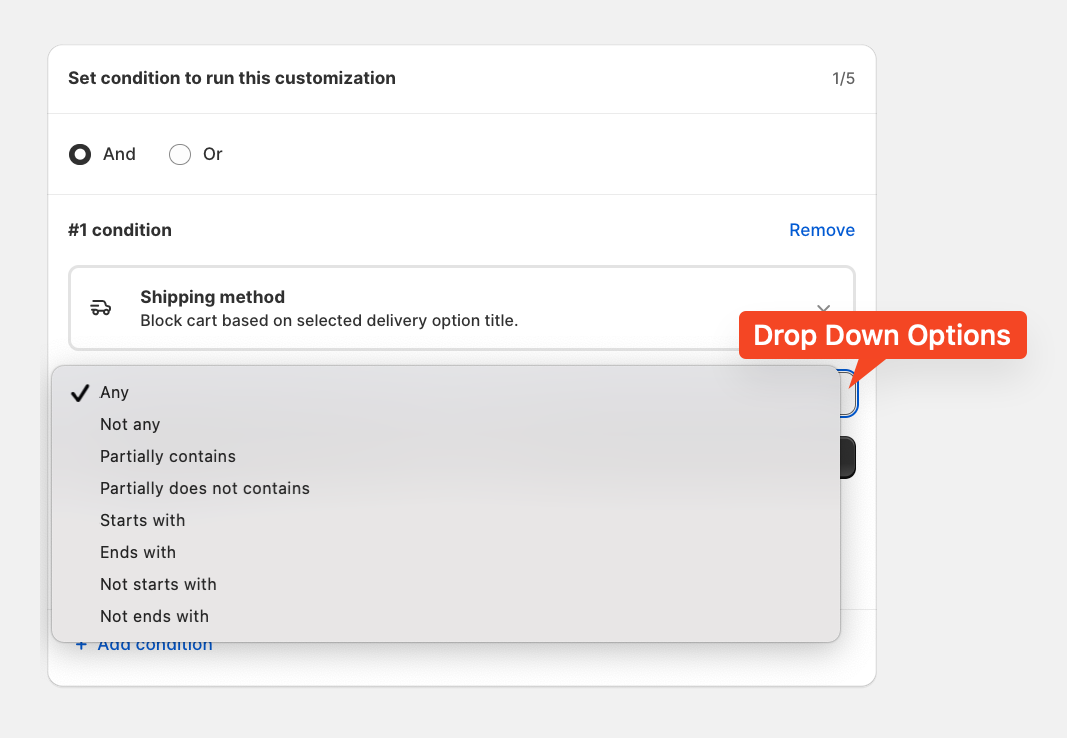
In this example, we will block the "Any" shipping method for customers in Italy.
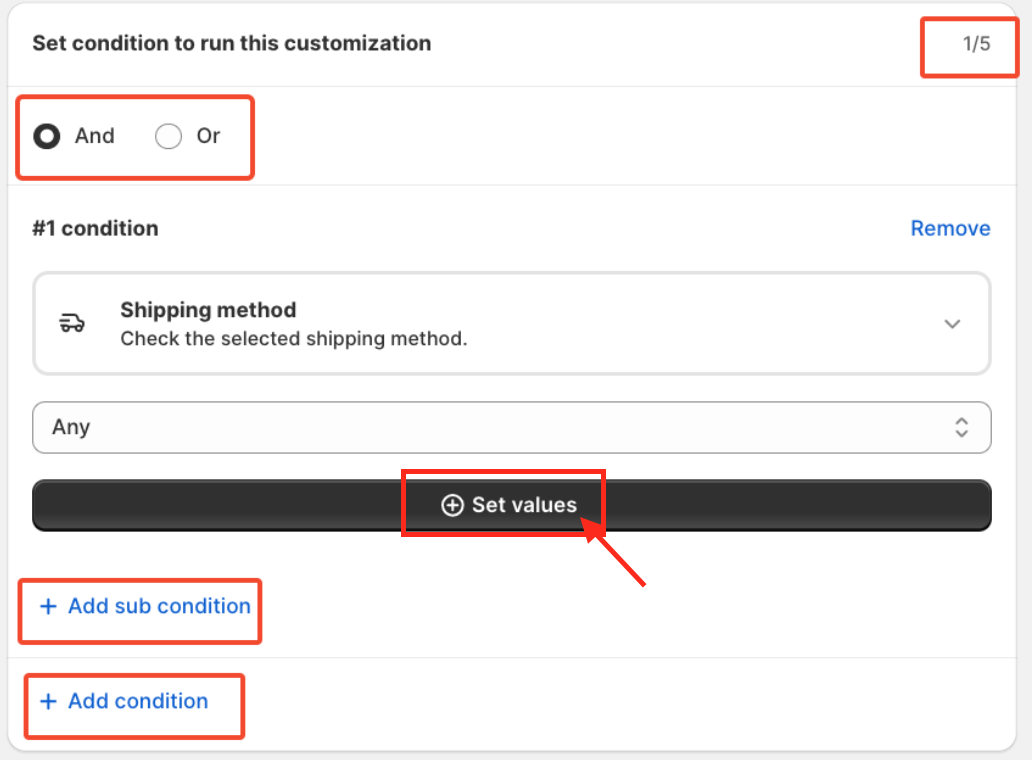
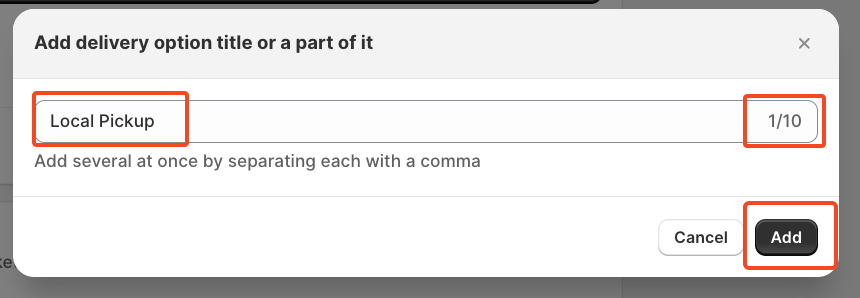
However, you can select a specific shipping method if you want to block it at checkout.
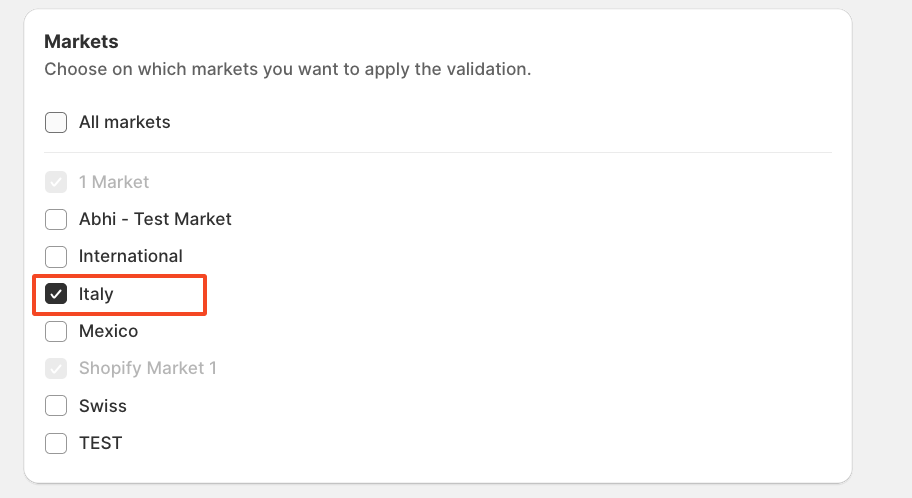
Next, specify the market where this validation should be applied. In this case, we are restricting any shipping option for customers in Italy.
As you configure conditions, a summary panel appears just below the Save button, providing a clear overview of the rules you've set.
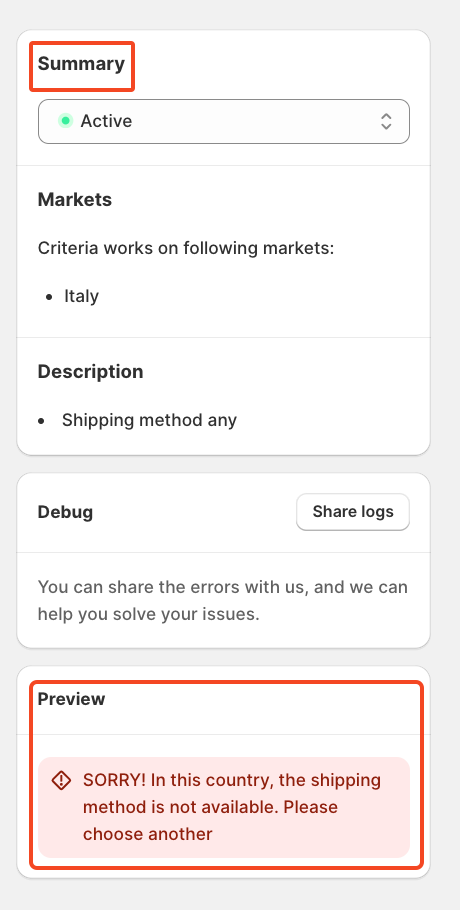
Once you're done setting everything up, click Save to apply the rule.
If you need further assistance, feel free to contact us via support email or connect with us directly through HelpCrunch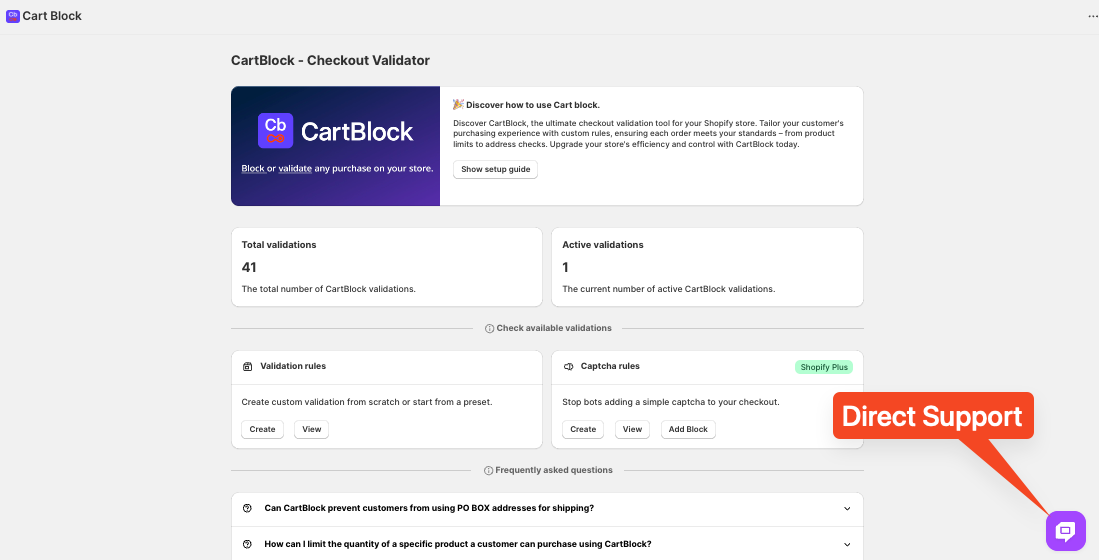
We are always happy to assist you with any questions or concerns.
Thank you for trusting Nextools and using the CartBlock application.
