The Weekday Range condition in CartBlock allows you to set specific start and end weekday for your checkout validation rules. Whether you are running a temporary promotions, enforcing order restrictions during specific days of the week, avoiding weekends or exclusively for weekends , this feature ensures your conditions activate and deactivate automatically.
What You'll Need
-
An active installation of the CartBlock app in your Shopify store.
- A active plans Subscription.
-
At least one draft or active checkout validation rule in CartBlock.
Create or open a validation rule
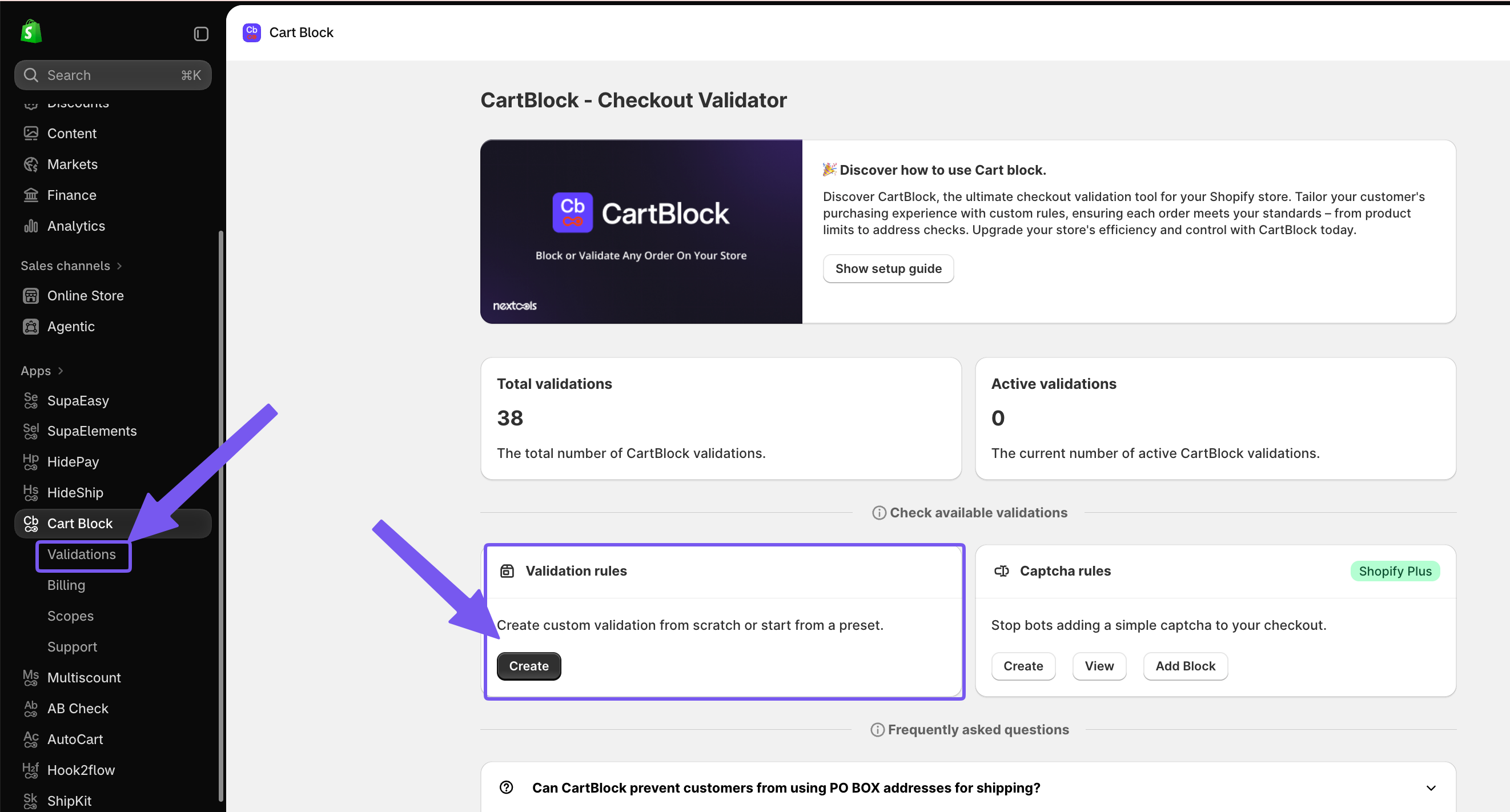
Navigate to the CartBlock app inside your Shopify admin dashboard. From the main menu, select Validation Rules and click Create to build a new rule, or choose an existing rule from your list.
Name your Validation
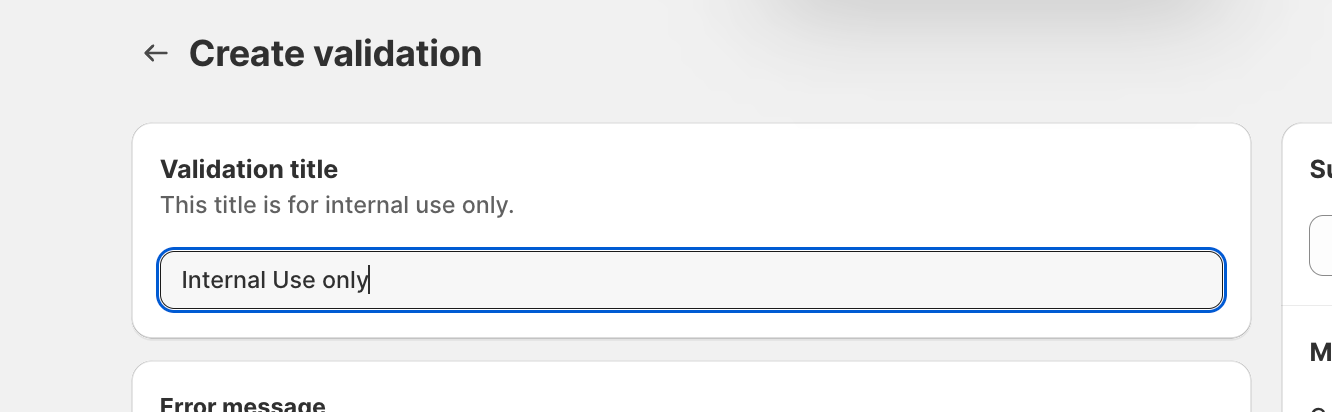
The first step is to name the validation with a title that will help you to understand and recognize it as soon as you read it.
The title is just for internal use and it will not be shown to your customer.
Configure your restriction message and save
Select the Checkbox to choose where the validation will trigger.
Then select from the dropdown menu where to show the message from the validation.
Now enter a customer-facing message that clearly explains the temporary restriction if a shopper triggers the rule during the active dates.
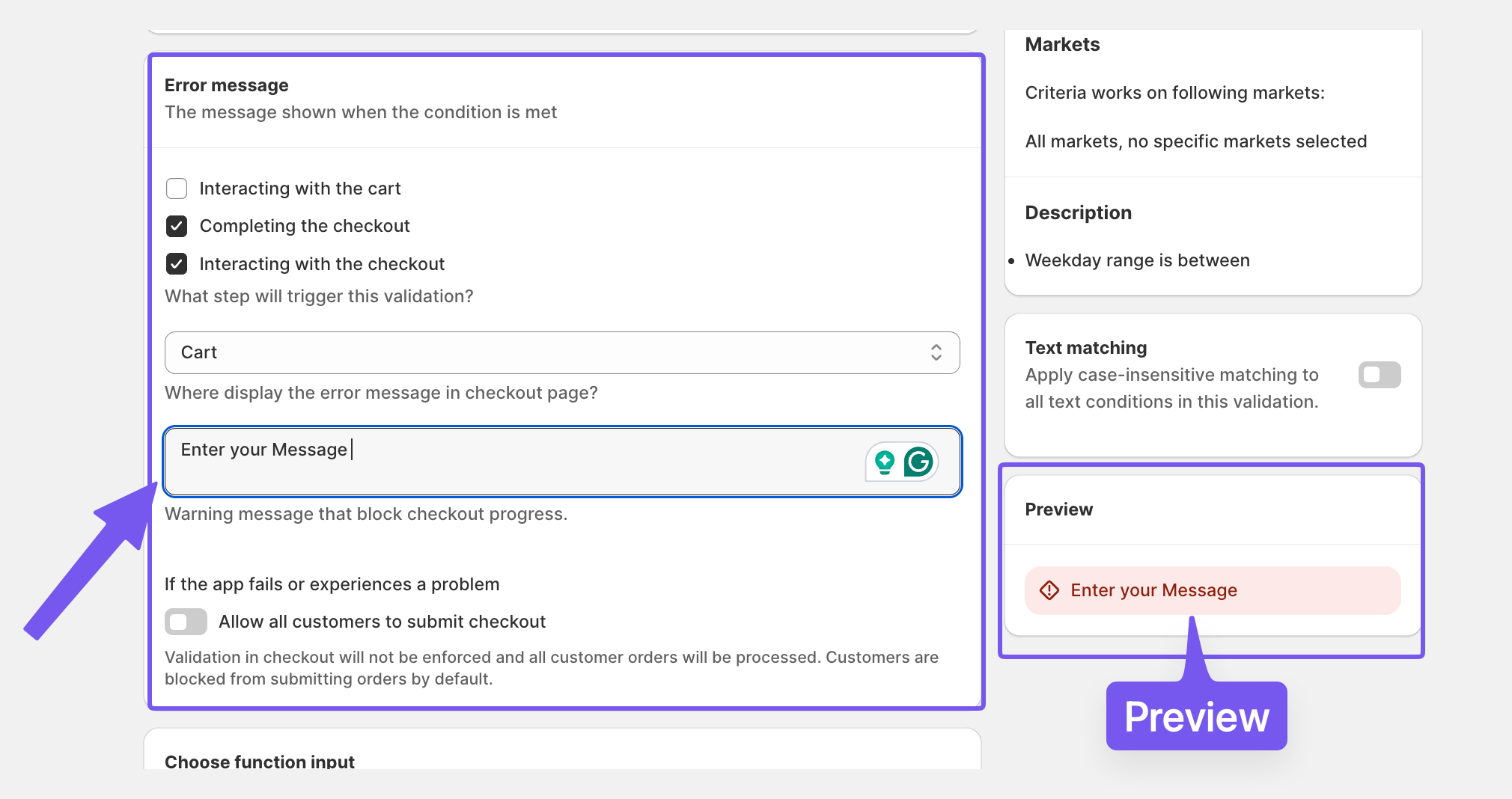
You can visualize the final message in the preview window on the right.
Add the Weekday range condition
Choose the type or validation you want to create from the menu and enter in the rule builder.
Scroll down to the "Choose function input", click Standard input and select Date input from the dropdown menu.
After the Function input move don to "Set condition to run this customization", hit Add condition, click the condition field "Cart total" and select Weekday Range from the condition parameter options.
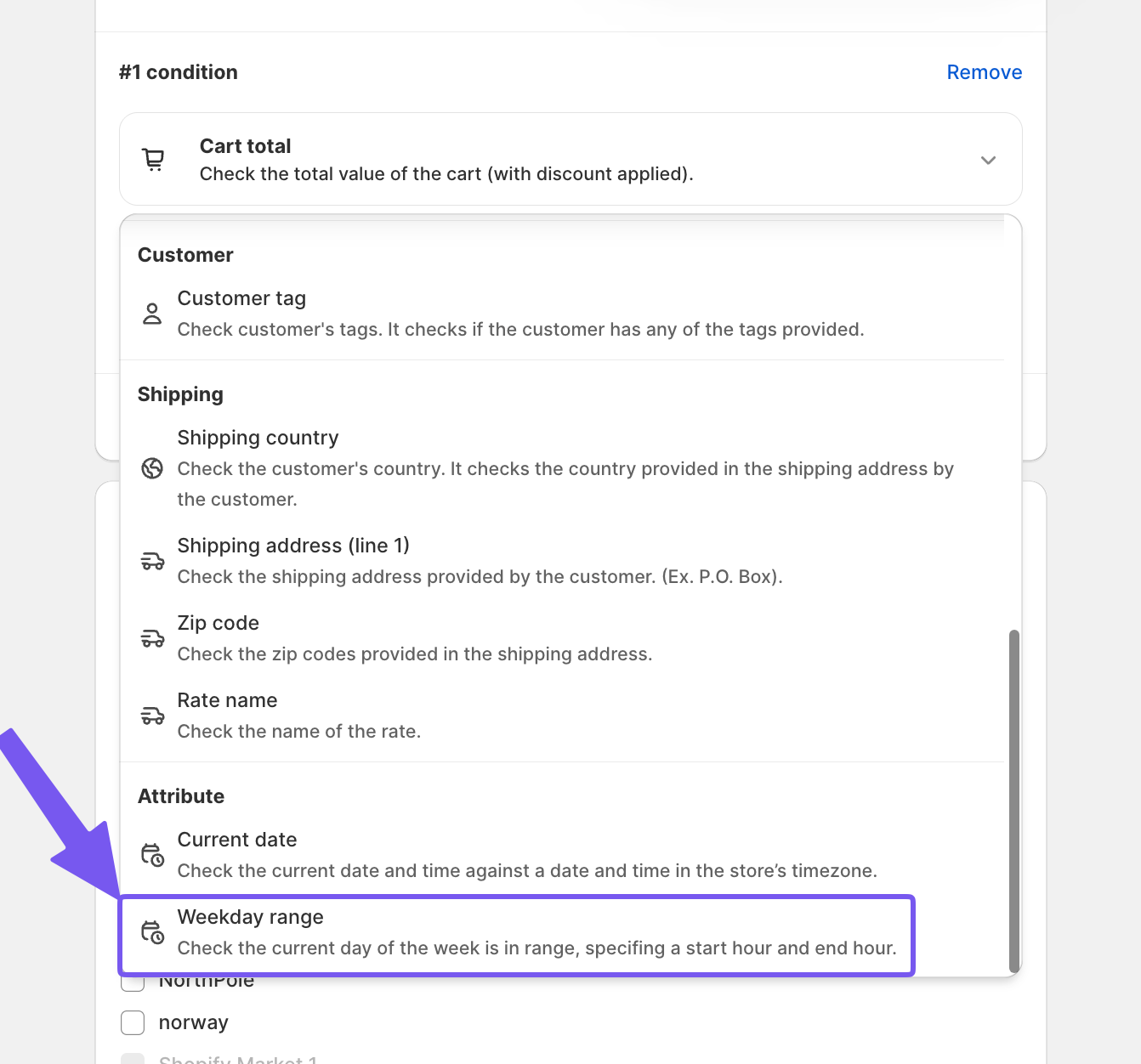
Now you can Set your start day and end day to define the timeframe during which the validation rule will remain active or will not be active.
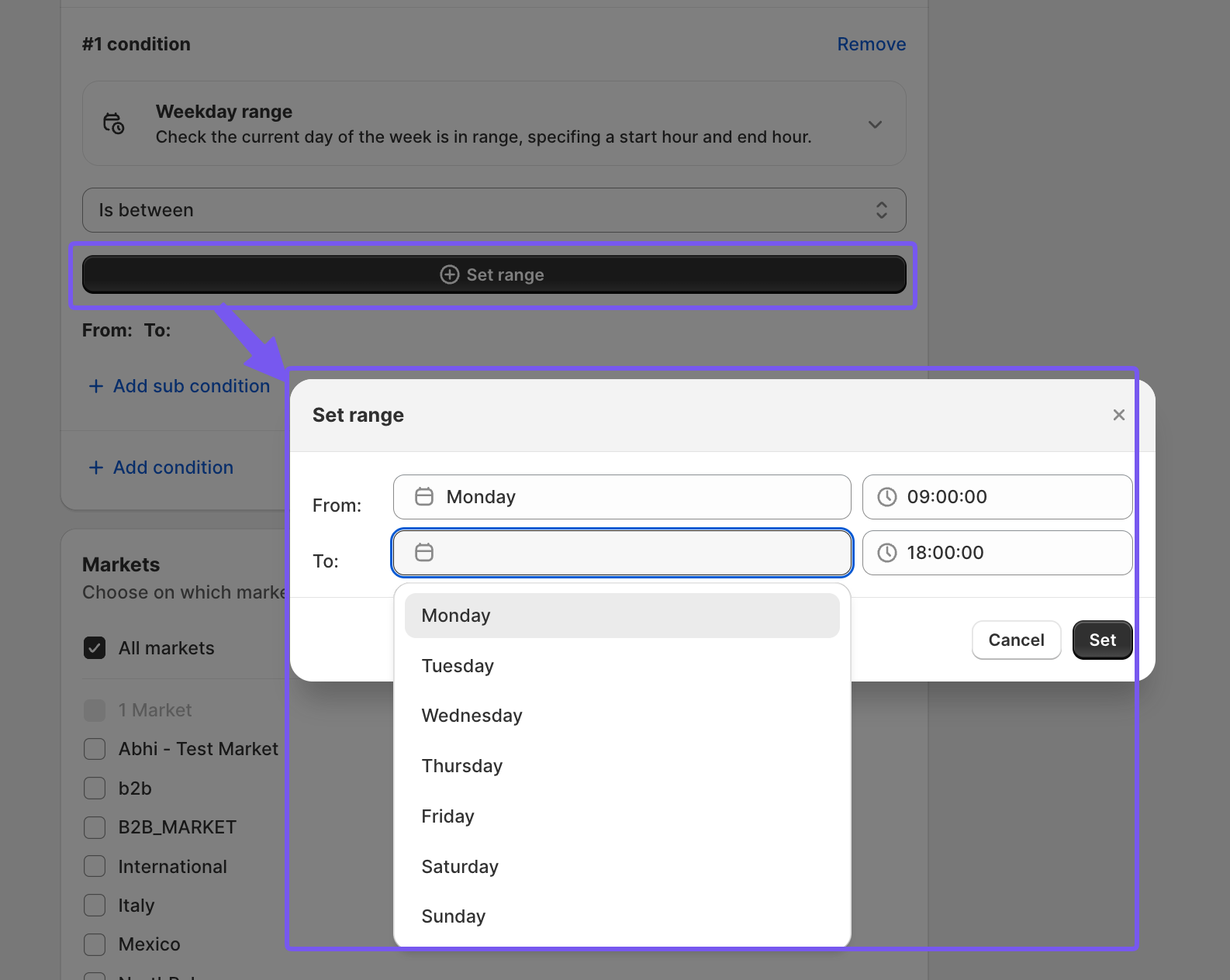
Save and test
Click Save to store your configuration and ensure the validation rule is Active in your Shopify checkout settings.
Set a Custom Date and Weekday Rage
If you need to create a validation for a specific period of time and in some specific days you can easily achieve it with the Advanced plan, combining the two conditions:
Current date and Weekday rage 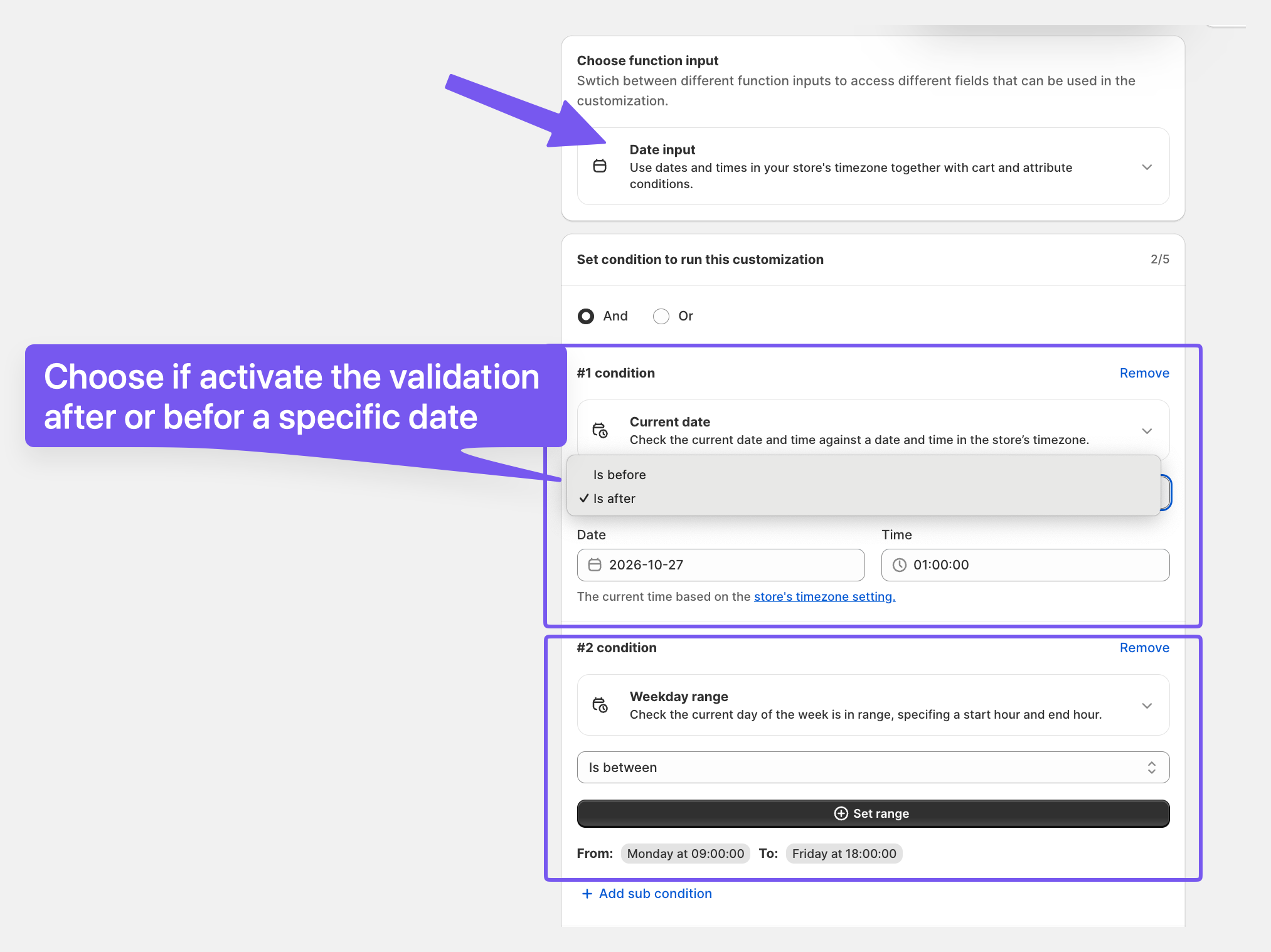
Tips and Best Practices
-
Verify your store time zone settings before scheduling start and end dates to avoid early or delayed activations.
-
Combine date ranges with cart amount or product tag conditions to run targeted promotional restrictions.
Note: If you have any questions or need assistance during setup, our team is here to help. You can contact the Nextools Support Team anytime via the in-app live chat or by email on: support@nextools.tech. We’ll be happy to assist you.
