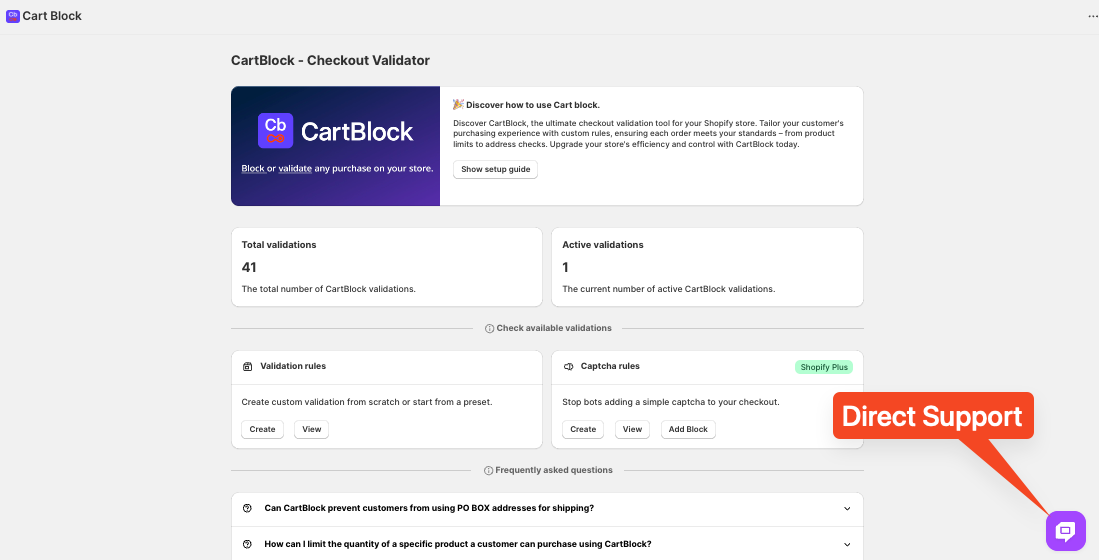
In this tutorial, we’ll walk you through how to stop customers from certain countries from completing their checkout using CartBlock with the captcha feature.
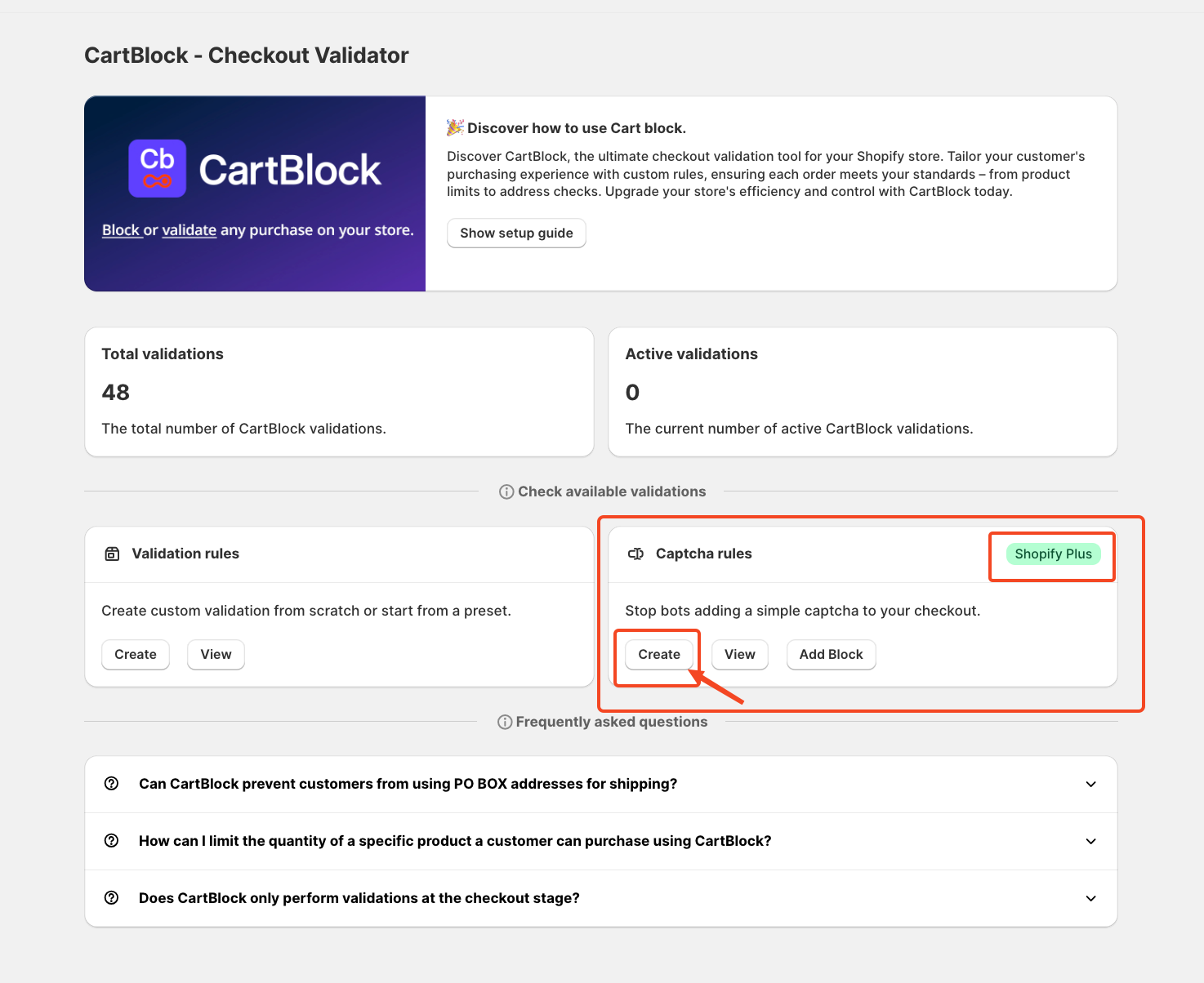
To begin, click on the "Create button under Captcha Rules.
This is how the validation page will look;
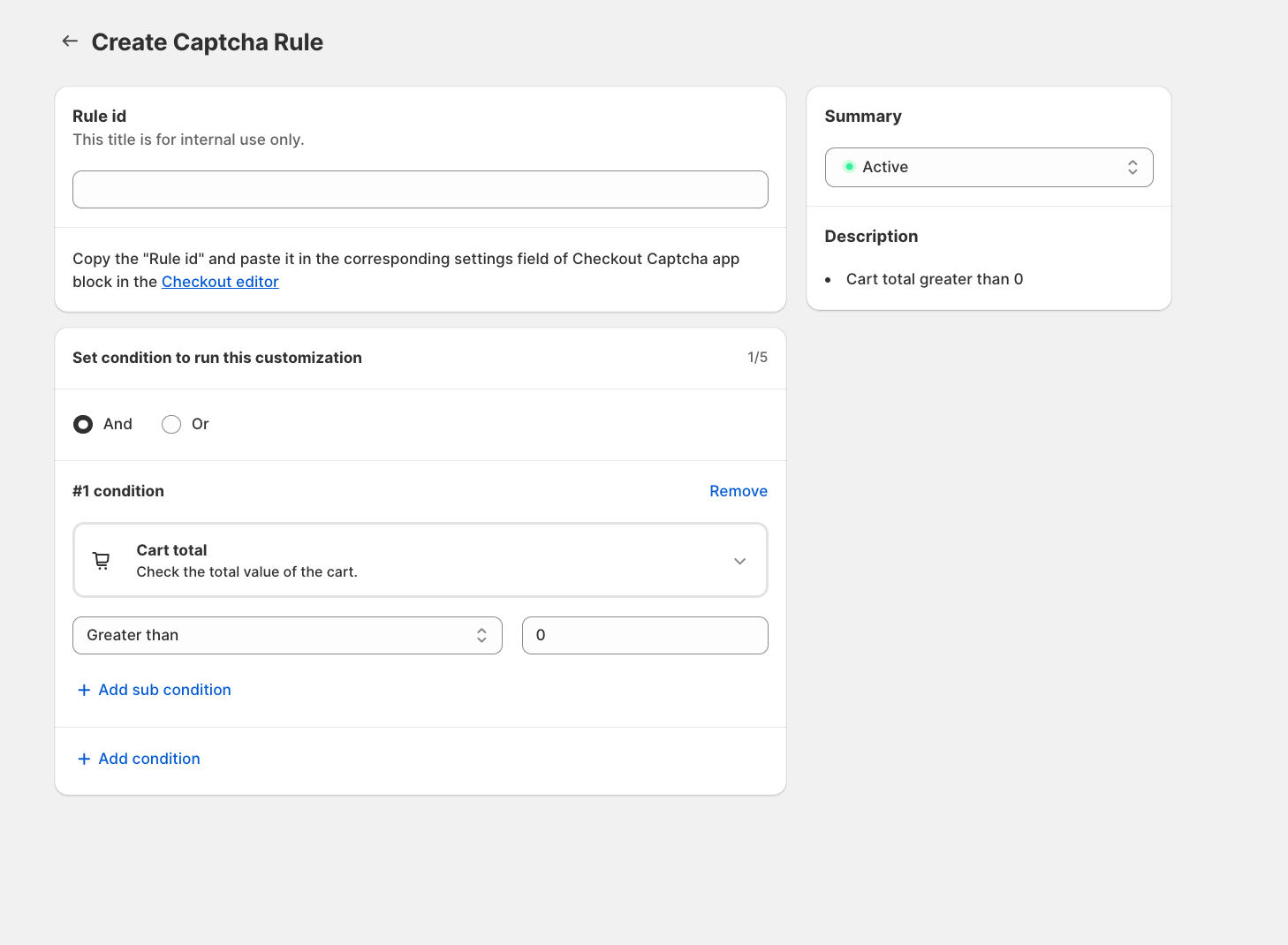
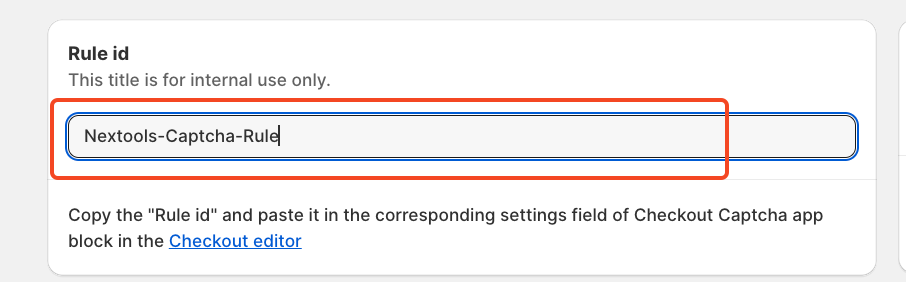
Let's start with the Rule title that will also be the Rule ID required to link this validation with our App Block in the Checkout Editor
Now we are going to set up the main part of the function, which is the condition. The conditions are based on Cart, Customers, Discounts, Shipping and Shopify Plus. Depending on the need, we can choose which condition is suitable for the store.
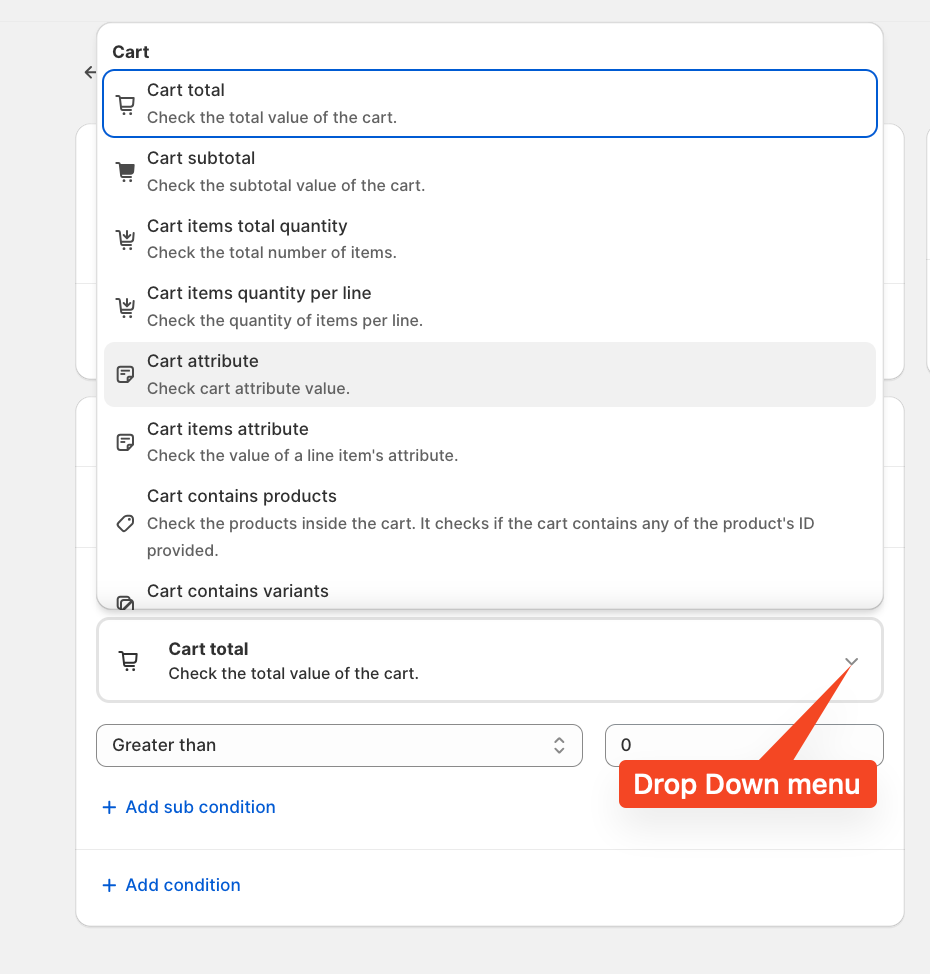
When configuring conditions for a customisation, select options based on your store’s requirements. You can combine multiple conditions using AND or OR.
Each customisation supports up to five conditions and a couple of sub-conditions.
AND option is used when the validation requires two or more conditions to be verified. If we use the AND option, then all the conditions should be fulfilled.
In the OR option, just one condition, Cart total or Customer country, should be fulfilled, and you will be able to see the captcha function
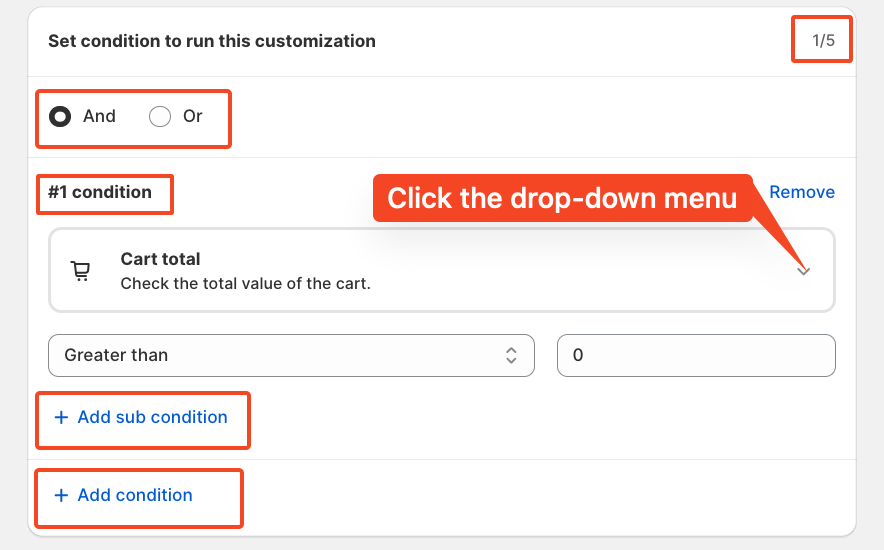
In this tutorial, we use the Cart total greater than or equal to zero, without multiple conditions.
That means if the customer's cart total is greater than 0, then the captcha function will activate and must be passed with the captcha; otherwise, it is not possible to complete the rule.
Once you complete the customization, you need to click on the save button
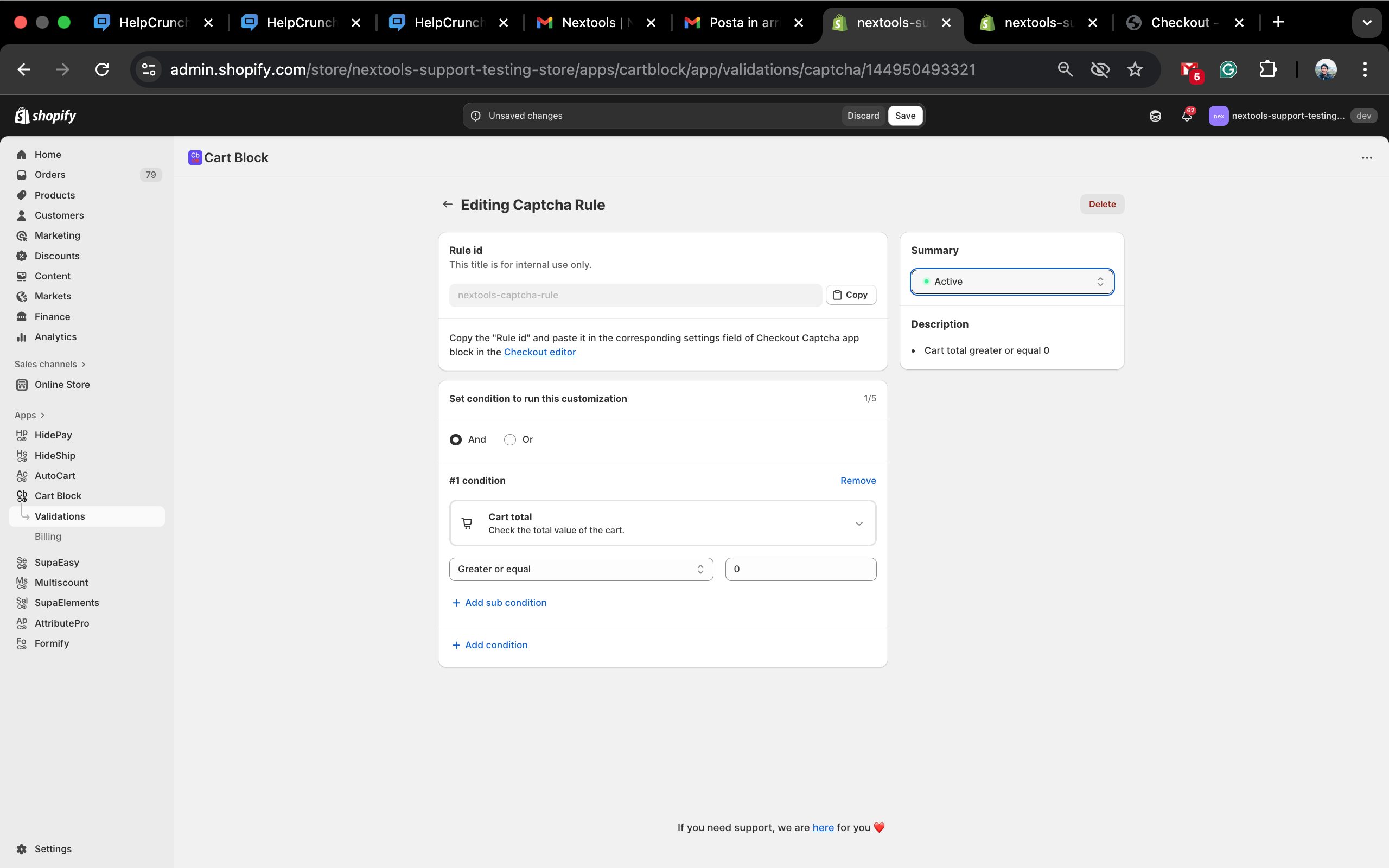
Then, you need to set up an app blocker.
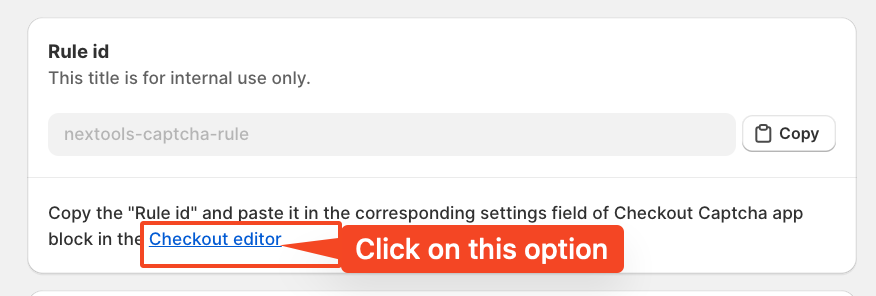
This page will open in another tab.
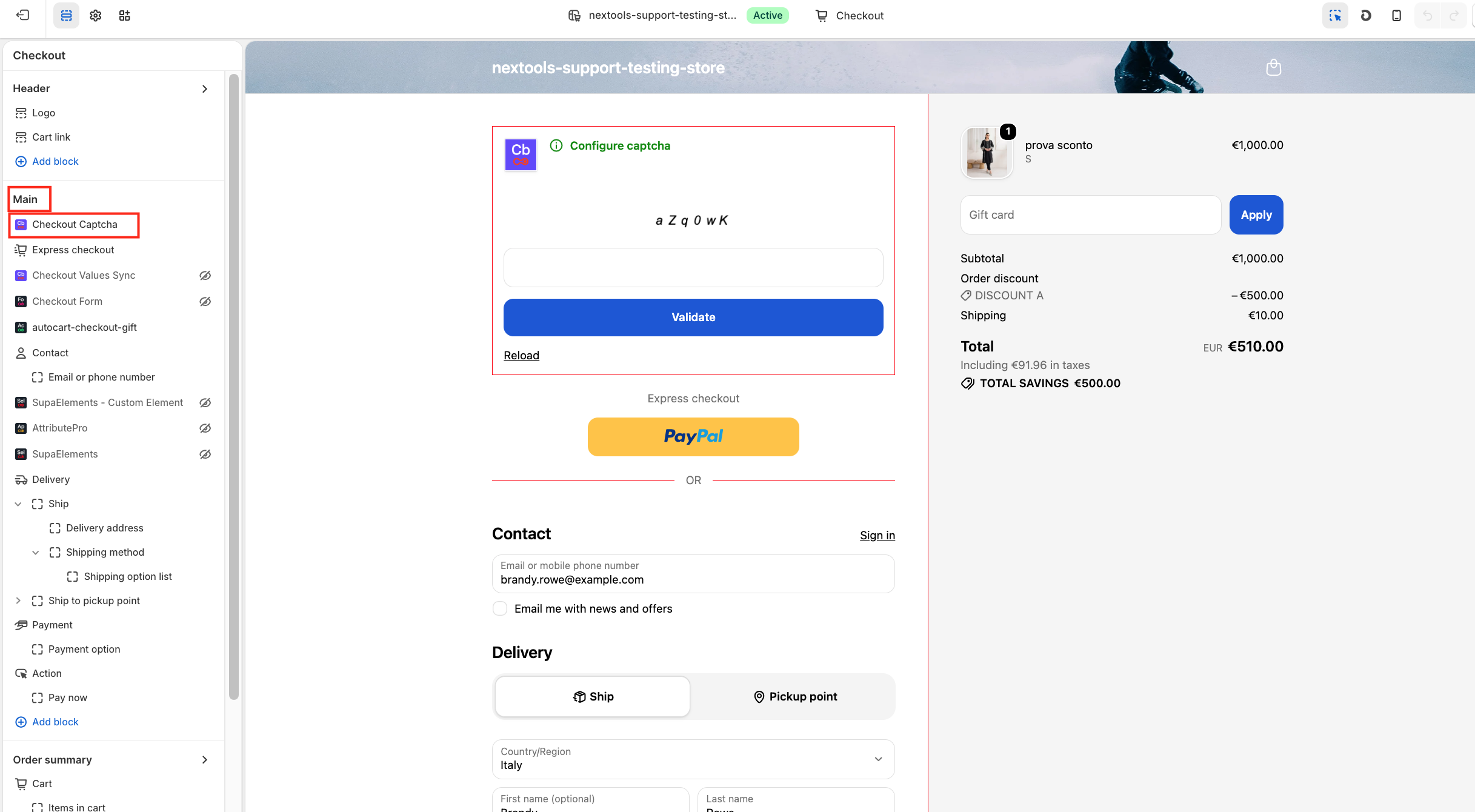
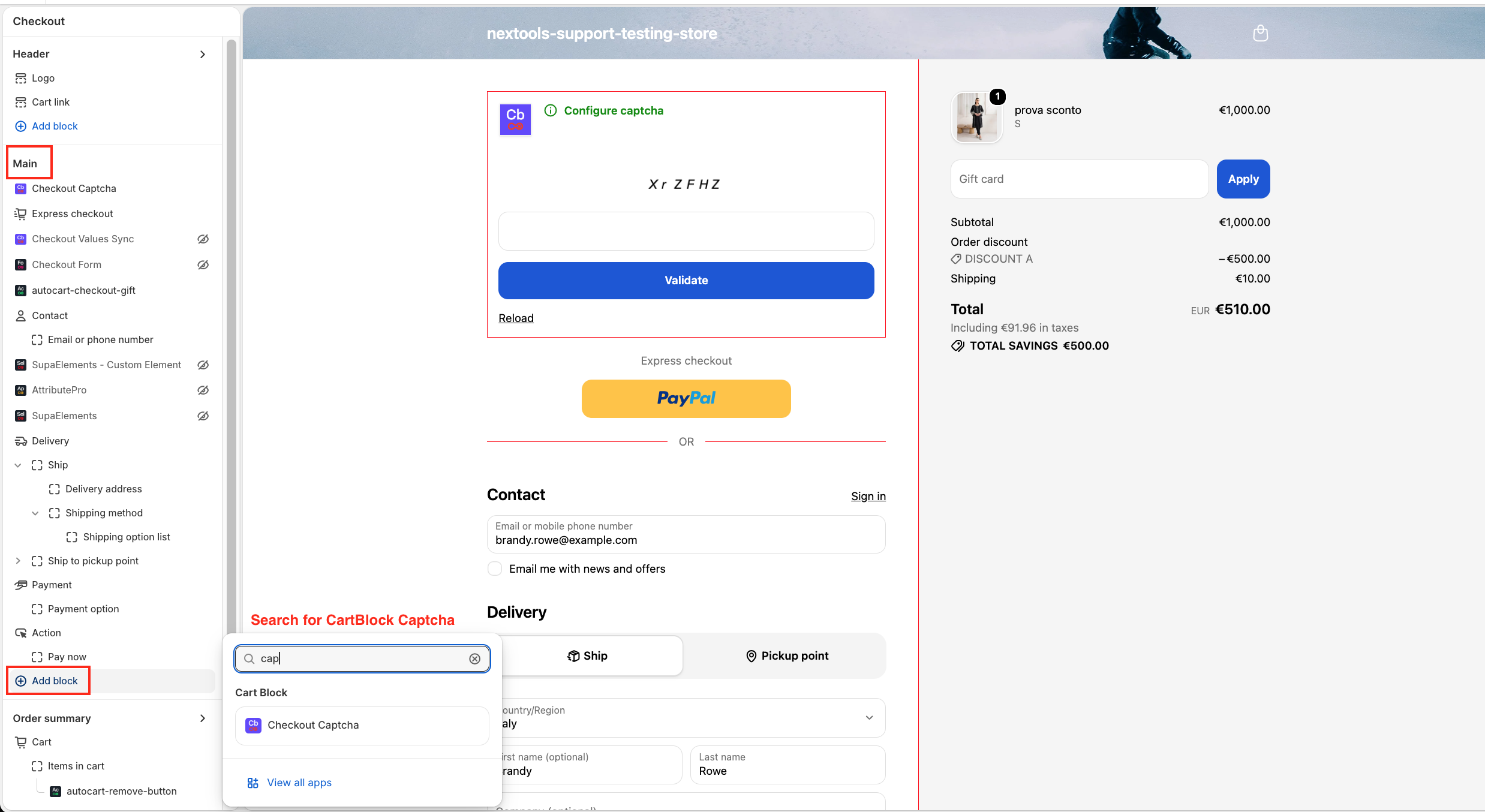
In the main part, you will see the (+ Add block) at the bottom. Click on it and search CartBlock CAPTCHA.
There are two ways to copy the name of the rule.
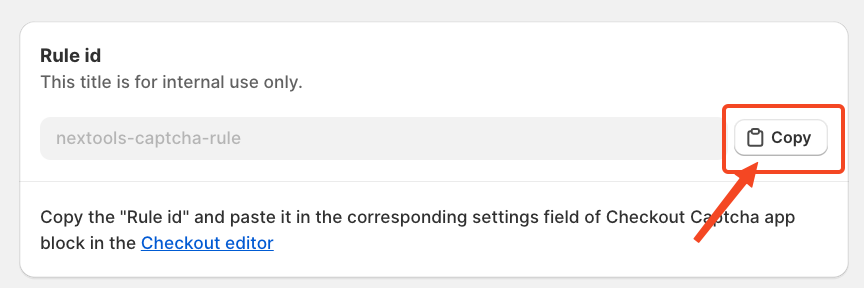
Or
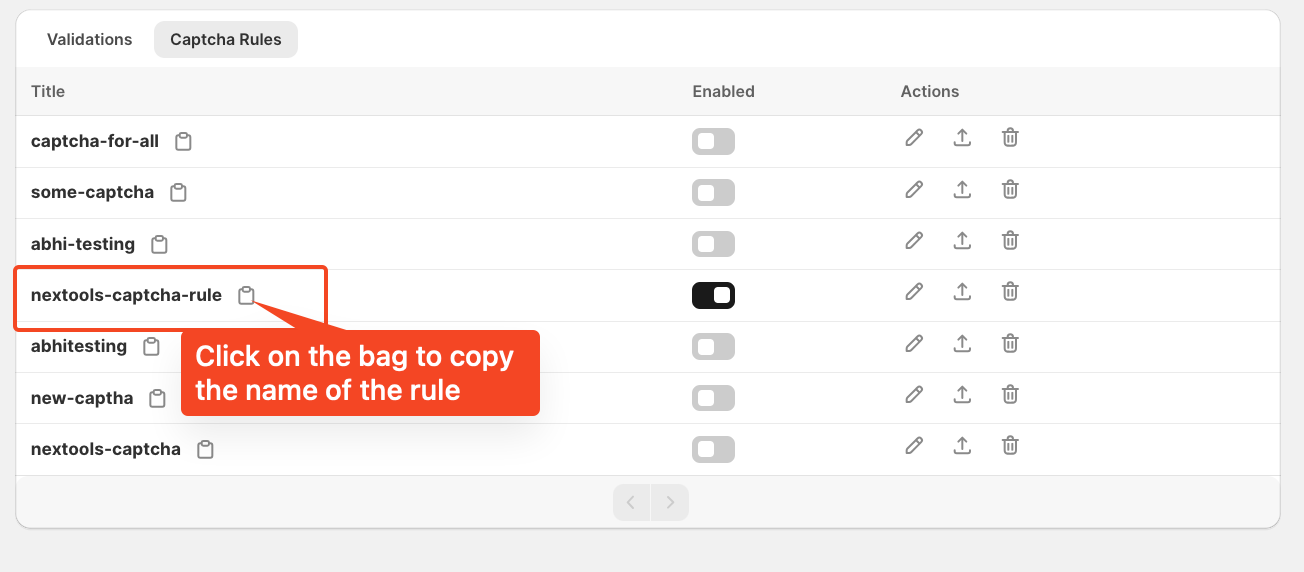
After copying the name, paste it in the App Blocker page in the Rule ID section
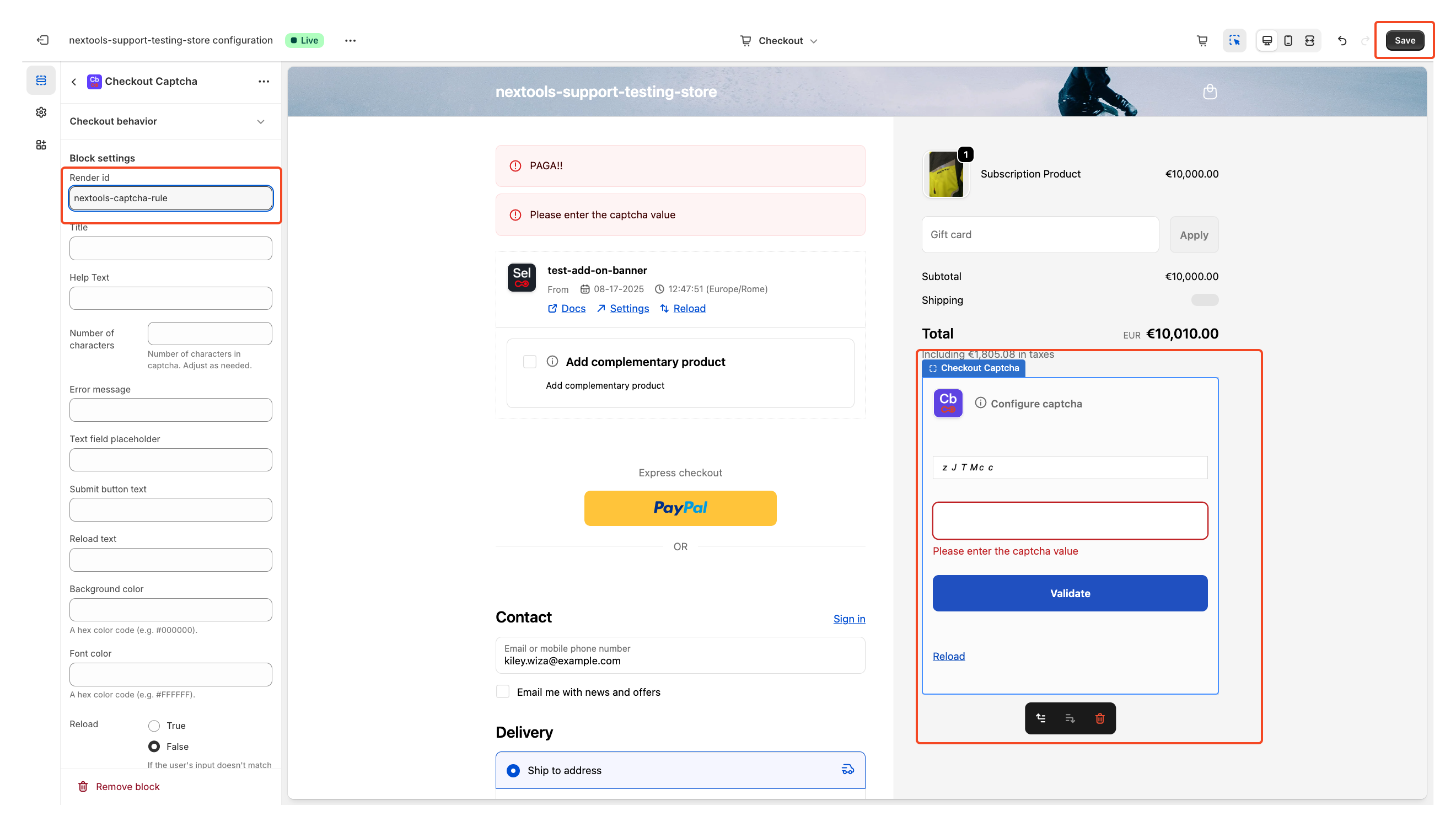
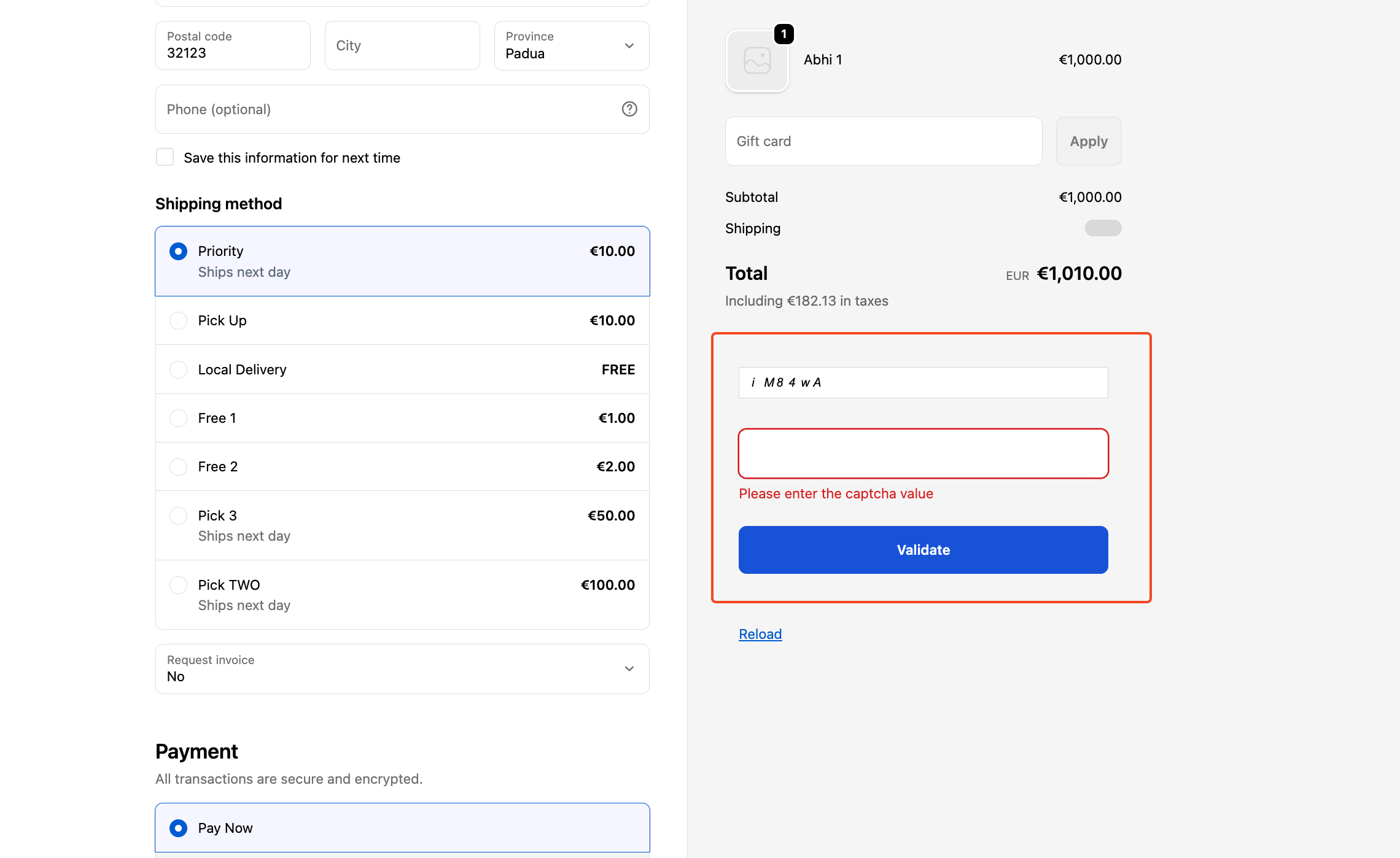
Then click Save, and the Captcha rule is active, and you are able to see on the checkout page below the final price, the Captcha Box, like this.
If you need further assistance, feel free to contact us via support email or connect with us directly through HelpCrunch