In this tutorial, we will walk you through how to display payment methods for multiple countries using a single rule in the HidePay app.
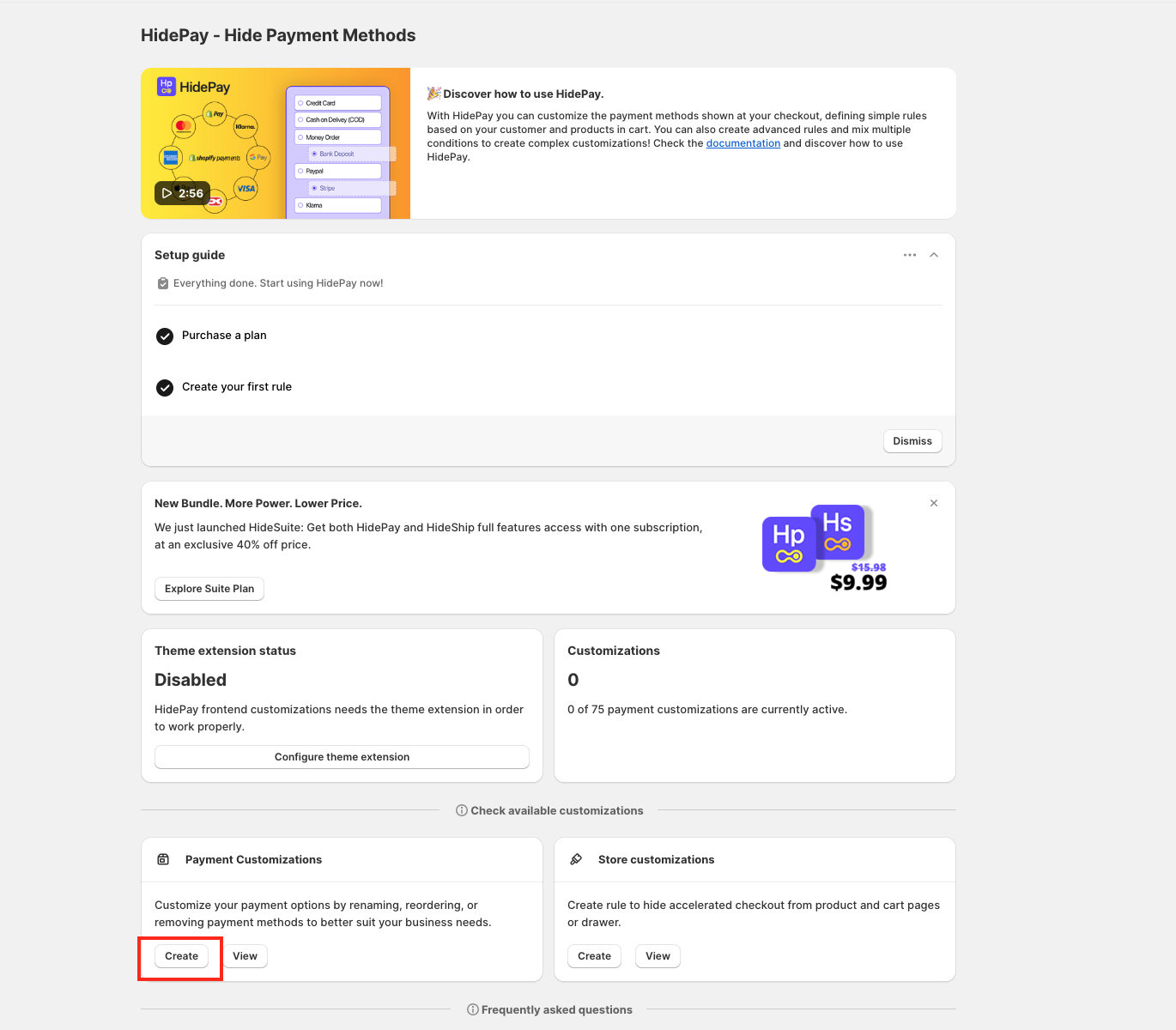
Go to your HidePay dashboard. In the Payment Customisations section, click the Create button.
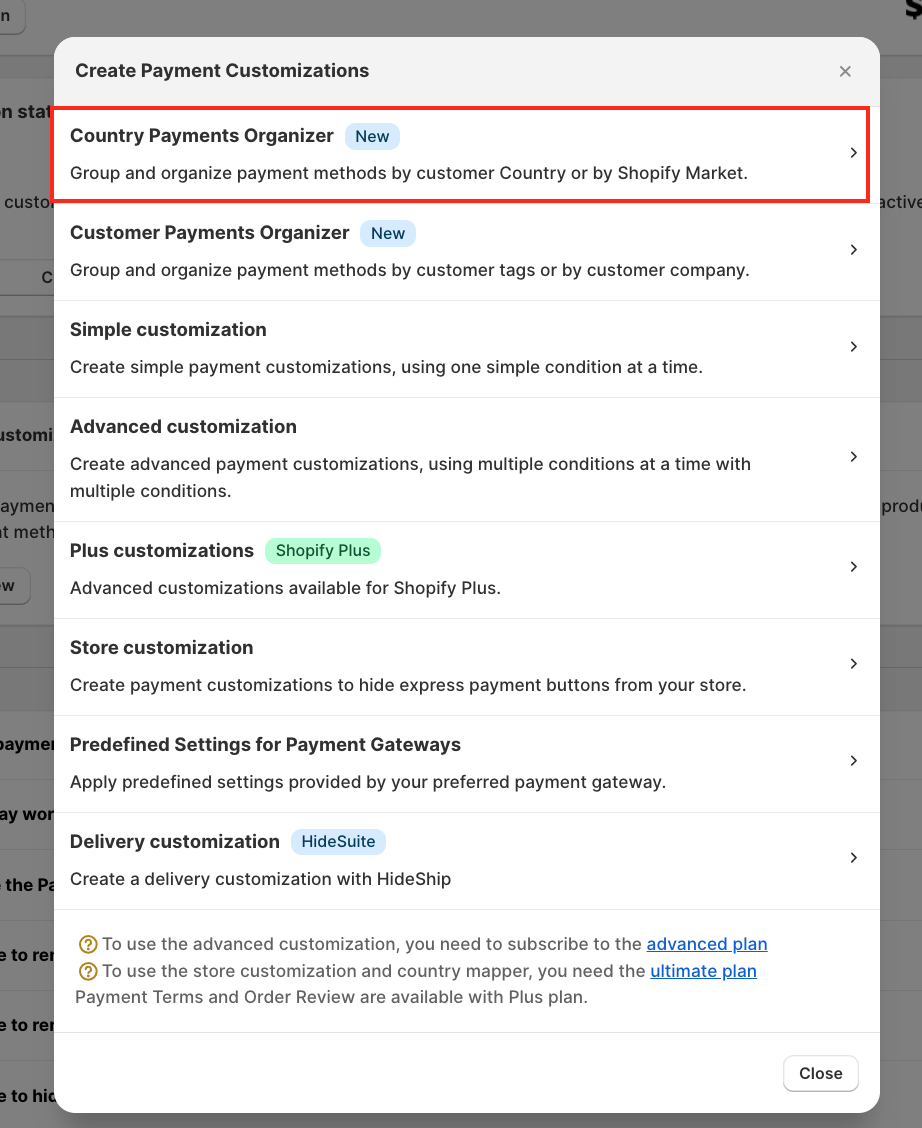
When you click the Create button, a pop-up window will appear. From the available options, select Country Payments Organiser.
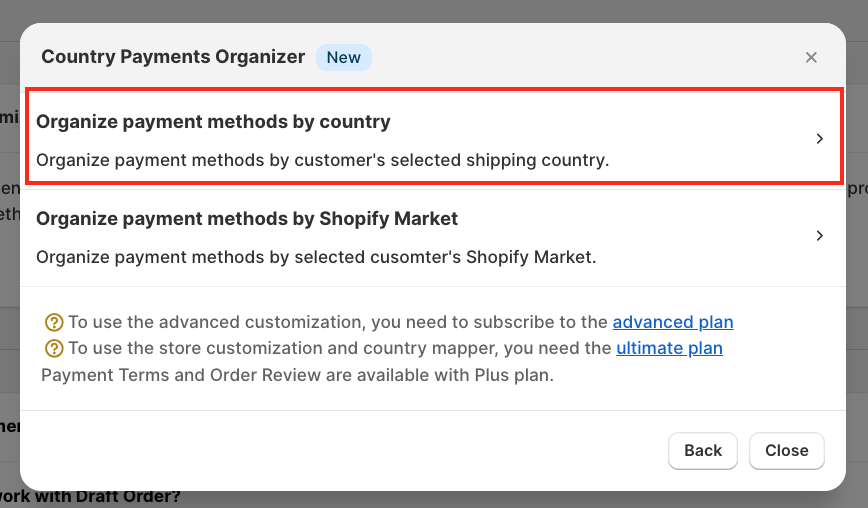
Another pop-up window will appear. Here, select Organise payment methods by country.
Now you can begin customising your rule in HidePay.
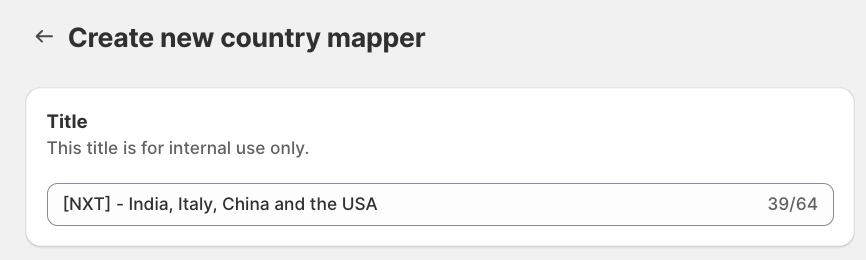
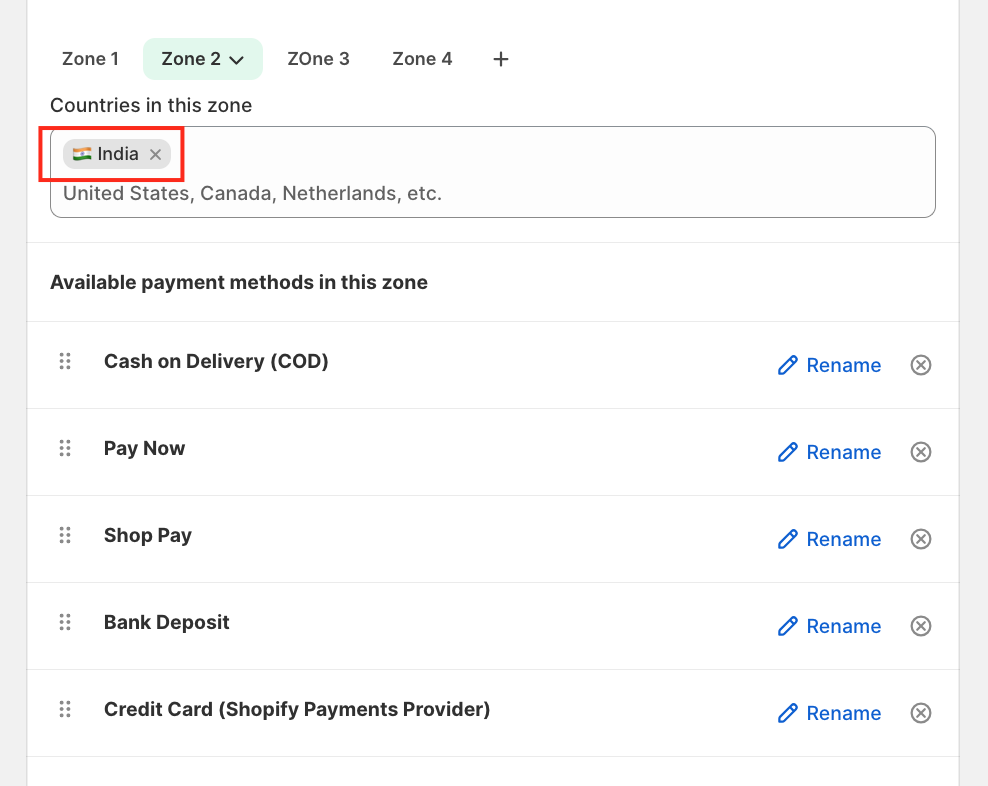
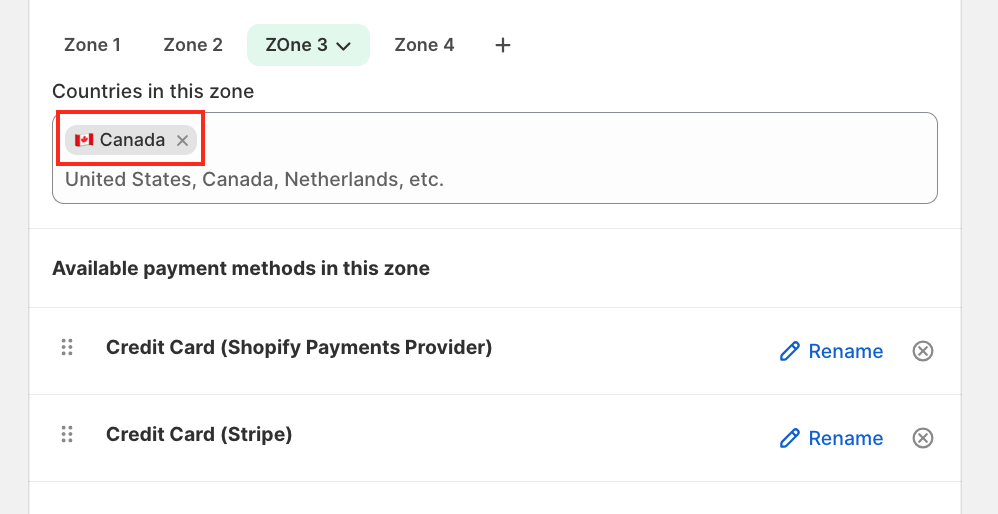
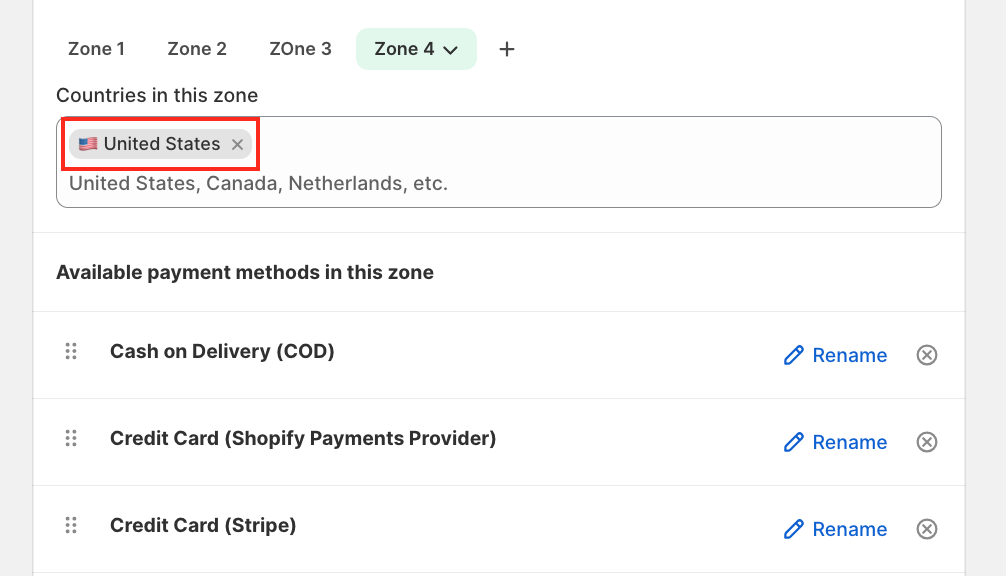
Set up zone-wise country mapping to control which payment methods appear at checkout when customers select a specific country.
For this tutorial, we will configure the rule for the following countries: Italy, India, Canada and United States
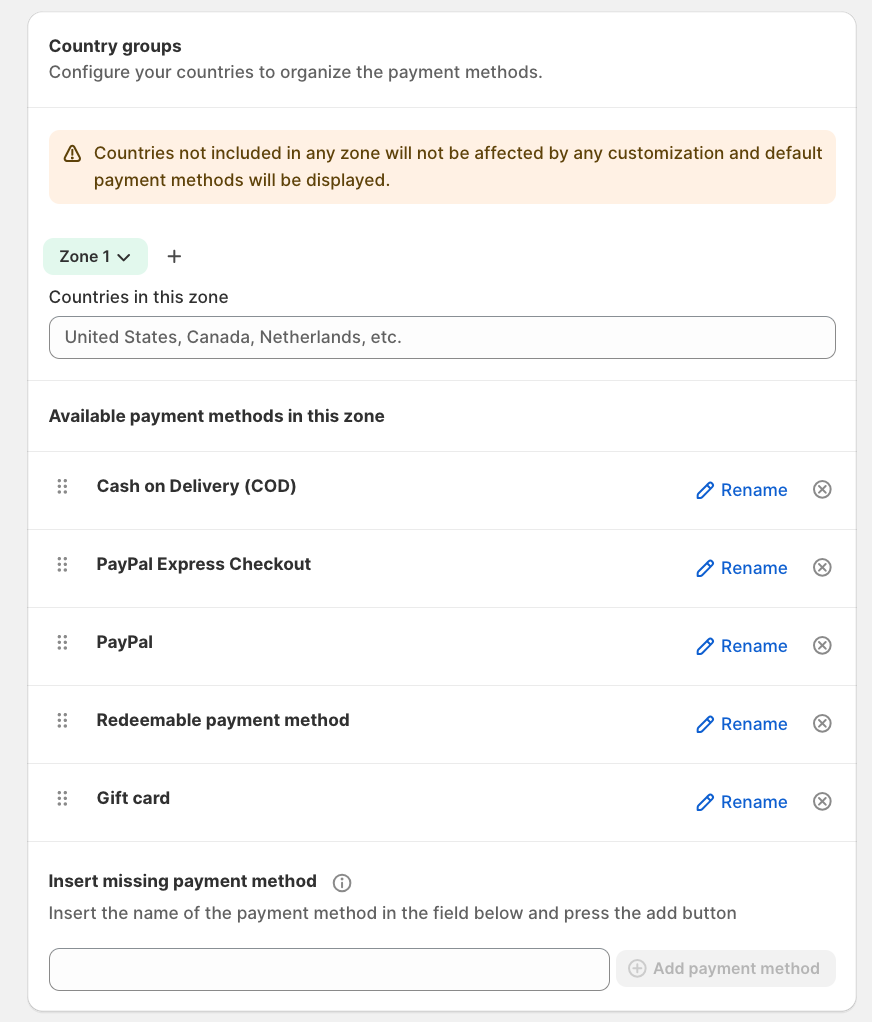
Each highlighted section in the interface plays an important role in the setup:
-
"+" button – Add a new zone
-
Countries in this zone – Select one or more countries for that zone
-
Available payments in this zone – Shows which payment methods will appear at checkout
-
"x" icon – Instantly remove a payment method
-
Add payment method field – Insert any missing payment method
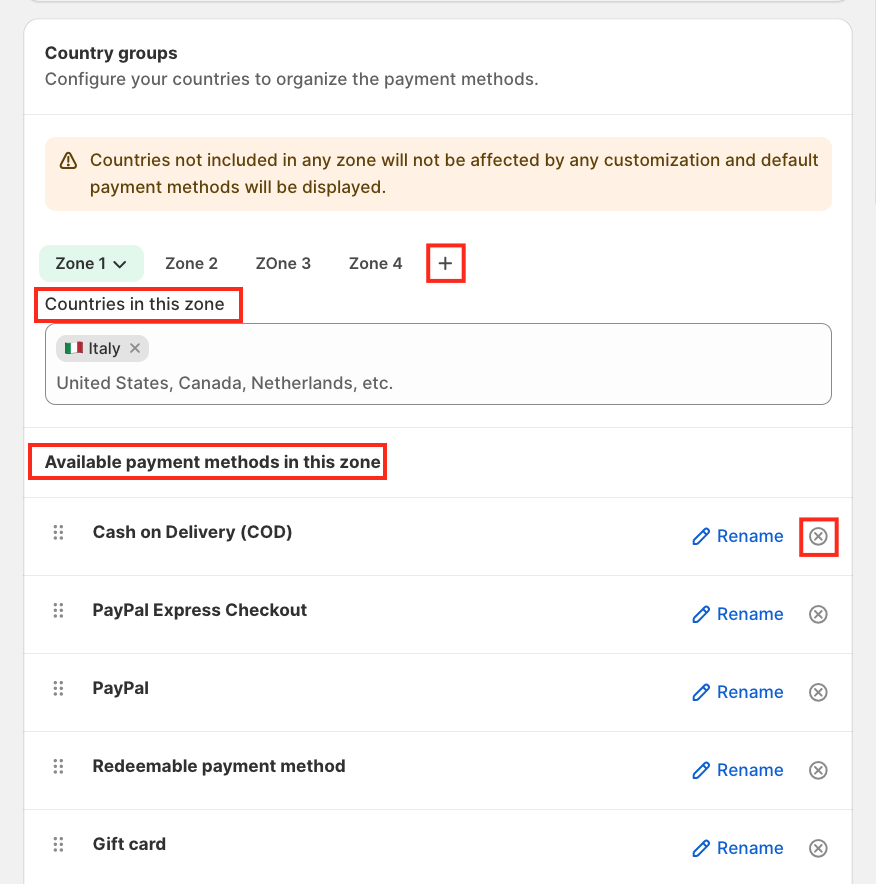
In the Add payment method field, enter the name of the payment method you want to display for a specific country.
For example, if you want to show Klarna for Italy, type Klarna in the input field and click Add Payment Method. You will see Klarna appear in the list under available payment methods.
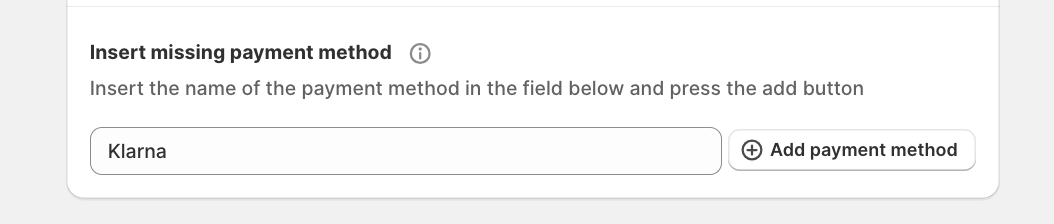
You can also:
-
Reorder payment methods using drag and drop
-
Rename payment methods by clicking the Rename option
This helps you control both the display order and naming shown to customers at checkout.
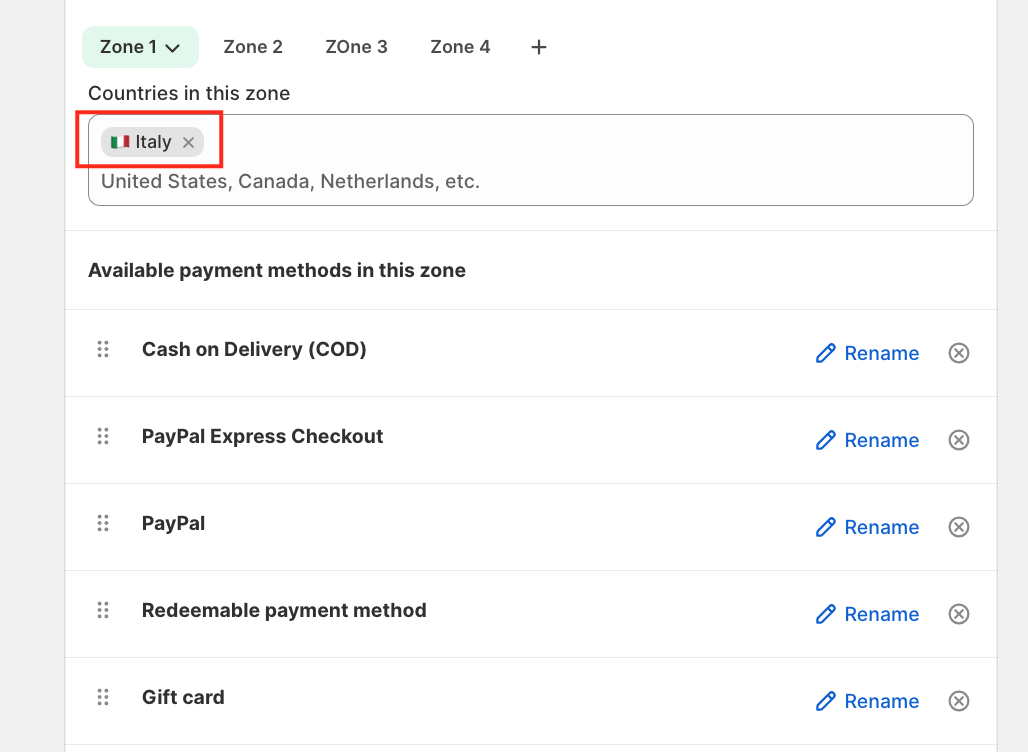
Each zone can have its own unique payment setup, allowing you to fully customise the checkout experience for every region.
-
Italy
-
India
-
Canada
- United States
We are happy to help you with the HidePay application! 🚀
