In this tutorial, we'll show you how to use HidePay to hide specific payment methods for Shopify Draft Orders.
This setup gives you greater control over the payment methods available when customers complete a Draft Order, whether they access it through the invoice email or a Draft Order checkout URL generated by Shopify.
Let's get started! From your Shopify admin, open the HidePay app.

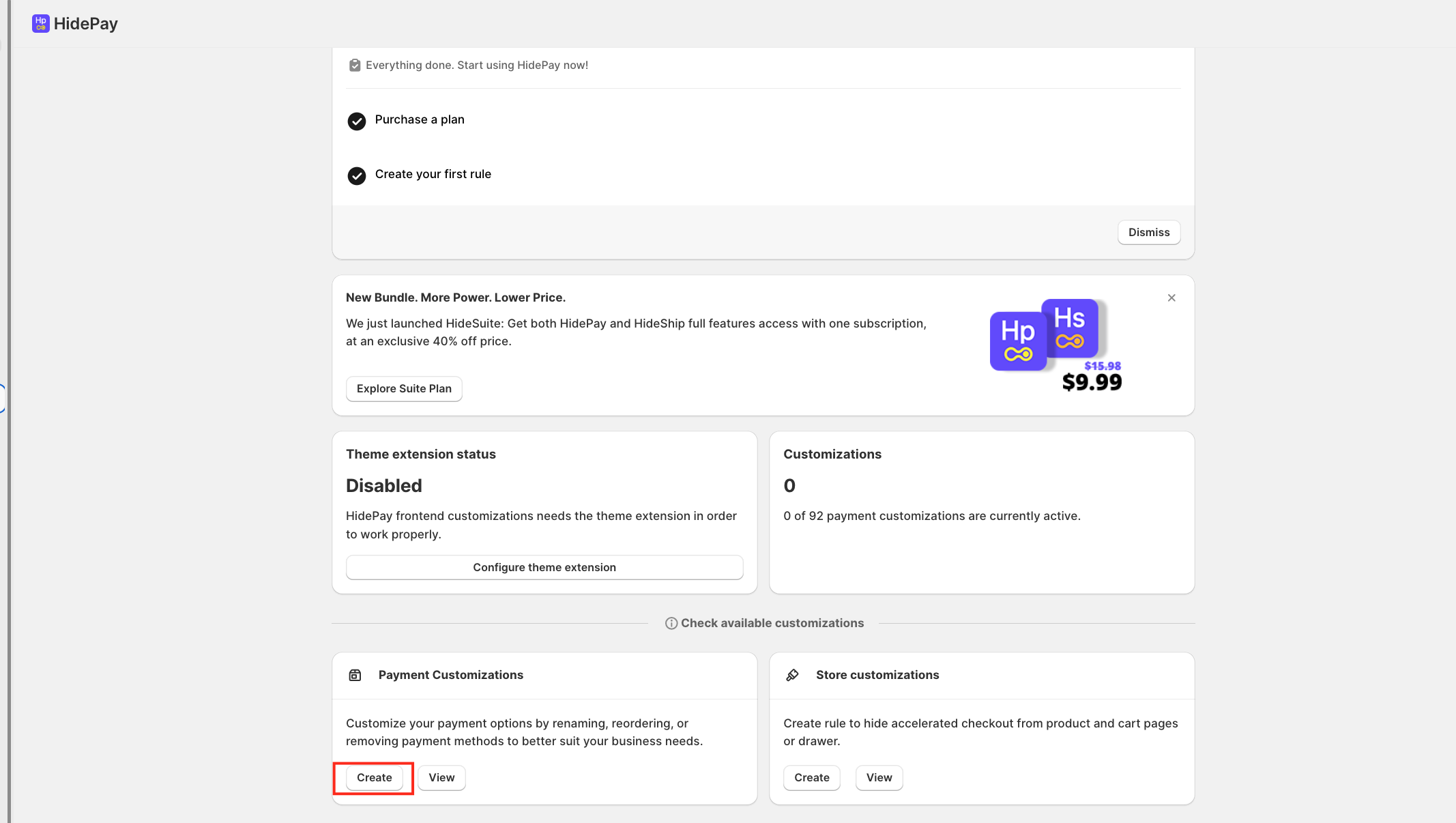
Navigate to Payment Customization and click Create.
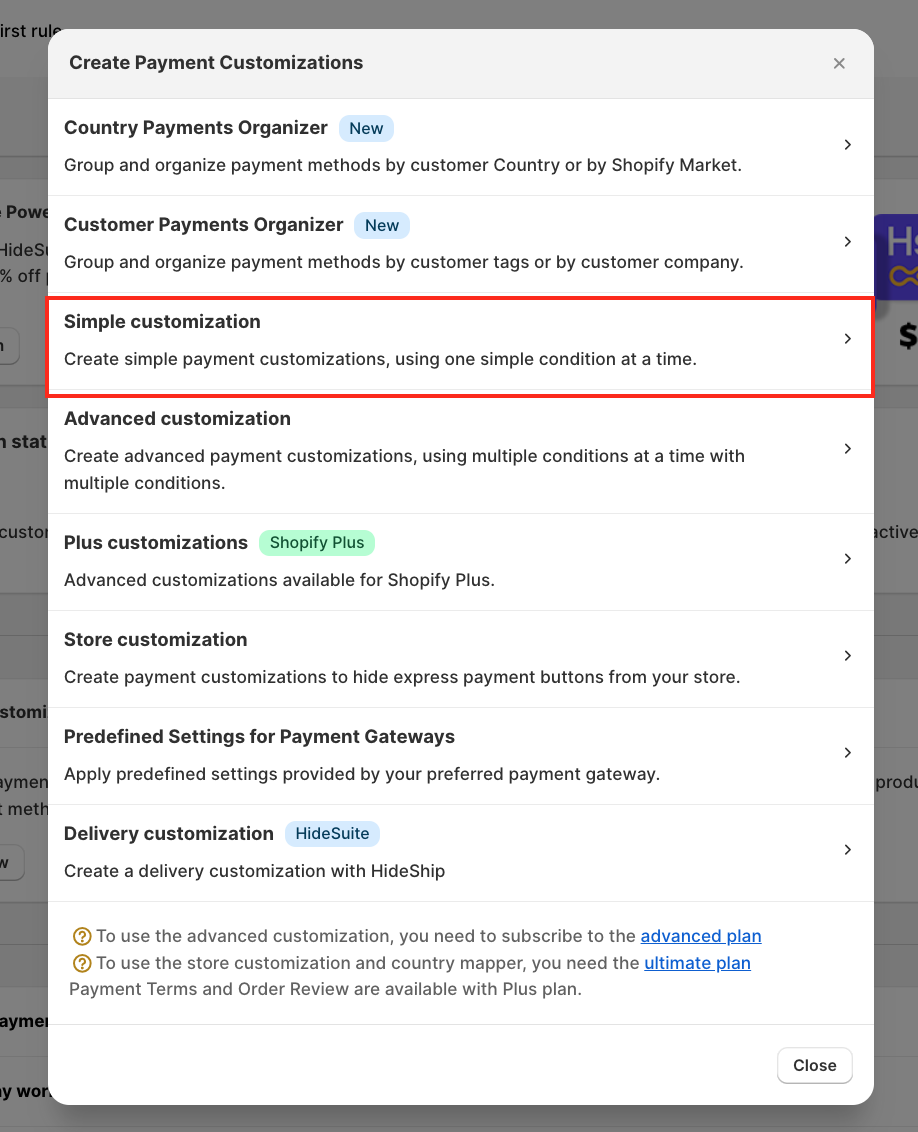
When the pop-up appears, select Simple Customization.
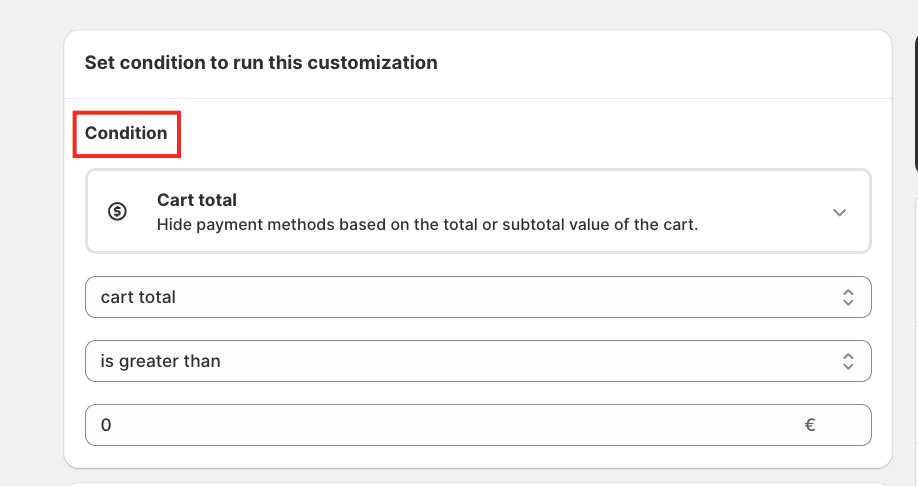
For this example, we'll use the condition: Cart Total is greater than $0
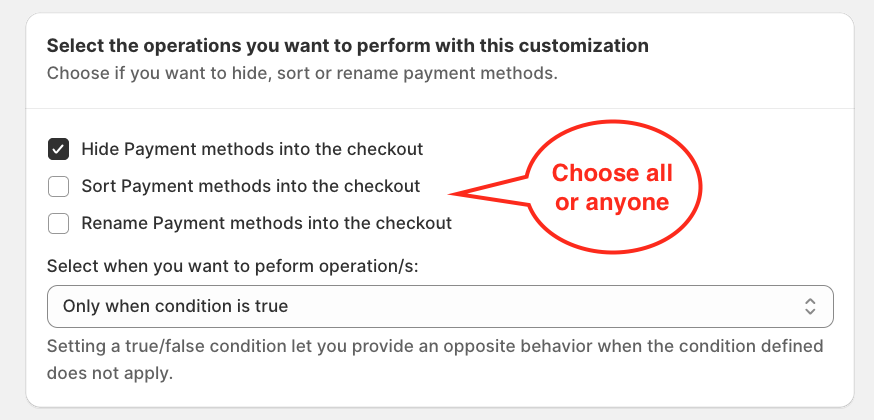
Next, select Hide Payment Methods as the action.
For this tutorial, we'll keep Credit Card (Shopify Payments) visible while hiding all other payment methods.

Important Note: On Shopify stores based in the United States and Canada, the Credit Card (Shopify Payments) payment method cannot be hidden unless you're using Shopify Plus. This limitation is imposed by Shopify and is not a restriction of HidePay or Nextools.
Choose the payment methods you want to hide by selecting the appropriate options. Once you've finished configuring the rule, click Save to apply your changes.

Return to your Shopify Admin and navigate to Orders.

Click Create Order, then select Add Product and choose one or more products from your store. After adding the products, click Done.

Click Send Invoice.
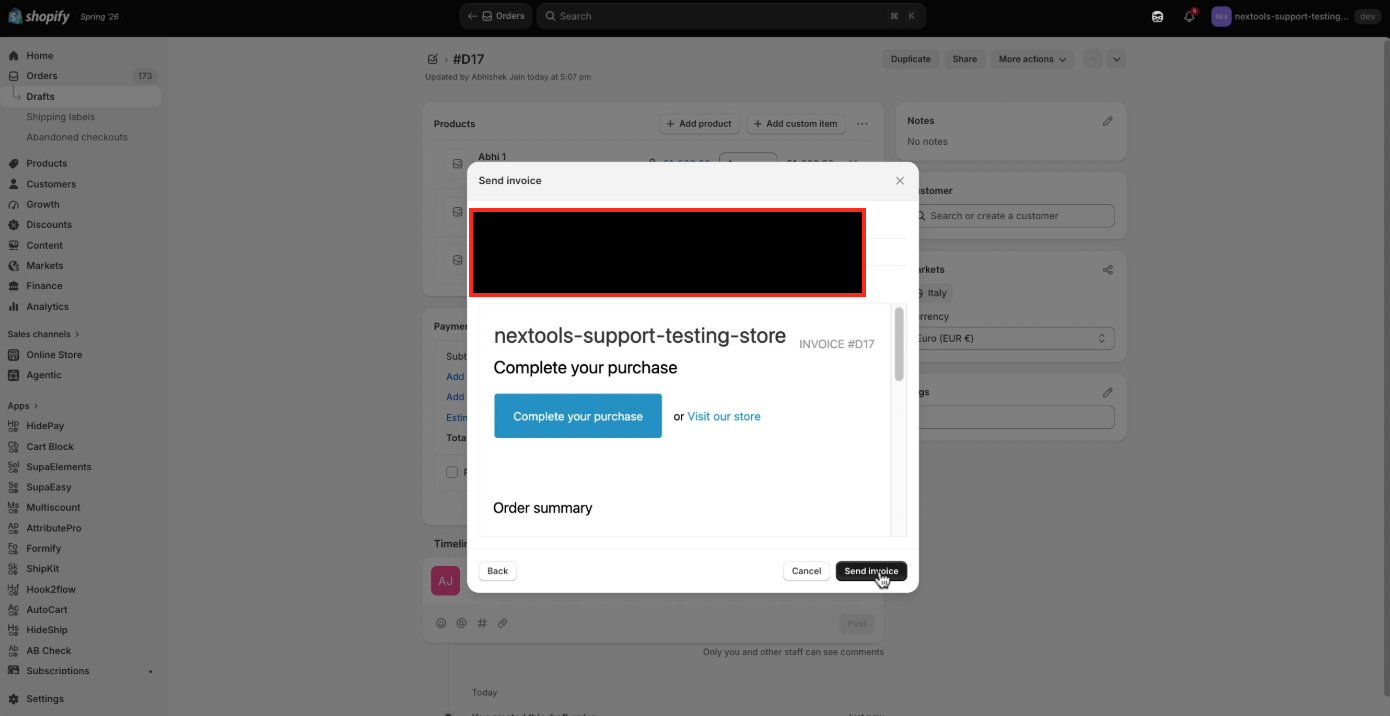
Open the Draft Order checkout using the email or the Draft Order checkout URL.
You'll notice that only the Credit Card (Shopify Payments) option is displayed, while all other payment methods are hidden according to your HidePay rule.

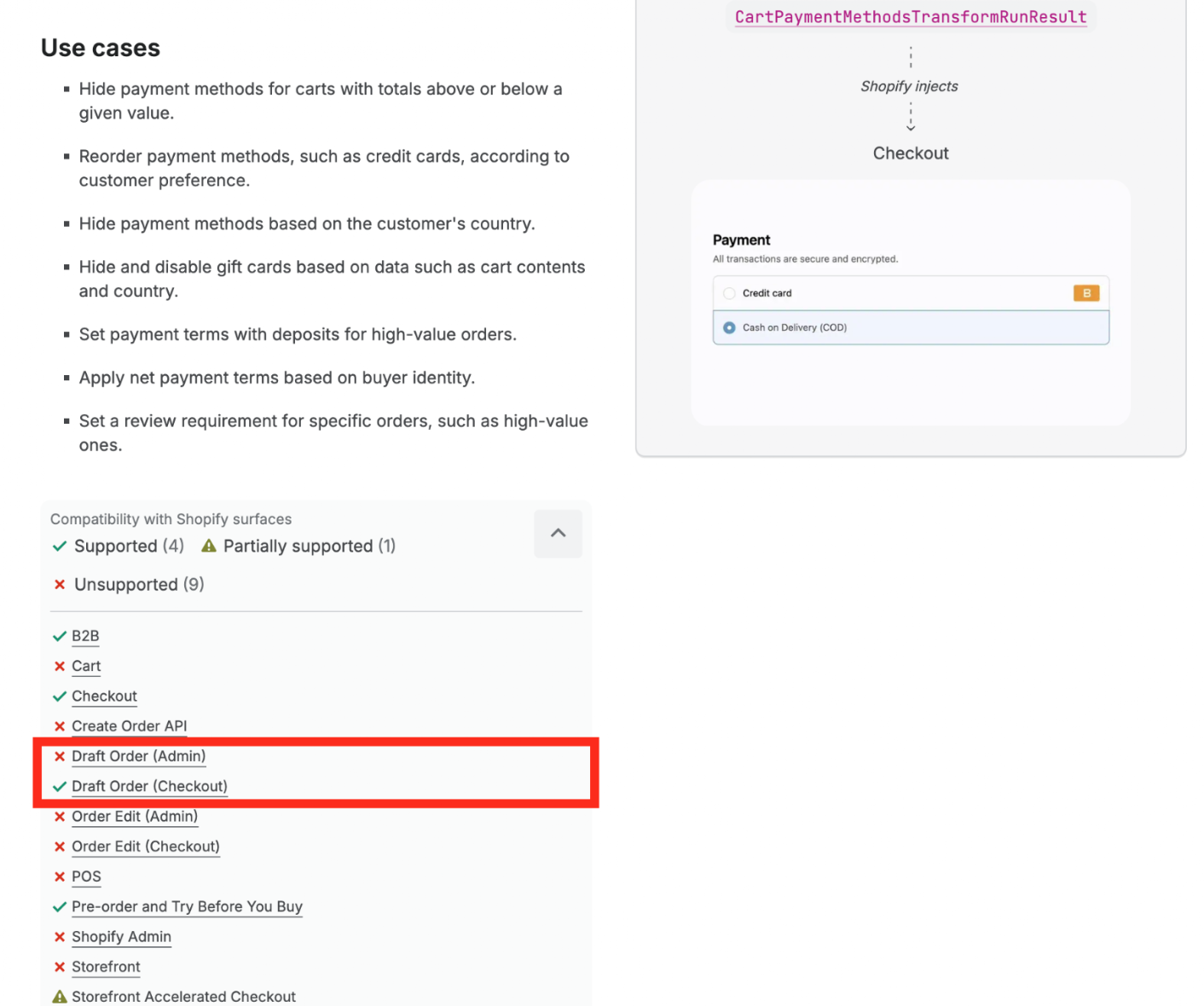
Important Note:
This customisation only works when the customer completes the Draft Order Checkout using the checkout link generated by Shopify. It does not apply when the draft order is completed directly from the Shopify Admin (for example, by using Collect payment or marking the order as paid). This behavior is a limitation of Shopify's Payment Customization API.
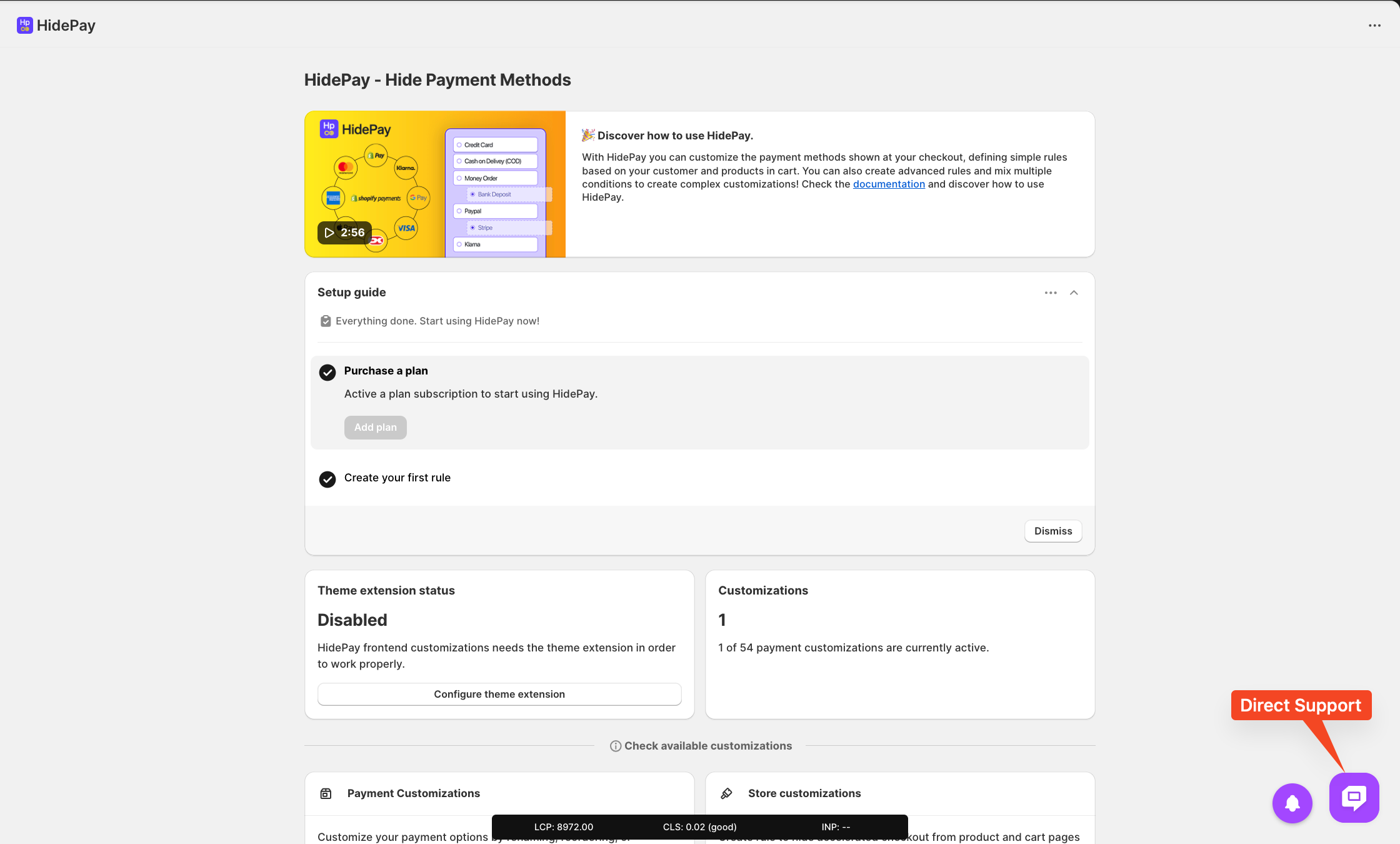
If you have any questions or need assistance during setup, our team is here to help. You can contact the Nextools Support Team anytime via the in-app live chat or by email. We’ll be happy to assist you.
We’re always here to help you get the most out of HidePay! 🚀
