In this tutorial, we will guide you on how to hide payment methods for customers who are not logged in to your Shopify store using HidePay.
Open the HidePay Dashboard
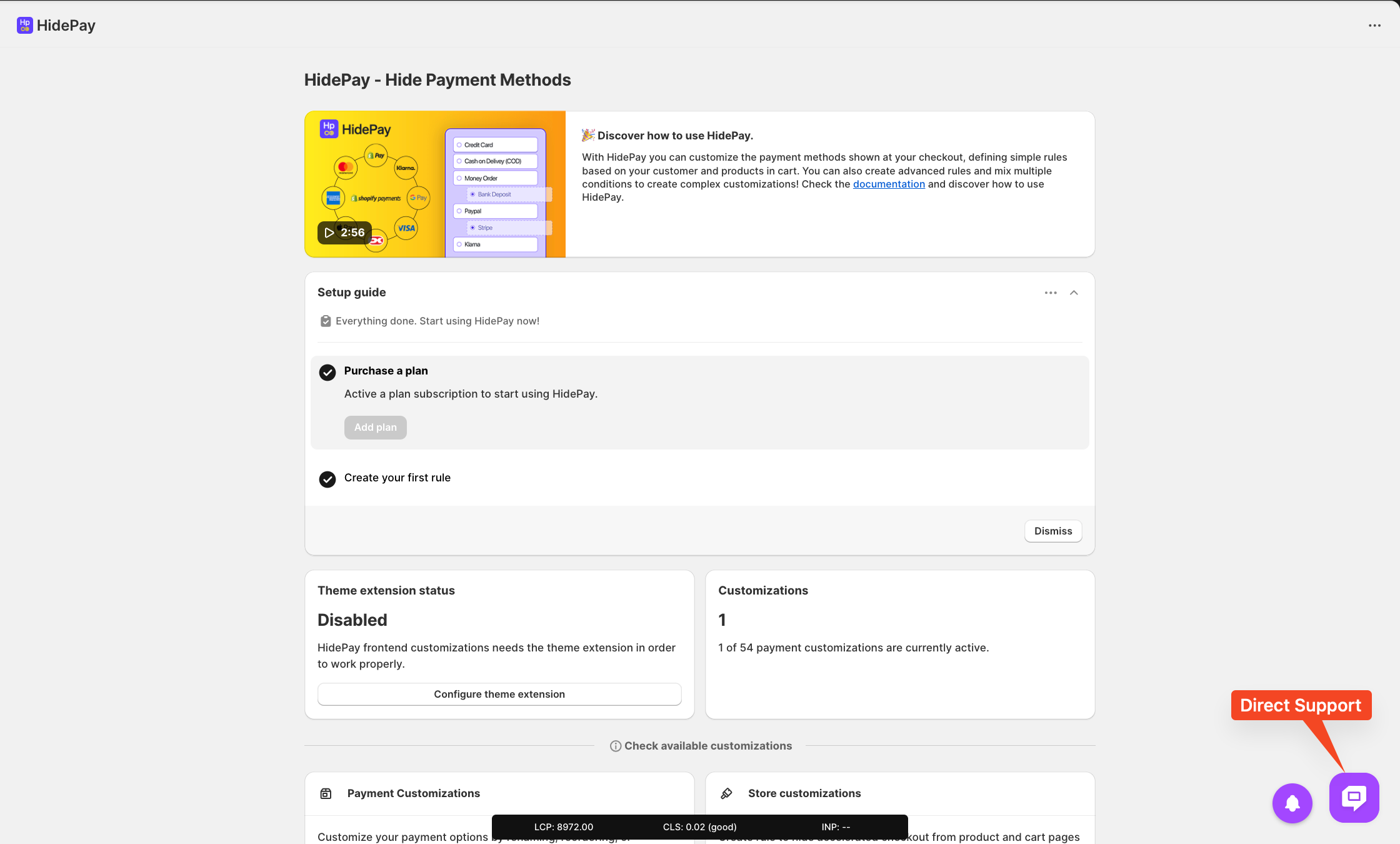
First, go to the HidePay dashboard inside your Shopify admin.
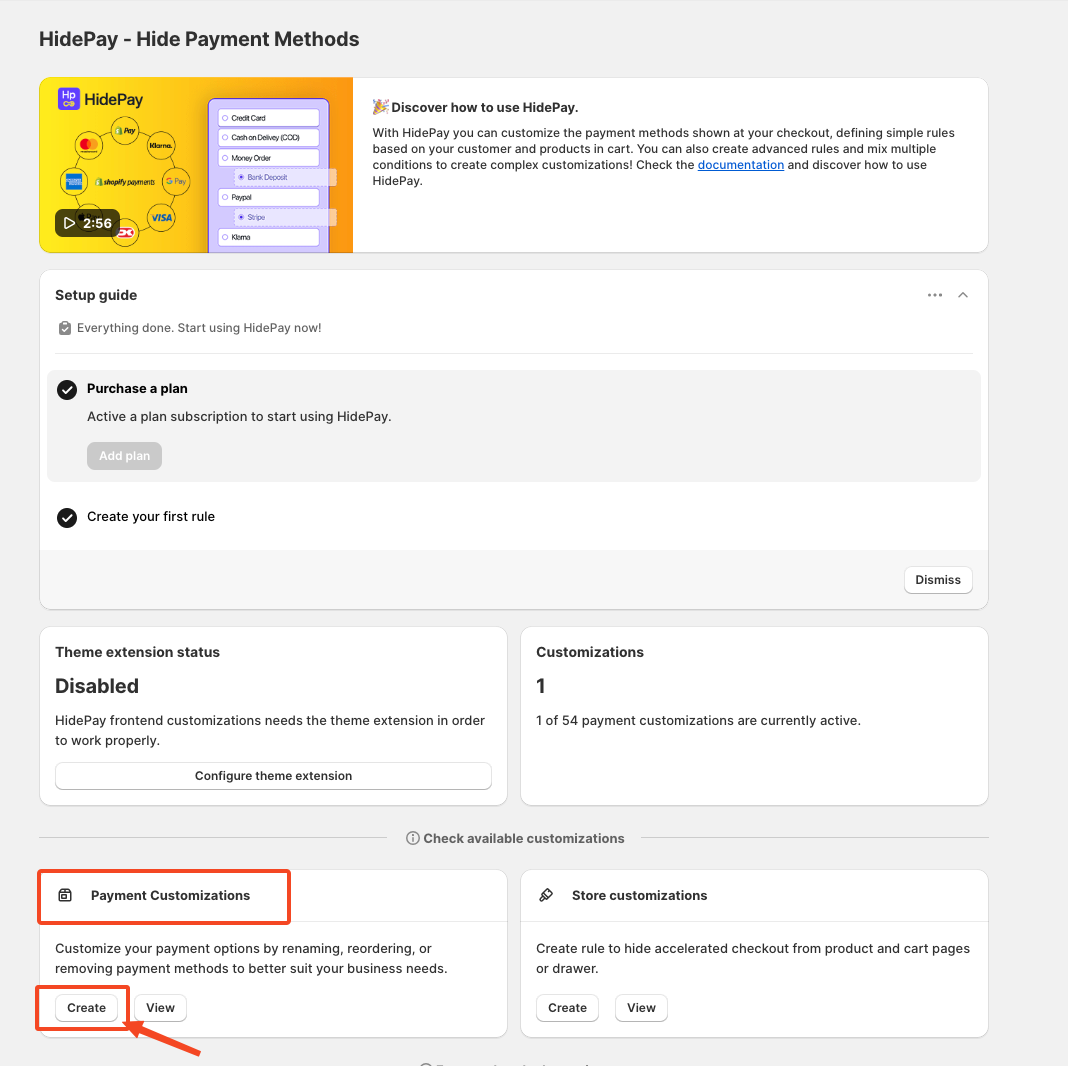
Navigate to the Payment Customisations section and click the Create button to start creating a new rule.
Choose Simple Customisation
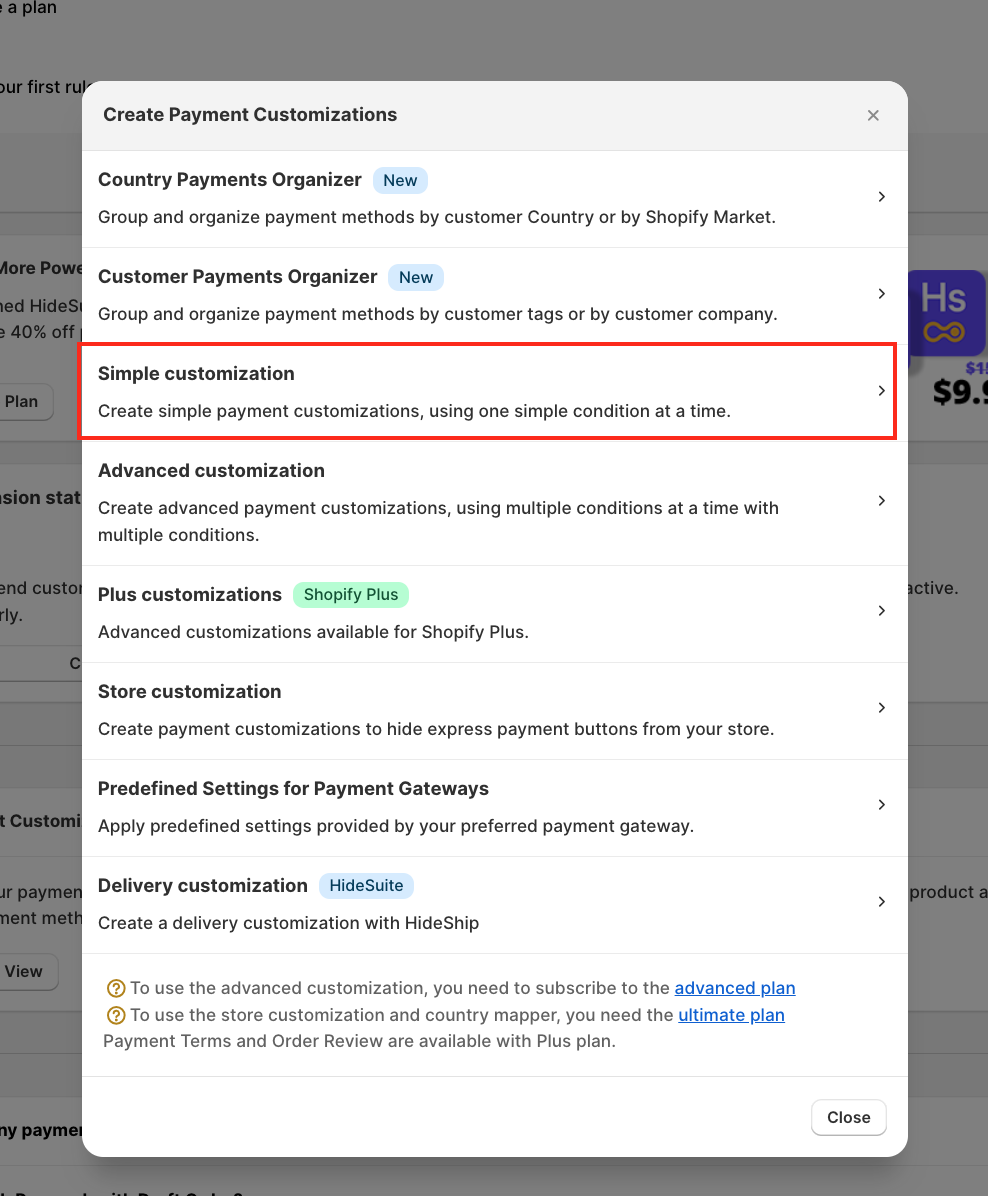
After clicking Create, a pop-up window will appear.
From this window, select Simple Customisation.
Once you select Simple Customisation, a new customisation setup page will appear where you can configure the rule.
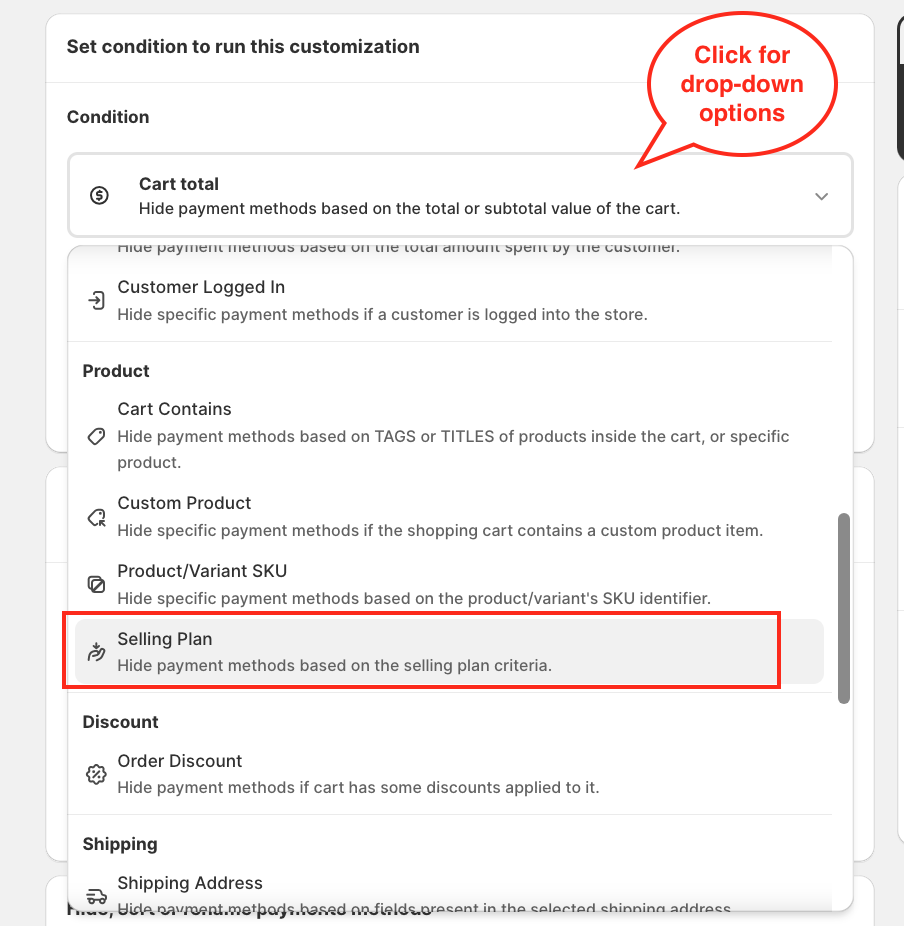
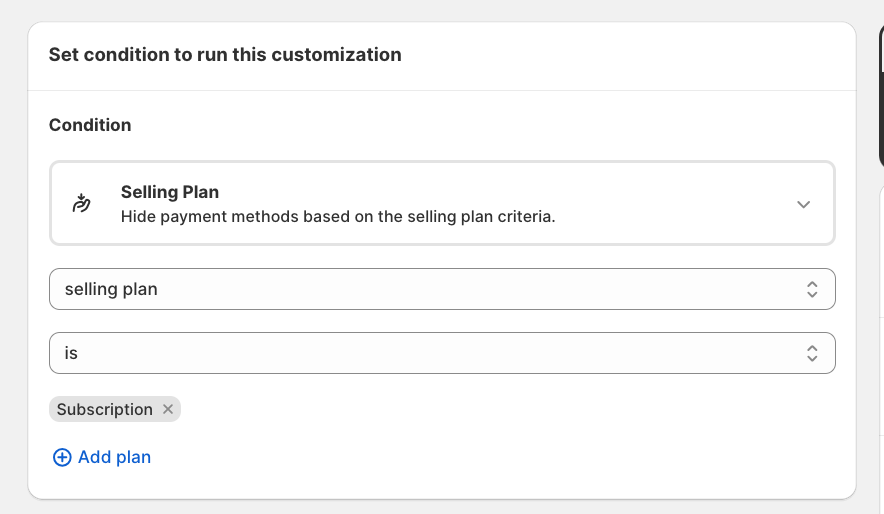
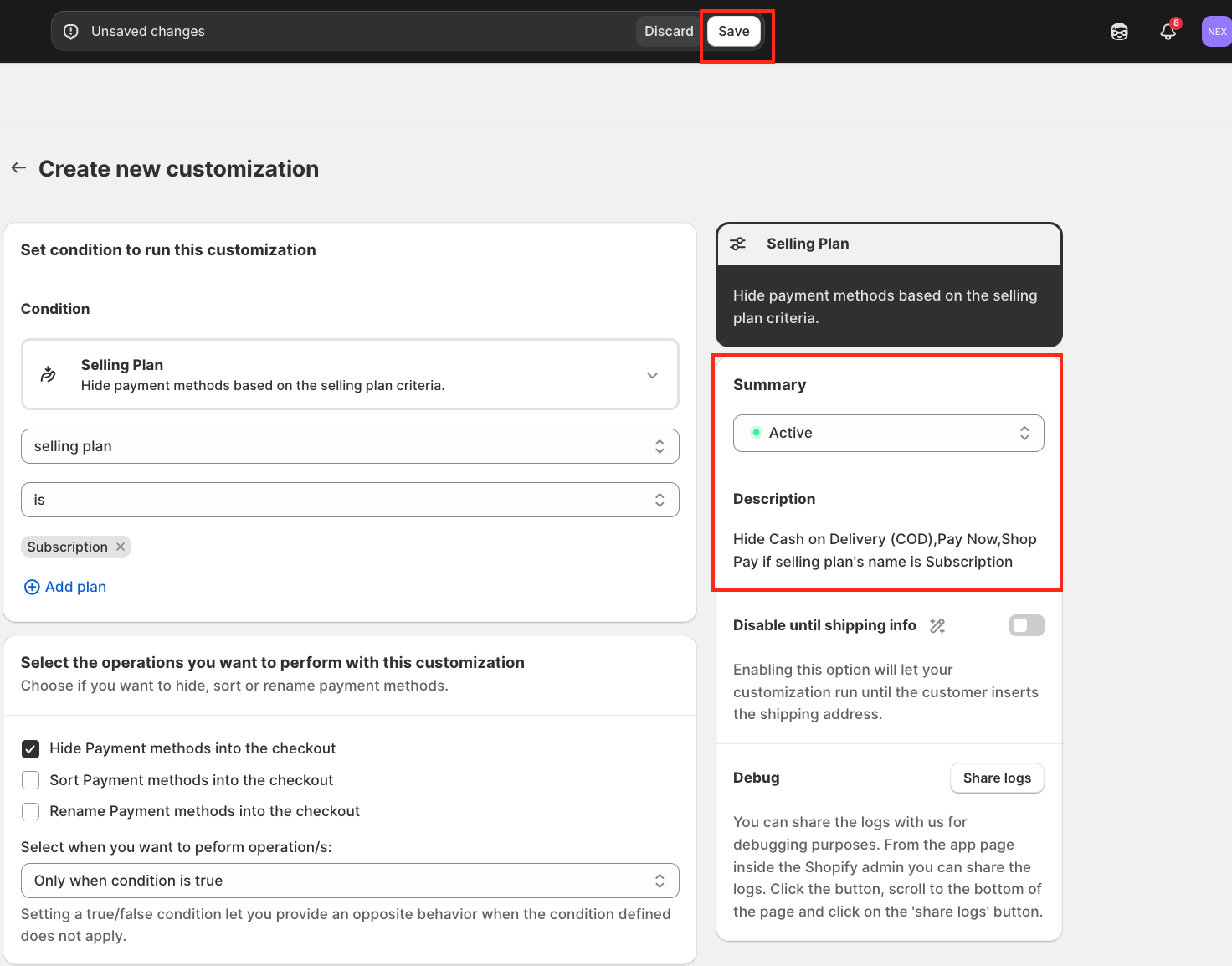
Click on Condition and choose: Selling Plan
Next, configure the condition fields:
-
Selling Plan
-
is
-
Select the specific selling plan name
This means the rule will run when the selected selling plan is used in checkout.
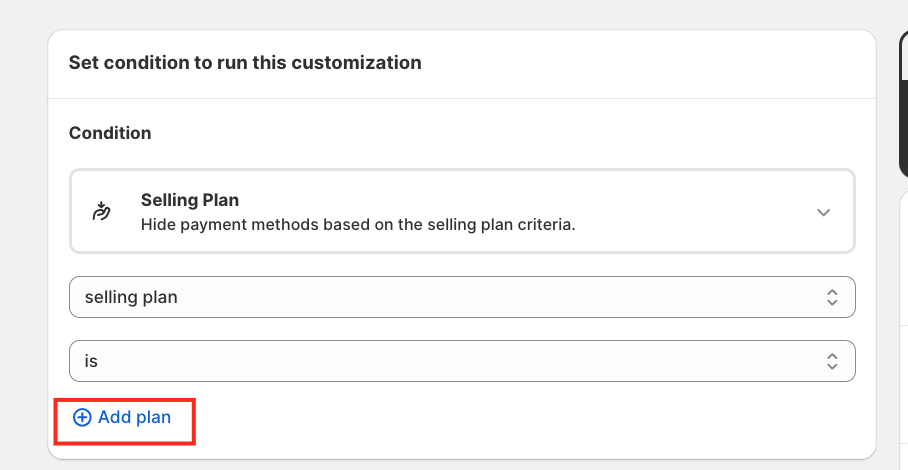
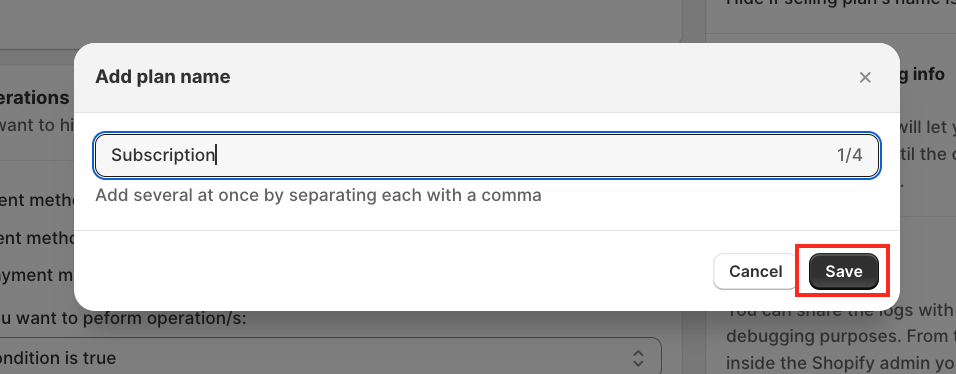
You can also click Add plan if you want to apply the rule to multiple selling plans.
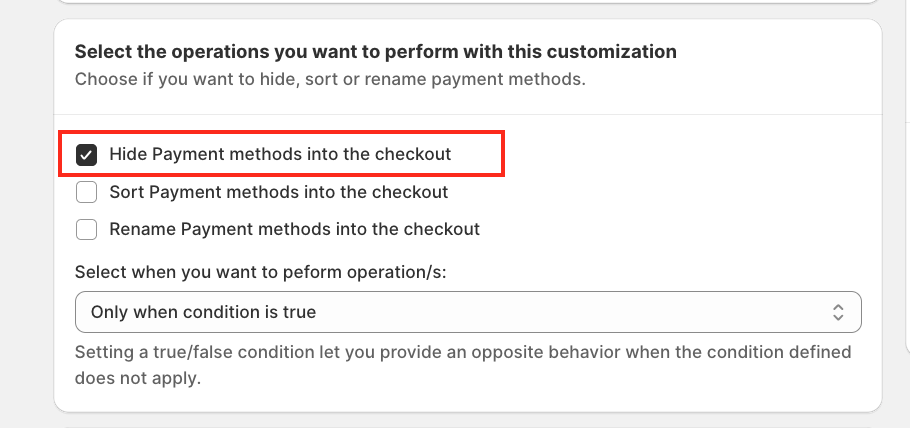
Next, choose the operation you want to perform.
You will see three available options: Hide Payment methods in the checkout, Sort Payment methods in the checkout and Rename Payment methods in the checkout
Since the goal of this tutorial is to hide payment methods, select:
✅ Hide Payment methods in the checkout
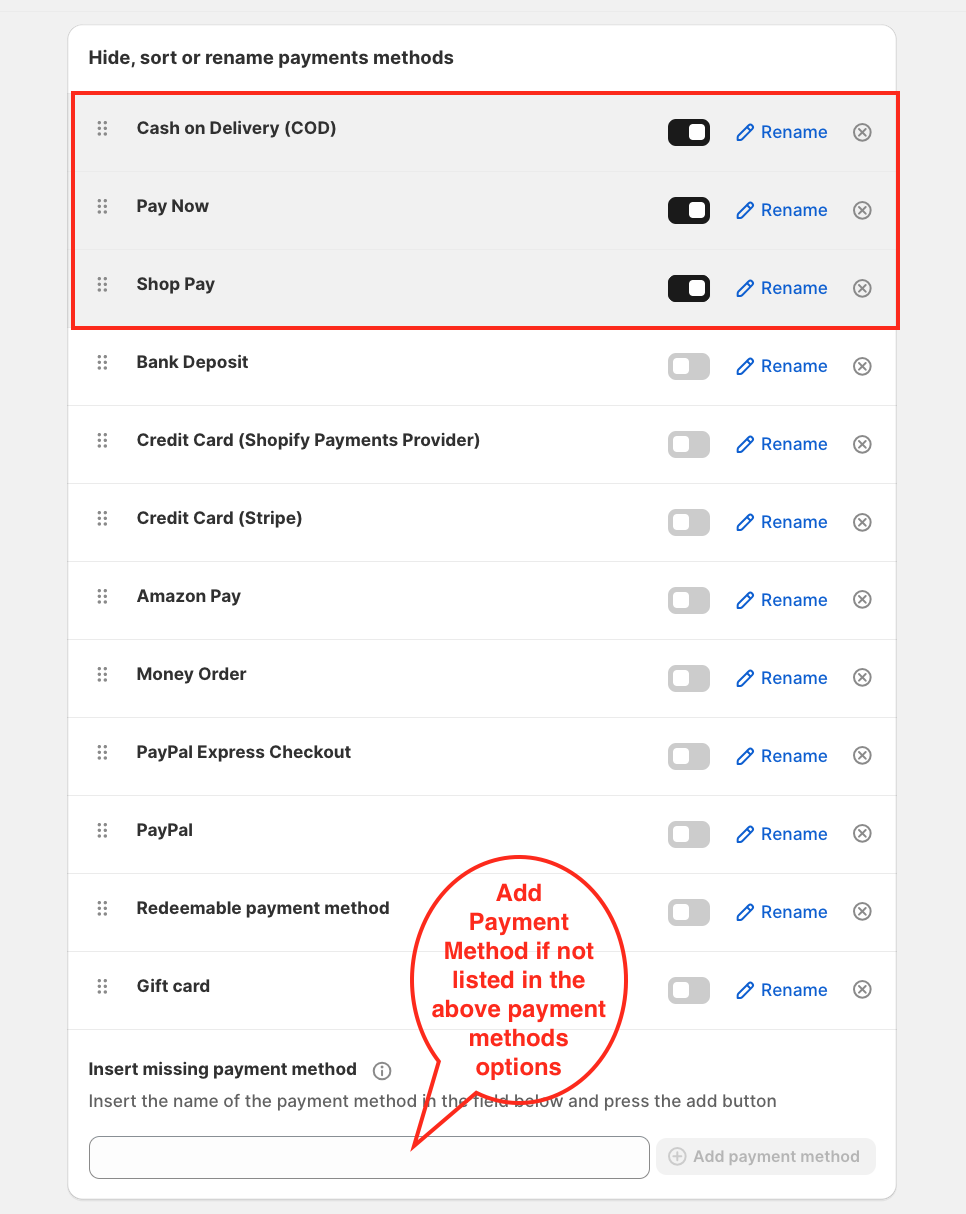
Select the Payment Methods to Hide: Scroll down to the Hide.
Toggle the switch ON for the payment methods you want to hide.
After configuring everything, click Save Rule and make sure the rule status is Active
If the rule is not active, it will remain in Draft mode and will not affect your checkout.
Before finishing, check the Summary panel on the right side.
This section shows: Rule status and Description
For further assistance, reach out to us via HelpCrunch or Email.
We are happy to help you with the HidePay application! 🚀
