In this tutorial, we’ll walk you through the process of retrieving the correct payment method in the HidePay application.
At times, when you attempt to hide, sort, rename, or add a new payment method, it may not work as expected. The method might not show up in your store or may not behave according to your setup. This usually happens when an incorrect payment method reference is used. This article will help you identify and fix such issues.
Let’s move forward and see how to retrieve the correct and active payment methods available in your store using the Logs page.
Go to the HidePay dashboard and click on "Create" in the Payment Customisations section.
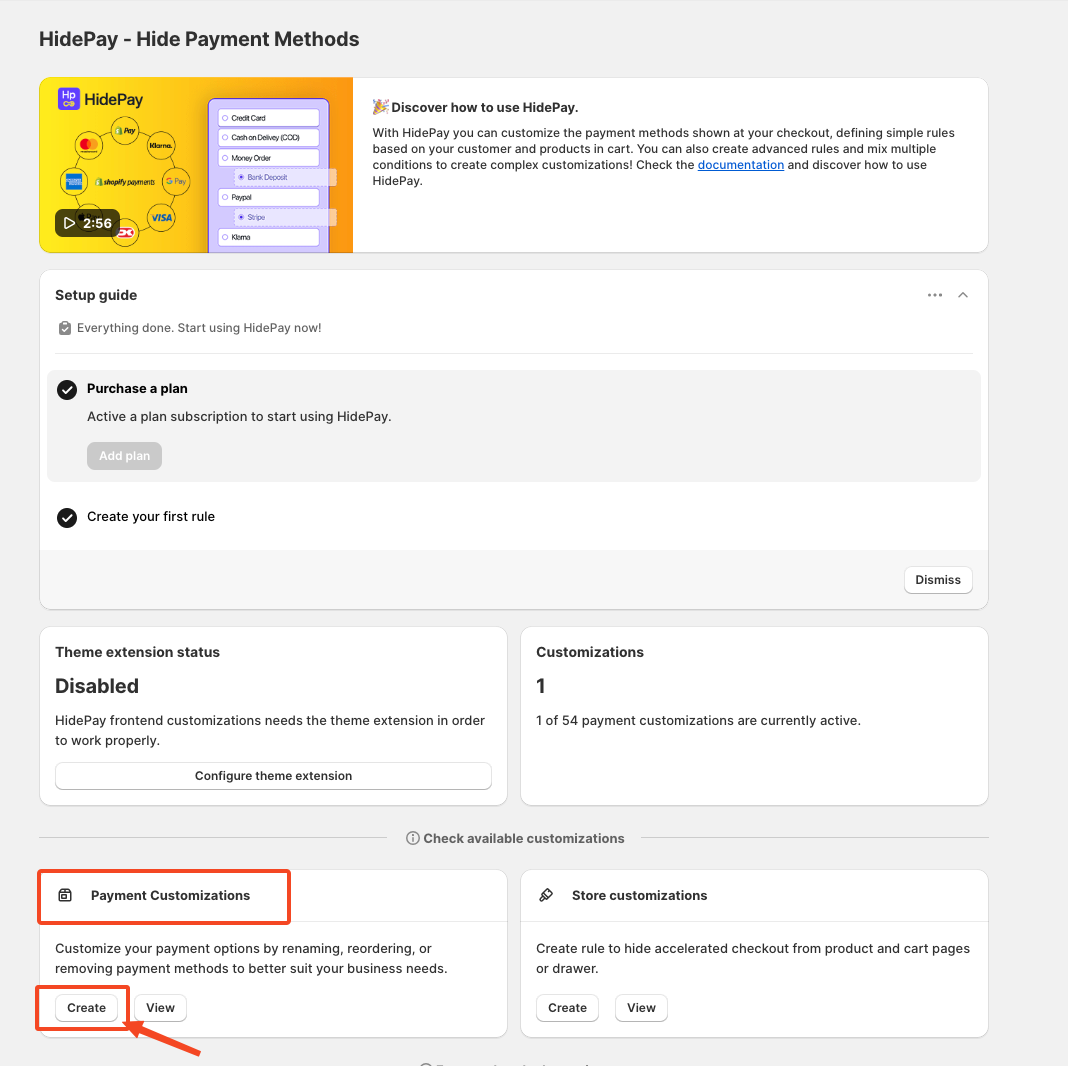
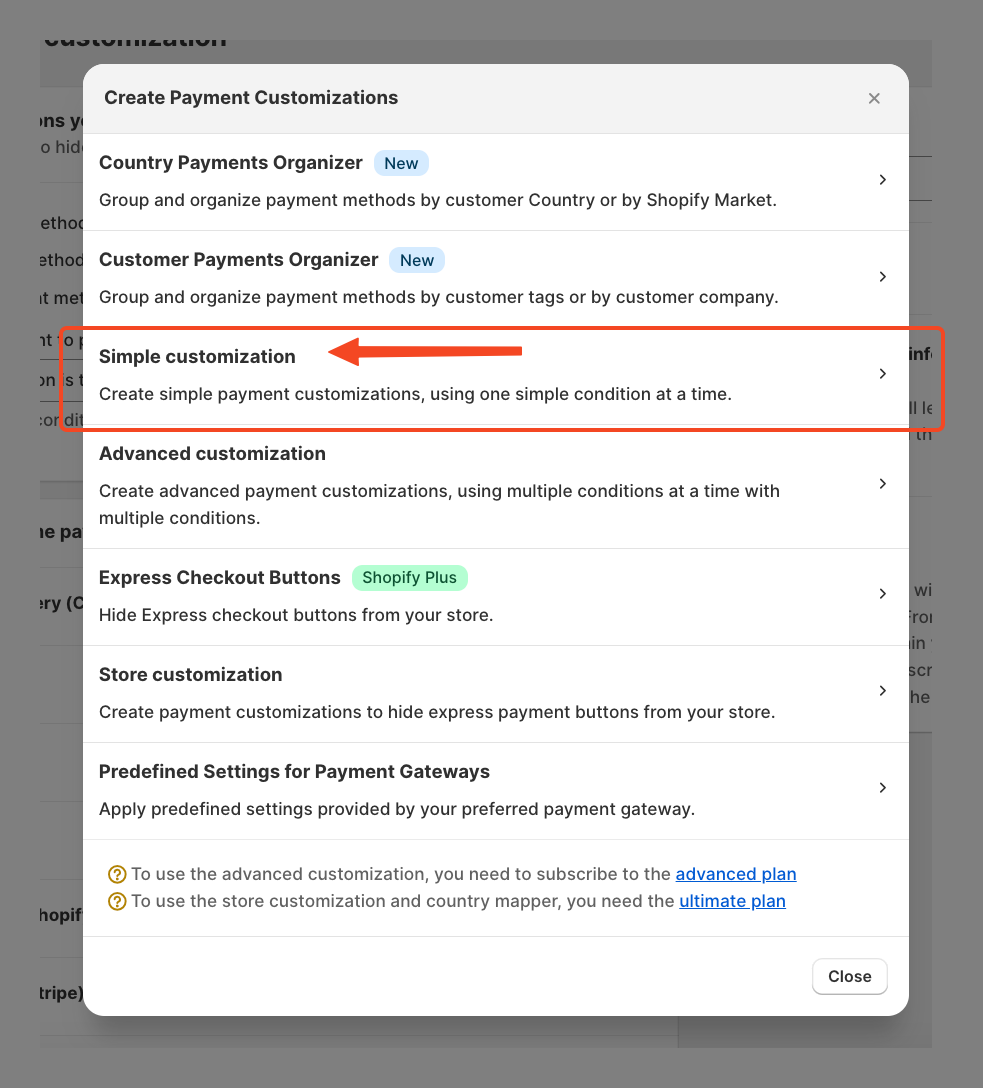
When you click the Create Button, a pop-up window will appear. In this window, select the Simple Customization option to proceed using one condition at a time.
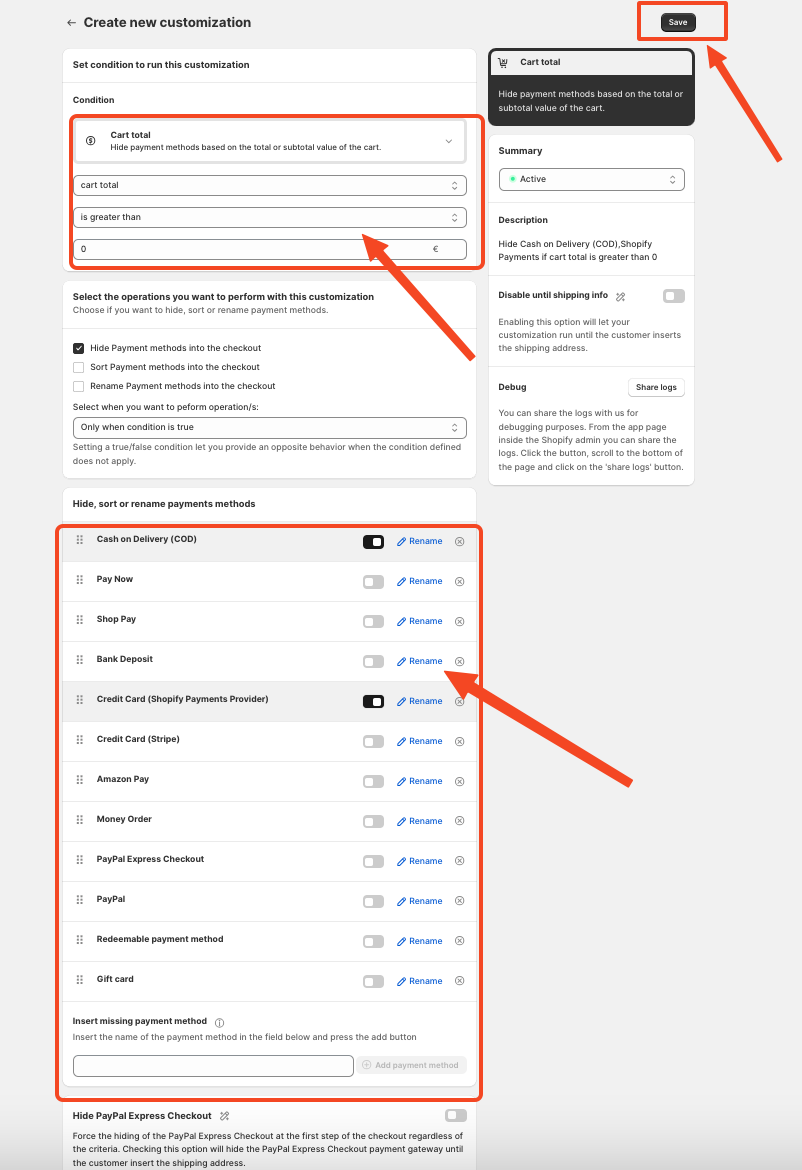
After clicking on Simple Customization, you'll be able to create a new customization like this:
 If the payment methods are not being hidden according to the rule, go back to the HidePay application dashboard and click on the Logs option.
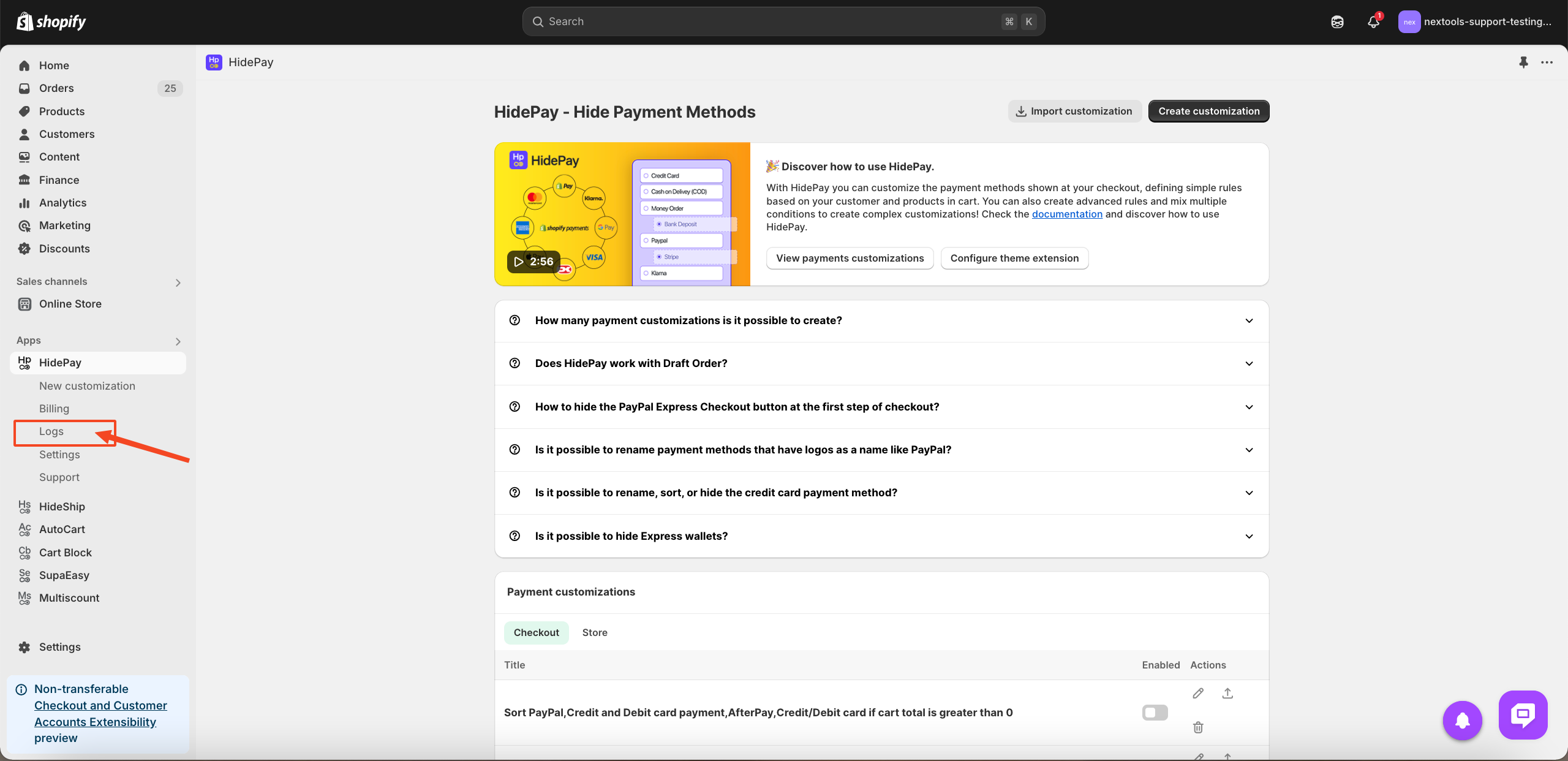
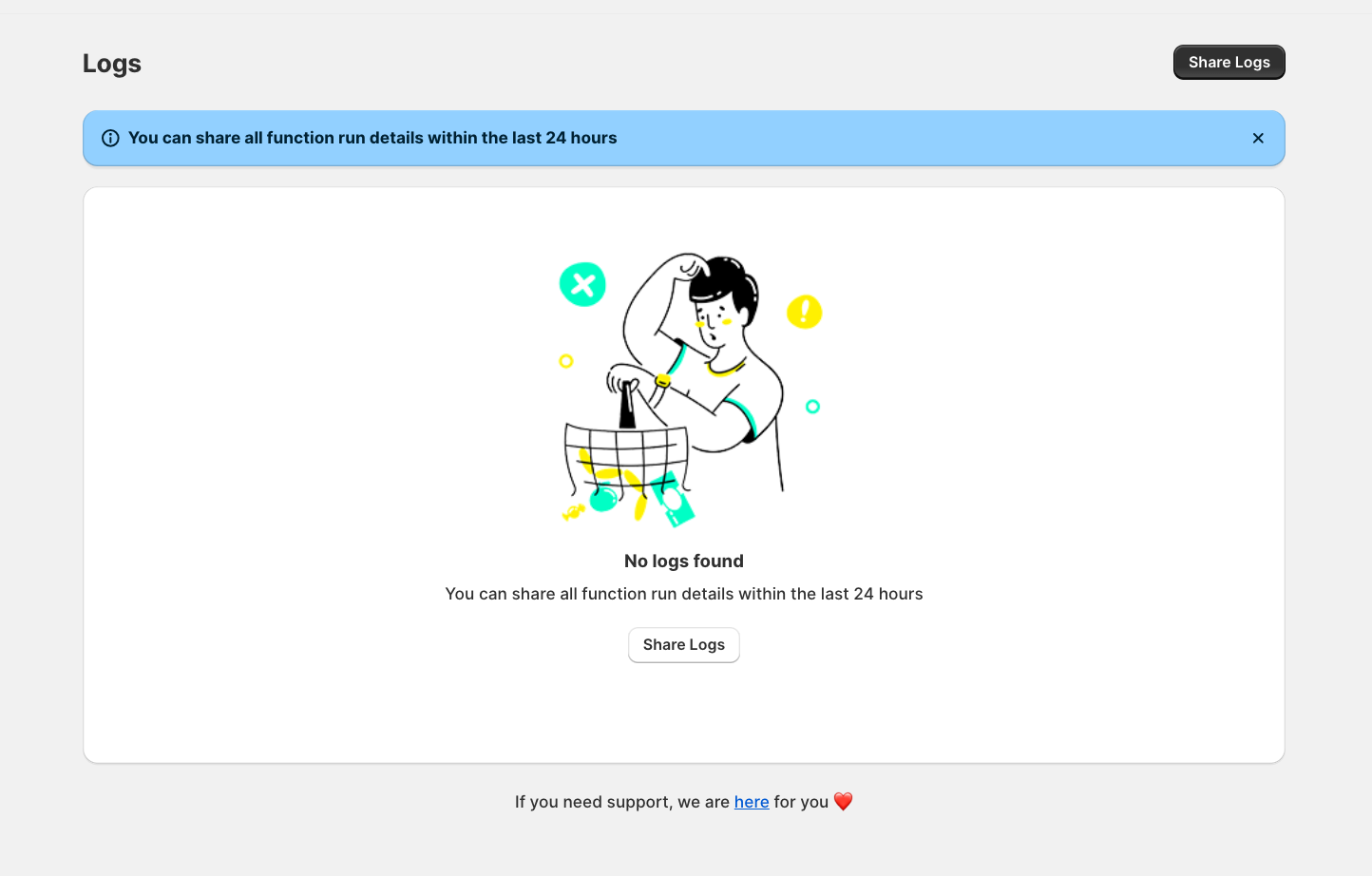
After clicking on Logs, you might see that the logs are empty, as shown in the image below. Next, click on the "Share Logs" button located at the top-right corner of the page.
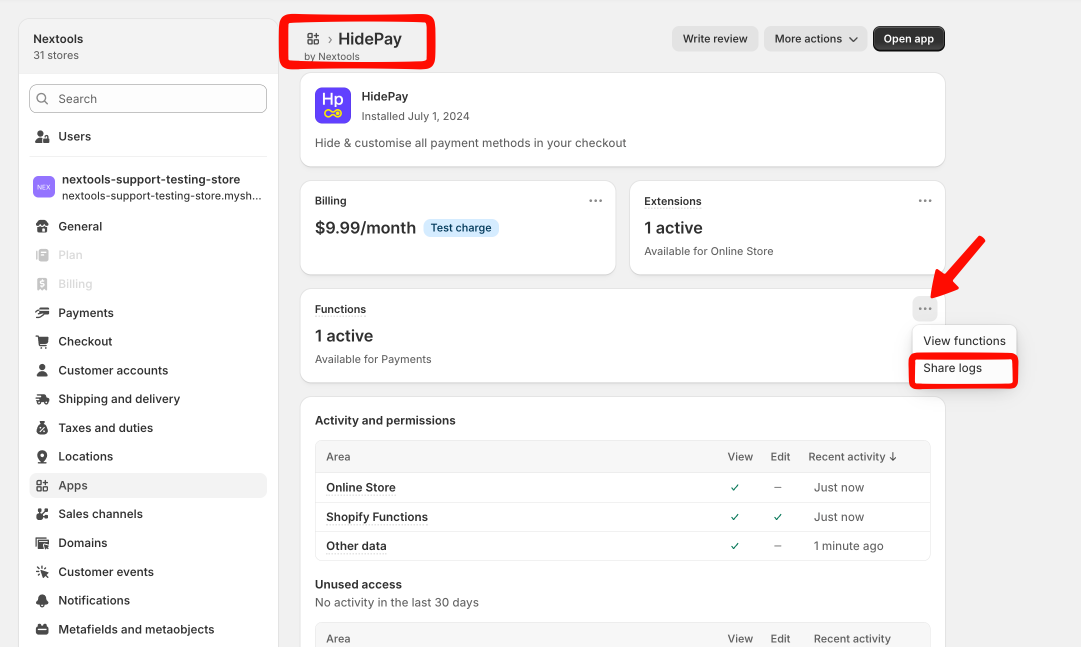
This action will redirect you to the Settings page. Open the Functions menu and click "Share Logs".
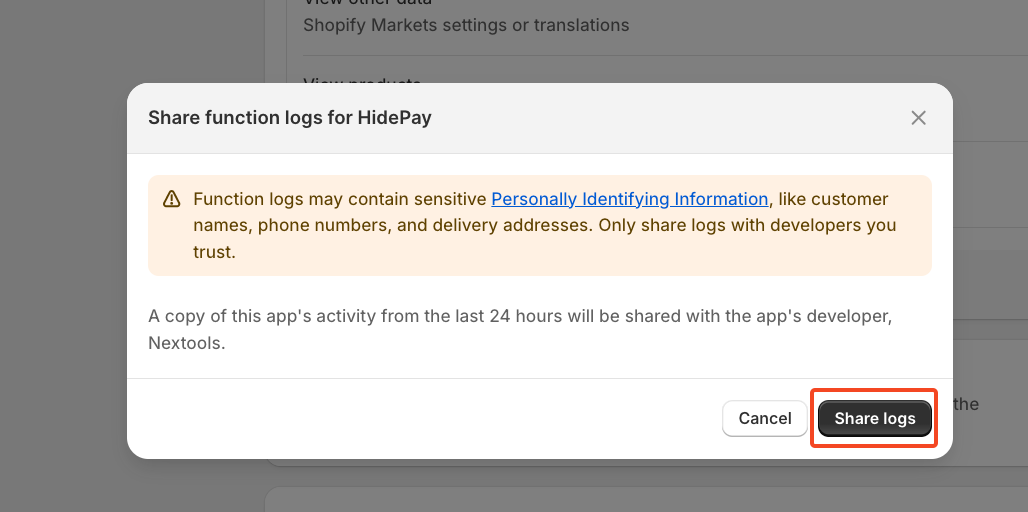
A pop-up window will appear. In the pop-up, click on the "Share Logs" button once again.
 On the final click, you will see a confirmation message: "Function logs shared with Nextools."
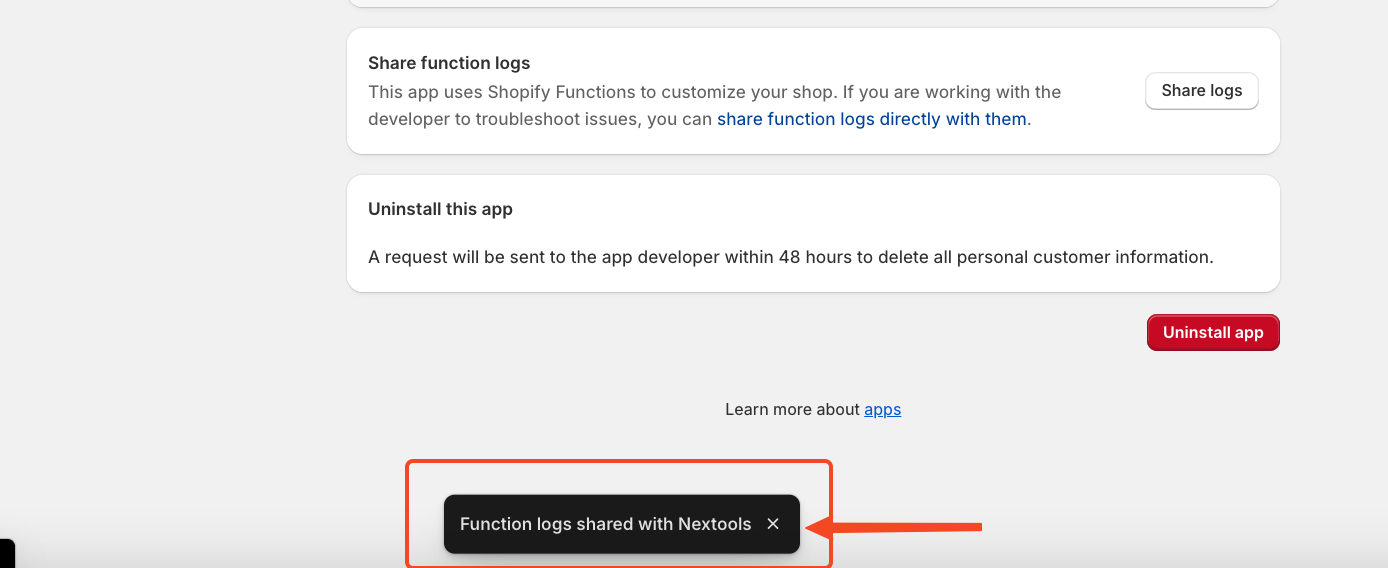 Once you see this message, close the Settings page by clicking the X (close) button in the top-right corner.
Return to the Logs page. Where it was previously empty, you should now see the logs displayed.
Click on any of the log entries listed on the Logs page
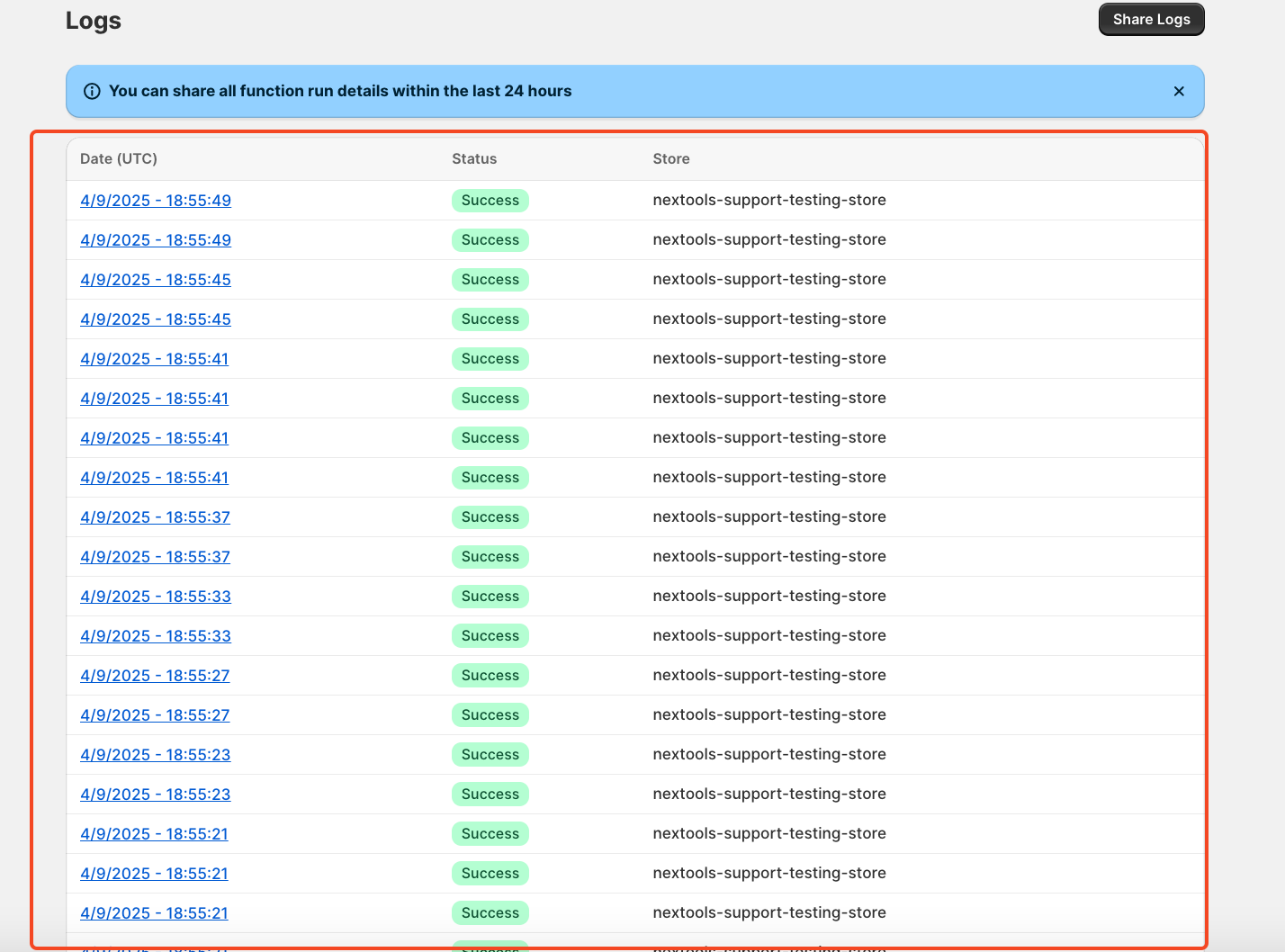
This will open the Log Details page, where you can view more information.
Scroll down and locate the Payment Methods section.
Here, you will see the exact names of the payment methods currently active in your store. Verify that the correct payment method names are displayed within inverted commas (" ").
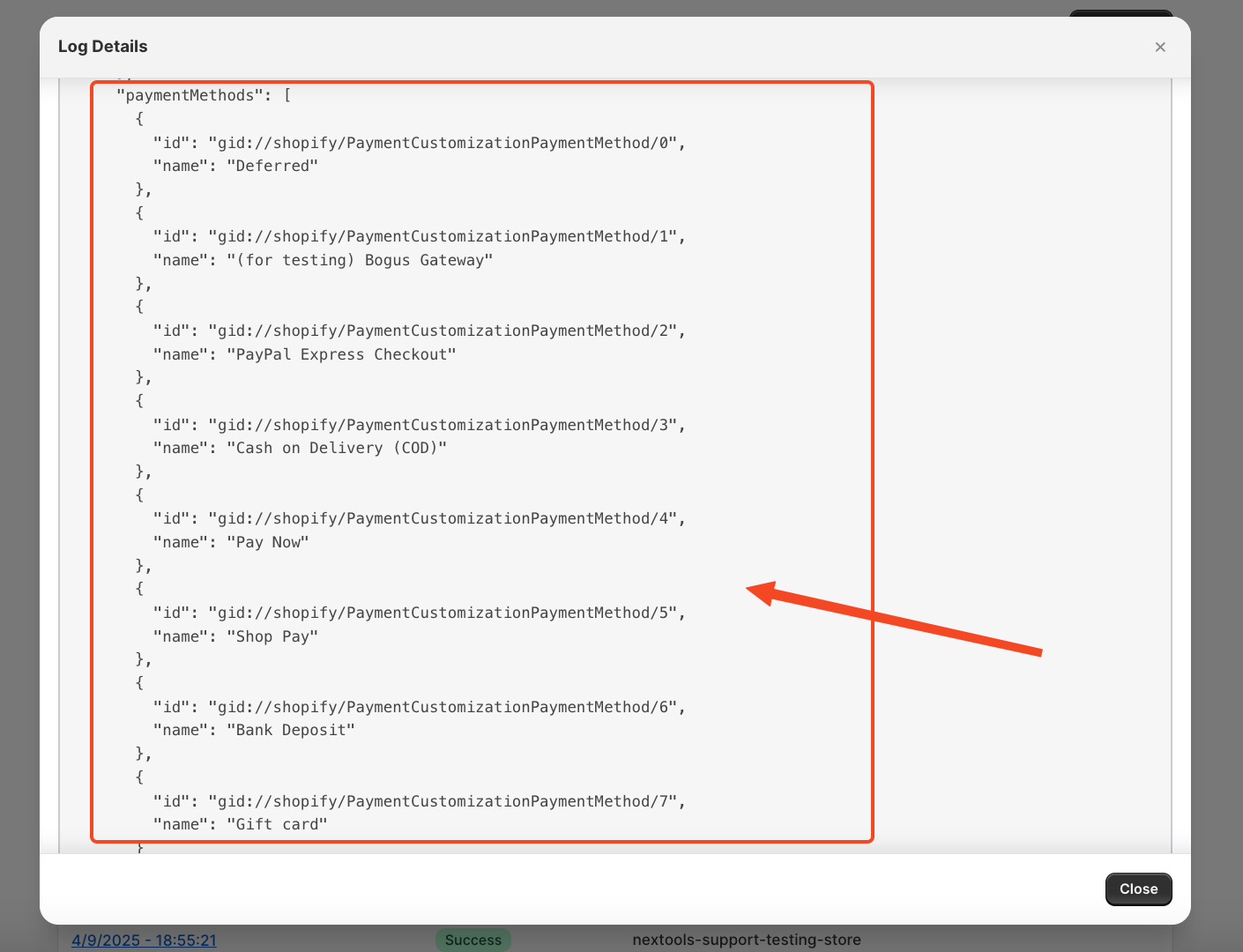 Simply copy the exact name of the desired payment method from this section. Then, close the Log Details page and return to your Rule Page in the HidePay application.
Now, add a new payment method to your rule using the copied name. As shown in the example below, there may be two options named “Cash on Delivery,” but the correct one to use is "Cash on Delivery (COD)".
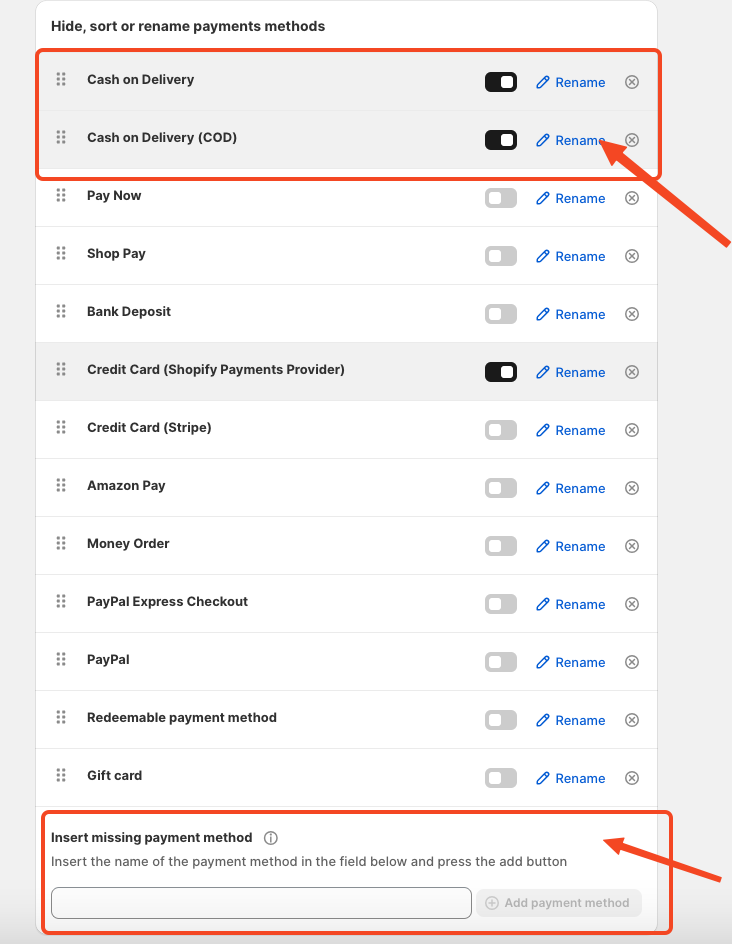
Once done, save the rule again. Now check your live or development store—your selected payment method should be successfully hidden.
After completing this tutorial, you’ll be able to retrieve the correct payment method from the logs and resolve similar issues independently.
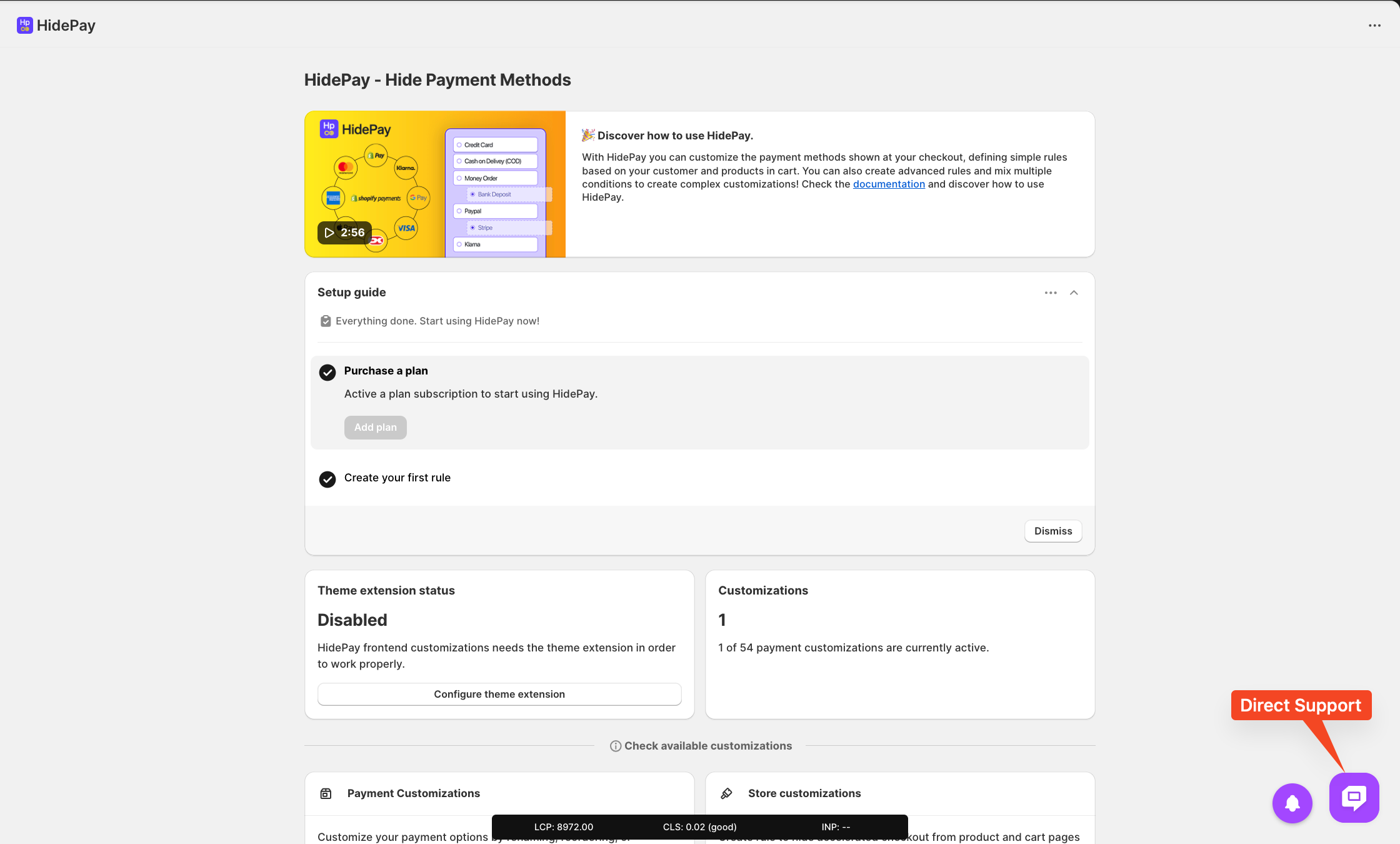
We are happy to help you with the HidePay application! 🚀
