In this tutorial, we'll guide you through hiding a product collection in the cart, hiding the shipping method, and displaying it when needed.
To get started, create a new customisation and select Advanced Customisation in the HideShip application.
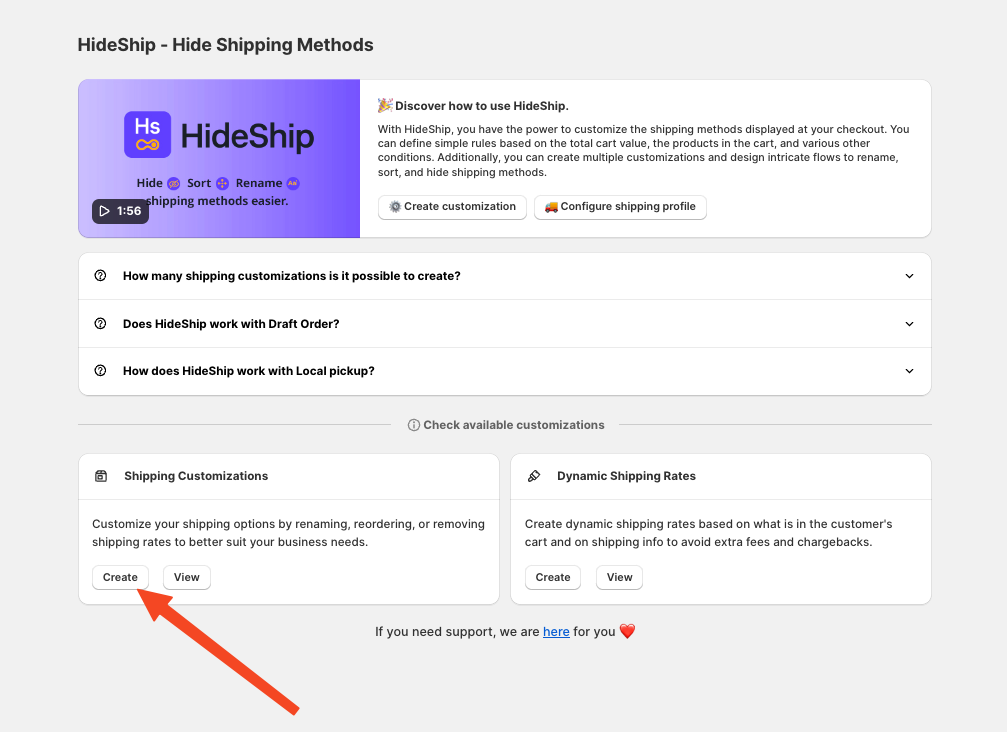
After clicking Create Customisation, a new window will pop up where you need to select Advanced Customisation.
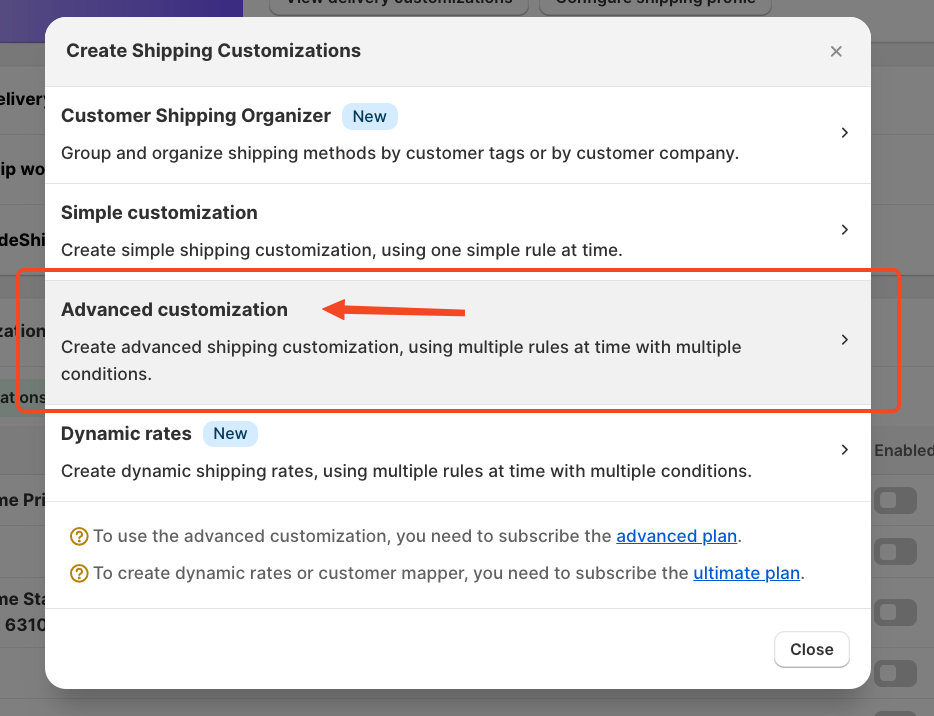
After selecting Advanced Customisation, we will create a rule to hide the shipping methods we want. This is how the new customisation page will appear.
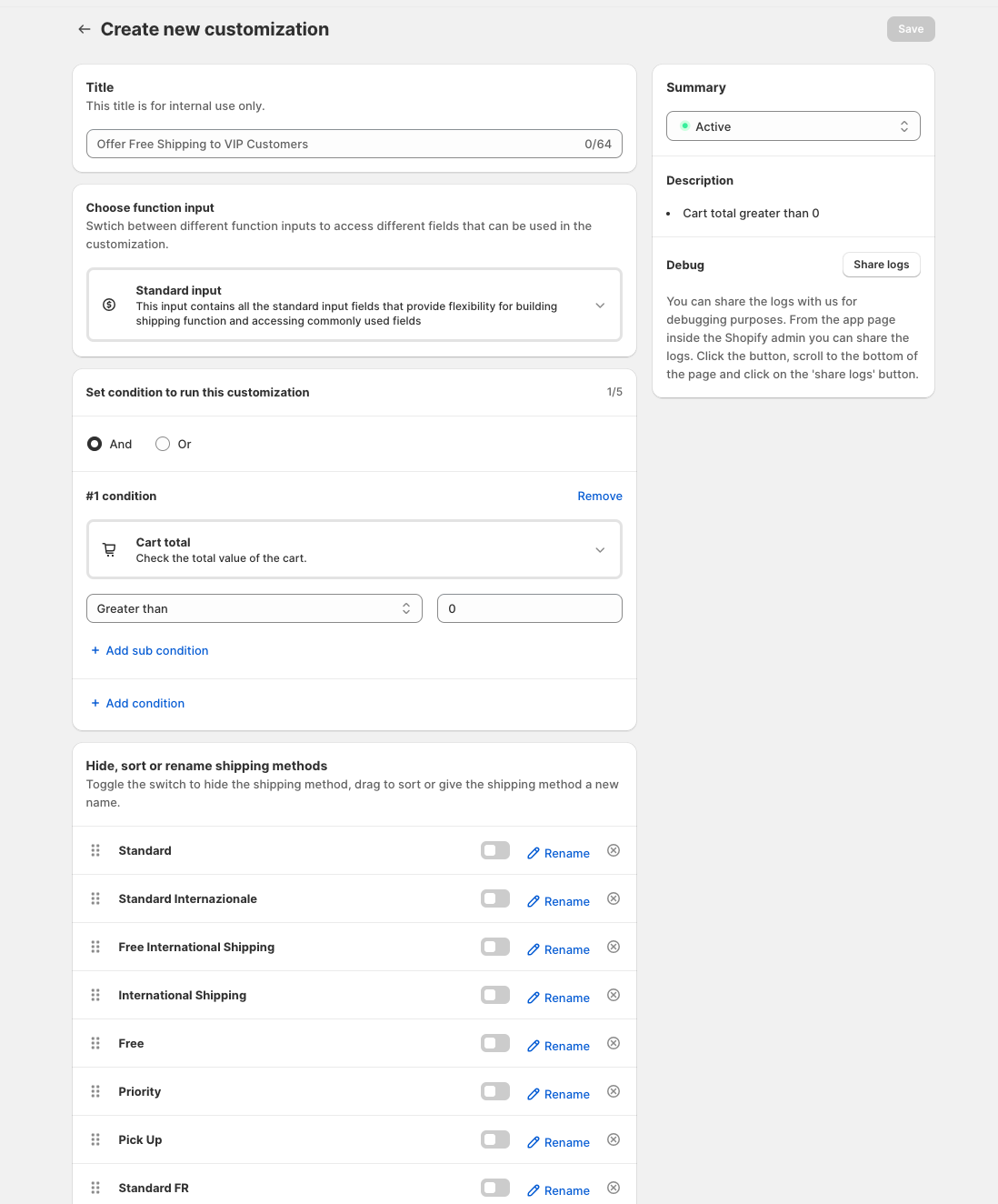
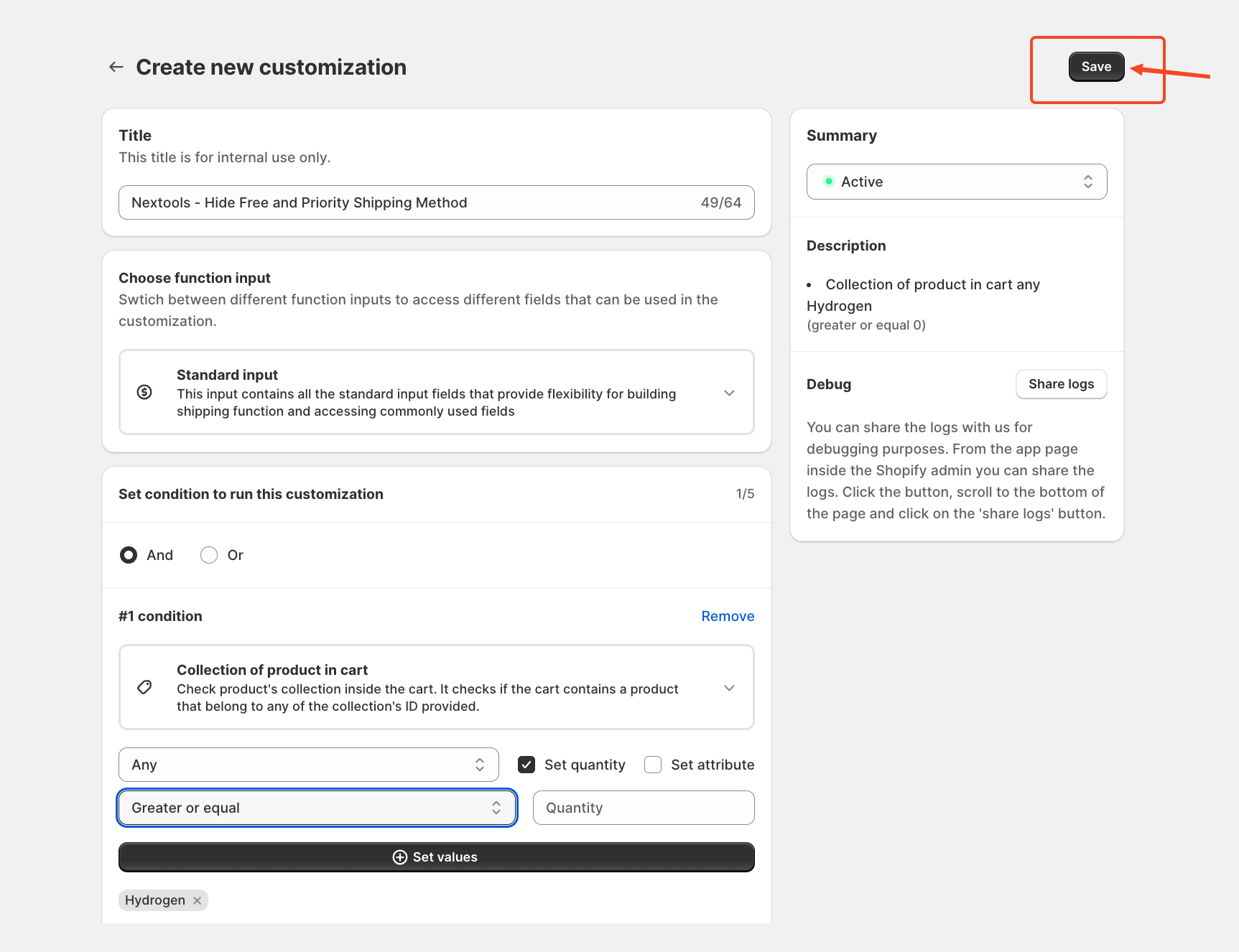
One section is called "Title," which is a required field. However, it is only for internal use and does not affect your live Shopify store. You can name it however you like; it's just for reference. The image provided is just an example.

Next, we will select the function input as Standard Input and apply the rule. Since we are demonstrating how to hide a product collection in the cart, we will choose the right condition.
For example, if a customer selects a product from the Hydrogen category, they will not be able to use the Free and Priority Shipping Methods
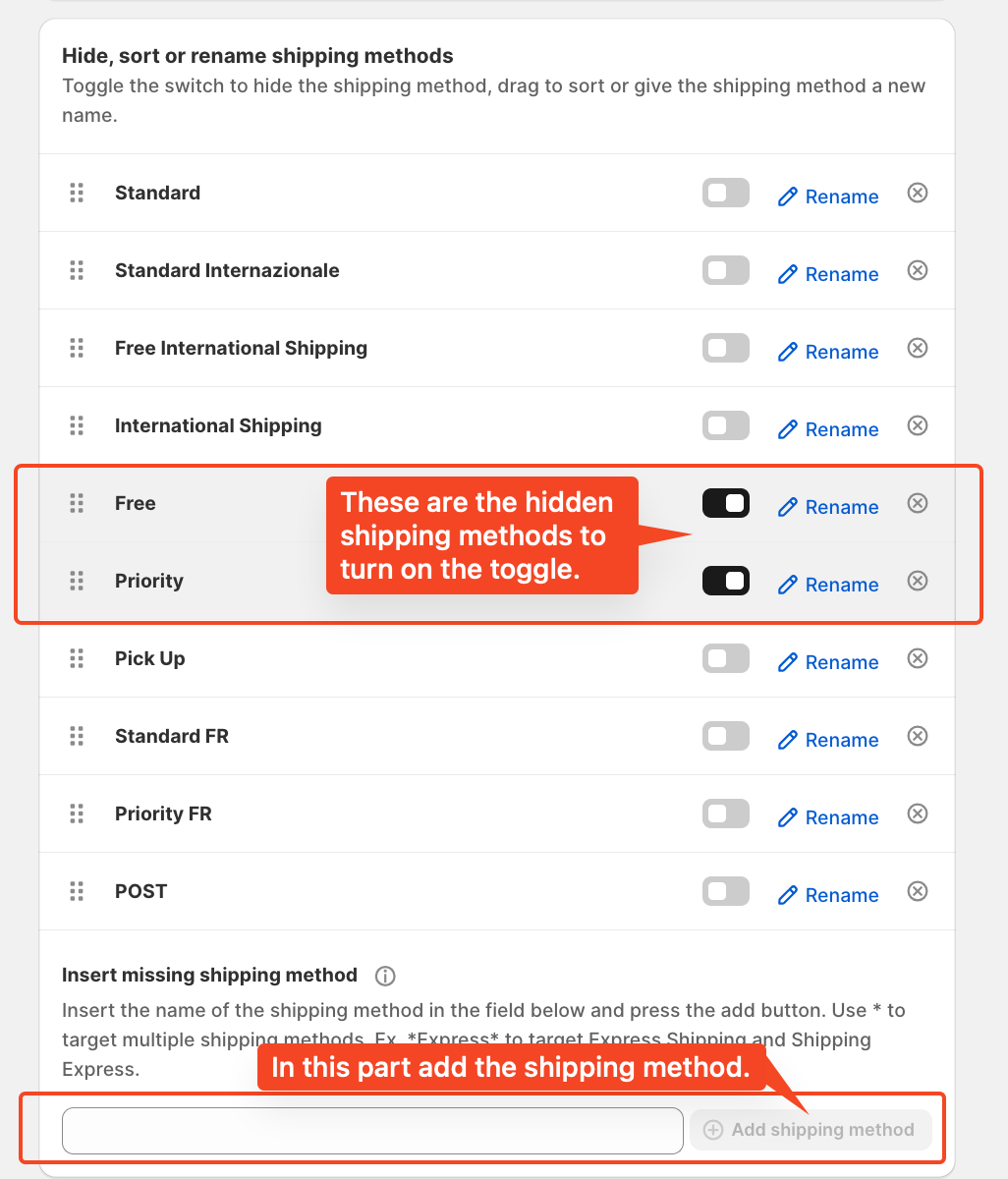
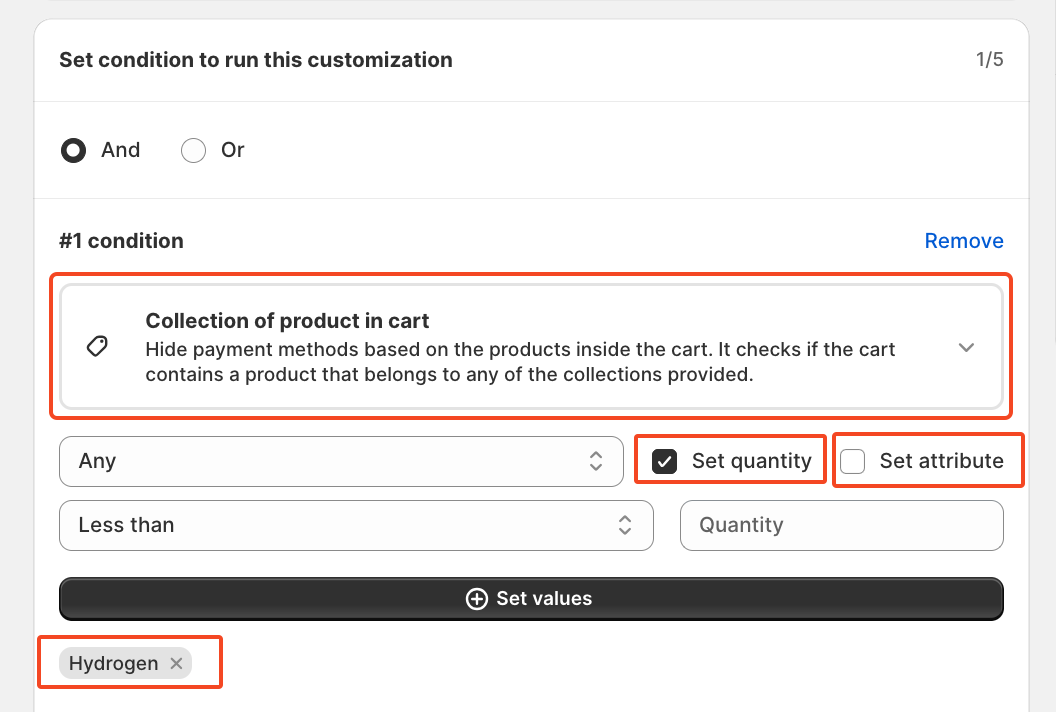 Next, we will pick the specific payment methods to hide. Since we want to block Free and Priority, we will toggle them on so they won’t appear at checkout.
If a shipping method is missing from the list, you can also add a new one in the Insert missing shipping method on the bottom of the rule.
Finally, save the rule.
Now, whenever a customer adds a product from this specific collection to their cart, they won’t see Free and Priority as shipping options.
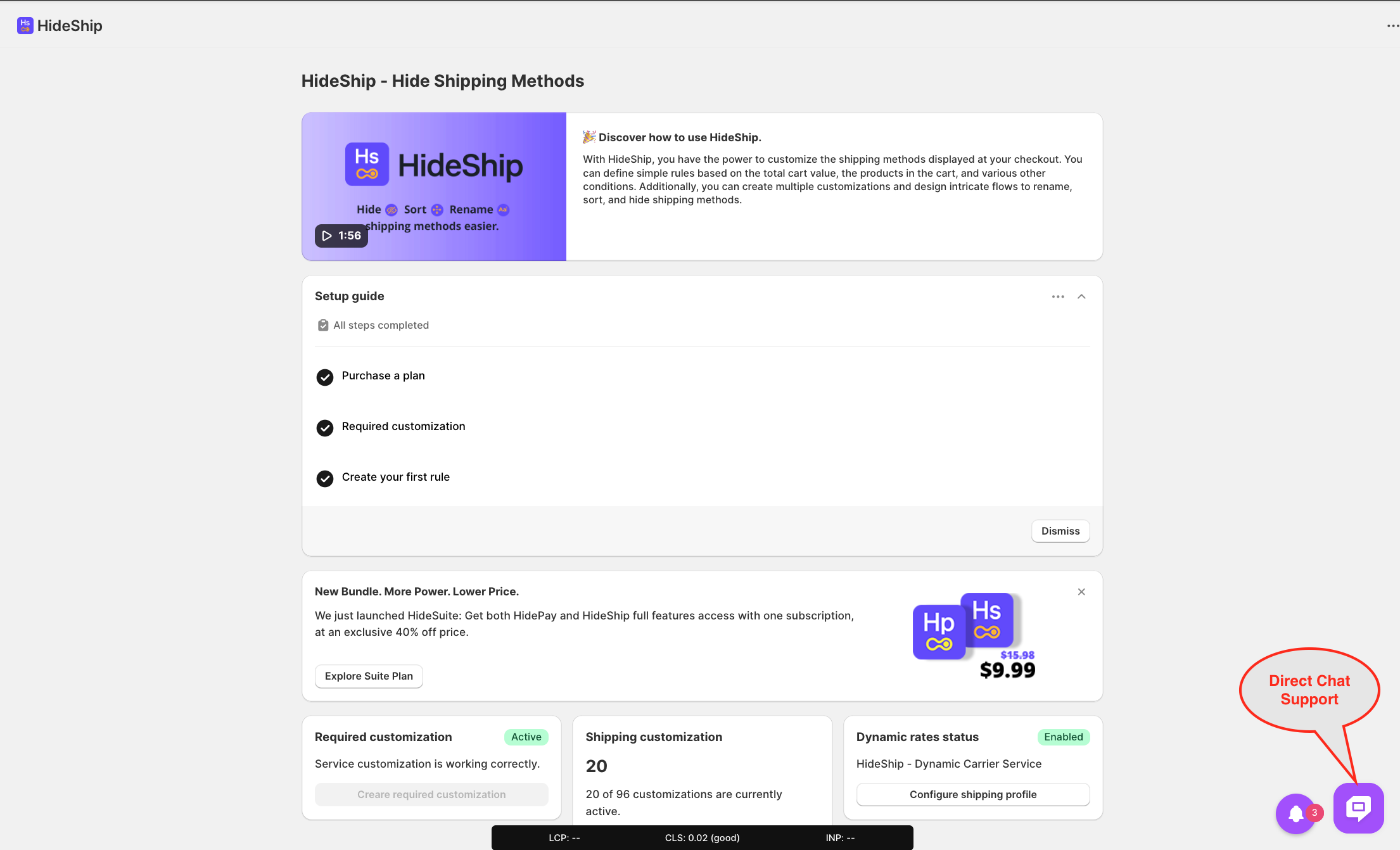
🚀 We’re here to support you with the HideShip application!
