In this tutorial, you’ll learn how to customise your shipping methods by postal code or ZIP code using HideShip’s new feature. You can easily hide, rename, or sort shipping methods based on whether a customer’s postal code matches your defined list.
With HideShip, you can create postal code–based shipping customisations and control which shipping methods appear at checkout depending on the customer’s delivery location.
Let’s begin.
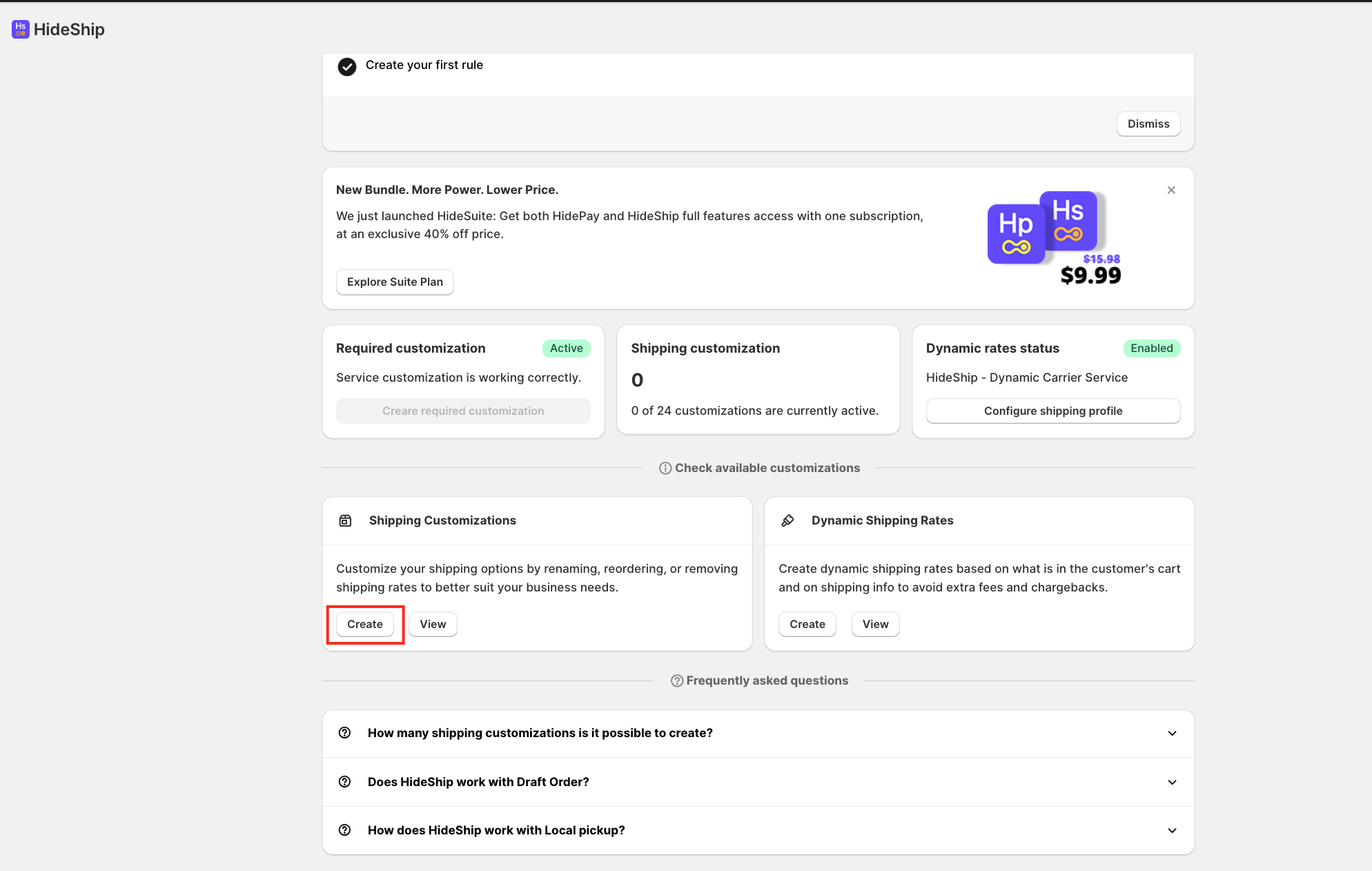
First, click on the Create button under Shipping Customisation to create a new rule in the HideShip application.
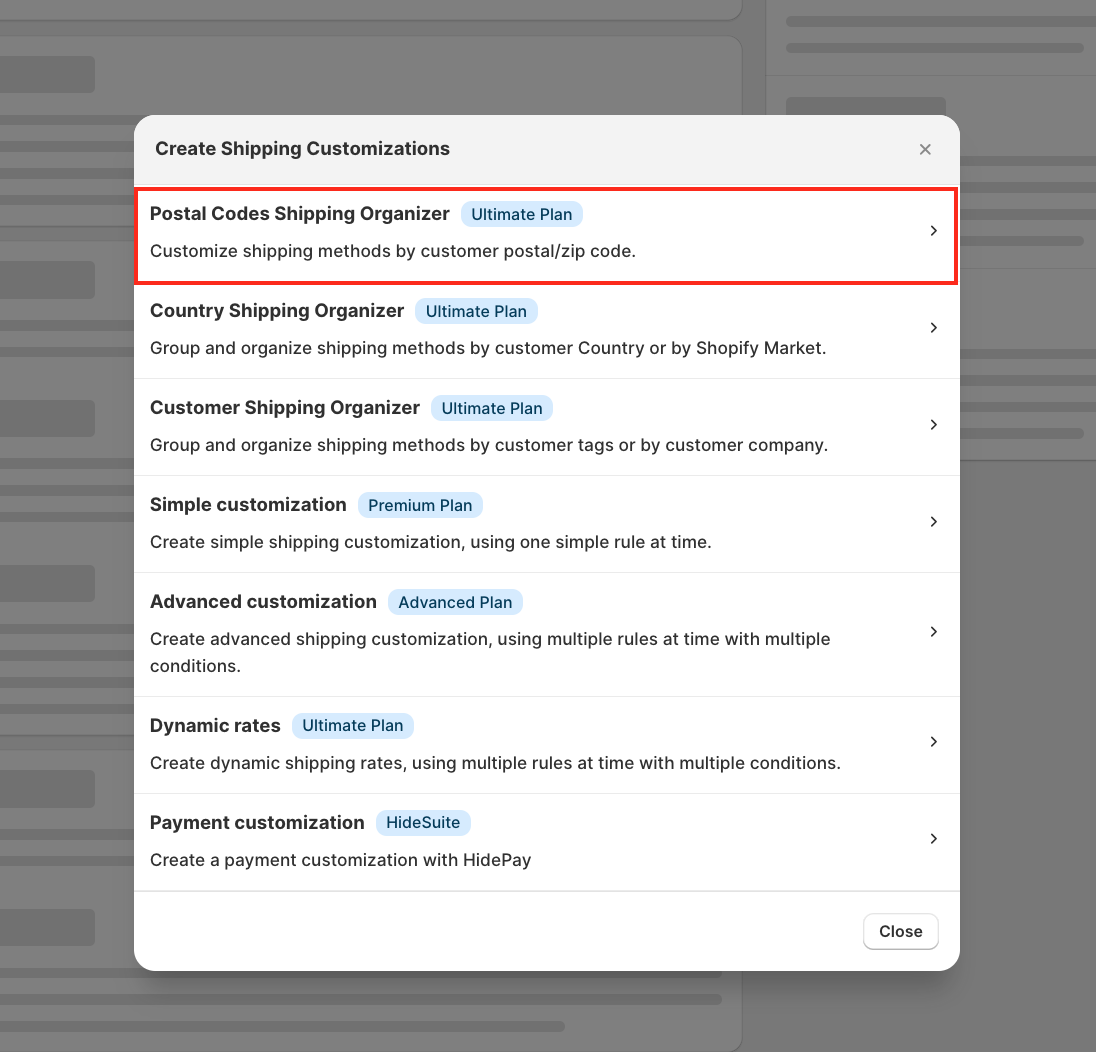
A pop-up window will appear; simply select Postal Codes Shipping Organiser.
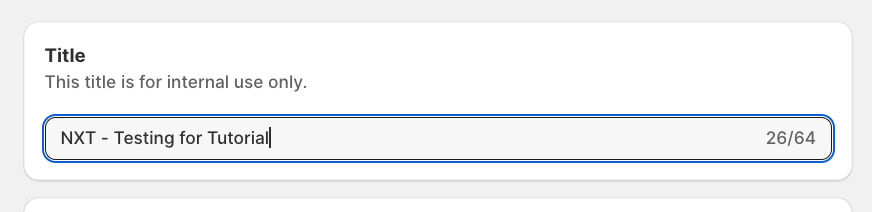
Once the customisation rule opens, enter a title for your customisation rule. This is just for internal use only.
Under the Postal Codes section, there are two ways to add postal codes:
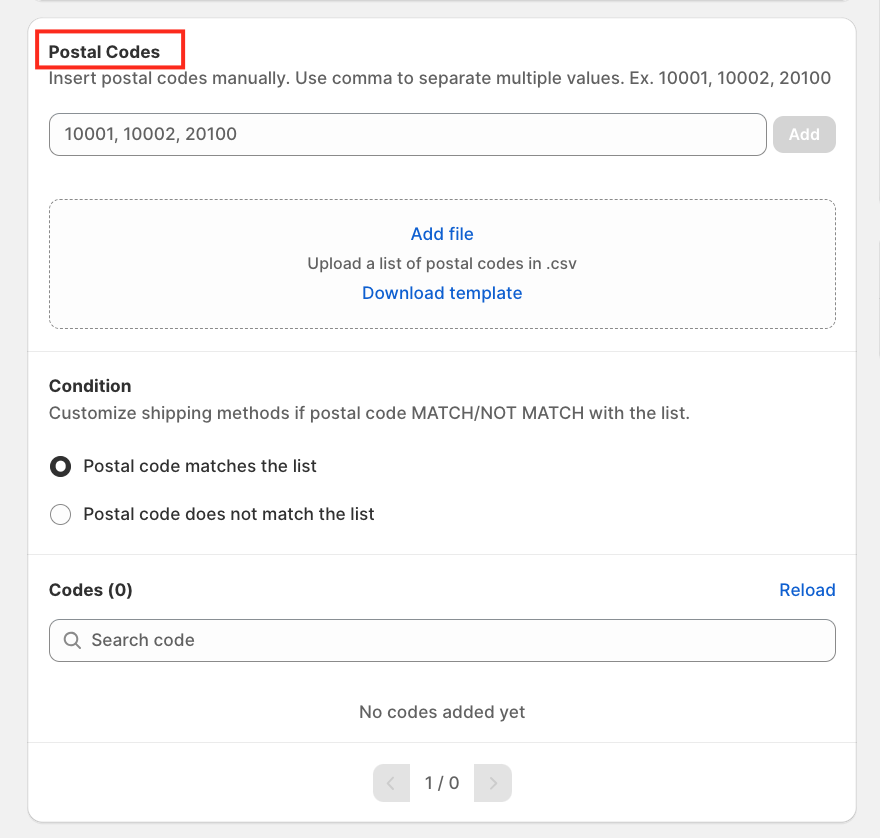
1. Manually Add Postal Codes
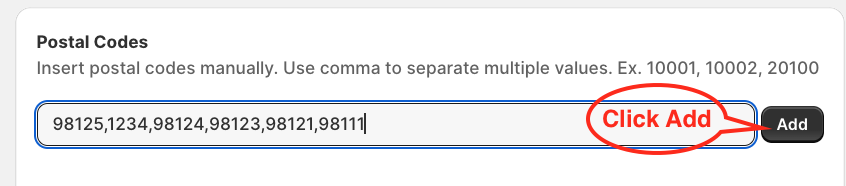
Enter postal codes separated by commas.
Example:
98125,1234,98124,98121 ..
2. Upload a CSV File Containing Postal Codes
You can upload a CSV file containing a list of postal codes for bulk configuration.
To make the process easier, you can download the CSV template, which includes the correct format and sample postal codes for reference. Either drag and drop the file or add a file, whichever you prefer.
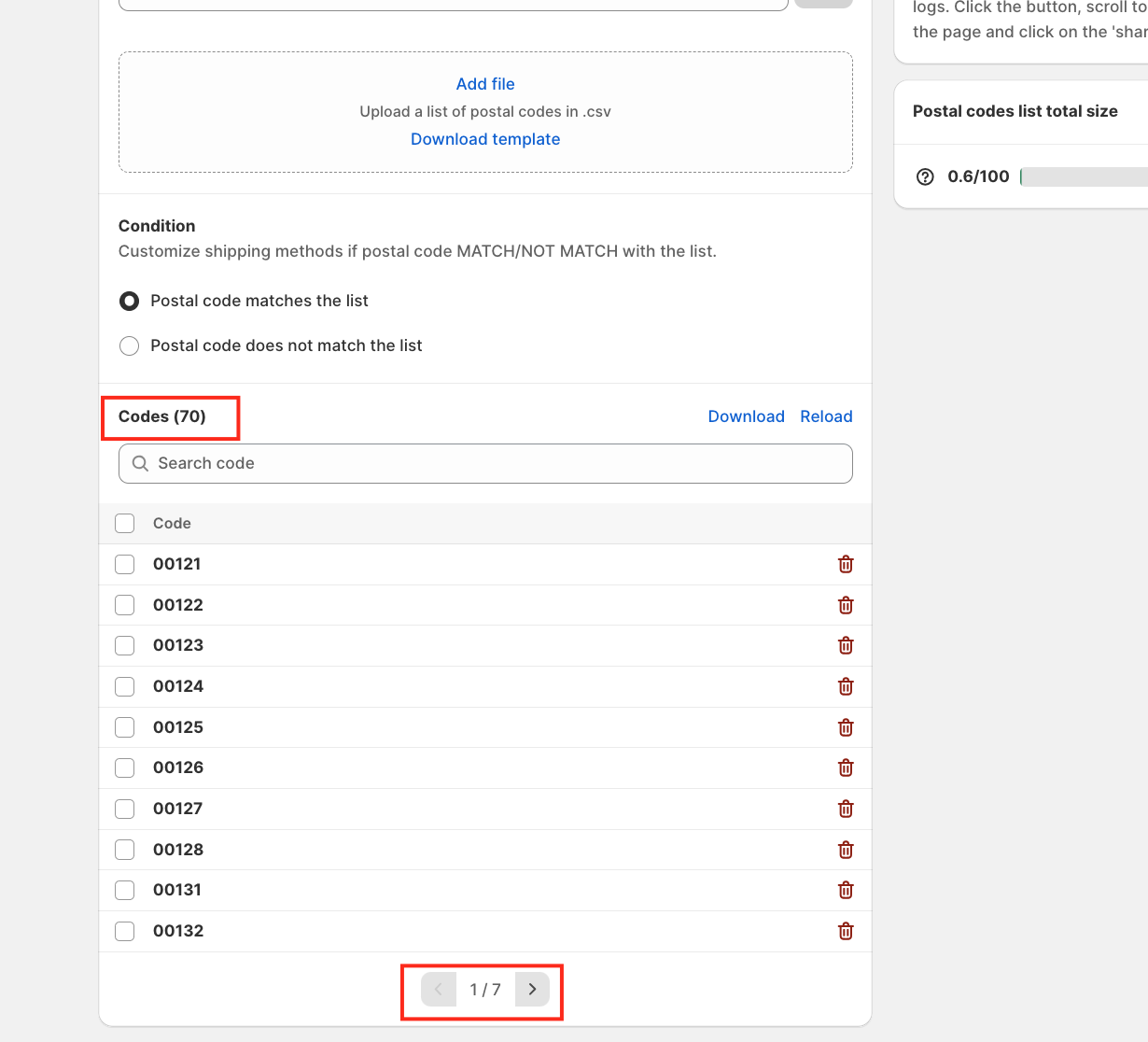
You can also:
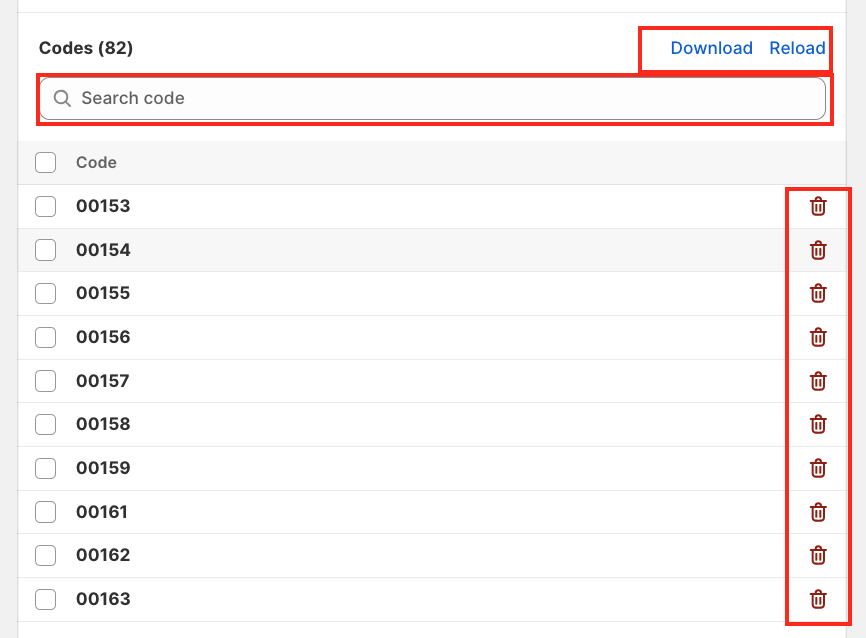
- Download the uploaded postal code list
- Search for a specific postal code using the search bar
- Delete postal codes if needed
This helps you quickly verify or manage your postal code list in case any codes were added incorrectly or missed during setup
Next, select the condition you want to apply:
Postal code matches the list
The selected shipping methods will apply only when the customer’s postal code matches the list.
OR
Postal code does not match the list
The selected shipping methods will apply when the customer’s postal code is not included in the list.
Below the condition section, you will see all available shipping methods in your store.
Inside the Available shipping methods in this group section, you can:
- Hide shipping methods
- Rename shipping methods
- Reorder shipping methods
To hide a shipping method, simply enable the toggle button beside the shipping method name.
For this tutorial, this is how your HideShip function will look before saving the rule.
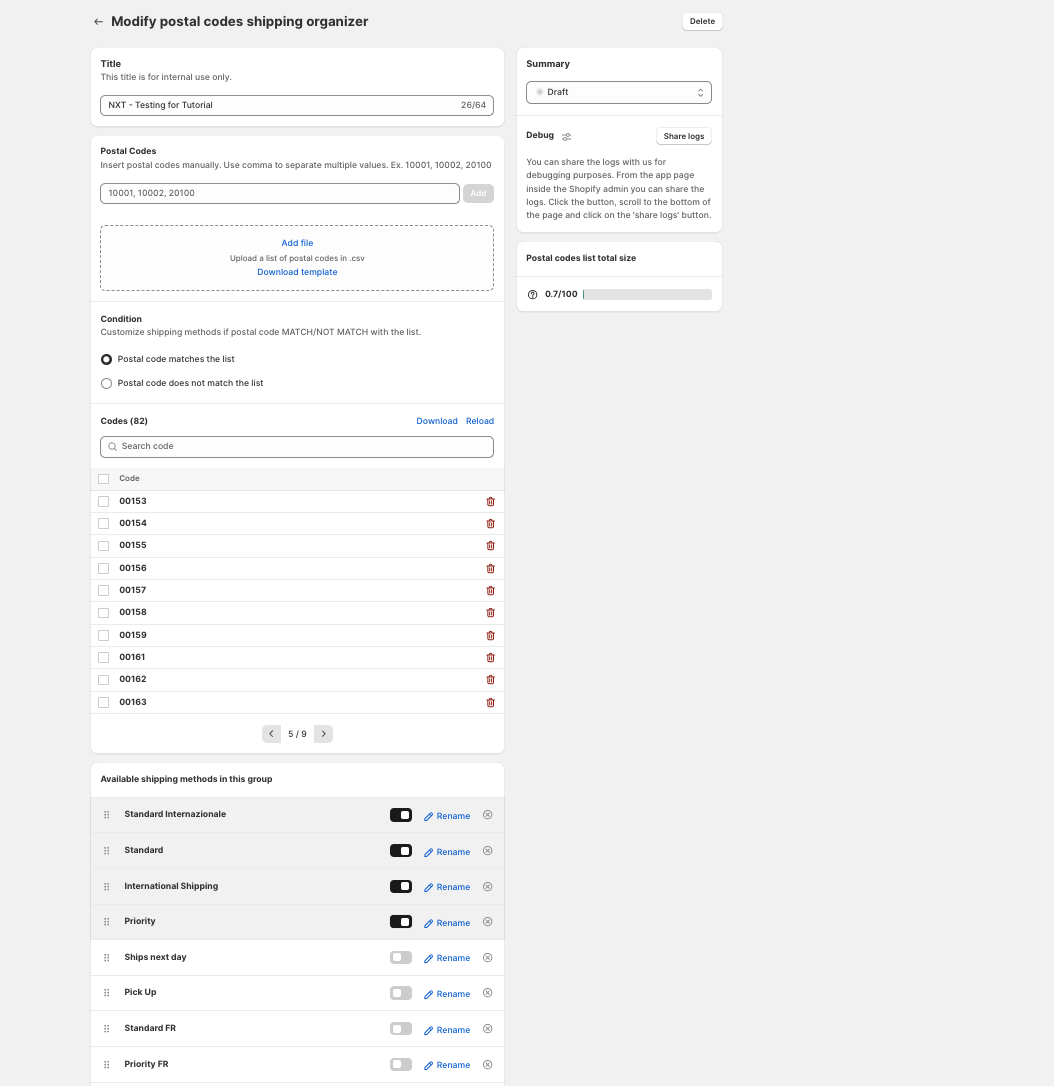
Before saving the rule, please make sure your customisation is set to either Draft or Active mode, depending on your preference.
We’re glad to support you with the HideShip application! 🚀
