Each rule you create is built by linking nodes together, forming a visual path that defines when and how your shipping rates should appear. Knowing how to connect and disconnect nodes allows you to refine your logic, reorganize flows, and maintain clean, accurate rule structures.
To begin working with node connections, open the rule you want to edit, Go to the Rates section in the ShipKit app, open an existing Dynamic Rate or create a new one and Click Edit to enter the Flow Editor.
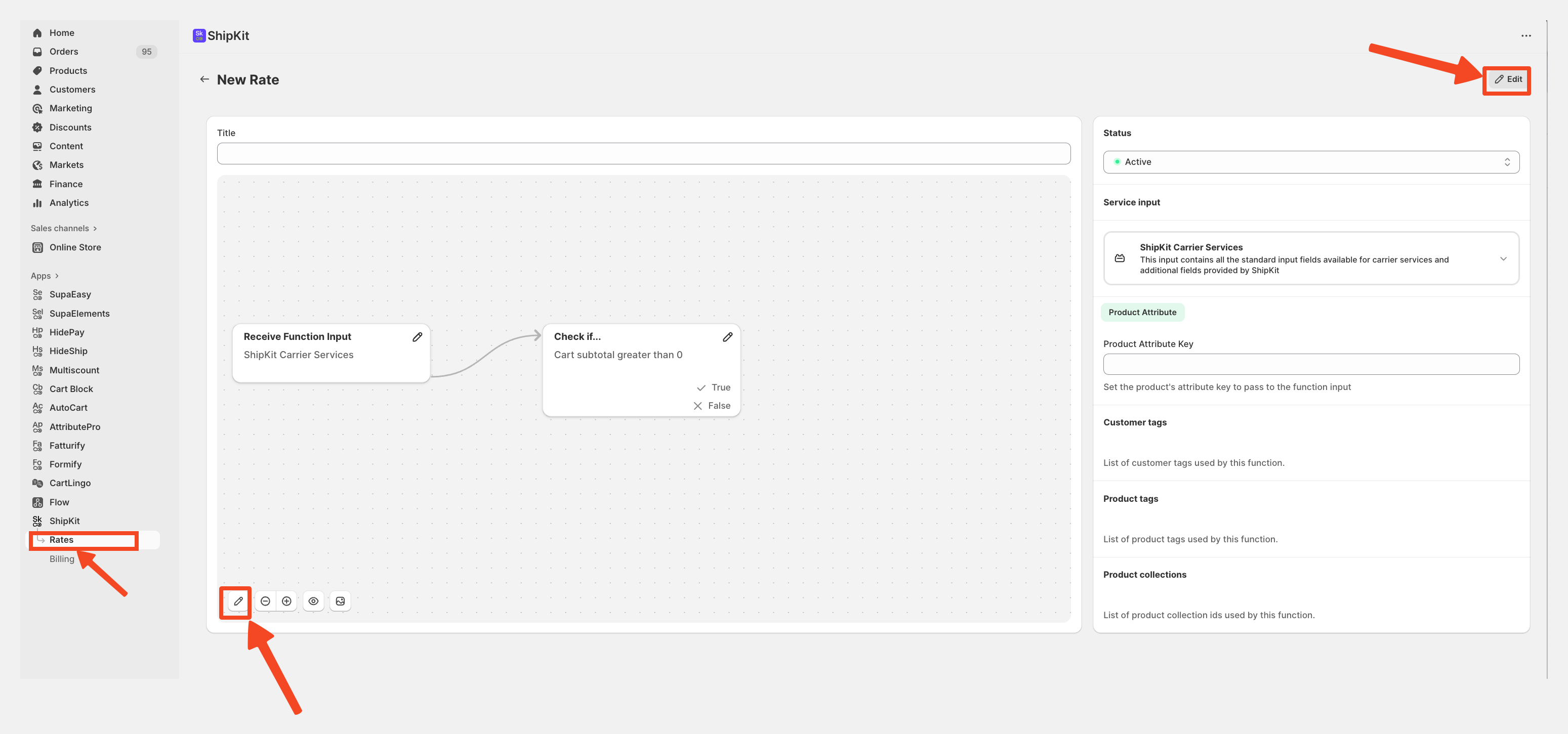
Once inside, you’ll see a visual canvas containing your nodes and the connections between them.
How to Disconnect a Node
Sometimes you may want to remove a connection, for example, to change the logic of your flow or replace a condition.
Move your cursor over the dashed line connecting the two nodes.
As soon as your cursor is centered on the line, a trash-can icon will appear.
Click the trash icon.
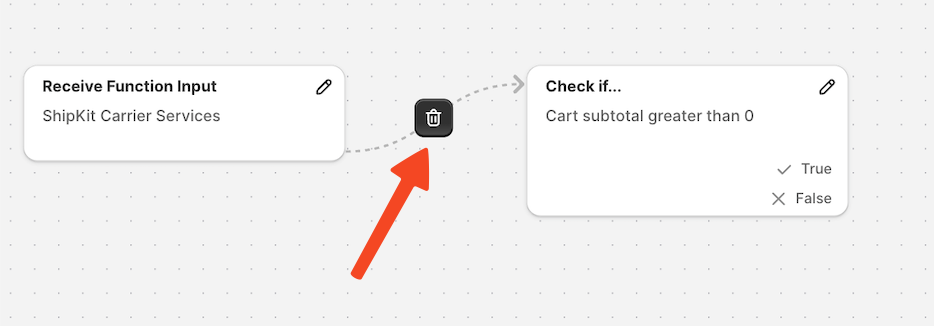
The connection will be removed immediately, and the two nodes will no longer be linked. This is useful when you want to reorganize your flow or introduce new branches of logic.
How to Connect Two Nodes
ShipKit automatically connects nodes as you create them, but you may need to reconnect two nodes that were previously disconnected, or create a custom flow structure and you need to do it manually:
Hover your mouse over the + icon located on the right side of the node from which you want to start the connection. Click and hold the mouse button.
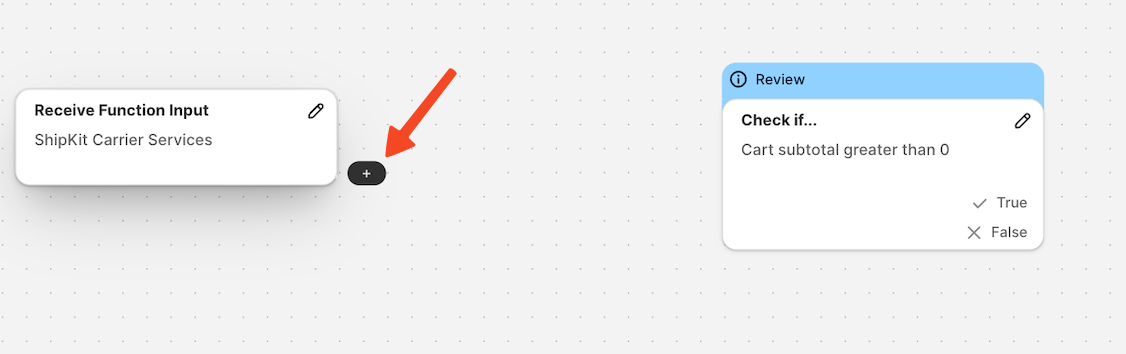
While holding, drag the connector line toward the node you want to attach it to.
Release the mouse when you reach the top-left corner of the destination node.
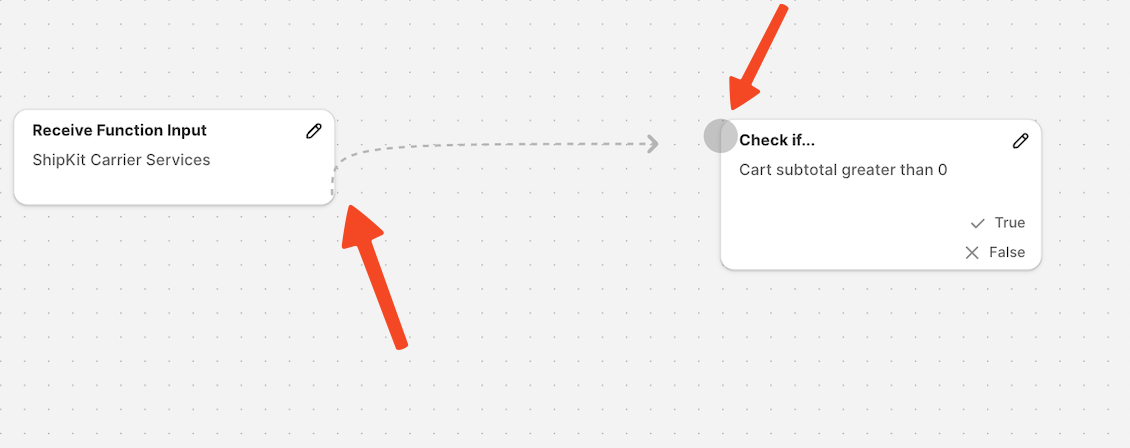
A new dashed line will appear, confirming that the connection has been successfully created.
As you can see, connecting and disconnecting nodes is extremely simple.
You don’t need any coding skills or technical experience, ShipKit’s visual editor allows you to shape complex logic simply by dragging, dropping, and linking nodes.
This makes it easy to experiment, adjust your rules, and build dynamic shipping flows tailored to your exact business needs.
