The Filter Node allows you to narrow down which products in the cart should be considered when building your shipping logic. It is particularly useful when your flow needs to evaluate only certain items for example, products with specific tags, types, vendors, or attributes.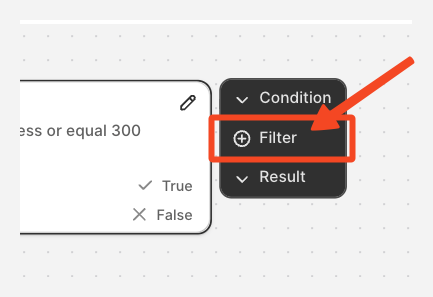
Understanding how filters work is essential for creating accurate and efficient Dynamic Shipping Rates.
What the Filter Node Does
When you add a Filter node to your flow, ShipKit creates a “filtered cart” a temporary subset of the original cart.
Any conditions or calculations that follow the Filter node will be based only on the products that match your filter criteria.
This also means that ShipKit can calculate a partial cart total, which you can use inside conditions and result logic.
Examples of use cases:
-
Apply a rate only if product tag fragile items are in the cart
-
Calculate shipping based only on heavy products
-
Offer special shipping for a specific collection
-
Exclude certain items from a rule before calculating totals
Choose Where the Filter Applies
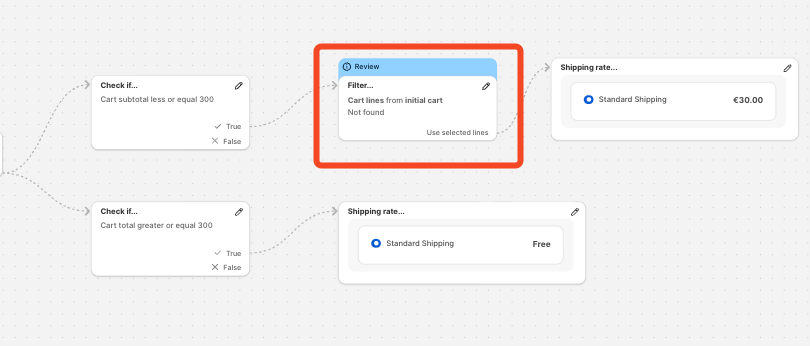
When you create a Filter node, you can decide which cart the filter should be applied to:
1. Apply the filter to the original cart
The filter is applied directly to the customer’s full cart.
This is useful when you want to isolate products regardless of any previous filters applied in the flow.
2. Apply the filter to the current cart
If a previous filter already narrowed the selection, applying a second filter refines it further.
This allows you to chain multiple filters for more complex scenarios.
What Happens After a Filter Node
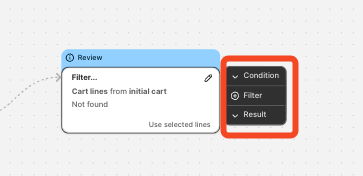
A Filter node can be followed by any other type of node, depending on your logic:
-
Condition nodes can check values like the partial cart total.
-
Switch nodes can branch based on product attributes found in the filtered cart.
-
Result nodes can create shipping rates that apply only when filtered items are present.
The flow continues normally only the cart used for calculations has changed.
Filtered Cart and Partial Totals

Once a filter is applied:
-
The flow continues using the filtered cart instead of the original
-
ShipKit calculates a partial cart total, based only on the filtered items
-
Conditions can use this partial total to determine which rate should appear
This enables precise rules such as:
-
“Create a €10 extra shipping rate if the products with tag fragile items exceed €100 in value”
-
“Create a free shipping rate when at least 2 items from the selected collection are in the cart with an amount over 250€”
-
“Create the rates Special Shipment only for heavy or oversized items tag shipped in Korea”
By choosing whether to filter the original cart or the current (already filtered) cart, you have full control over how specific or broad your shipping logic needs to be.
