The History functionality in SupaEasy allows you to track changes, save snapshots, and revert to earlier versions of your Shopify functions whenever needed. Whether you are tweaking discount logic, updating payment options, or testing delivery rules, this feature keeps your previous configurations safe and accessible.
What You'll Need
-
An active installation of the SupaEasy app in your Shopify store.
-
At least one created function for discounts, payments, or shipping rules.
History starts from the moment you turn it on
Version history is not retroactive. SupaEasy starts recording versions only after you turn on Record history for this function, so changes saved before that moment don’t appear in the History tab or in All histories. To start tracking a function, open it, go to the History tab, and turn on the toggle. From that point on, every save creates a new version you can review and restore.
Open your function settings
Navigate to the SupaEasy app inside your Shopify admin dashboard. From the main dashboard, select the specific function you want to modify from your list.
The history function is available in all kinds of function Flow, Wizard, Editor
Only in the Wizard functions the History tab is at the top of the function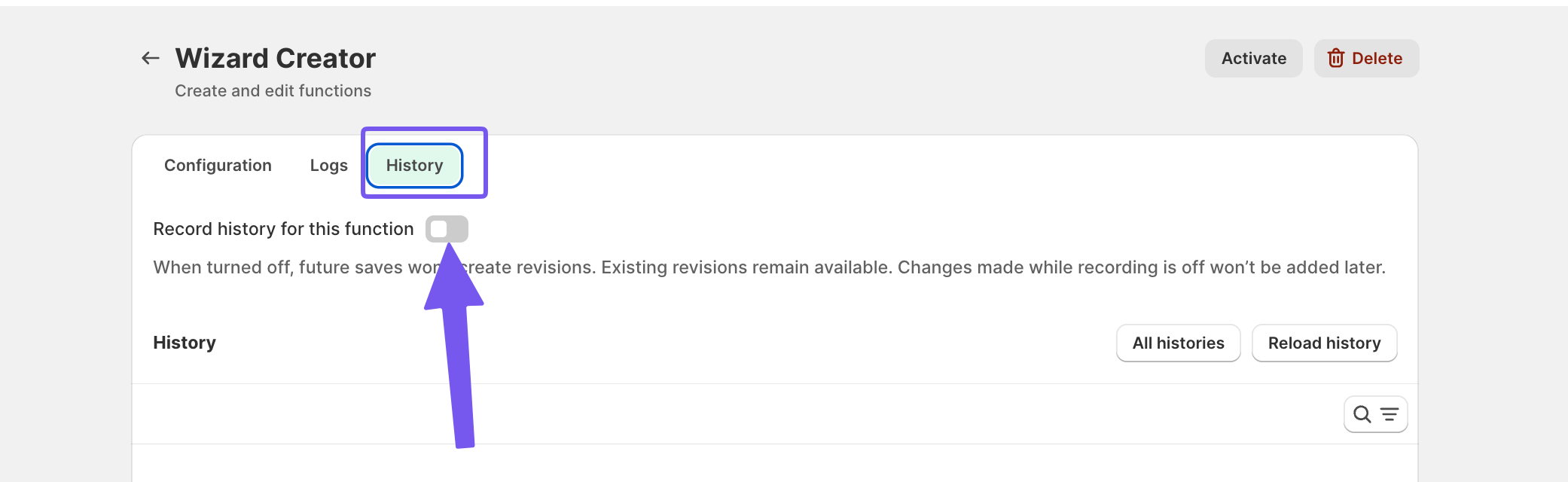
Open the function, scroll to the bottom and Click on the History tab. In this Tab you will see the Record history from this function, you need to toggle it.
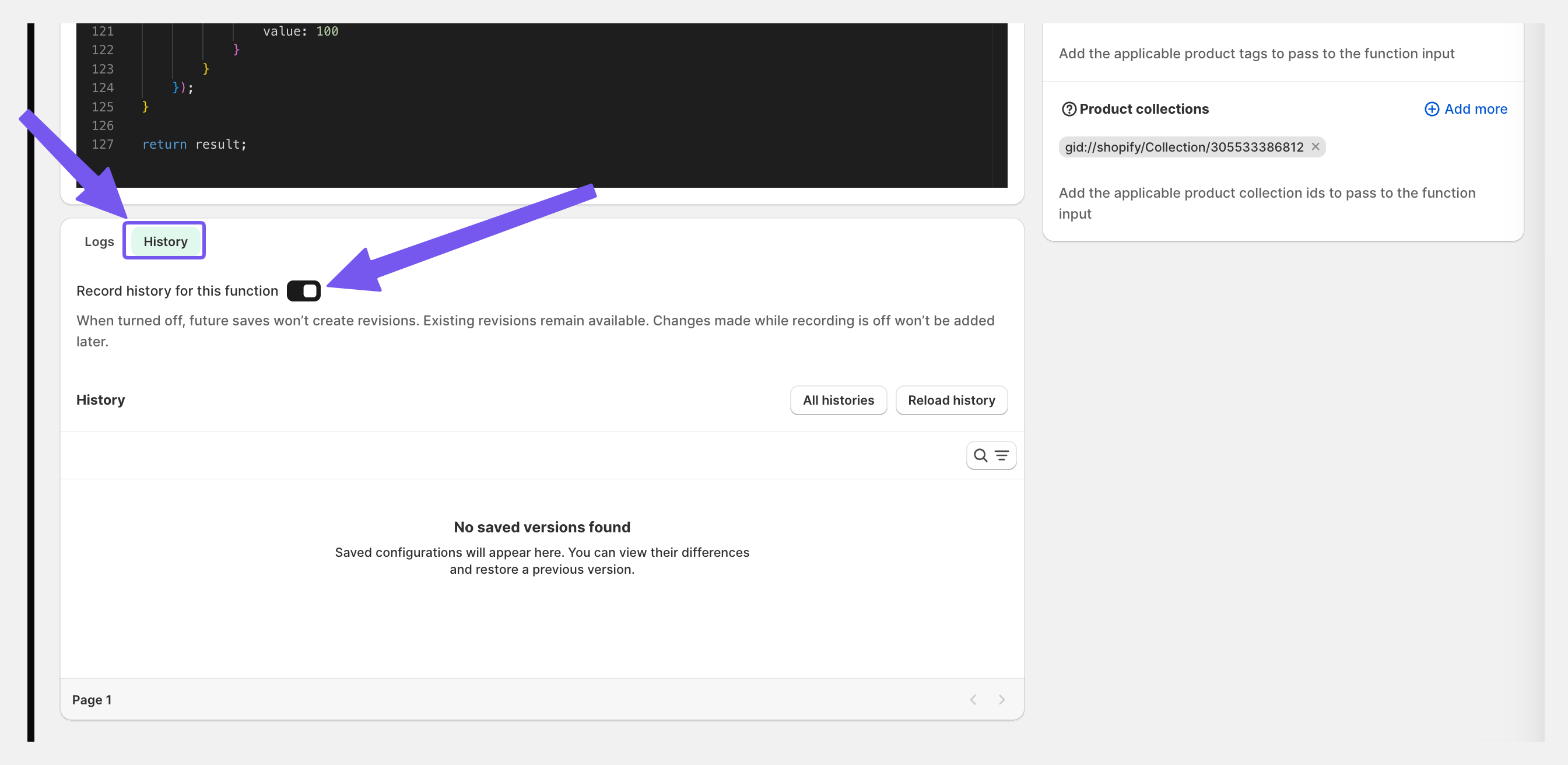
From now on, all the time you will Save the changes it will be recorder and listed in the history window
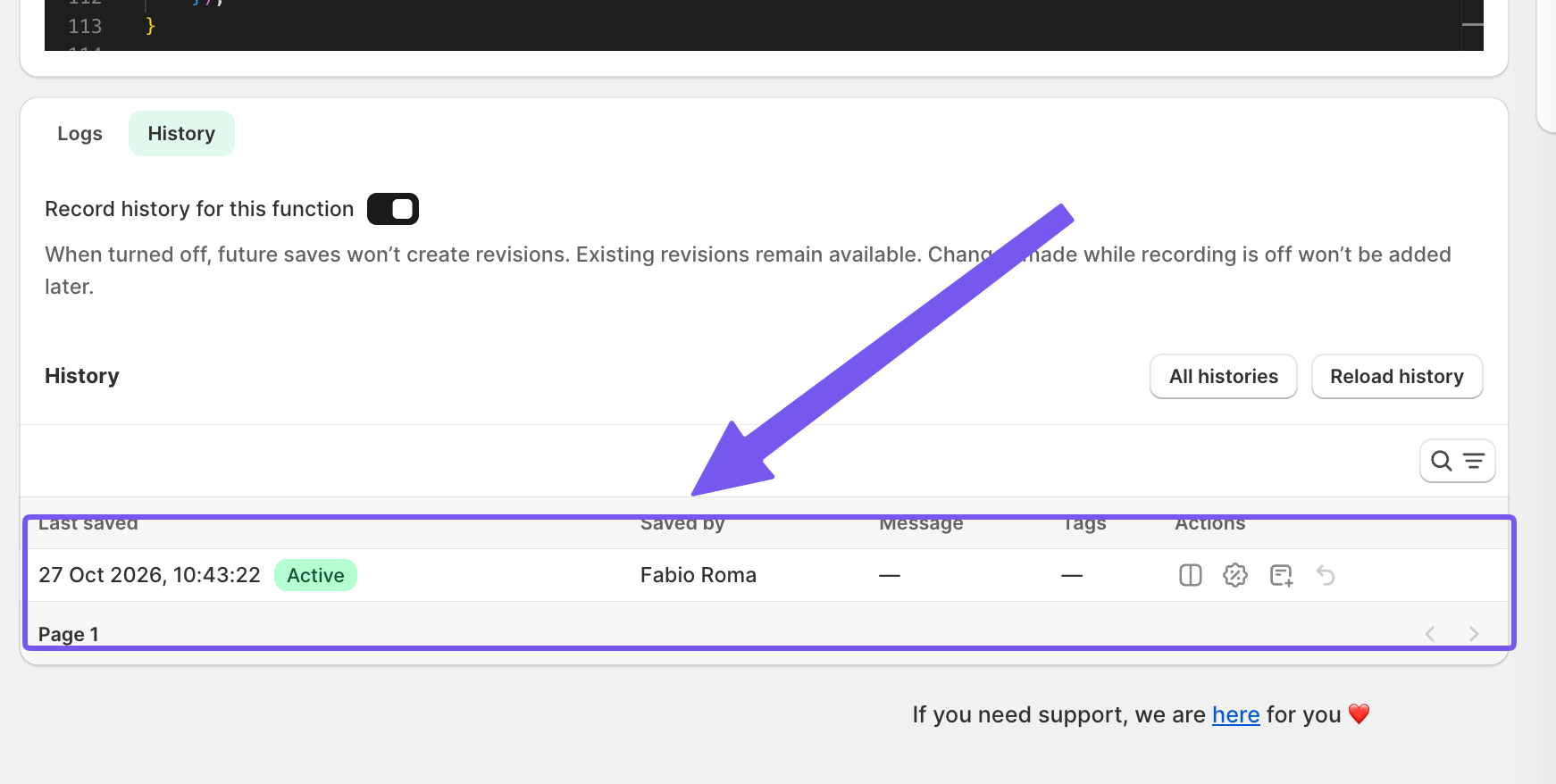
Review previous versions and snapshots
Inside the History panel, review the chronological list of saved versions displaying timestamps and recorded modifications.
To review what changed from the last version select View Difference in the list to review the qualifiers, conditions, and actions applied in that specific version.
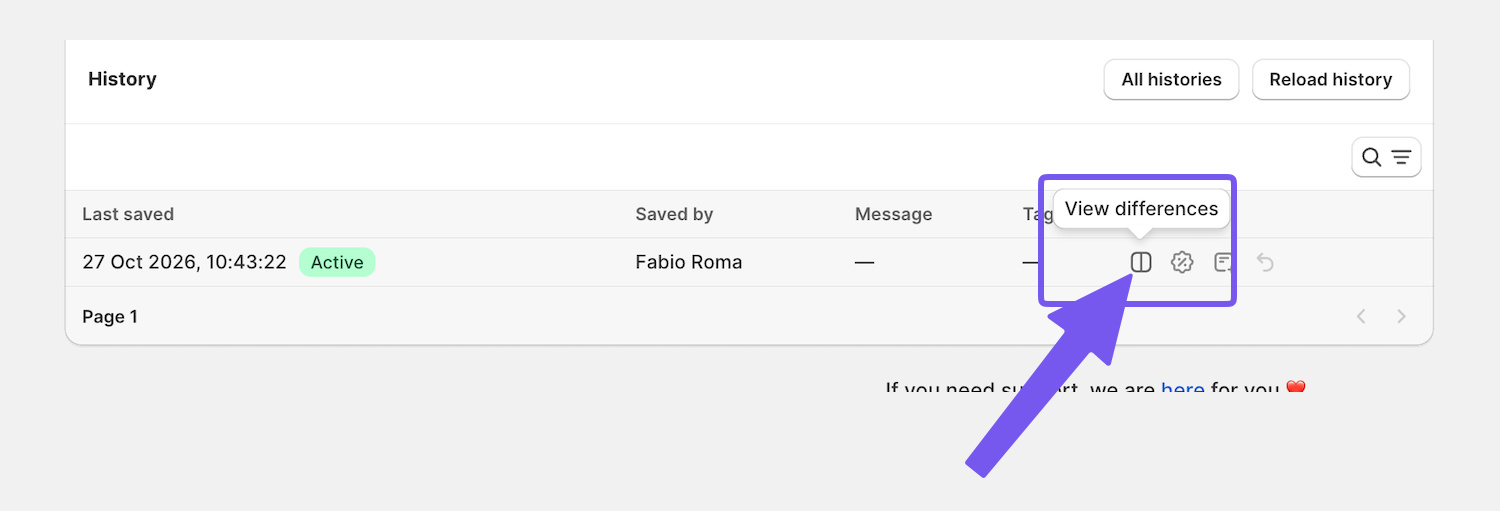
Now you can see side by side the two functions:
the Previous Function on the left and the Active Funtion on the right
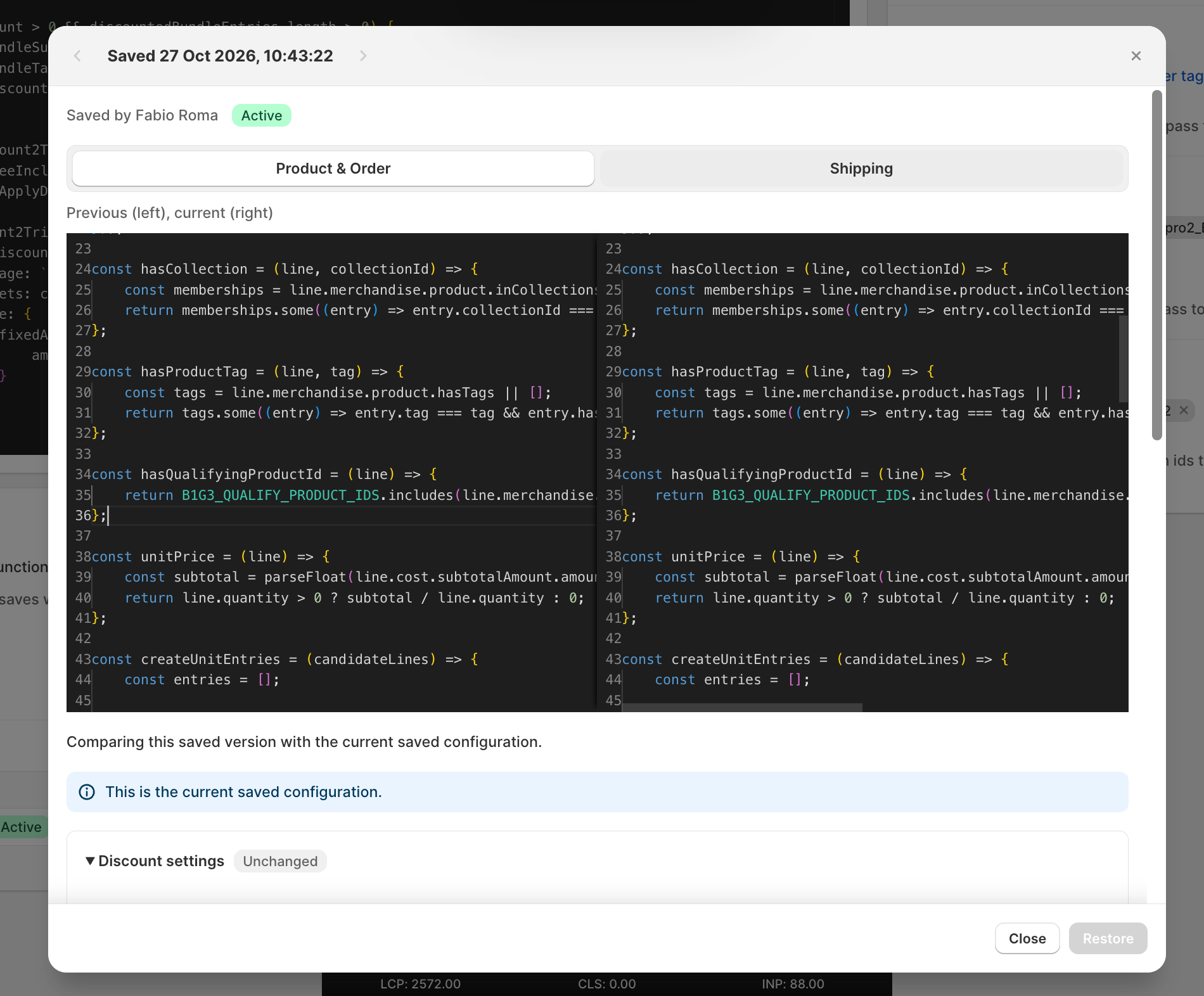
Also if you scroll don in the window you can have access to extra info of the old function and the current function
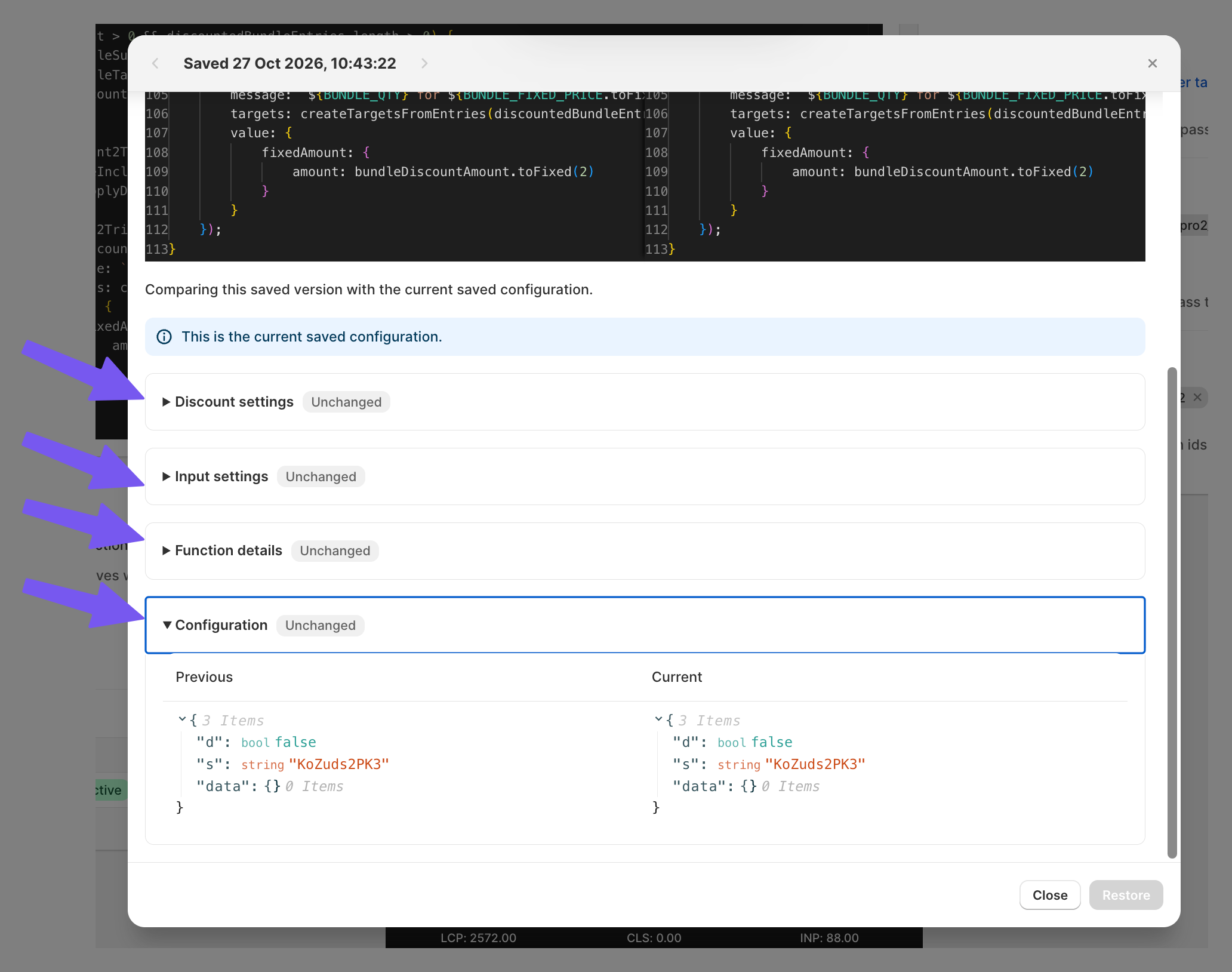
Restore a previous function version
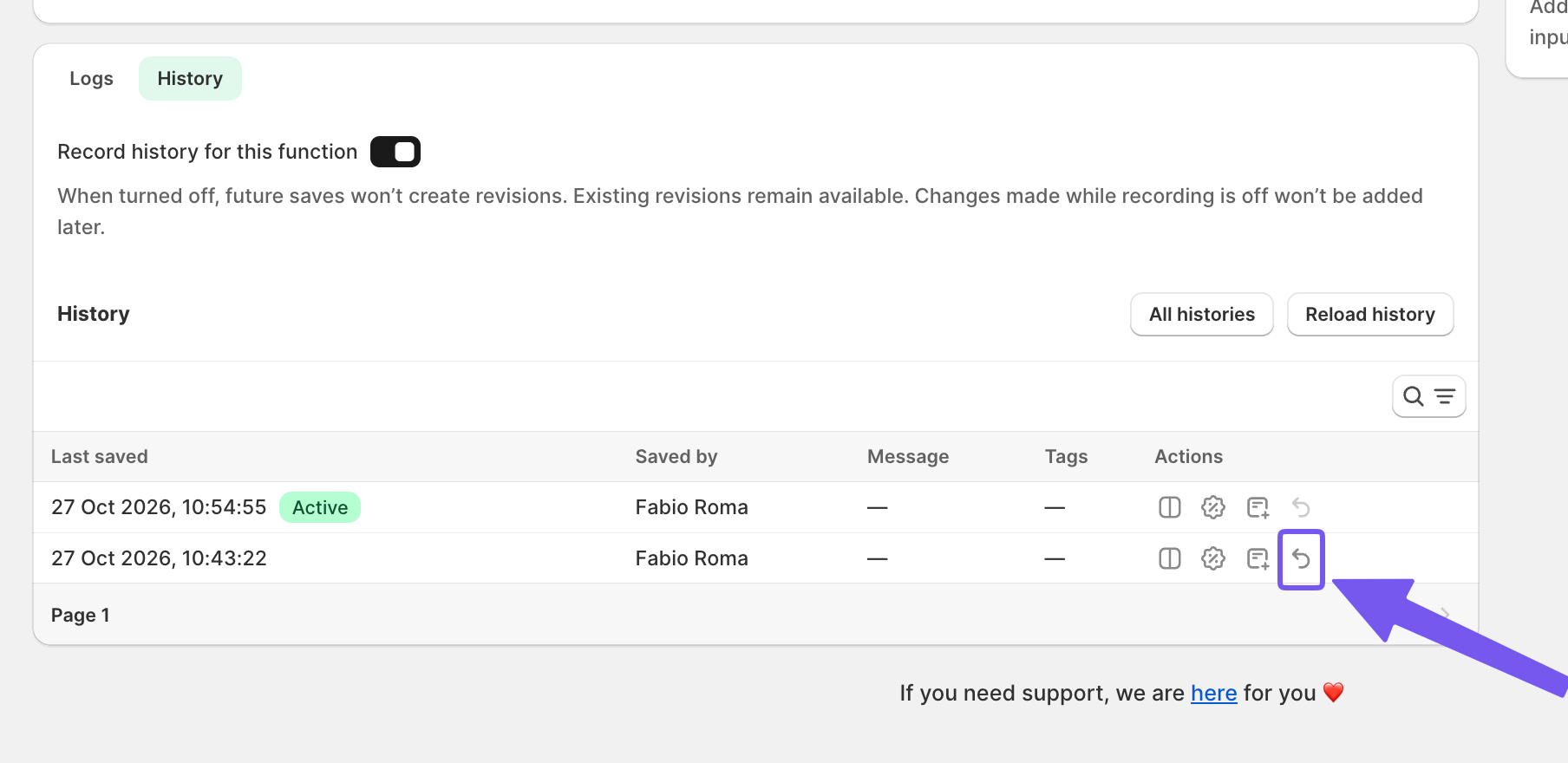
Select the version you want to re-activate and click the Restore button on the bottom of the line. Confirm your choice when the prompt appears.
A popup window opens where you can choose the type of restore that best fits your needs. Under How would you like to restore this version, select the option you want, then click Restore. The selected version becomes active and replaces the current one.
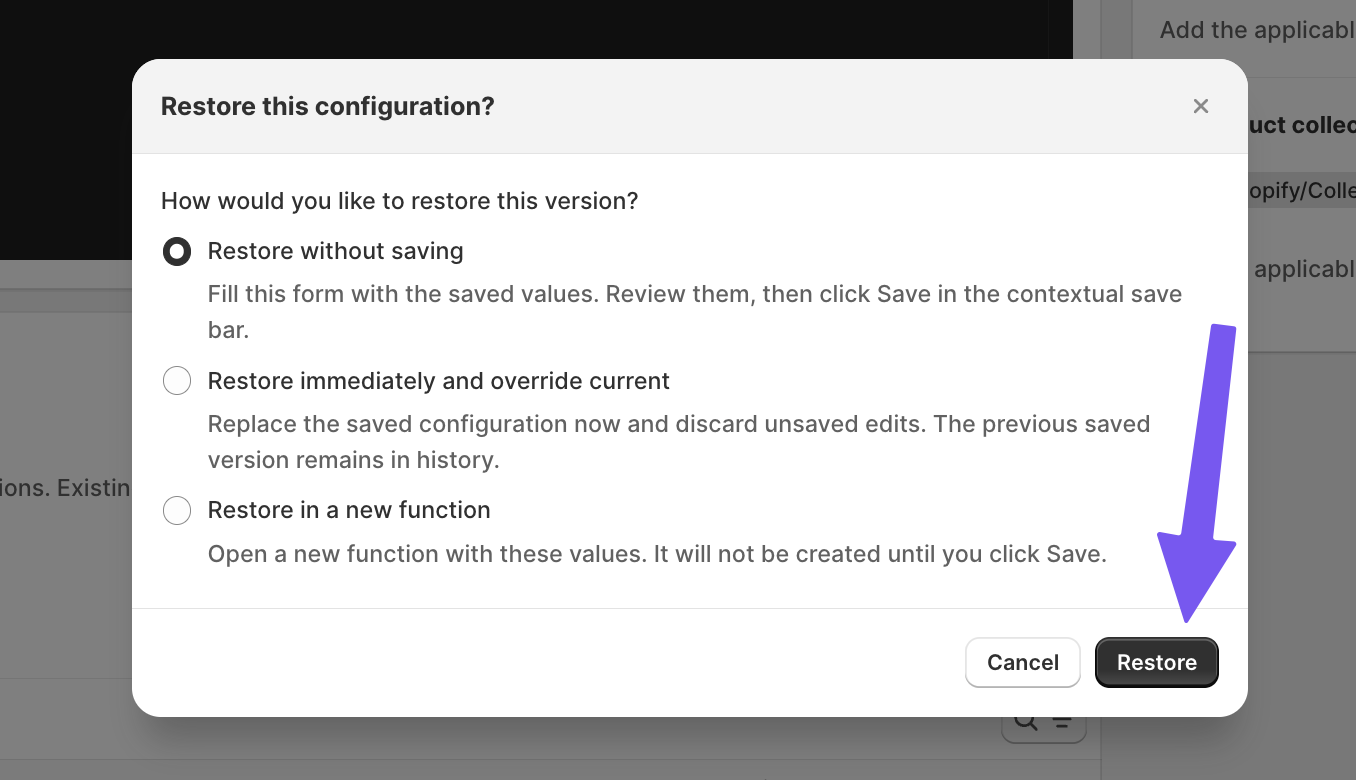
SupaEasy will replace your current active settings with the selected configuration.
History change tracking with All histories
SupaEasy keeps track of every change made to your functions. From the History tab of any function, click All histories to open a single view that lists every saved version of all functions, sorted chronologically with the most recent change at the top. Each row shows the function name, how it was built (Flow, Wizard, or Editor), the exact date and time of the save, and in the Saved by column, the team member who made the change.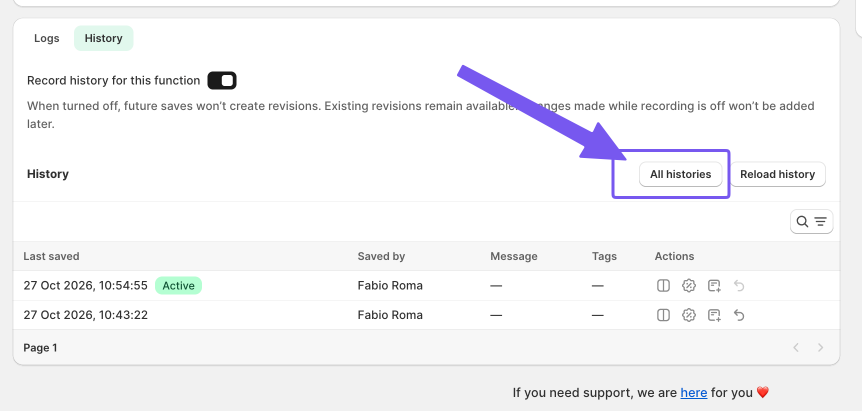
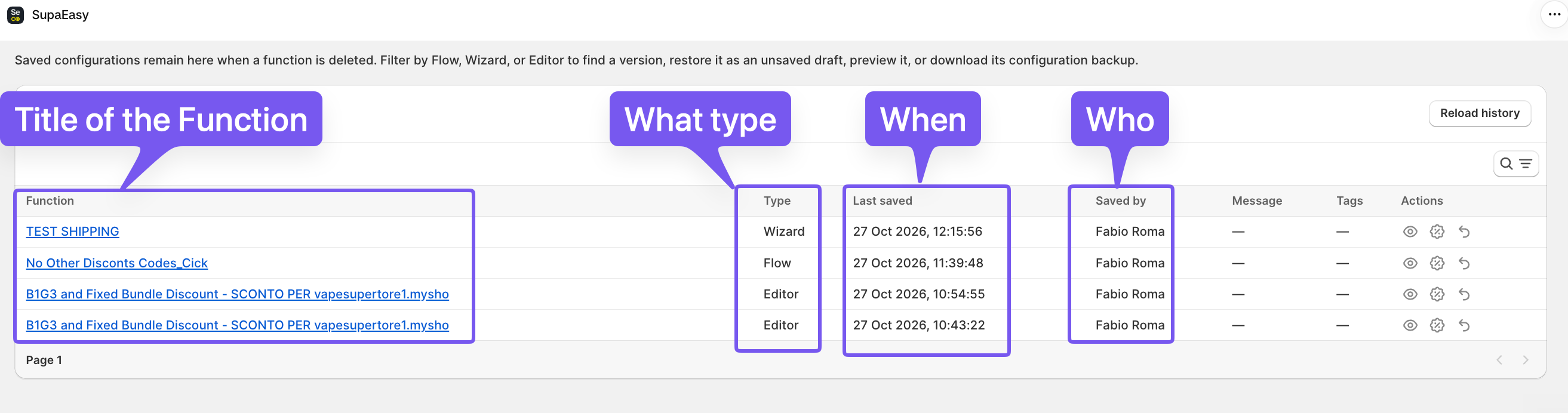
This lets you trace when something changed and who changed it, without opening each function one by one. Saved versions stay in this list even after you delete a function, so you can always find an earlier configuration and restore it.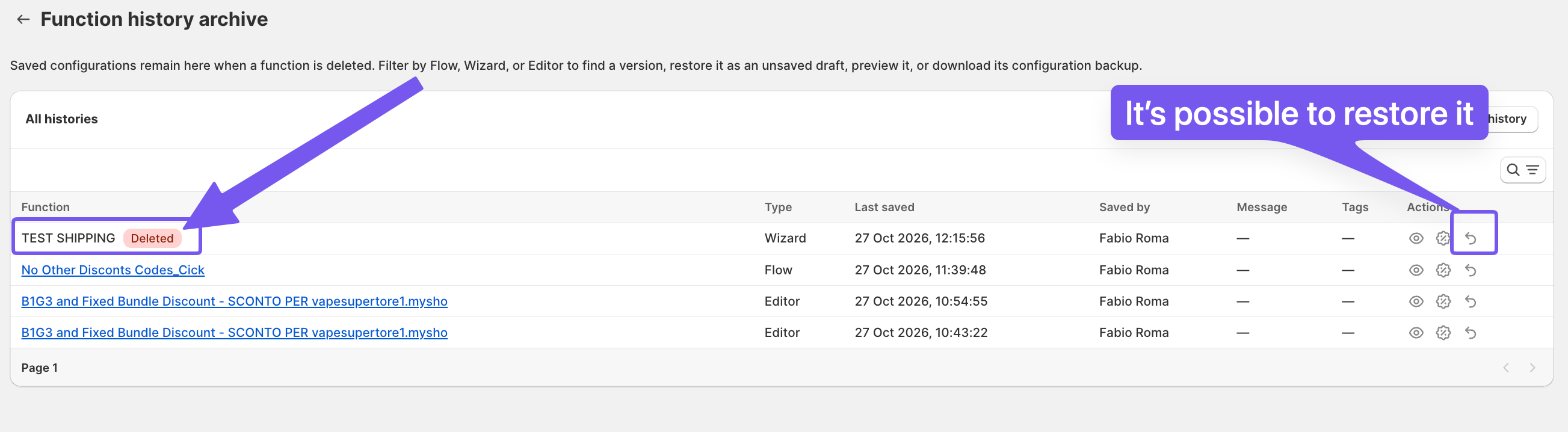
Organize your History
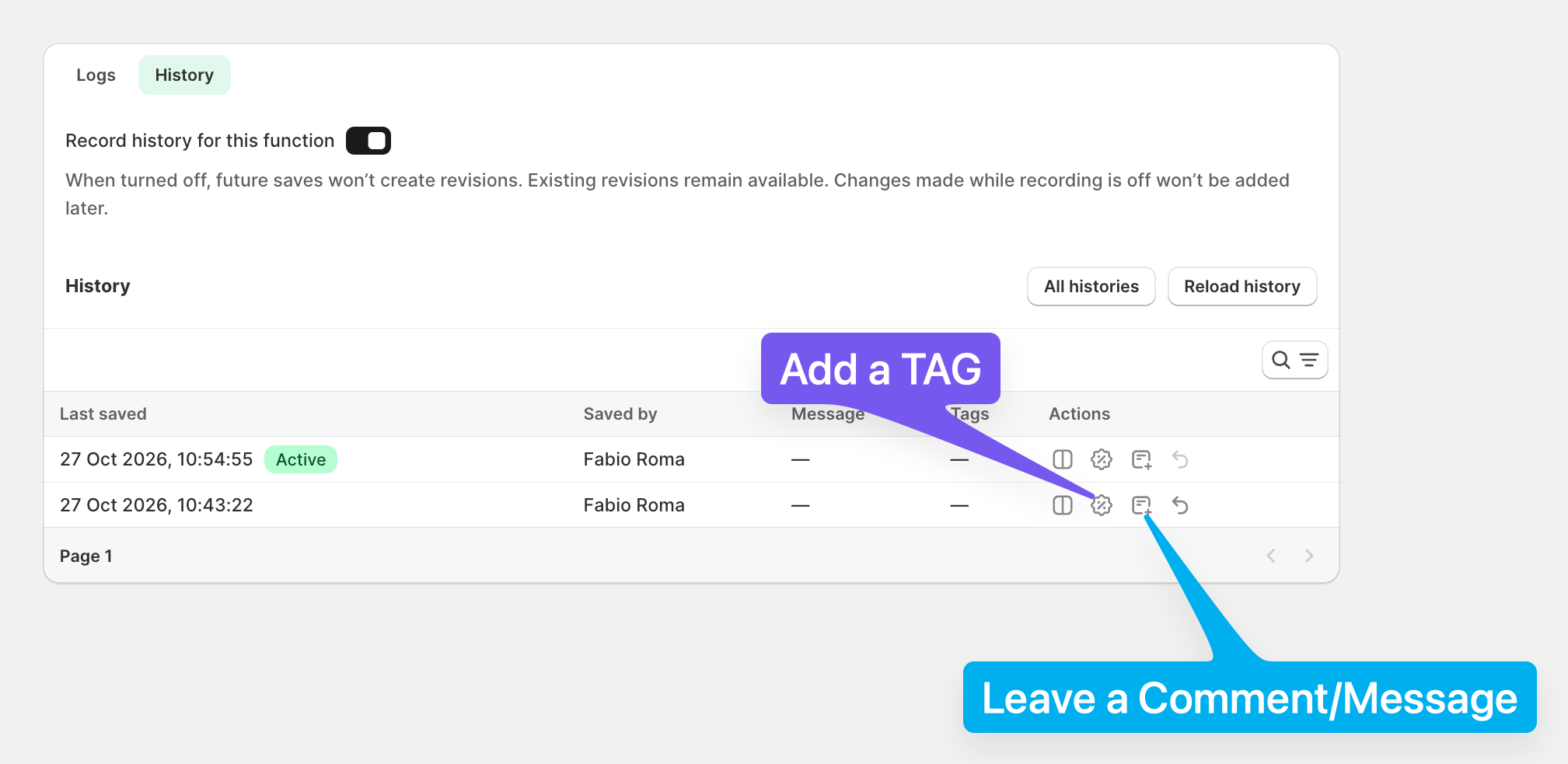
There is also the possibility to Tag or add Message to each version of the function.
This is very useful if multiple people will work on the same function or if the same function is re-used with little or big variation.
Tips and Best Practices
-
Always review active qualifiers before restoring an older version to ensure conditions match your current inventory, pricing, and customer groups.
-
Test major restores on a development store or during low-traffic hours to prevent unexpected checkout rules for active buyers.
Support: If you have any questions or need assistance during setup, our team is here to help. You can contact the Nextools Support Team anytime via the in-app live chat or by email on: support@nextools.tech. We’ll be happy to assist you.
