Some promotions are generous enough on their own. If you are already giving away a gift card with your promo products, you probably don't want customers stacking a discount code on top of it. With SupaEasy Flow you can build a single discount that does both jobs: it makes the gift free and it politely refuses the discount codes you choose while the promotion is active.
Use case example: when a customer has a product from your Promo Collection and a Gift Card in the cart, the gift card becomes 100% off and any code containing DISCO (such as DISCO50) is rejected at checkout with a clear message.
What You'll Need
-
App plan: any SupaEasy plan. Flow is included in all plans, starting from the Starter plan.
-
Shopify plan: any Shopify plan. Shopify Plus is not required.
-
Store access: admin or staff access with permission to manage apps and discounts.
-
In your store: Existing Code Discounts you want to reject with the new discount.
-
Estimated time: about 5 to 10 minutes.
Create a new discount function in Flow
Open SupaEasy and go to the Flow section. You'll land on the Flow Creator page, where all your flows live. Click Create function and choose Discount as the function type.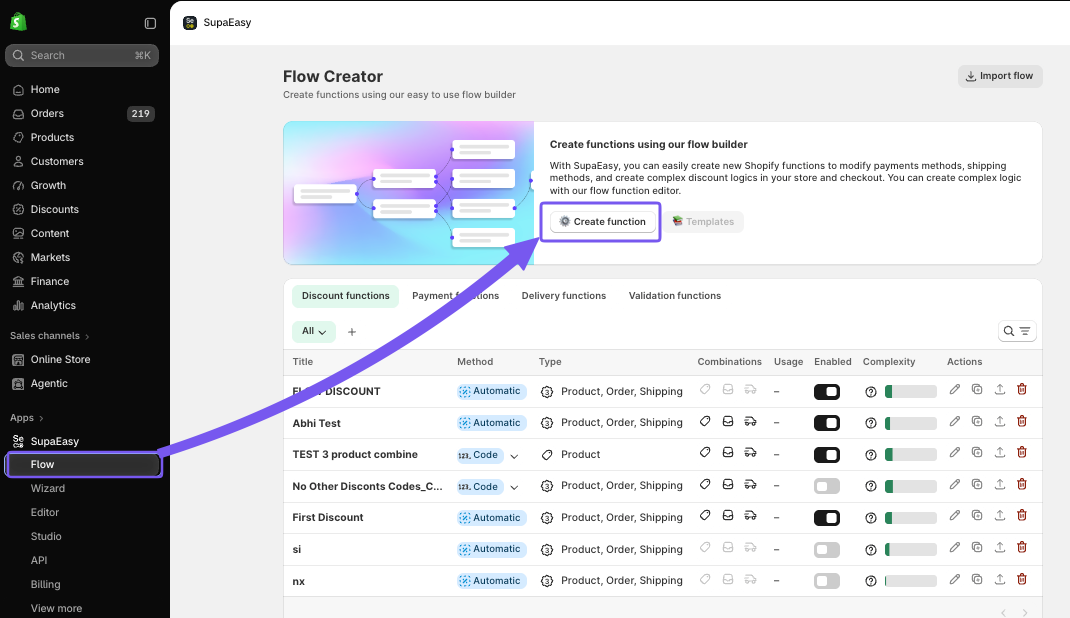
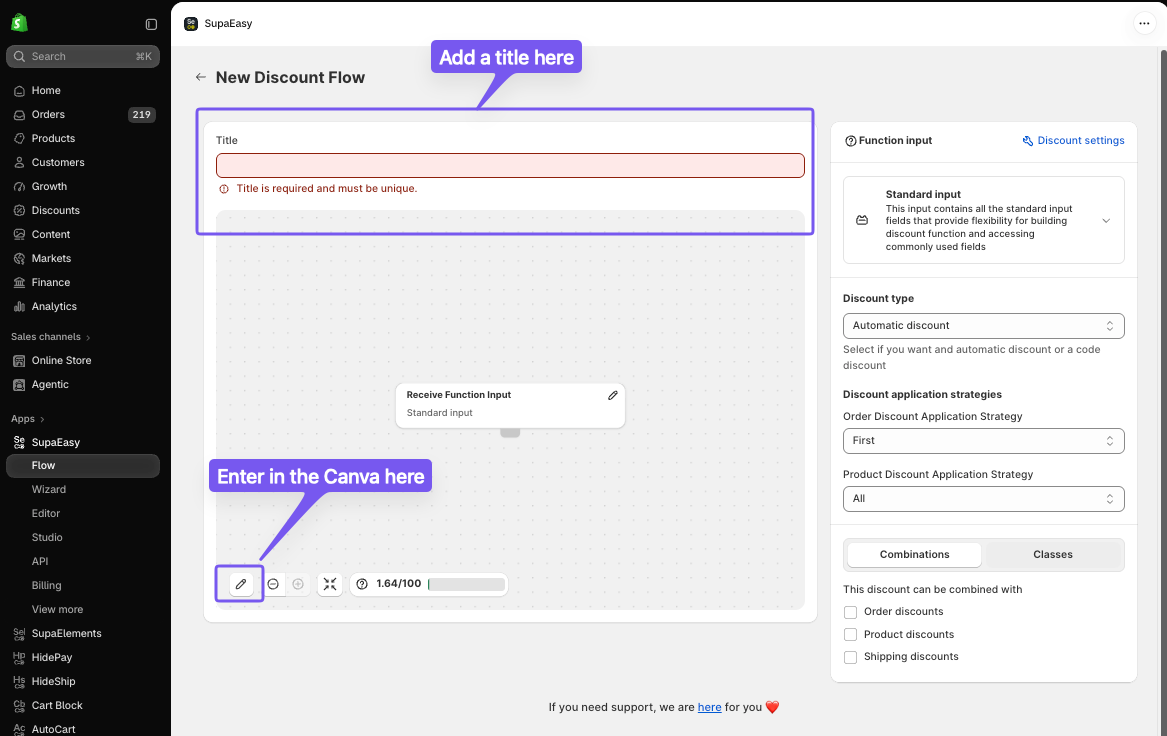
The New Discount Flow builder opens. Give your flow a title you'll recognise later, for example No Other Discount Codes. The title is only for internal use, customers never see it, but it's mandatory to save the Flow. Before you start adding nodes, click the full-screen icon on the canvas: you'll have much more room to work.
Set Flow when the promotion applies
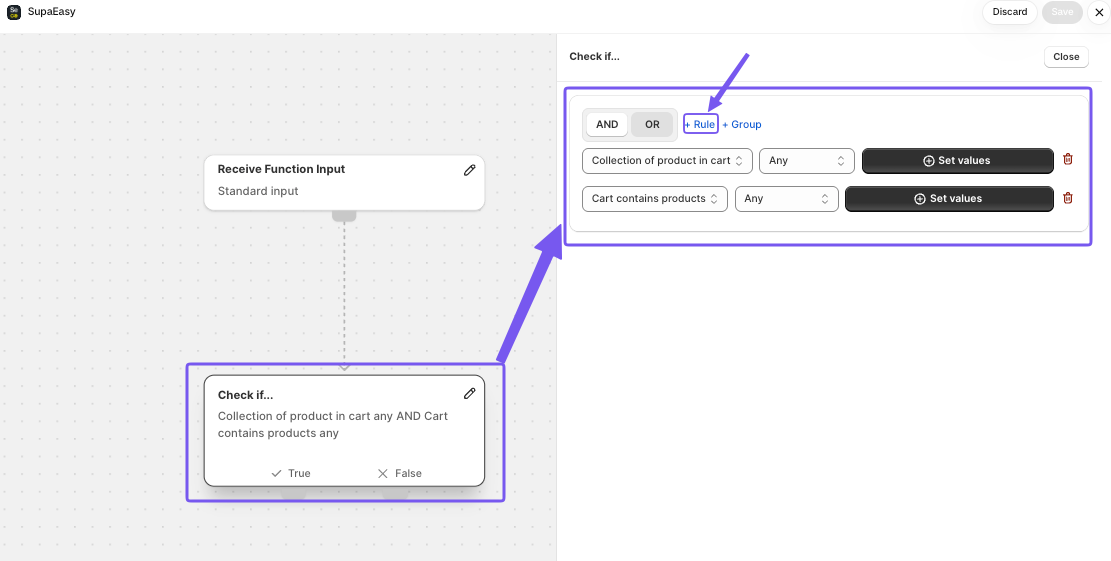
Now let's tell Flow what to look for in the cart. Click the + icon under the Function Input block and choose Condition. Click the new Check if… block to open the side panel, then click + Rule to add the conditions you want.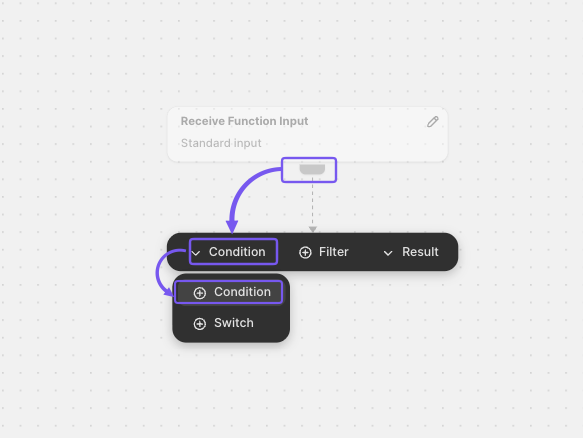
For the first rule, pick Collection of product in cart from the field selector, click Set values and select your promo collection (in our example, Promo Collection). Add a second rule, choose Cart contains products, click Set values and select your Secondo condition for products. When both rules are in place, click Close. The two rules work together (AND), so everything you connect to this condition only runs when the cart contains both a promo product and the product.
Reject discount codes and explain why
Now we are going to create the Message for the Customer that will try to use the Code discount (for our example is DISCO).
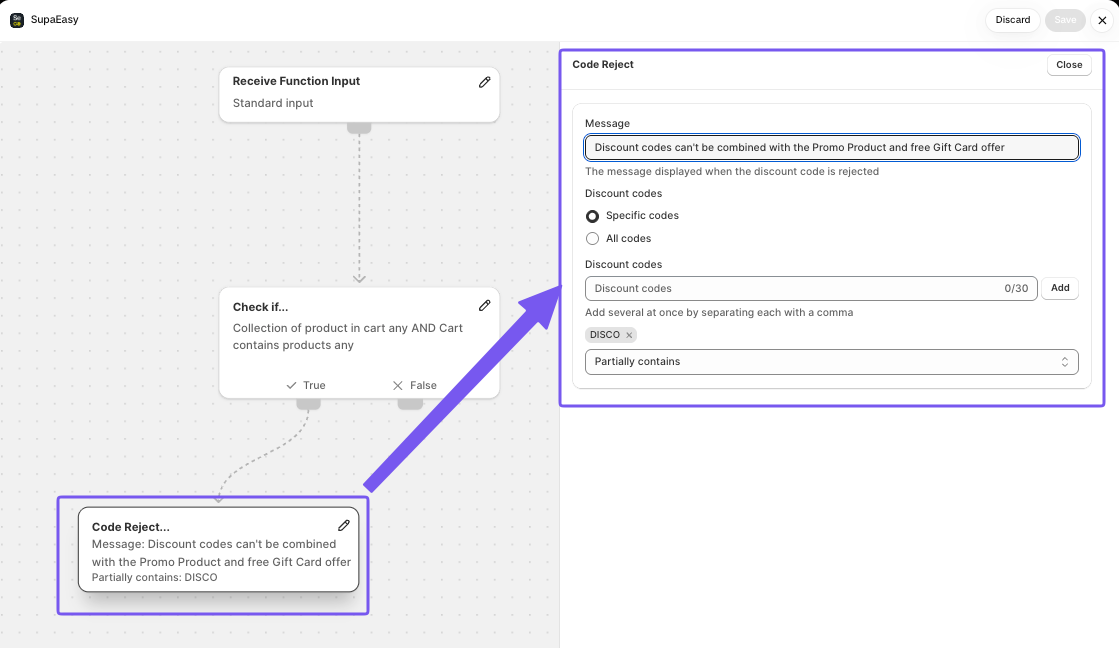
Click the + icon on the Check if… block and add a Code Reject action. Open it and write the message customers will see when they try a code. Keep it friendly and clear, for example: Discount codes can't be combined with the Promo Product and free Gift Card offer.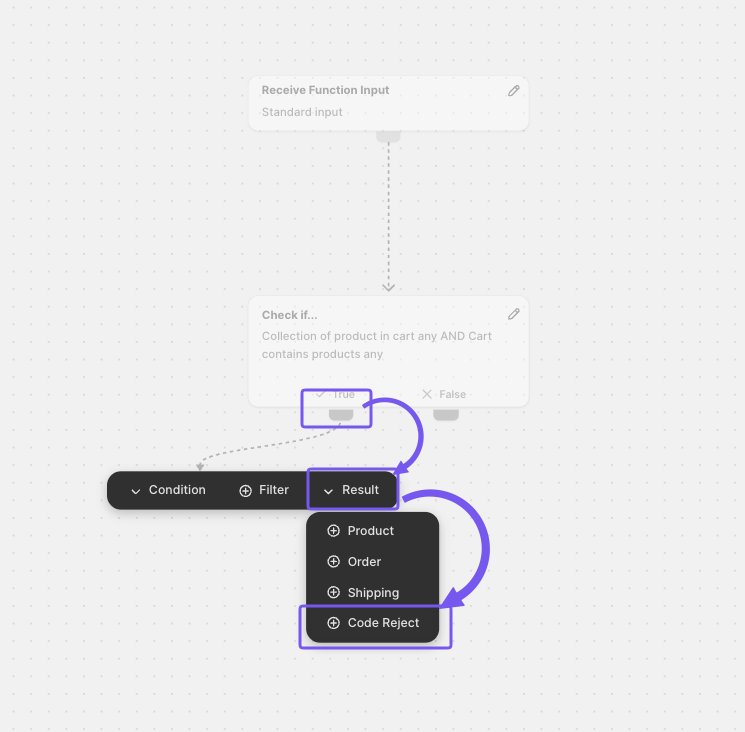
Then choose which codes to refuse. Select Specific codes, set the match criteria to Partially contains and type DISCO. With partial matching, one entry covers the whole family of codes: DISCO50, DISCO20 and any other code containing DISCO will be refused, while unrelated codes keep working.
Make the gift card free
The discount itself should only touch the gift card, not the rest of the cart and we use the Filter node to make this selection. In the Filter rule, click + Rule, set the attribute to Product, click Set values and tick Gift Card. 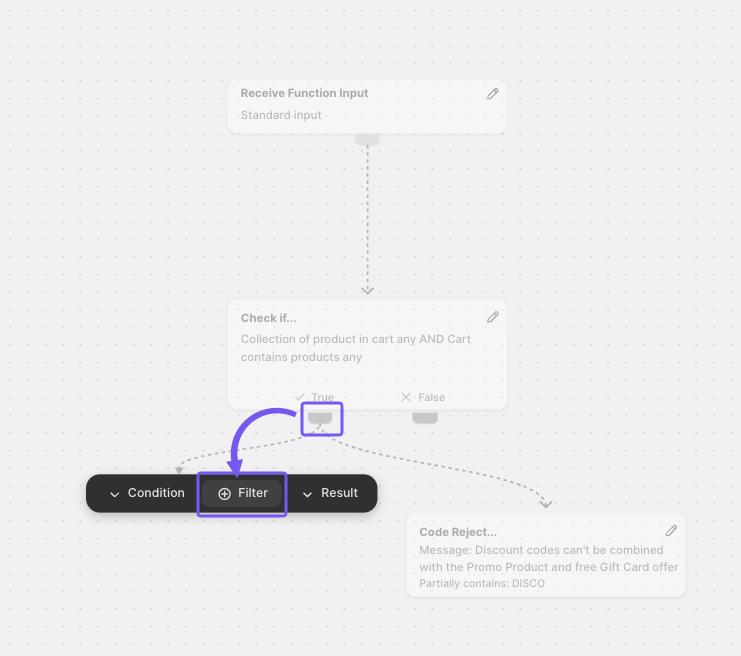
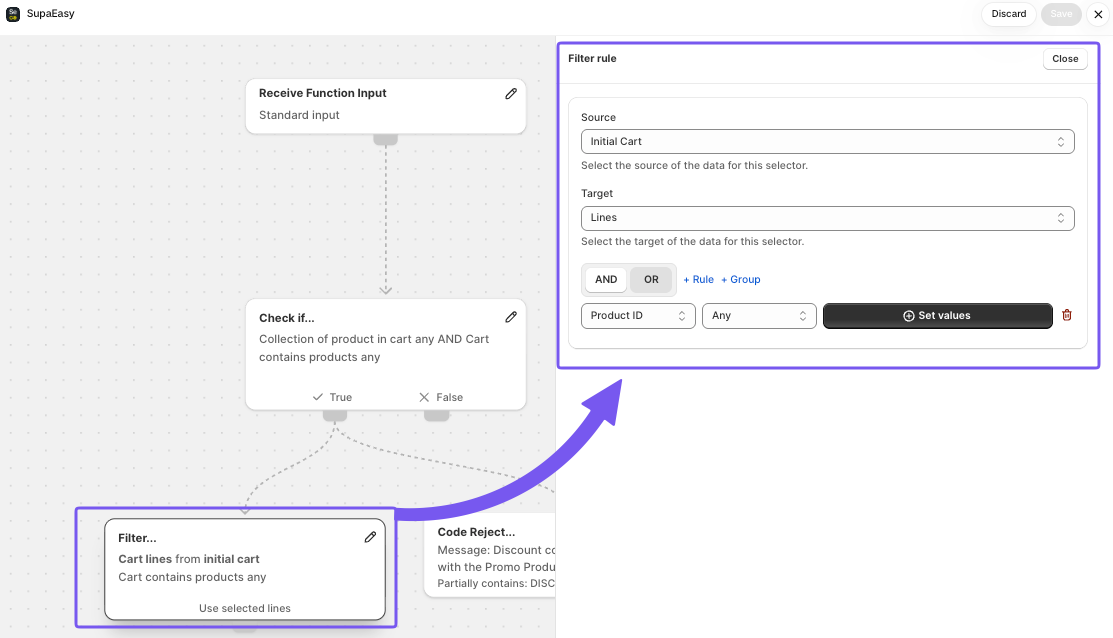
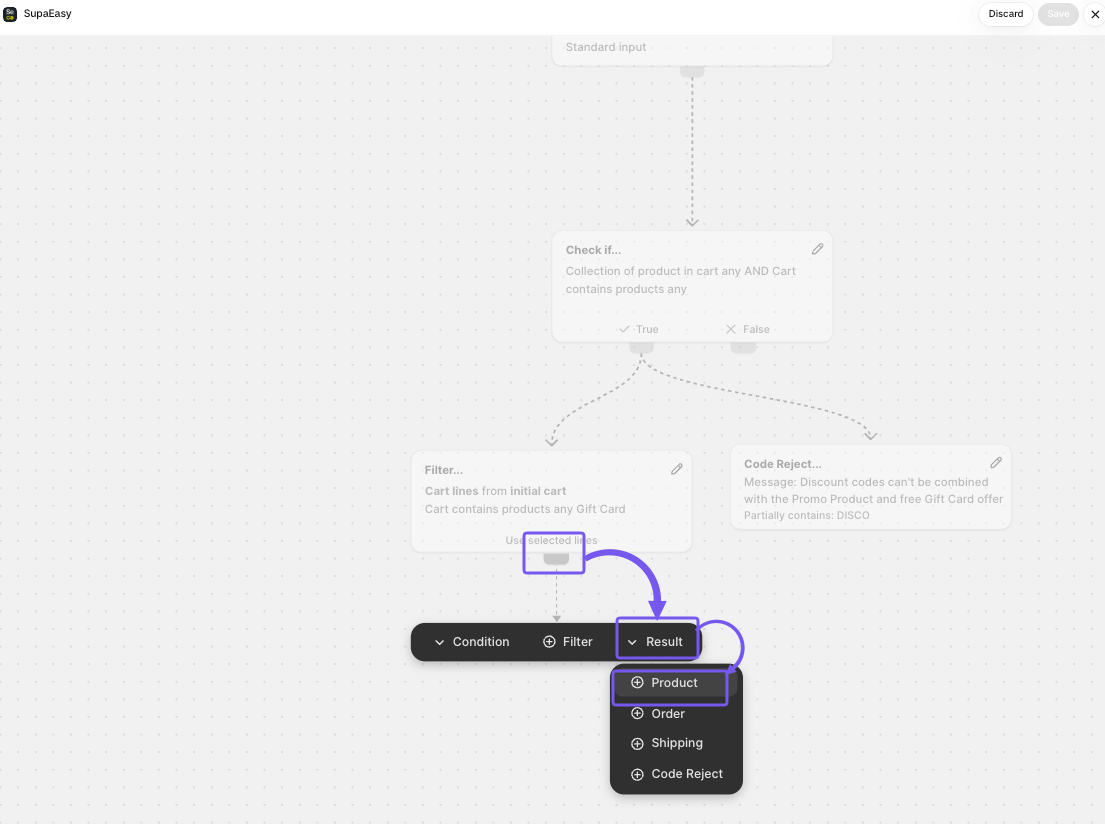
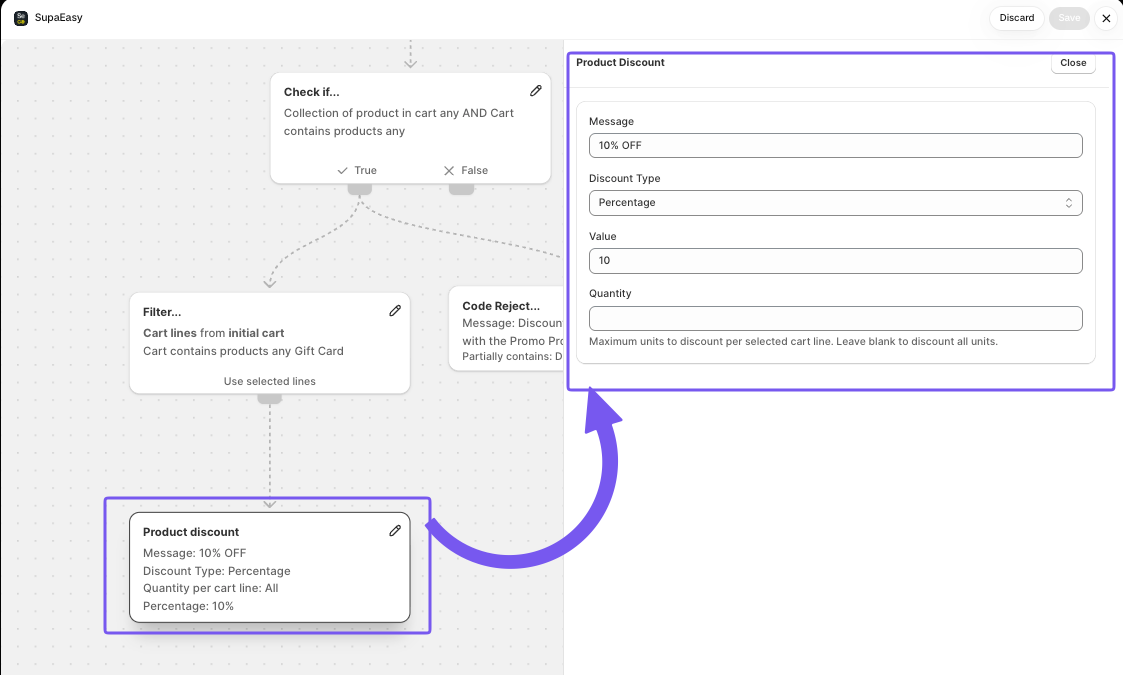
Then click the + handle under Use selected lines to add the discount node. Open the Product discount block. In Message, type the text customers will see next to the discount, such as 100% OFF. In the Result menu, set Value to 100 so the gift card is fully discounted.
Save and choose the combinations
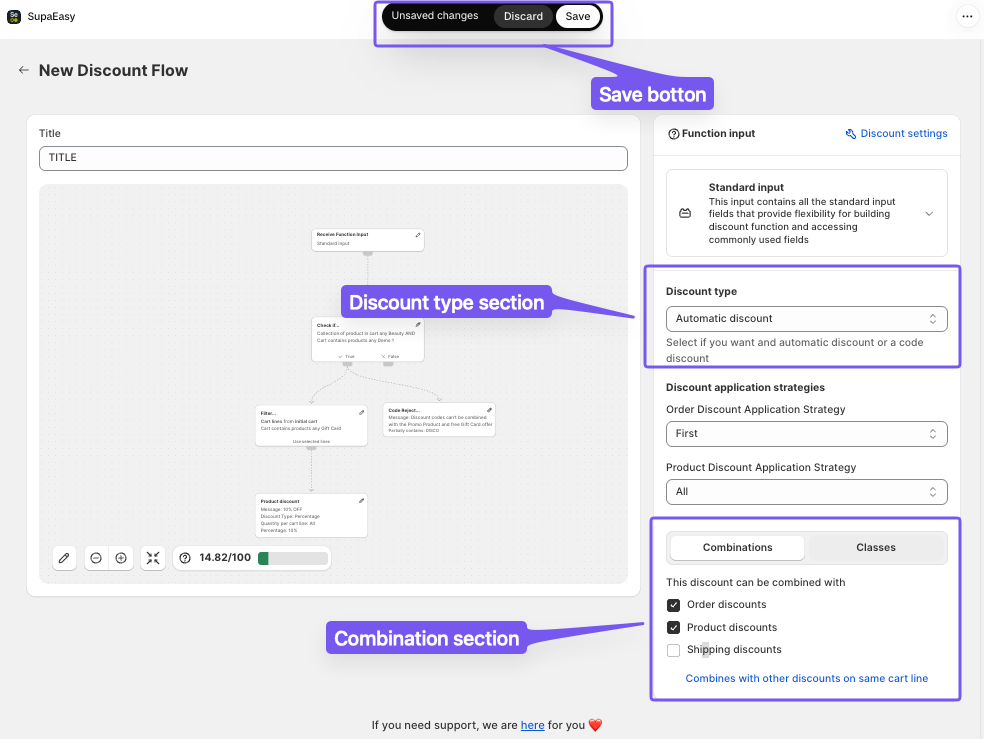
Click Save in the top-right corner. Next, decide how this discount should combine with your other promotions. Turn on one or more of the Order discounts, Product discounts and Shipping discounts checkboxes depending on which discounts you want it to work with, and leave the others off. Also, you can easily set your discount as Automatic or a Discount Code in the Discount type section with a simple click.
The DISCO codes will still be refused, because the Code Reject action takes care of them.
Test it on your store
The last step is yours. Open your store, add a product from your promo collection and the gift card to the cart, and try a code like DISCO50 at checkout (or anything you have already created): the gift card should show 100% off and the code should be refused with your message. Then remove the gift card and try the same code again. This time it should apply normally.
Summary
This flow turns a promo into a clean, protected offer: when a promo product and the gift card are in the cart, the gift card is free and the DISCO codes are refused with a message that explains why. The same structure works for many other cases. You can change the collection, block a different family of codes, give away a different product, or lower the discount value, all from the same canvas.
If you have any questions or need assistance during setup, our team is here to help. You can contact the Nextools Support Team anytime via email at support@nextools.tech or through the in-app live chat during live chat opening hours. We'll be happy to assist you.
