Not every shipping rate belongs on every order. A subscription rate sitting next to a one-off purchase, or an economy option on a cart that needs faster delivery, can confuse customers right when they are ready to pay. In this guide, you build a Delivery function in SupaEasy Flow that decides which rates customers see based on what is in their cart.
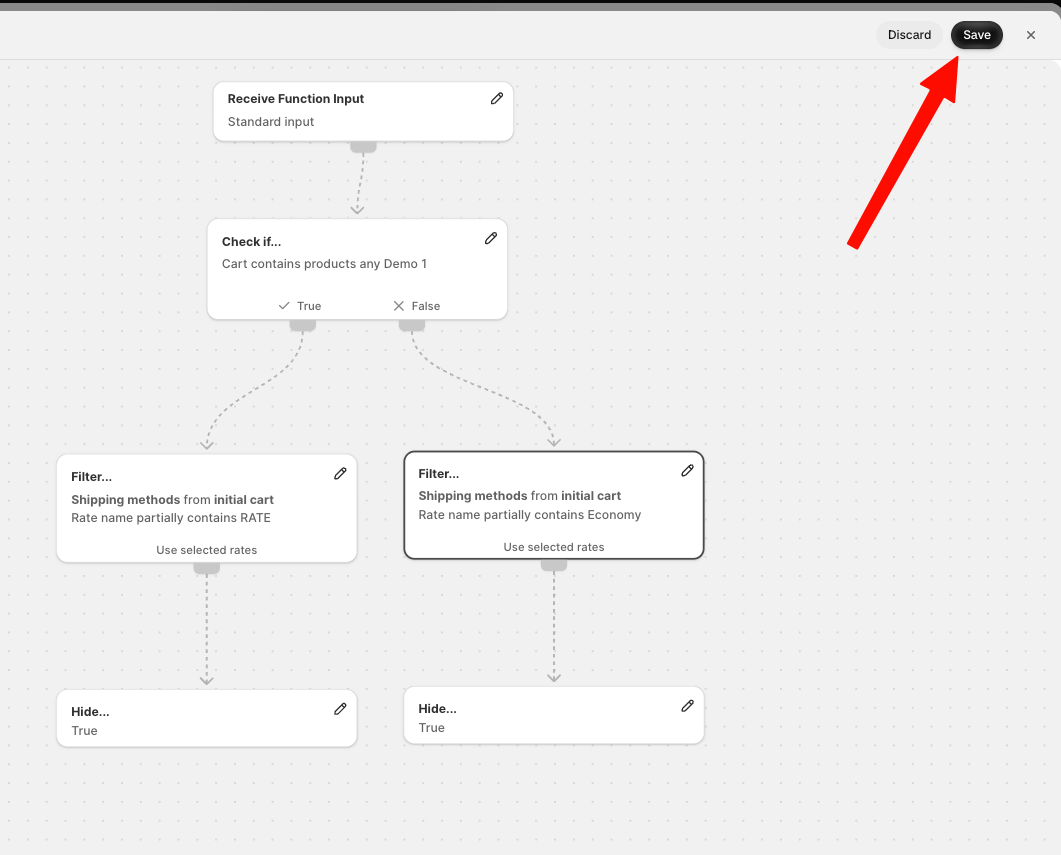
The flow works like this: if the cart contains your chosen product, SupaEasy hides the Subscription rate. If it does not, SupaEasy hides the Economy rate. You can swap in your own products and rate names at any point.
What You'll Need
-
Admin access to your Shopify store
-
Supaeasy Flow installed in your Shopify store and the Starter Plan active or Higher
-
Specific products and shipping rates you wish to target
-
About 5 minutes
Step 1: Open Supaeasy Flow in Shopify
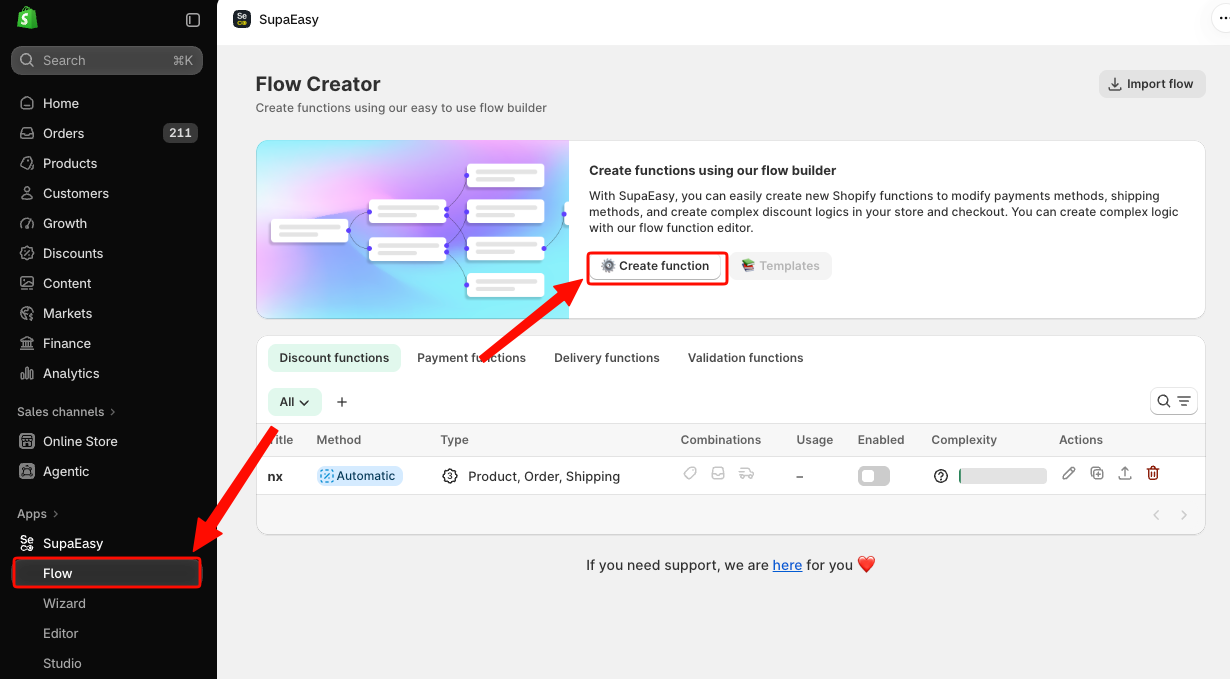
Begin by navigating to Flow in the Shopify sidebar. Click Create function to initiate a new flow setup. This opens a modal to select the function type.
Step 2: Select Delivery Function
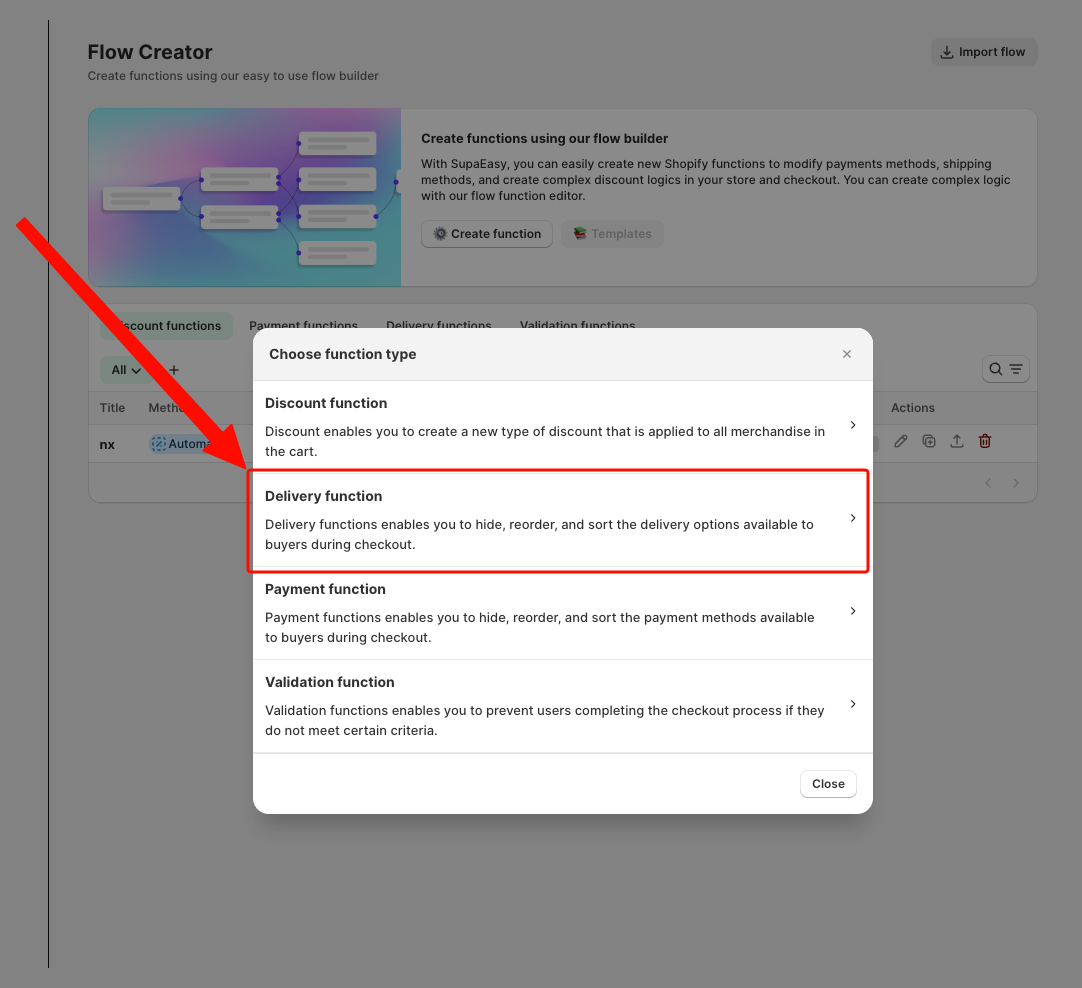
In the function type modal, choose Delivery function to specify that your flow will target shipping options. This will open the New Delivery Flow screen.
Step 3: Name Your Flow
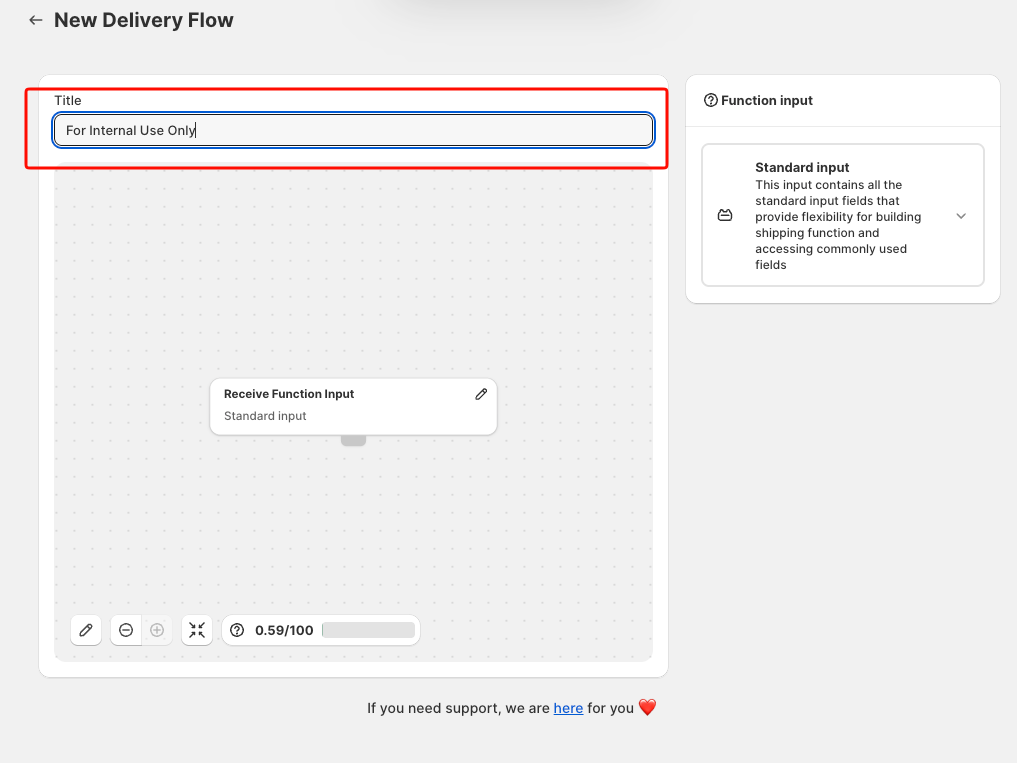
On the New Delivery Flow screen, click the Title input field and enter a descriptive name, such as Hide Delivery Rate. This label helps identify the flow in your dashboard later and it’s mandatory to save the rule.
Step 4: Expand Workspace
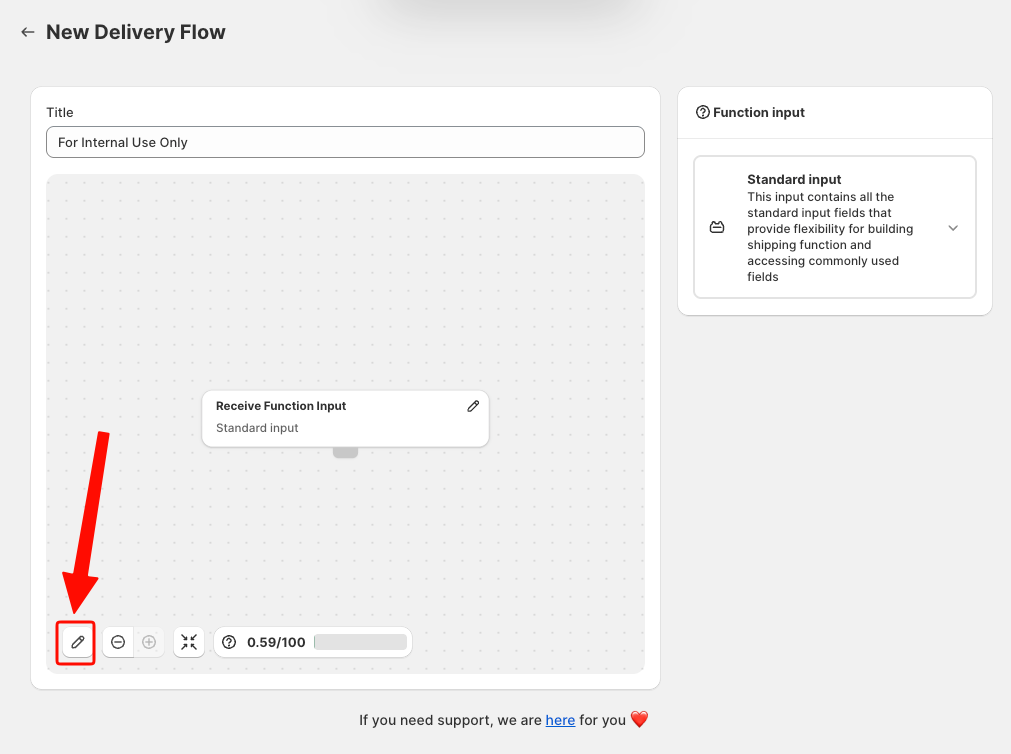
Enter in your workspace by clicking the Edit flow button. This provides a clearer view of your flow layout.
Step 5: Add a Condition Node
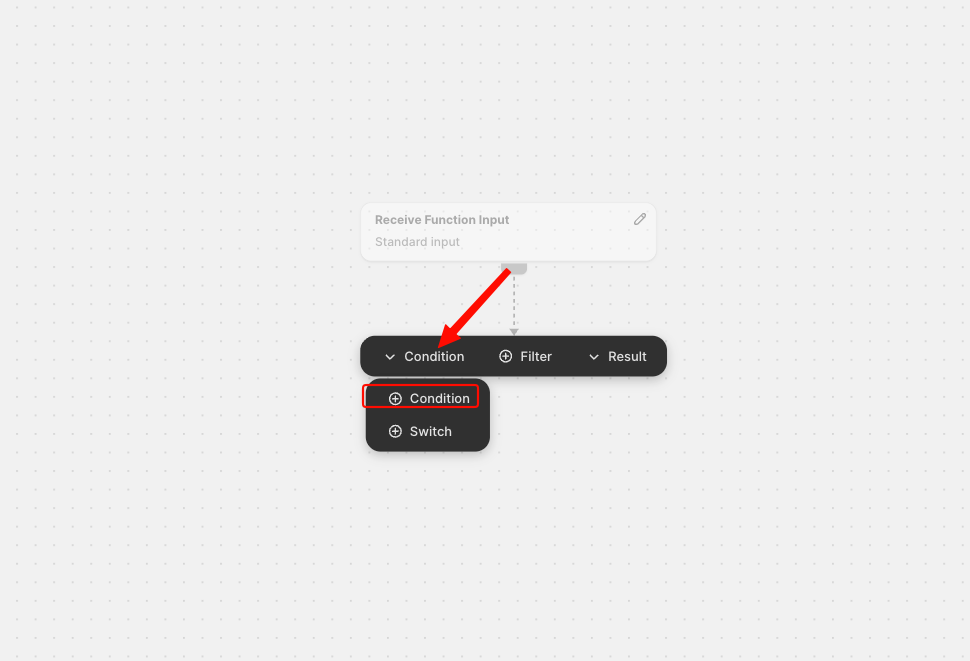
Click the + icon on the Receive Function Input node. Select Condition from the menu to define when certain shipping rates should be hidden.
Step 6: Set Condition for Cart Contents
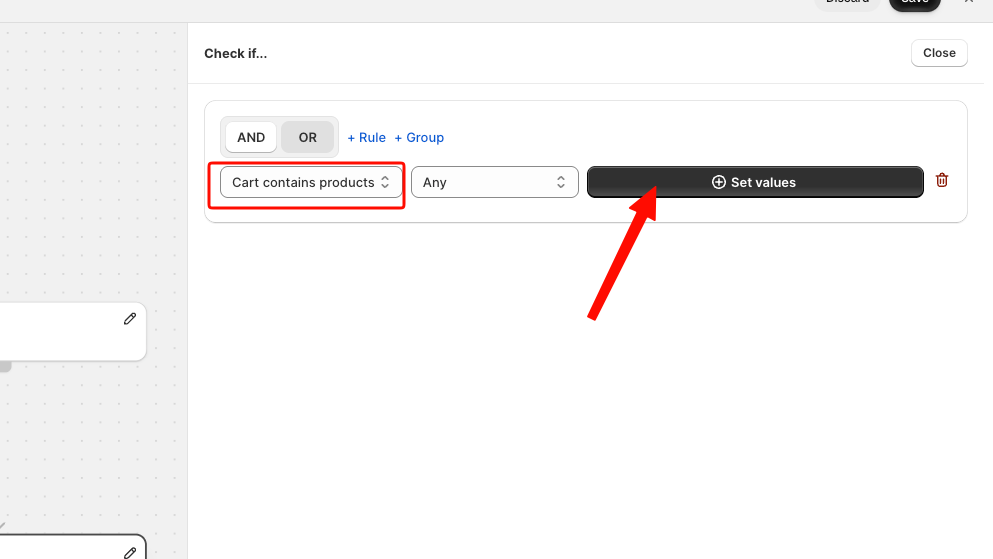
Click on the Review / Check if node to open its settings. Add a rule by clicking + Rule and selecting Cart contains products. Click Set values to choose the target products.
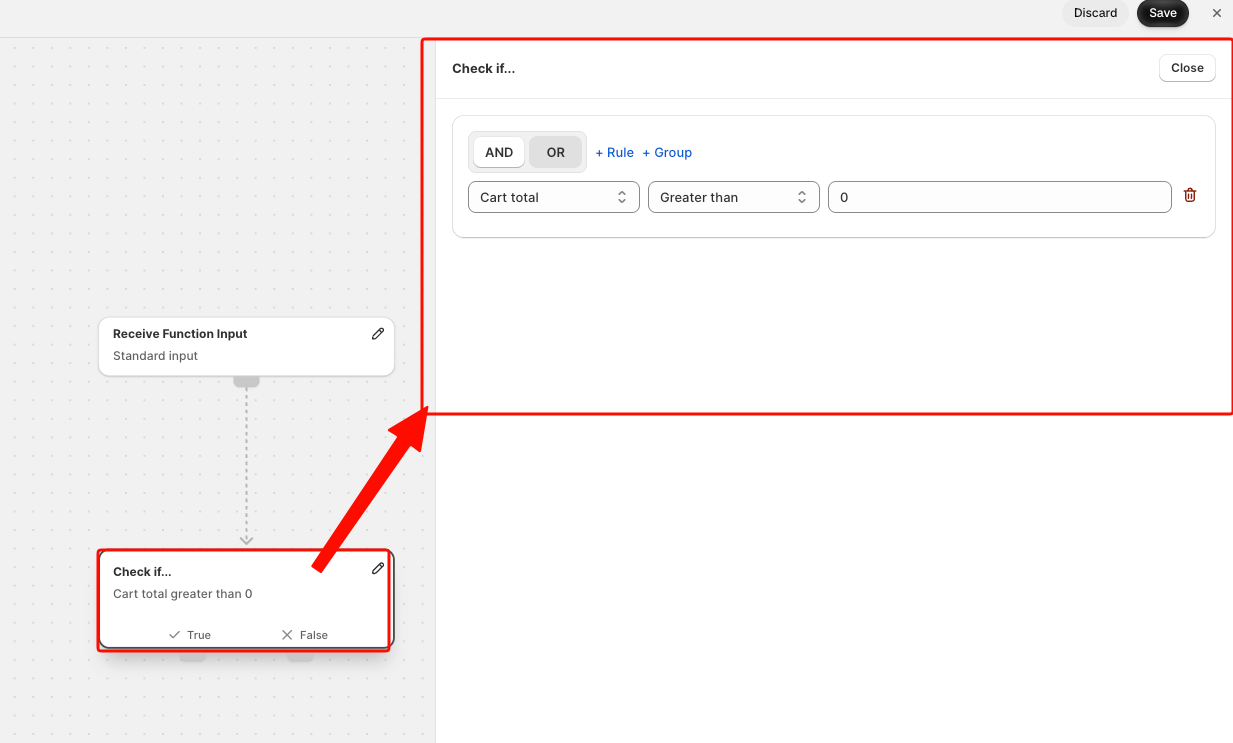
Condition node settings with product rule selected
Step 7: Select Target Products
In the product selection dialog, choose the product you wish to target, such as prova sconto. Click Select to include it in the condition.
Step 8: Configure True Branch Filter
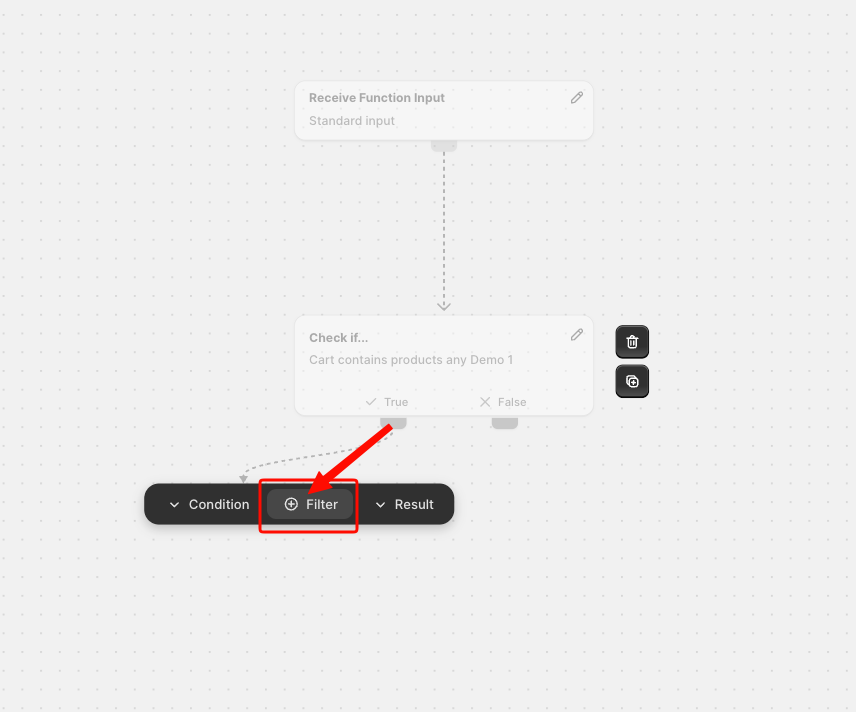
Under the True branch handle, click the + icon and select Filter. Click the Filter... node to set the Source to Initial Cart or Current Cart and the Filter. Add a rate name rule with Subscription as the target rate.
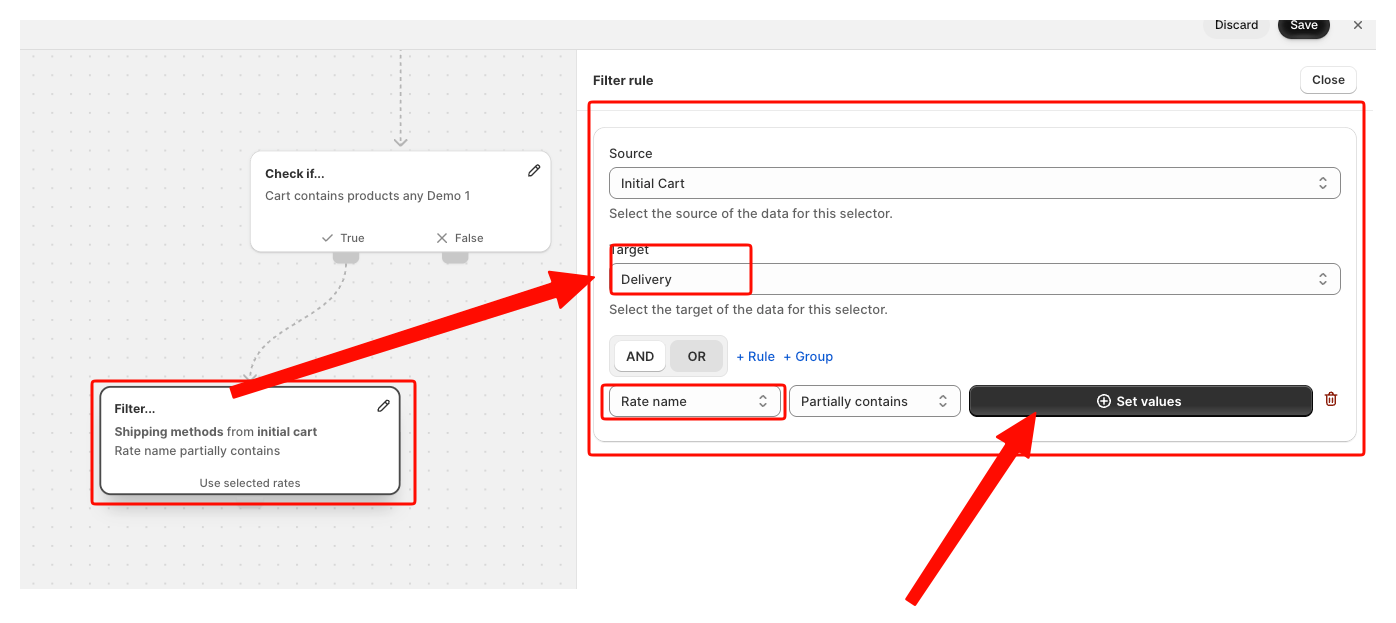
Step 9: Hide Subscription Rate
Below the Filter node, click the + handle, select Result, and choose Hide. This action hides the delivery rates selected in the filter nodewhen the condition is met.
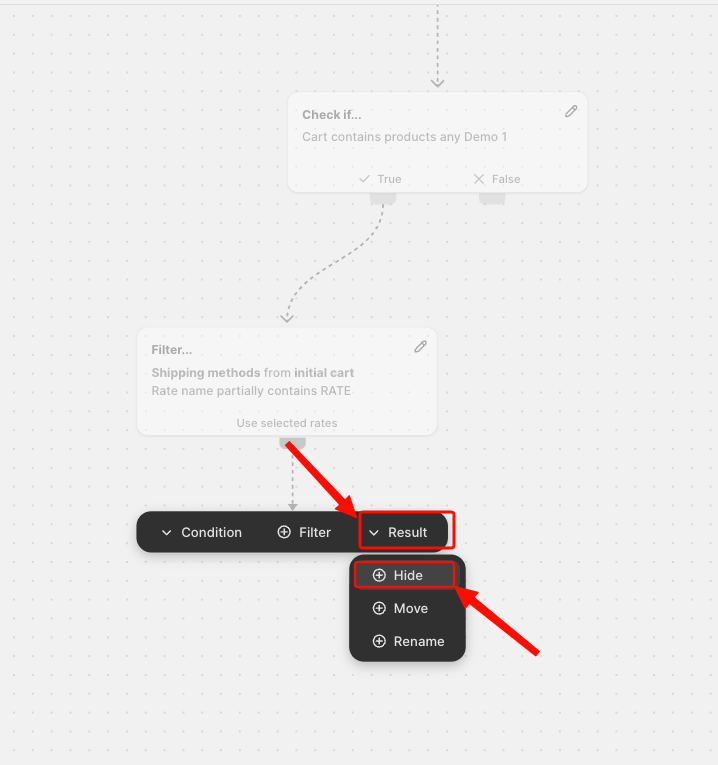
Step 10: Configure False Branch Filter
Add another Filter node under the False branch handle. Click to edit the node and set its Source to Current Cart. Add a rate name rule with Economy and set it to hide this rate.
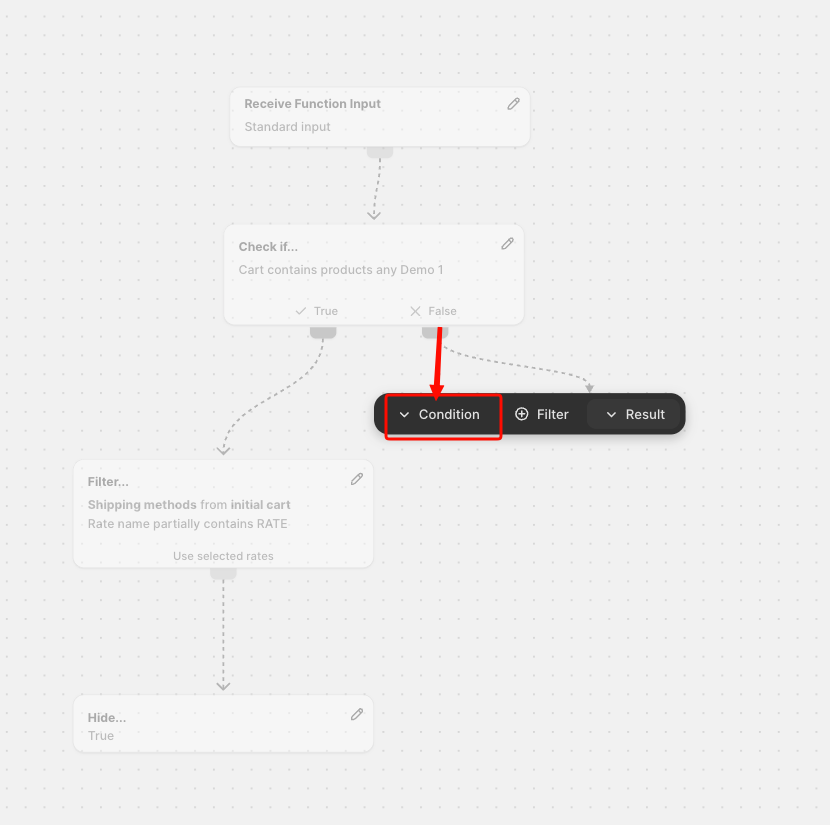
Step 11: Hide Economy Rate
Below the second Filter node, add a Result node and choose Hide. This ensures the economy rate is also hidden when conditions are not met.
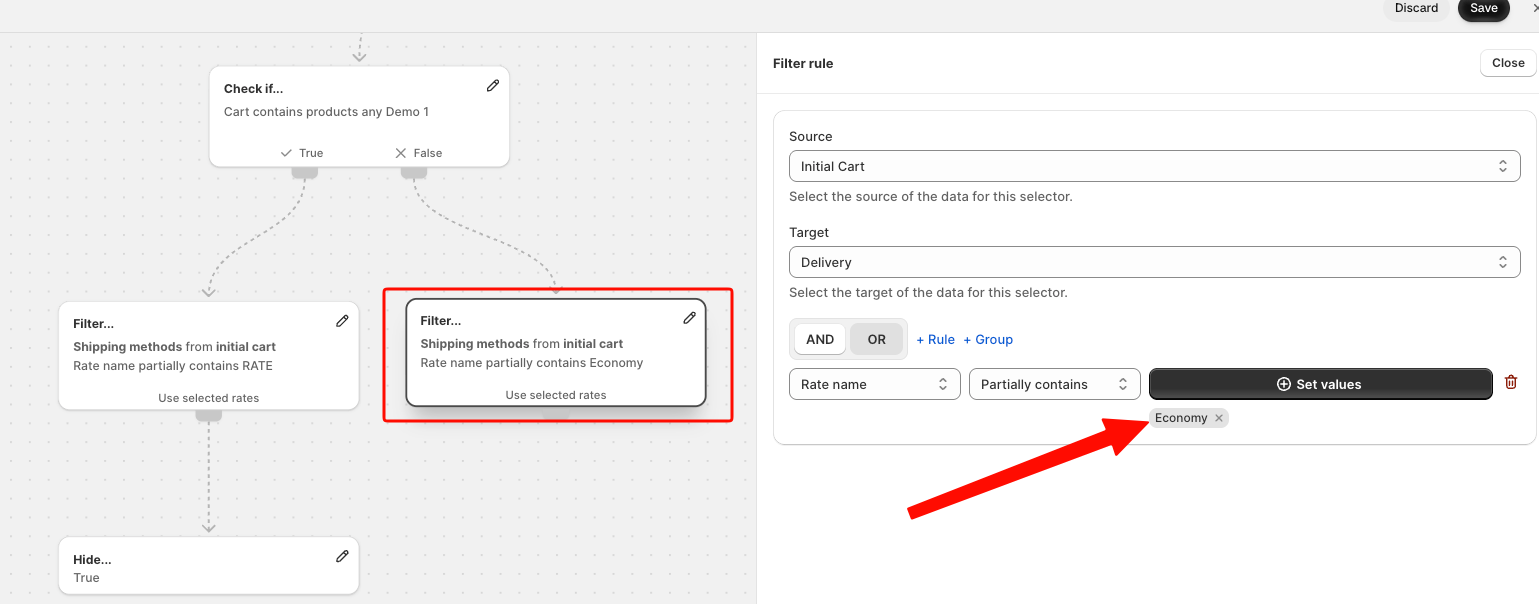
Step 12: Save and Enable Your Flow
Click Save to create your flow. Return to the Flow Creator dashboard and enable the Hide Delivery Rate function by toggling it on. Now the only action left is to Test Your Flow.
Tips and Best Practices
Use descriptive names for flows and nodes to simplify future management.
Test your flow with different products and scenarios to ensure reliability.
Regularly review and update your flow as product offerings and shipping options change.
Summary
By following these steps, you've successfully configured a delivery customization in Supaeasy Flow to hide specific shipping methods based on cart contents. This customization helps streamline the checkout process for customers. Next, consider setting up additional flows for different scenarios or exploring other Supaeasy Flow features.
If you have any questions or need assistance during setup, our team is here to help. You can contact the Nextools Support Team anytime via the in-app live chat or by email on: support@nextools.tech. We’ll be happy to assist you.
