
Add an existing code discount to the cart automatically when conditions are met.
This guide walks you through creating a discount code, setting conditions for its application, and verifying its functionality.
What You'll Need
-
Access to the AutoCart app and Discounts section
-
An existing product catalog in your store
-
Estimated time: 15-20 minutes
Step 1: Create a New Discount Code in Shopify
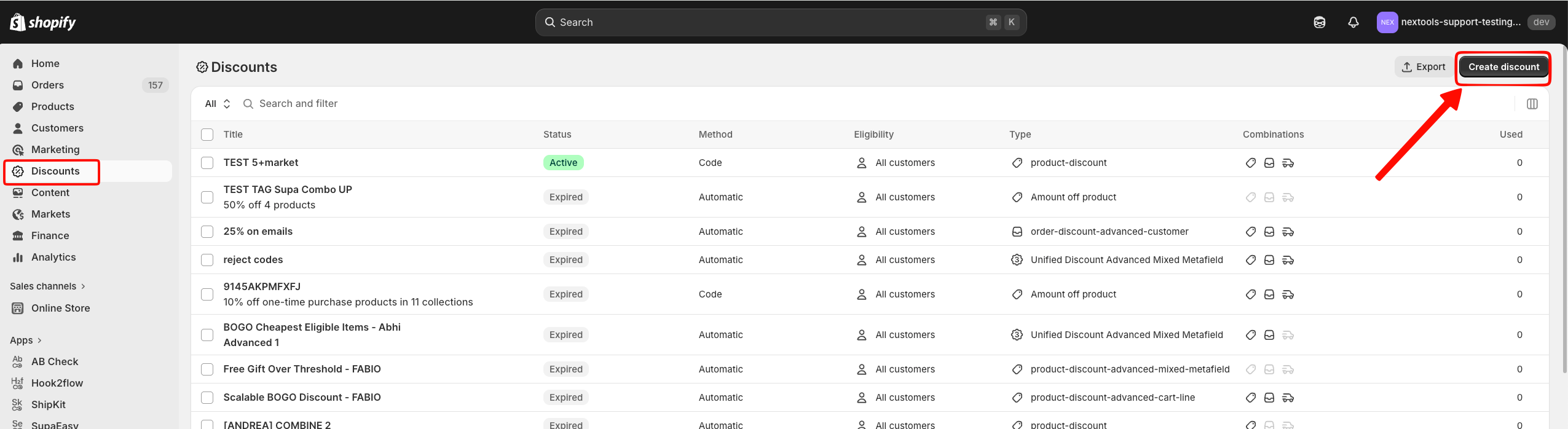
Navigate to the Discounts section in your dashboard and Click Create Discount.
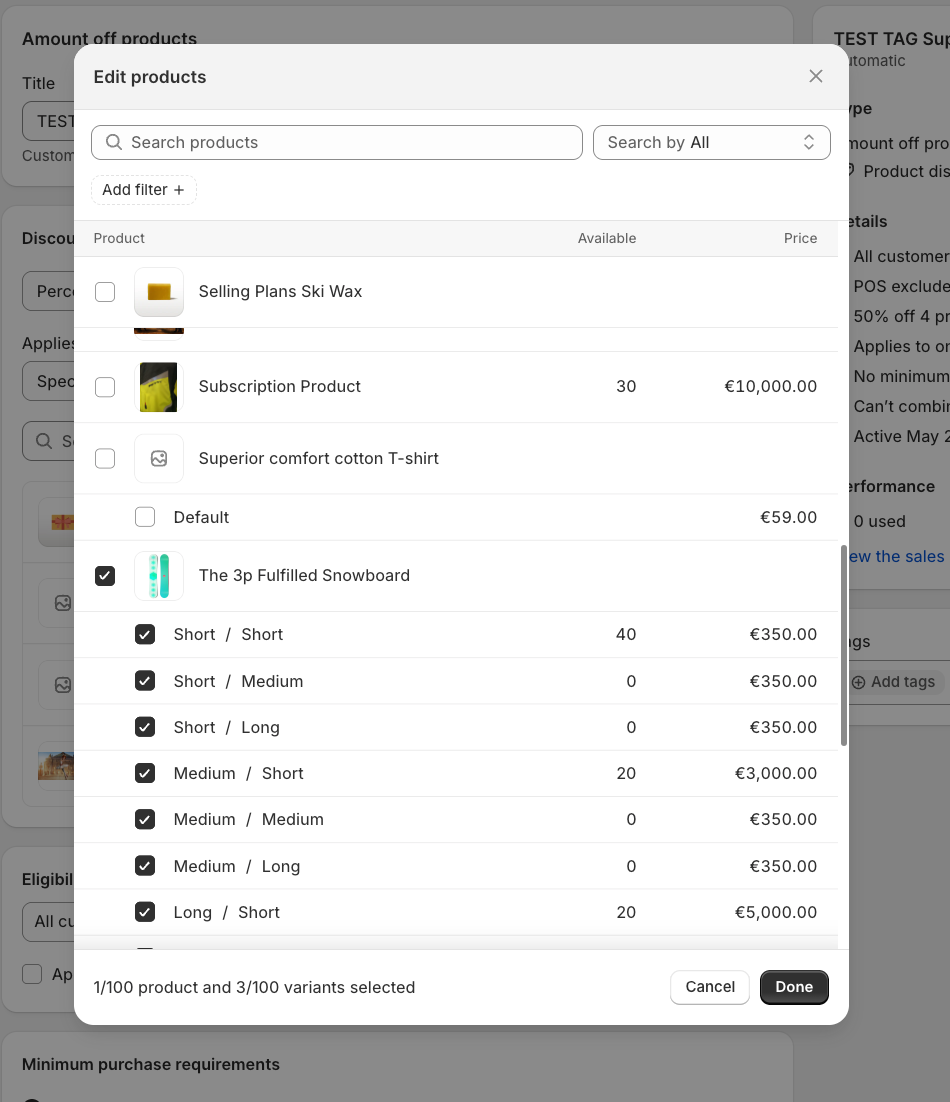
For this example we select Amount off products from the modal. Enter AUTOCODE as the discount code and define your desired discount value. Specify the products eligible for this discount by selecting them from your catalog.
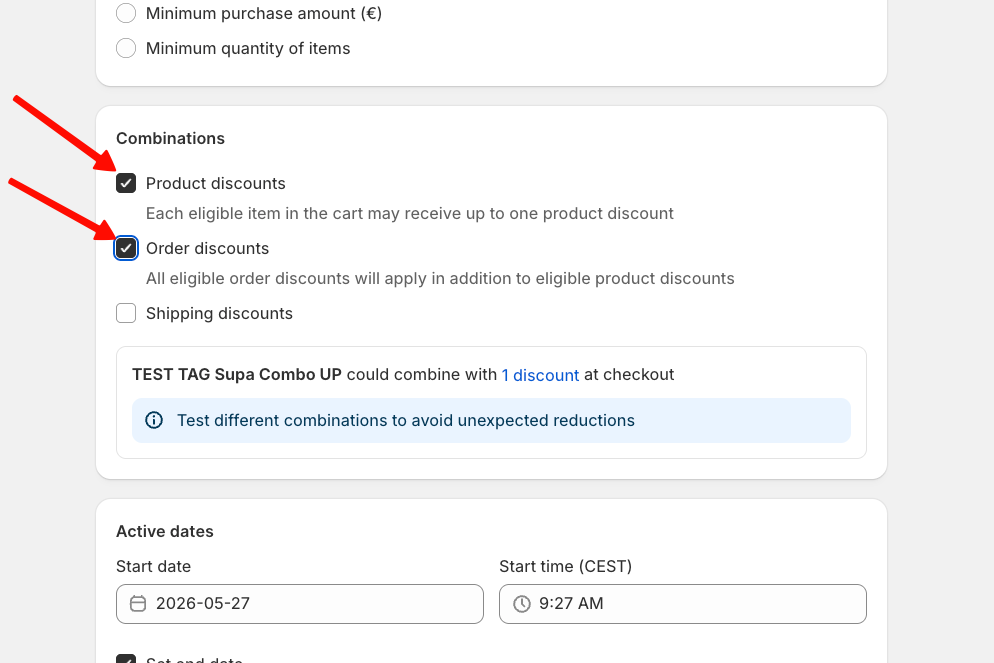
Scroll through the discount settings, and decide if you want to combine this discount with other product discounts, Order discounts, and Shipping discounts. Save the discount to make it active.
Step 2: Set Up an Automation Rule in AutoCart
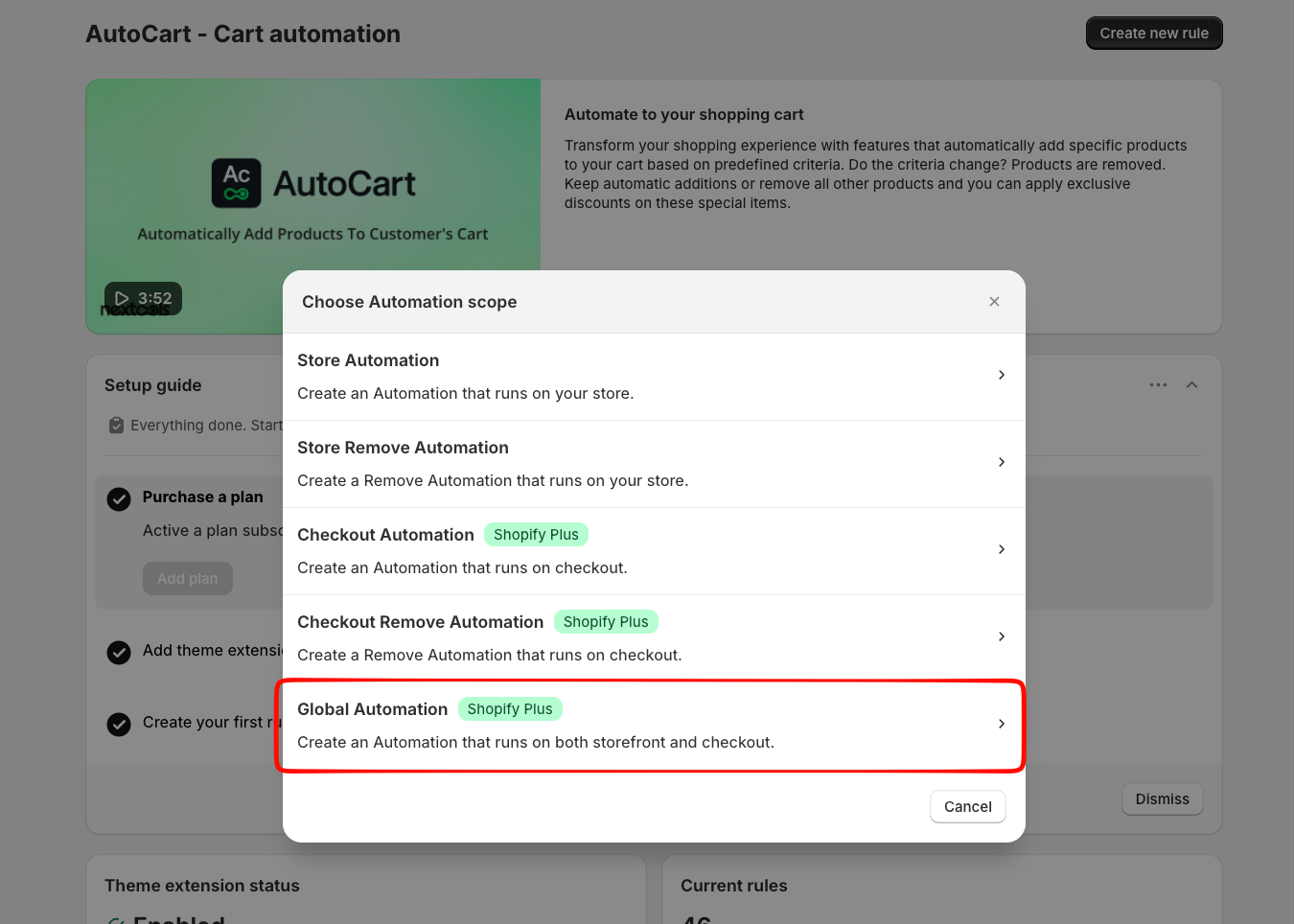
Navigate to the AutoCart app and click Create new rule. Select Global Automation as the scope to apply the rule store-wide (Cart and Checkout).
Enter a descriptive title for your rule.
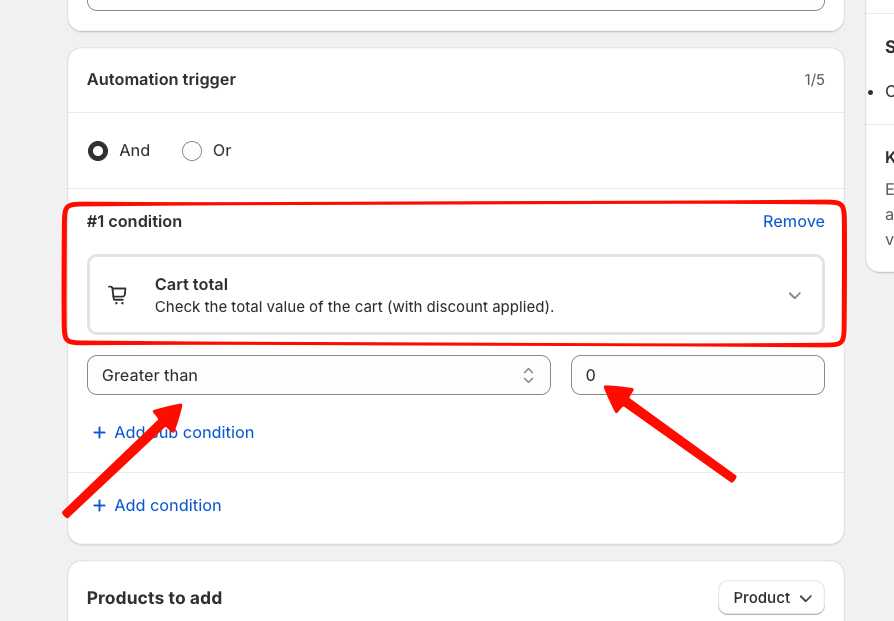
Step 3: Define Discount Application Conditions
Set the conditions under which the discount should apply, such as a minimum cart total.
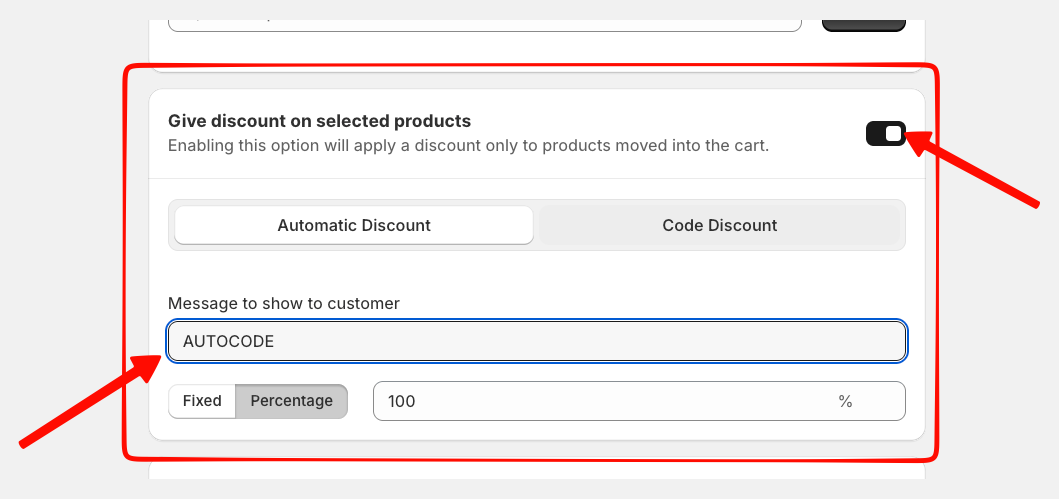
Enable the option Give discount on selected product and select Code Discount as the type. Input the discount code AUTOCODE to link it to this rule.
Save the automation and now it is ready to test the automation on your storefront.
If you have any questions or need assistance during setup, our team is here to help. You can contact the Nextools Support Team anytime via the in-app live chat or by email. We’ll be happy to assist you.
Tips and Best Practices
-
Use descriptive titles for your rules to easily identify them later.
-
Regularly review and update your discount conditions based on sales strategies.
-
Test discount functionality before launching any promotions to customers.

Thank you for choosing and trusting the AutoCart application! 🚀
