
Easily manage and prioritize your automation rules in AutoCart to control how different rules interact with each other. This guide will walk you through setting up and testing priority rules so that your automation runs smoothly and effectively.
What You'll Need
-
Access to the AutoCart application
-
Permissions to create and modify rules
-
Estimated time: 10-15 minutes
Step 1: Create a New Automation Rule
Navigate to the AutoCart section from the sidebar menu to access the dashboard. From there, click on Rules under AutoCart to open the automation rules page. On the automation rules page, click Create new rule. 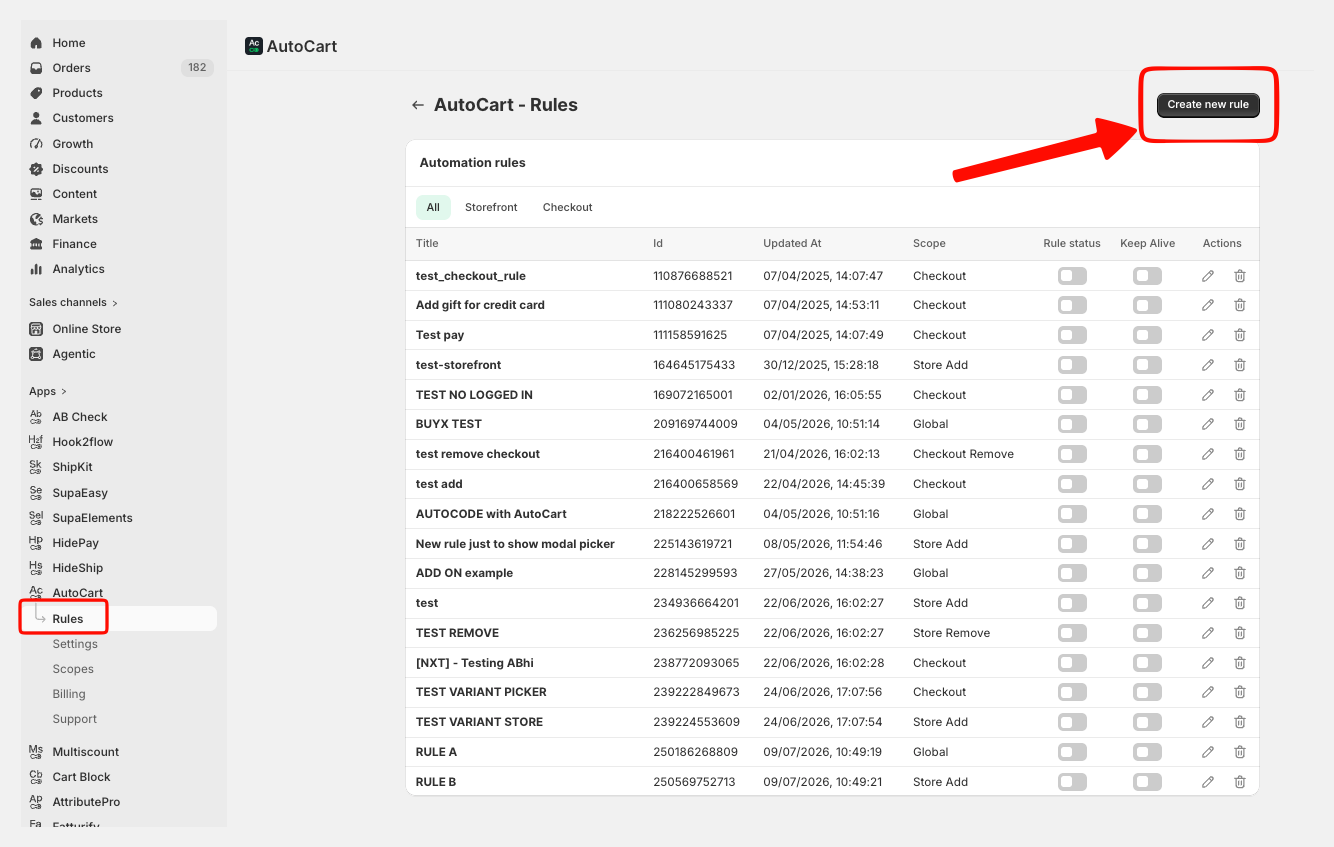 In the modal that appears, select the scope you prefer. For this example we will use Store Automation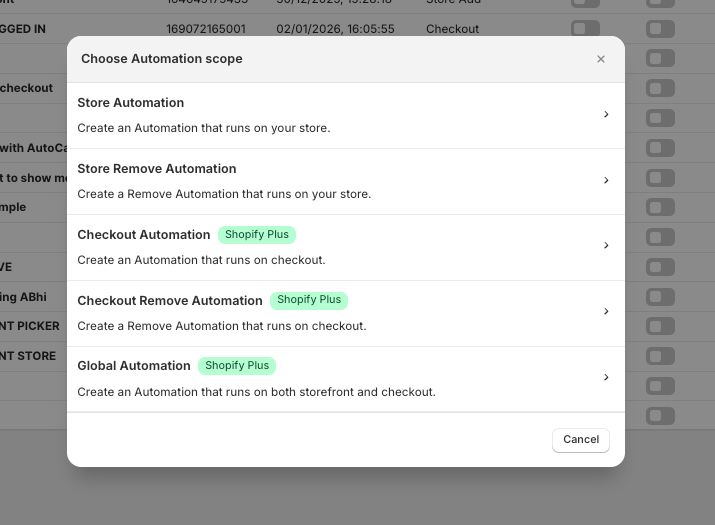
This opens the new rule creation page where you can start setting up a new rule.
We call RULE B.
Step 2: Define Rule Details
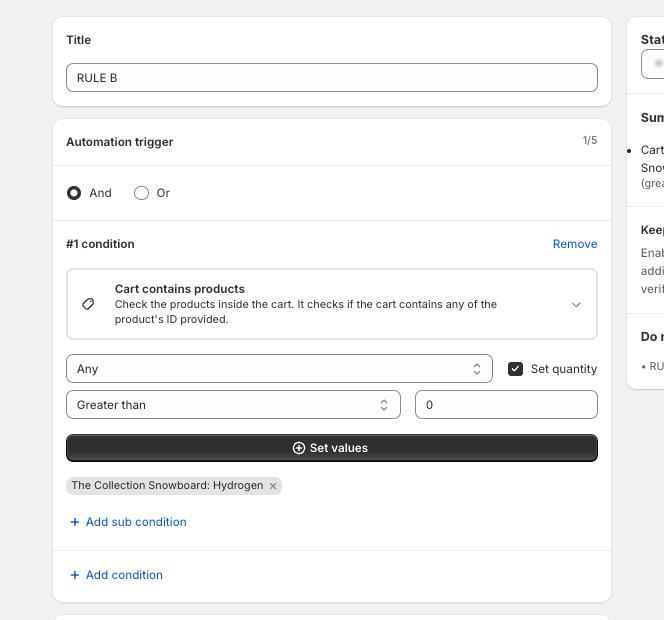
Enter a descriptive title in the Title field. Click the Condition type dropdown and select the condition that best fits your needs. Then click Set values to choose the specific items or values that should be used for this rule to trig.
For this example, we call the automation Rule B and we verify if a specific product is in the cart
Step 3: Configure the Product to add and the Discount
Enable the discount feature. Browse and select a product to add automatically when the rule is triggered such as the "Special Offer" in this example. Enter a custom message in the message field to inform customers about the promotion. Then set the amount of the discount and choose between fixed or percentage.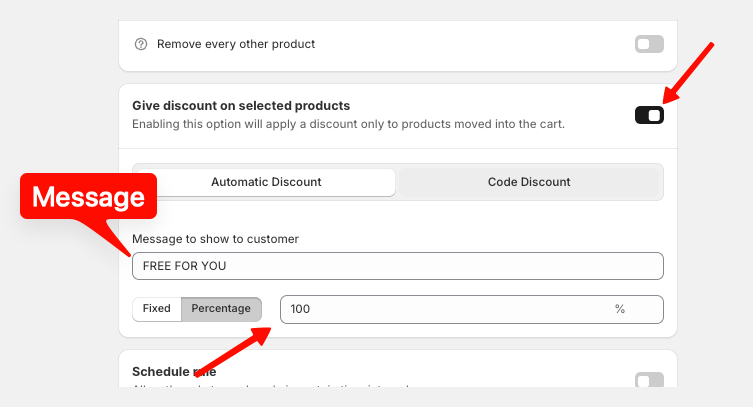
Step 4: Set Rule Combination Preferences
Now you can choose how Rule B will interact with other automation already active on your store.You have 3 options:
-
Disable
Rule B will be added regularly and will not have any priority.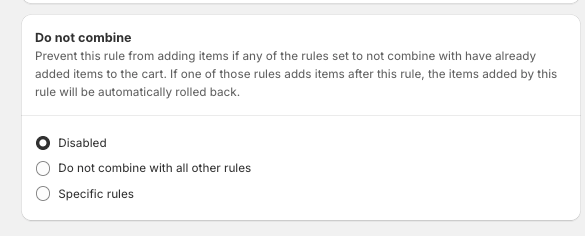
-
Do not combine with all other rules
This option prevent Rule B to trig if there is already another AutoCart automation active in the cart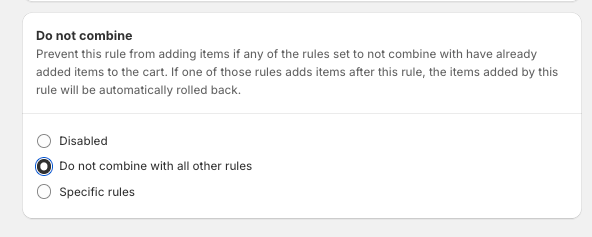
-
Specific Rule
with this option you can select with which other rules you don’t want to combine Rule B and select from the list.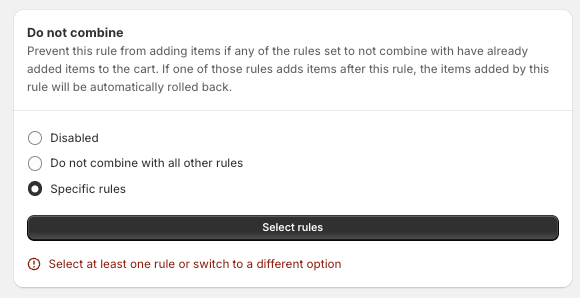
To prioritize a specific rule over RULE B, select Specific Rule, click on Select Rule and search for the rule you want to give priority, for example RULE A.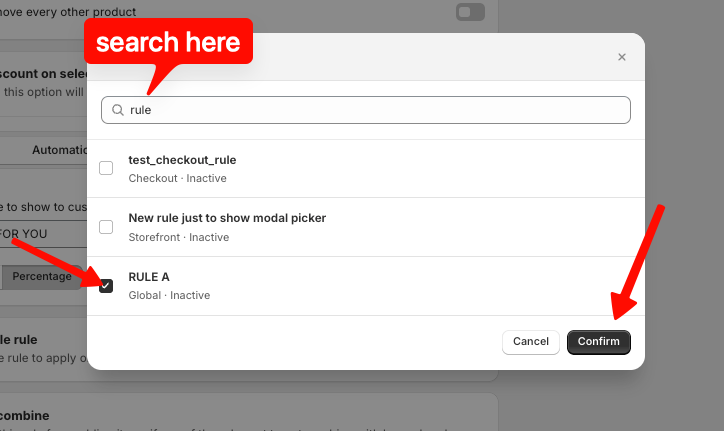
Select the rule and confirm. This ensures RULE B will not activate if RULE A is already running.
Step 5: Save and Test Your Rule
Click Save to finalize your configurations.
Now you can simply reach your store and test the priority you have created.
If you have any questions or need assistance during setup, our team is here to help. You can contact the Nextools Support Team anytime via the in-app live chat or by email. We’ll be happy to assist you.
Tips and Best Practices
-
Always test new rules in the storefront to ensure they behave as expected.
-
Label your rules clearly to easily identify and manage them.
-
Regularly review and update rules to match current promotional strategies.
-
If an automation is not working check the combine new feature first

Thank you for choosing and trusting the AutoCart application! 🚀
