
Set up automated cart rules that trigger ignoring specific discounts.
This guide walks you through creating discounts, and manage how and what discounts can be taken in cosideration before apply the Gift.
By the end, you'll have a system that applies promotions correctly, even when specific discounts are ignored.
What You'll Need
-
Access to your e-commerce platform's admin panel
-
Existing Discount on your store
-
The AutoCart app installed
-
Estimated time: 15-20 minutes
Prerequisite: Existing Store Discount
Before configuring AutoCart, the promotion you want to bypass must already exist and be active in your store's platform admin panel (for example, an automatic discount named DISCOUNT A that gives 50% off orders over 500 EUR). AutoCart does not create standard store discounts; it evaluates active discounts already present in your store so you can specify which ones to exclude when calculating cart qualification thresholds.
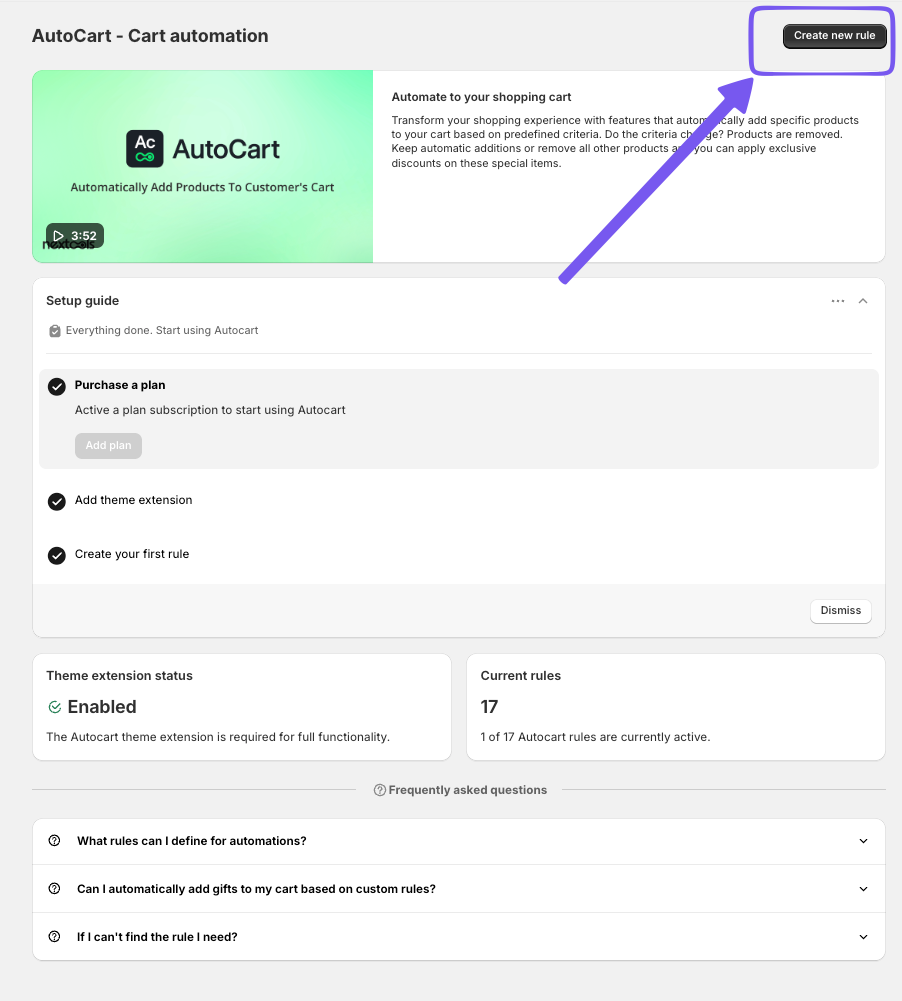
Step 1: Open the AutoCart App
Navigate to the AutoCart app in your store's admin panel to begin setting up an automation rule that will handle specific discount logic.
Step 2: Create a New Automation Rule
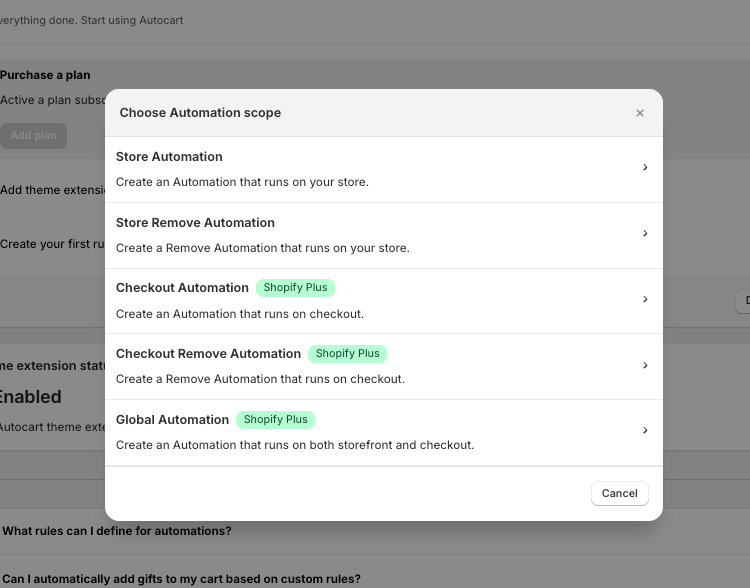
Click Create new rule and you can choose any option: Store Automation, Checkout Automation or Global Automation.
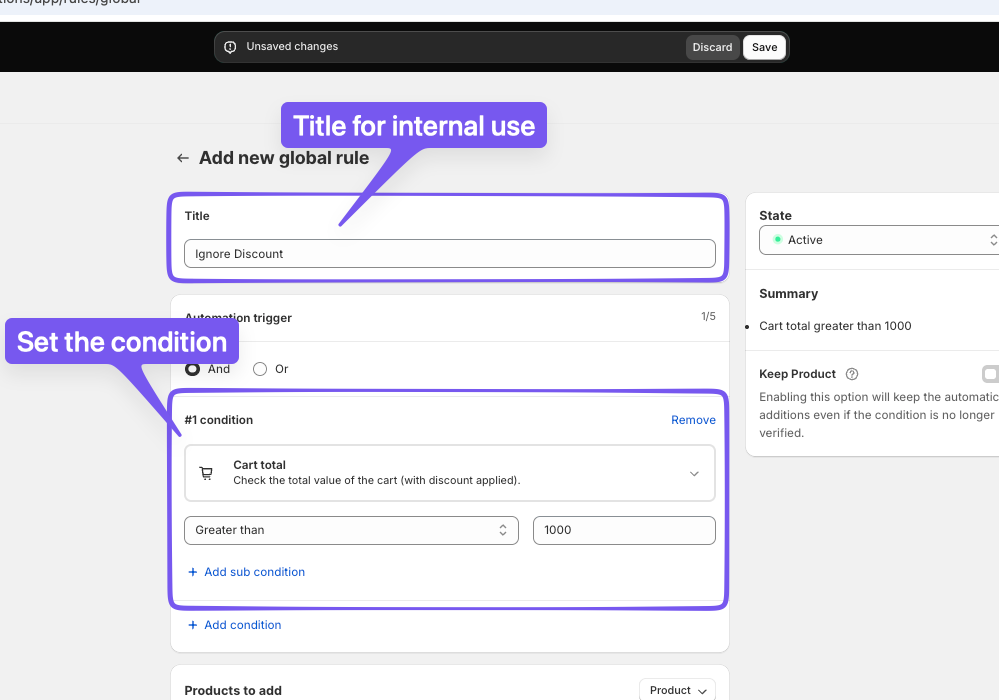
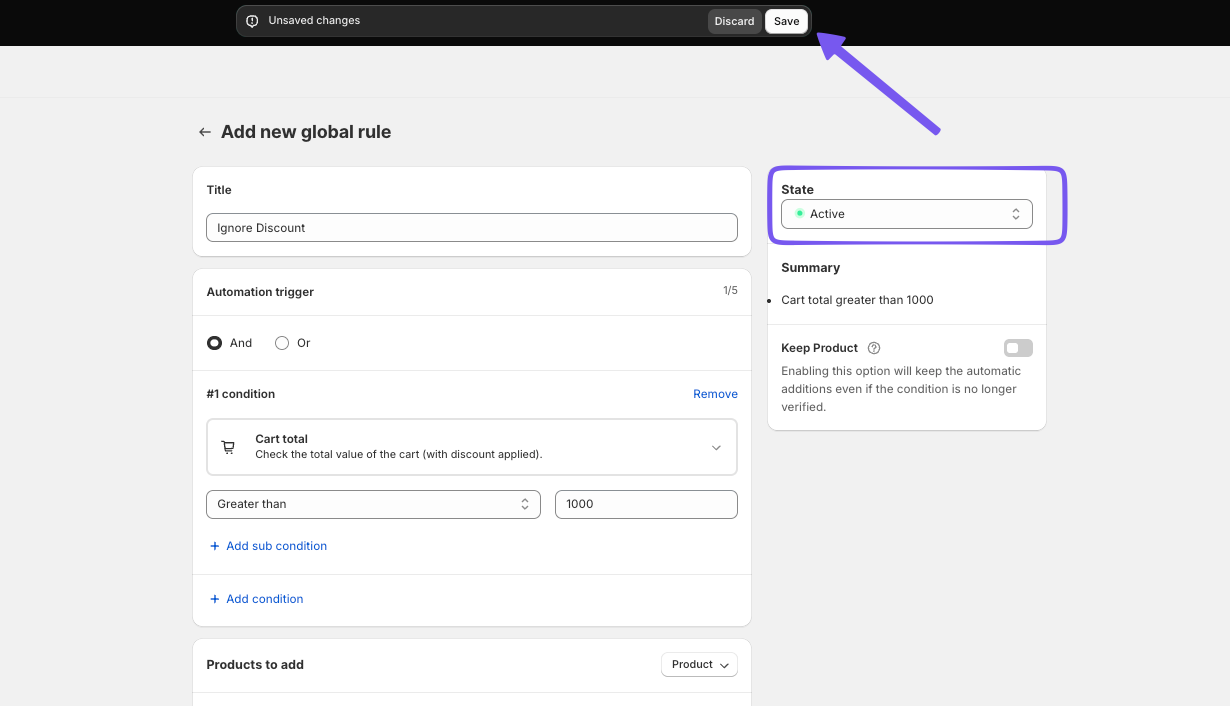
Assign a title to your rule, such as Ignore Discount, and set the first condition to trigger. In this example we set the cart total is greater than 1000.
Step 3: Add a Promotional Product
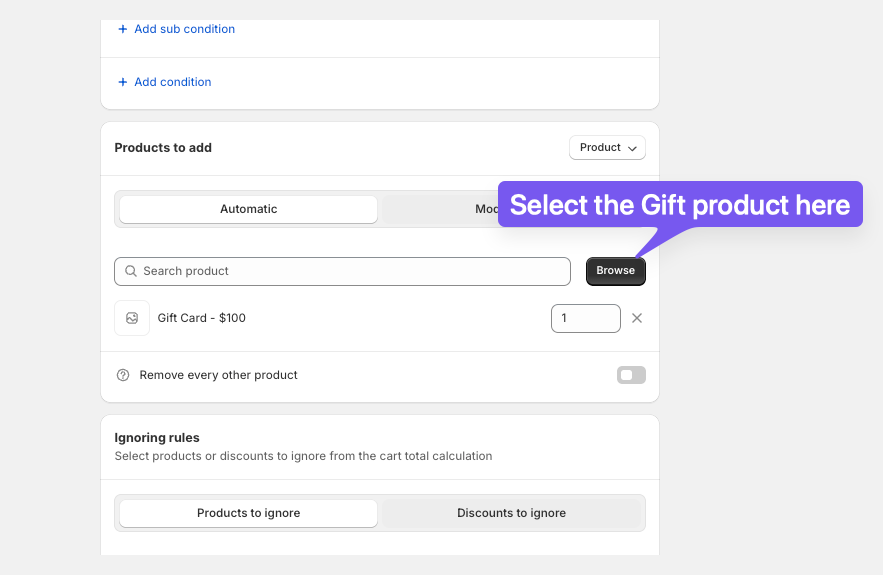
Click to browse your product inventory and select a gift card or promotional item (e.g., $100 Gift Card). Add this to your automation rule as the reward item.
Step 4: Specify Discounts to Ignore
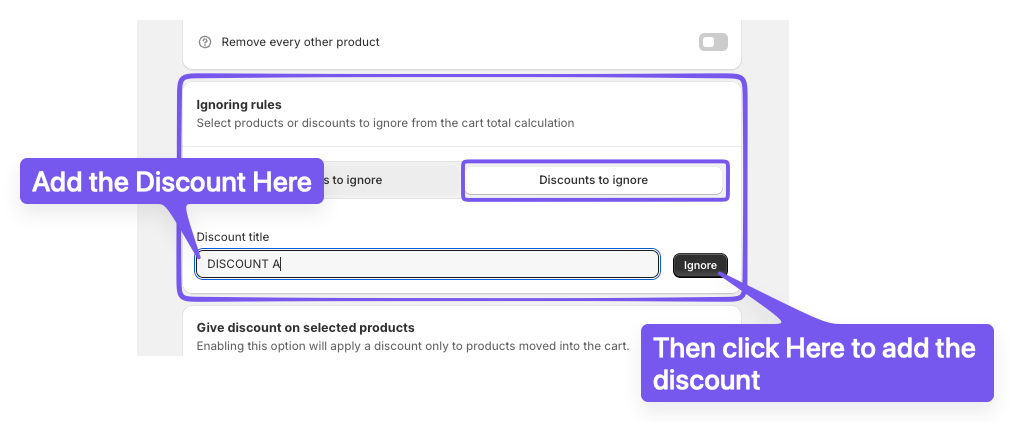
In the Ignoring rules section we define what discount to exclude from this Automation.
Toggle on the Discounts to ignore option, and enter the Message of the discout that you want to exclude.
In this example DISCOUNT A to ensure this particular discount is bypassed by the automation rule.
NOTE: This feature controls the discount message displayed in the cart. By default, this message often matches the title of the Shopify discounts. For discount codes, keeping this message consistent with what customers see during checkout is essential for a clear shopping experience.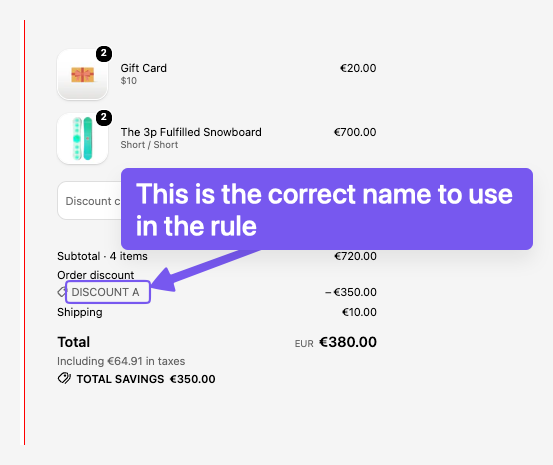
Step 5: Enable and Configure the Reward
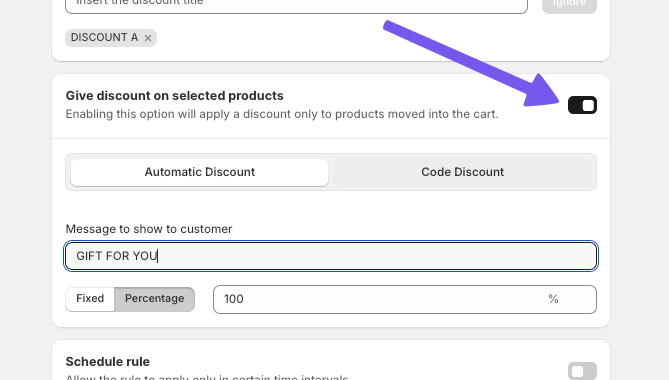
Enable the Give discount on selected products option.
Set the discount percentage to 100% and add a custom message like GIFT FOR YOU to personalize the offer.
This is important to add automatically the product to the cart
Step 6: Save and Activate the Rule
Click Save to activate your automation rule. This finalize the setup and ensures your rules are now live.
Step 7: Test the Automation in the Storefront
Now you can reach your store front and verify the correct automation on you store.
If you have any questions or need assistance during setup, our team is here to help. You can contact the Nextools Support Team anytime via the in-app live chat or by email. We’ll be happy to assist you.
Tips and Best Practices
-
Use clear and descriptive names for discounts and rules to keep track of them easily.
-
Consider customer experience when setting up promotional messages and offers.

Thank you for choosing and trusting the AutoCart application! 🚀
