
Why Does This Happen?
Shop Pay is Shopify's express checkout and runs as a separate, independent environment from the standard checkout. Checkout extensions including, CartBlock, are not automatically included in Shop Pay. Each app block must be explicitly enabled to work there.
When this setting is off, you may observe exactly this kind of inconsistency: the automation fires correctly on some orders (those going through standard checkout) and silently skips others (those placed via Shop Pay).
How to Enable CartBlock in Shop Pay
-
From your Shopify admin, go to Settings → Checkout.
-
Click Customize to open the checkout editor.
-
In the left sidebar, locate and click the CartBlock app block.
-
In the settings panel on the right, find Checkout behavior and enable the "Include block in Shop Pay" toggle.
-
Click Save in the top-right corner.
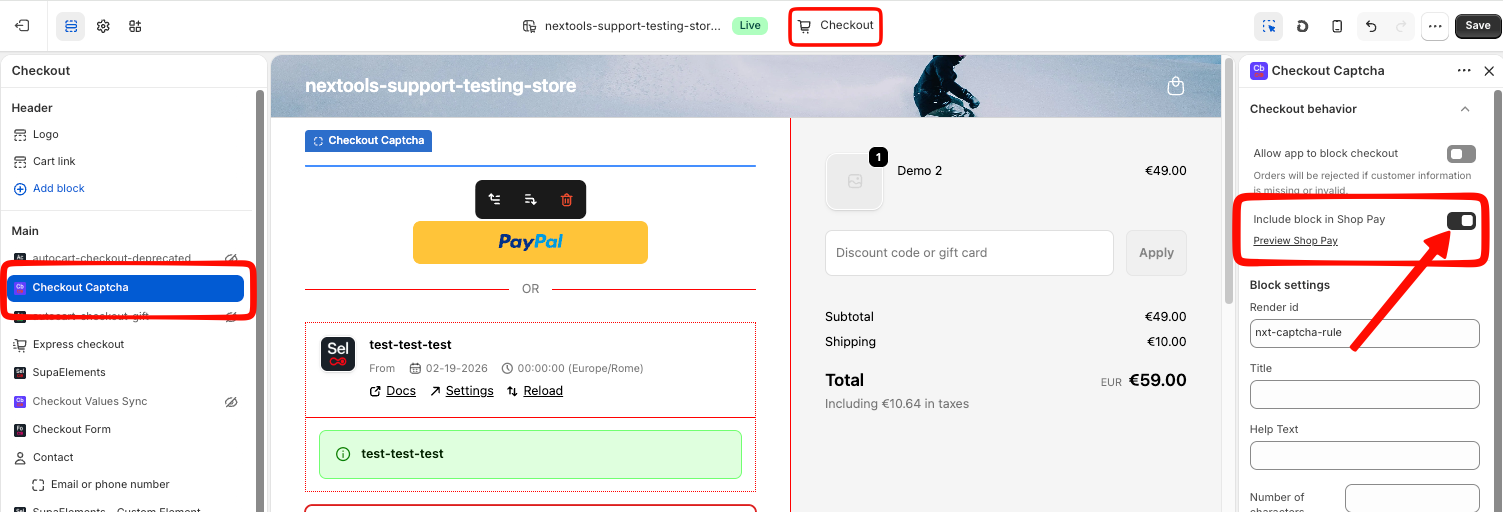
|
💡 Tip After saving, you can preview how your checkout looks in Shop Pay directly from the editor. Click "Preview Shop Pay" (visible in the top bar after enabling the toggle) to verify the block appears correctly. |
What to Expect After Enabling
Once the toggle is active, CartBlock will run consistently across both standard checkout and Shop Pay. This means:
-
Discount code rules will trigger the automatic product addition when entered inside Shop Pay.
-
Cart total rules will be evaluated correctly even when the customer jumps directly to Shop Pay from the product page.
-
All future orders via Shop Pay will follow your configured automation, with no further action required.
|
📋 Note Shop Pay support for checkout extensions is available only on Shopify Plus. |
