
When configuring the "Checkout Captcha" block via Cart Block, you can customize the length of the captcha code that customers must enter. However, to ensure an adequate level of security against bots, the system enforces a minimum length requirement.
Minimum Character Requirement
The app requires the captcha to be at least 6 characters long. It is not possible to set a value below this threshold.
What Happens if I Enter a Number Lower Than 6?
If you try to set the "Number of characters" field to a value of 5 (or lower), the system will block the operation. A red error message reading "Failed to save" will appear in the bottom left corner, and your changes will not be applied.
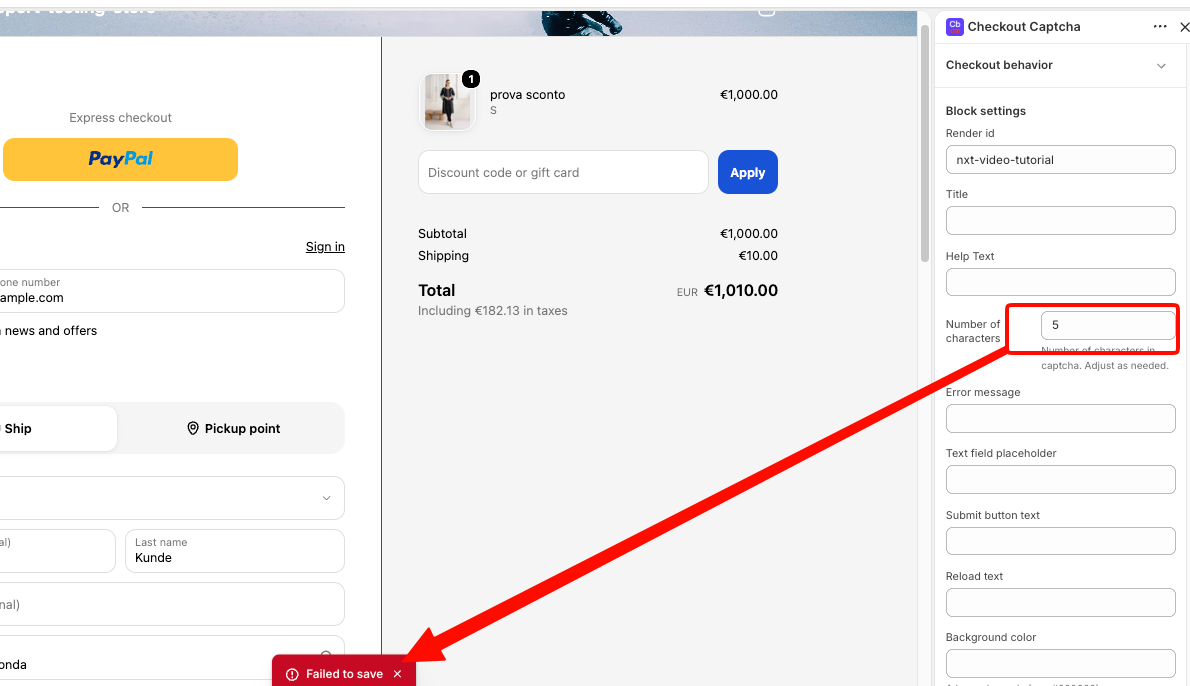.png)
How to Save Your Settings Successfully
To ensure your changes are saved:
-
Go to the "Block settings" under "Checkout Captcha" in the Checkout theme extension.
-
Scroll down to the "Number of characters" field.
-
Enter the value 6 or a higher number.
-
Save the configuration. If the number is valid and meets the minimum requirement, you will see a black notification at the bottom reading "Changes saved".
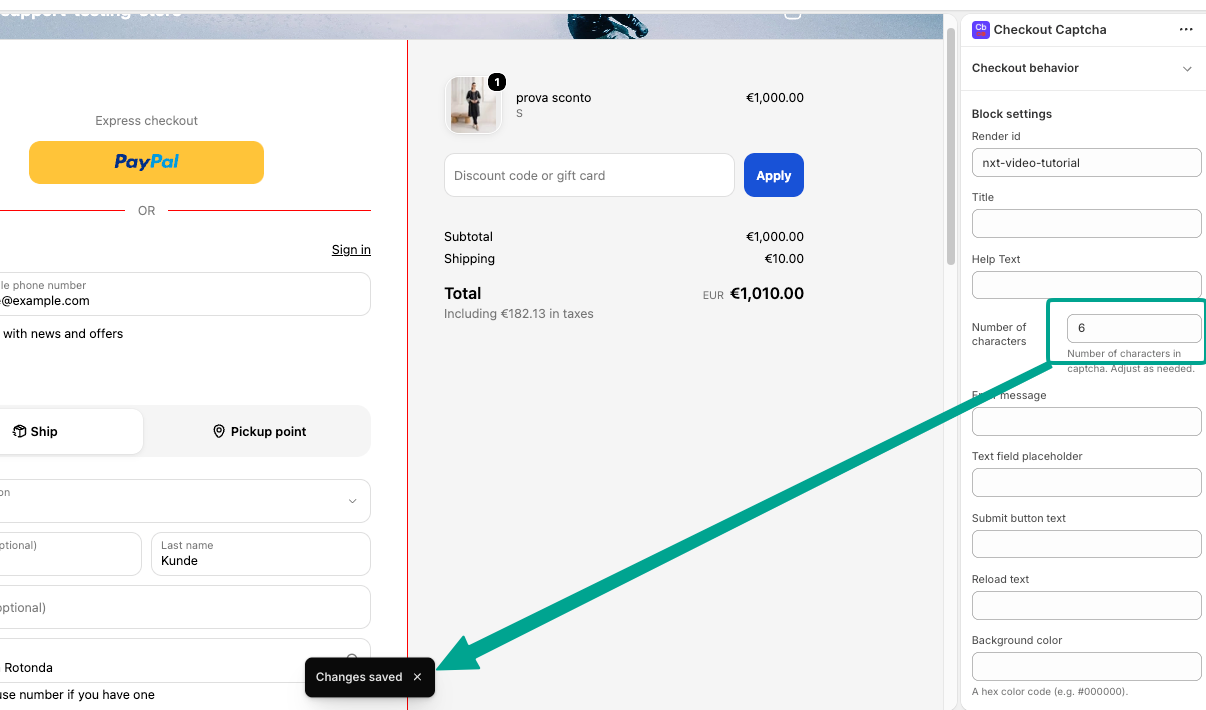.png)
Note to Users: If you have a strict requirement for a shorter captcha (e.g., 5 characters or less), please remember that this option is currently not supported by the block's standard validation rules. We advise keeping the value at 6 to ensure a smooth and secure checkout experience.
