
In this tutorial, we will demonstrate how to use the HidePay app in combination with the AttributePro app to conditionally hide payment methods on your Shopify store.
This setup allows you to control payment visibility based on specific discount codes, enhancing your checkout customisation and user experience.
Prerequisites
Before getting started, ensure the following:- This feature is available only for Shopify Plus stores, as it requires using an app block in the checkout editor.
- You have installed both HidePay and AttributePro apps
- In AttributePro, you are subscribed to the Ultimate Plan
- In HidePay, select a plan that suits your needs (for this example, the Premium Plan is sufficient)
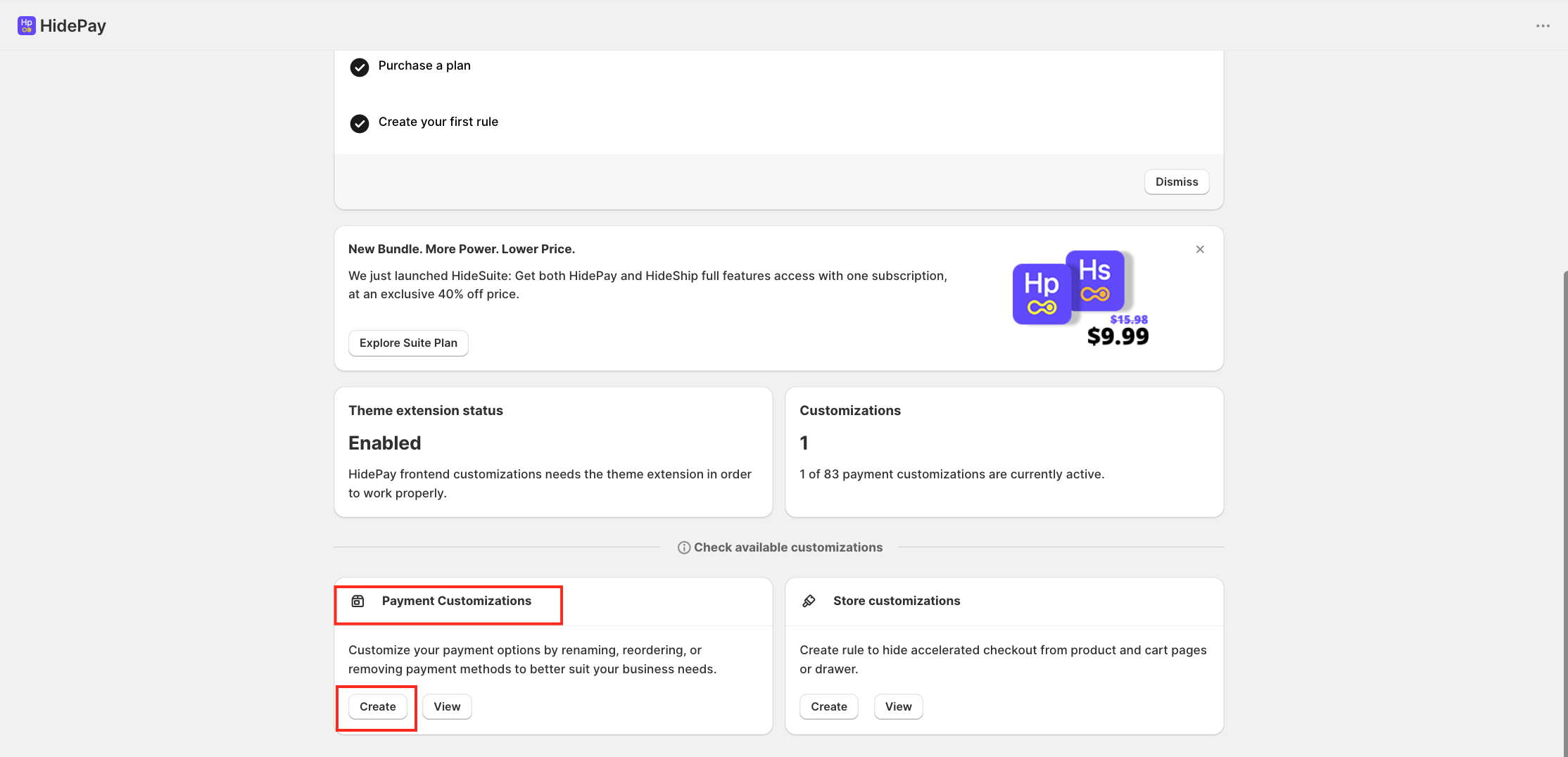
Navigate to Payment Customisation in the HidePay app. Click on the Create button.
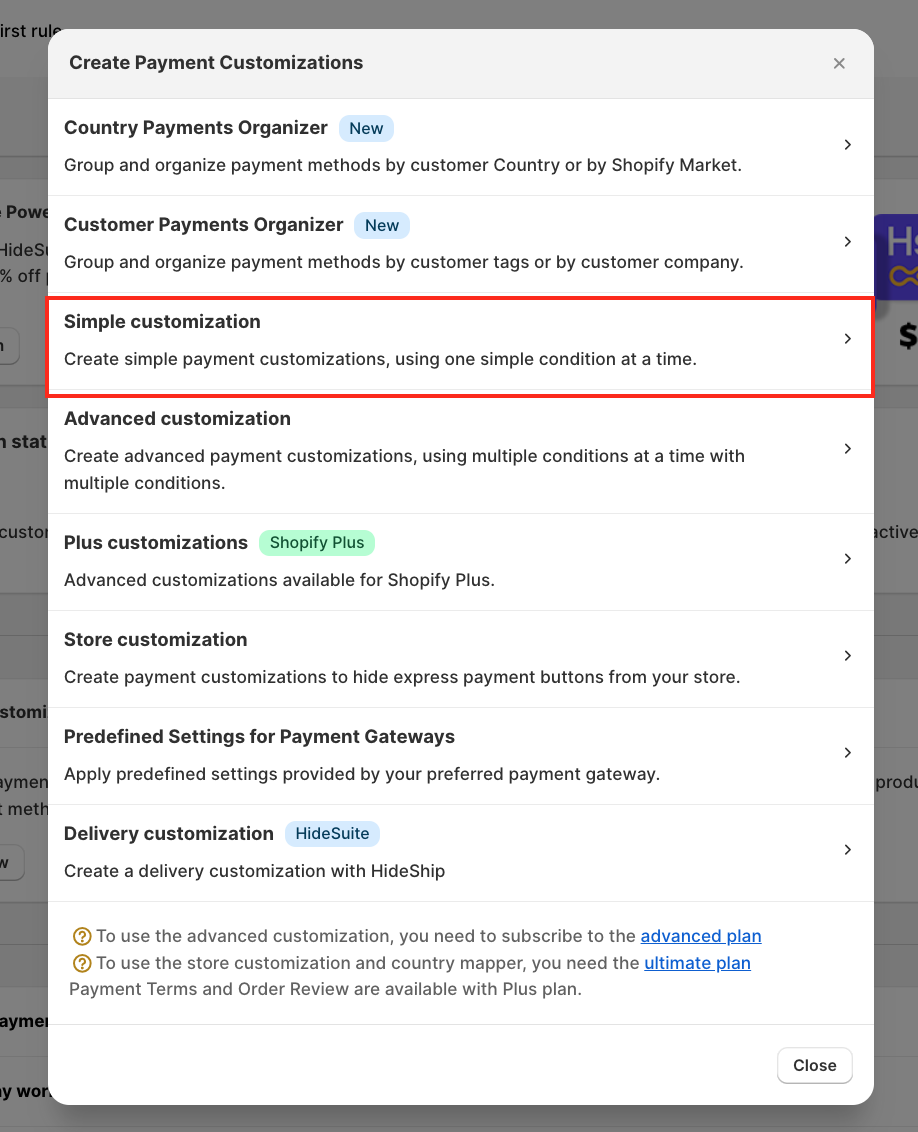
From the pop-up, select Simple Customisation.
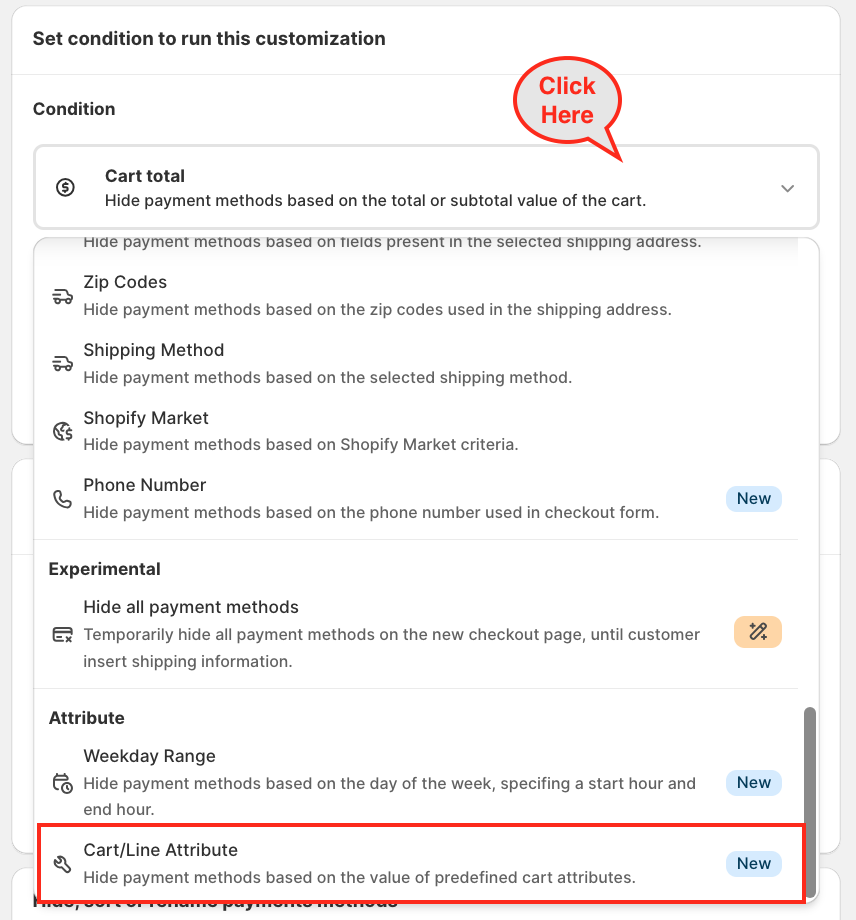
HidePay provides multiple condition options. For this use case, choose Cart/Line Attribute.
This option allows you to hide payment methods based on predefined cart attributes.
Select Cart Attribute, not product attribute.
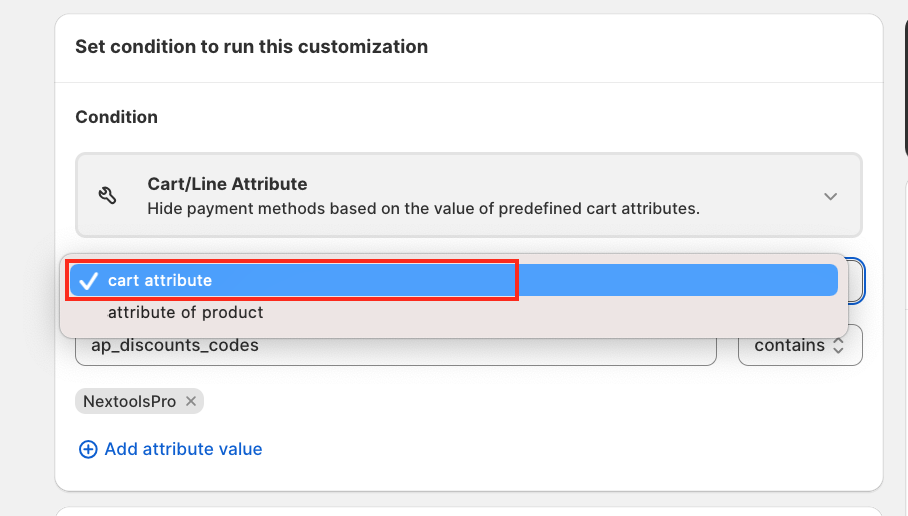
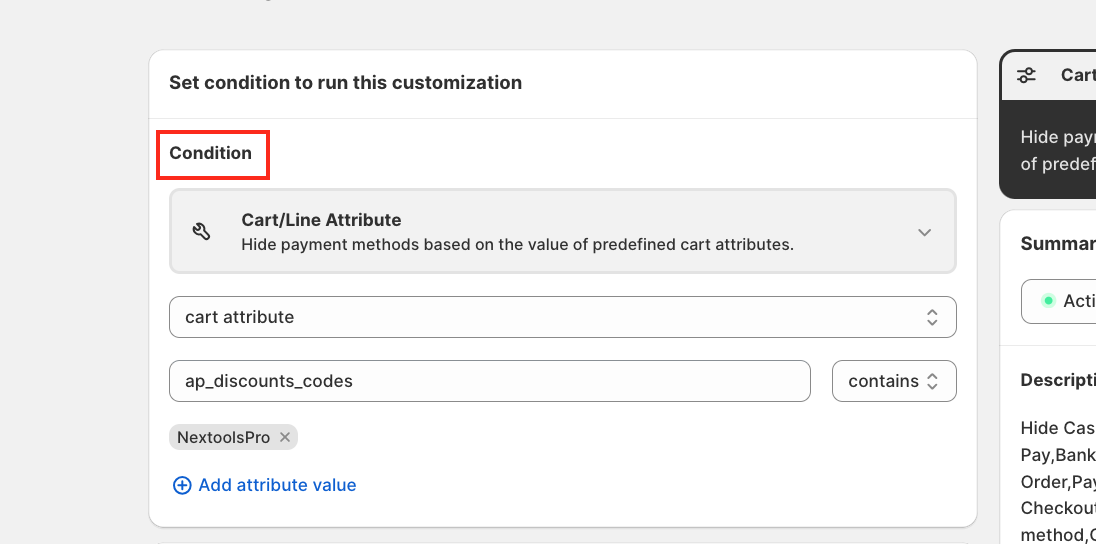
In the attribute key field, enter: ap_discount_codes. Choose a condition such as: Contains, Does not contain, Is empty or Is not empty.
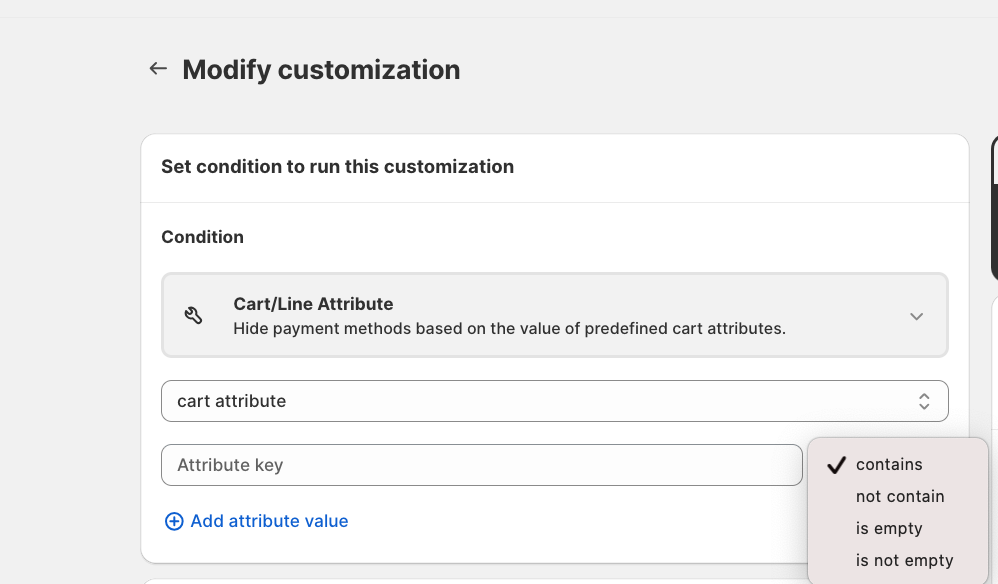
For this tutorial, Select Contains, click Add Attribute Value and add the discount code. In this example we will use the discount name: "NextoolsPro".
In the Operation section: Select Hide Payment Methods, and (Optional) You can also enable sorting or renaming if needed.
For this tutorial:
- Only the Credit Card payment method will remain visible
- All other payment methods will be hidden when the discount code NextoolsPro is applied
You can also manually insert additional payment methods (e.g., Klarna, Swish) if they are not listed by default.
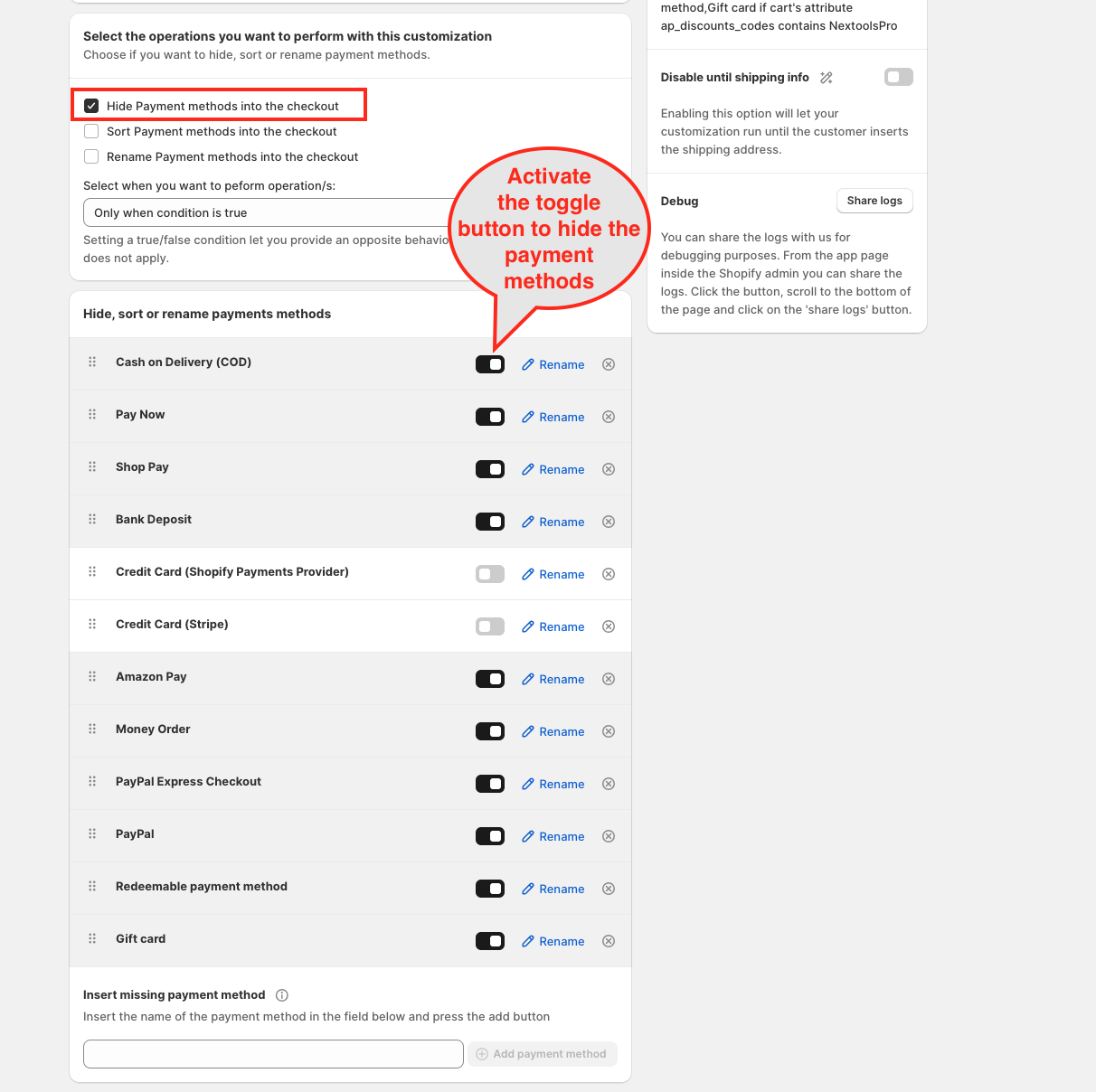
- Enable the toggle button only when you want to hide payment methods.
- If you are only renaming or sorting methods, the toggle is not required
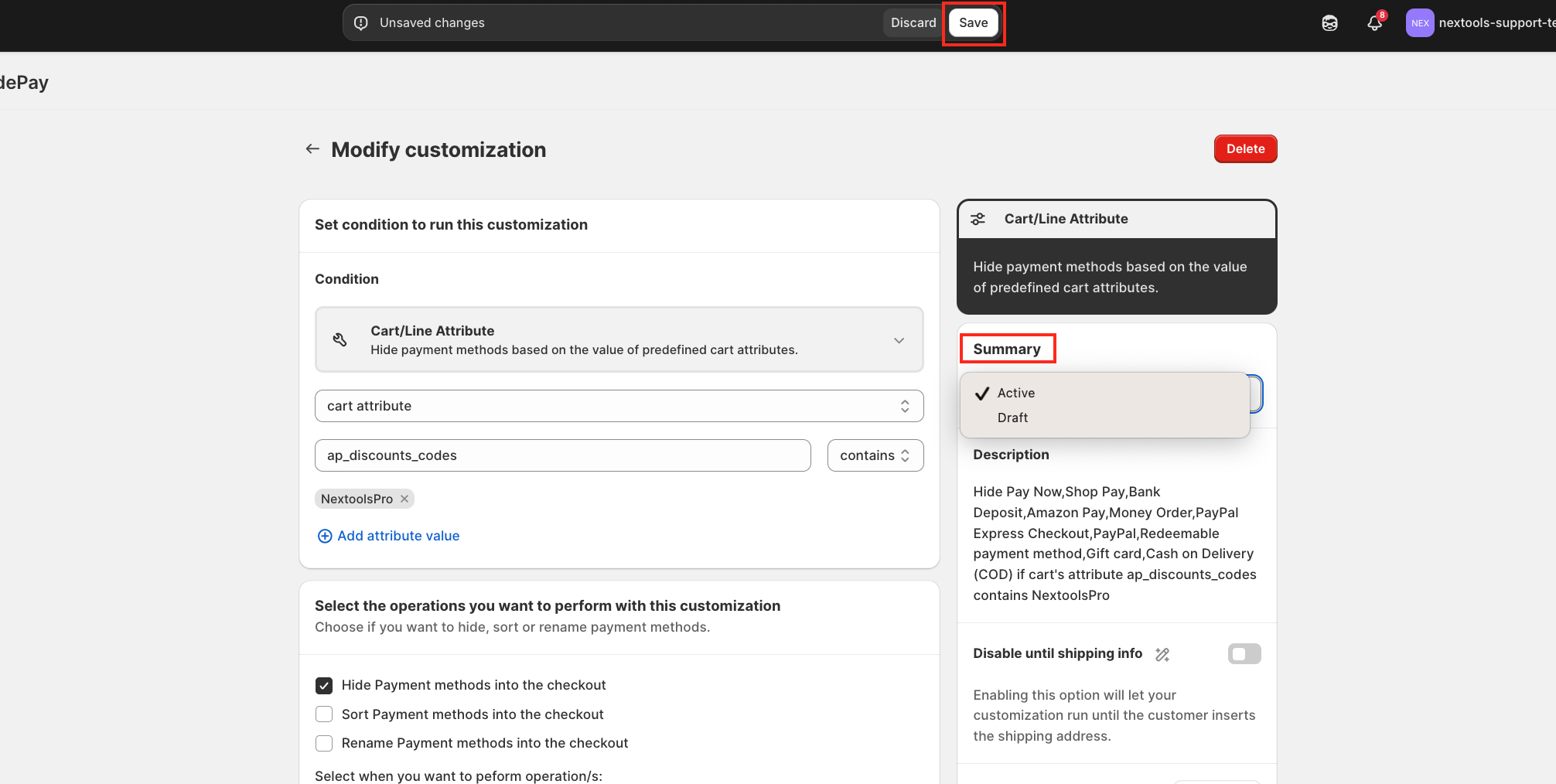
Review the summary and click Save to apply the customisation.
To ensure the setup works correctly: Add App blocker - AttributePro application
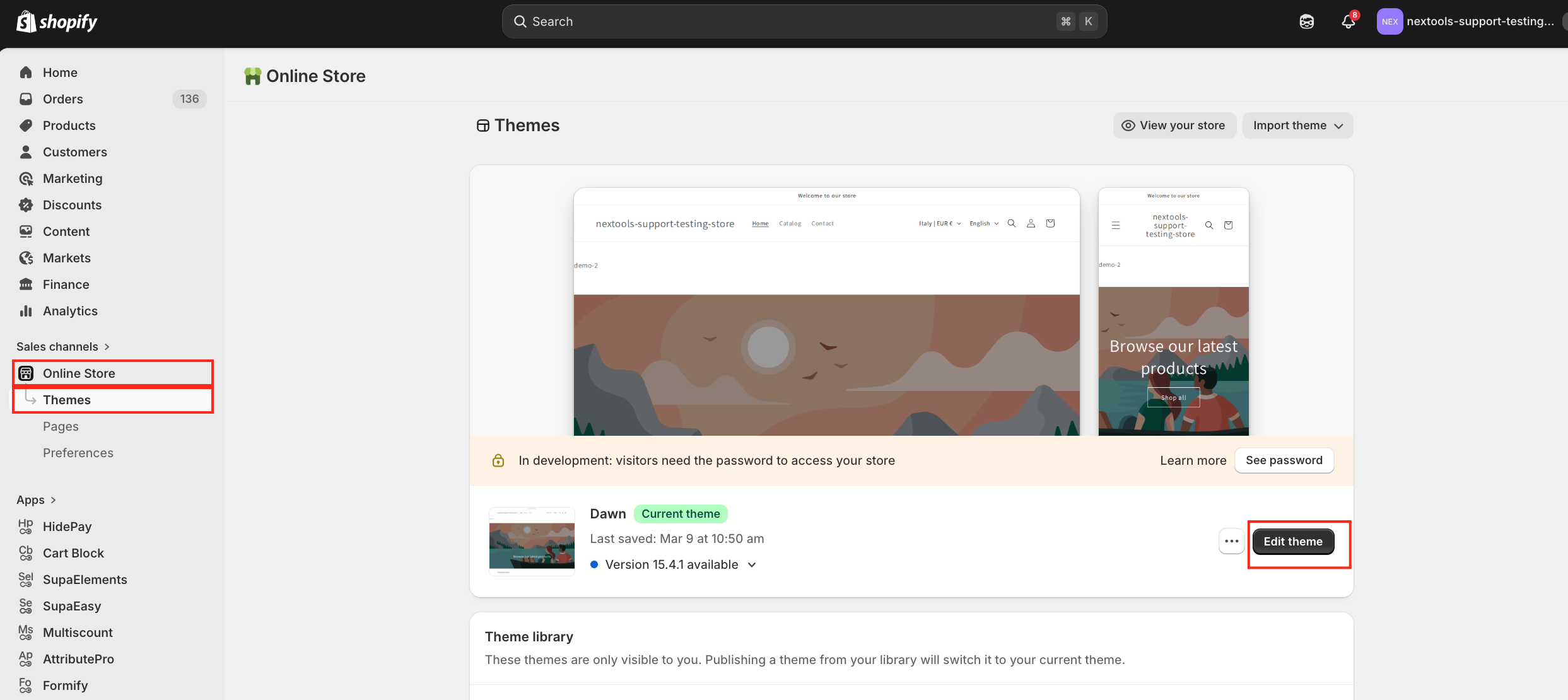
- Go to Online Store → Themes
- Click Edit Theme
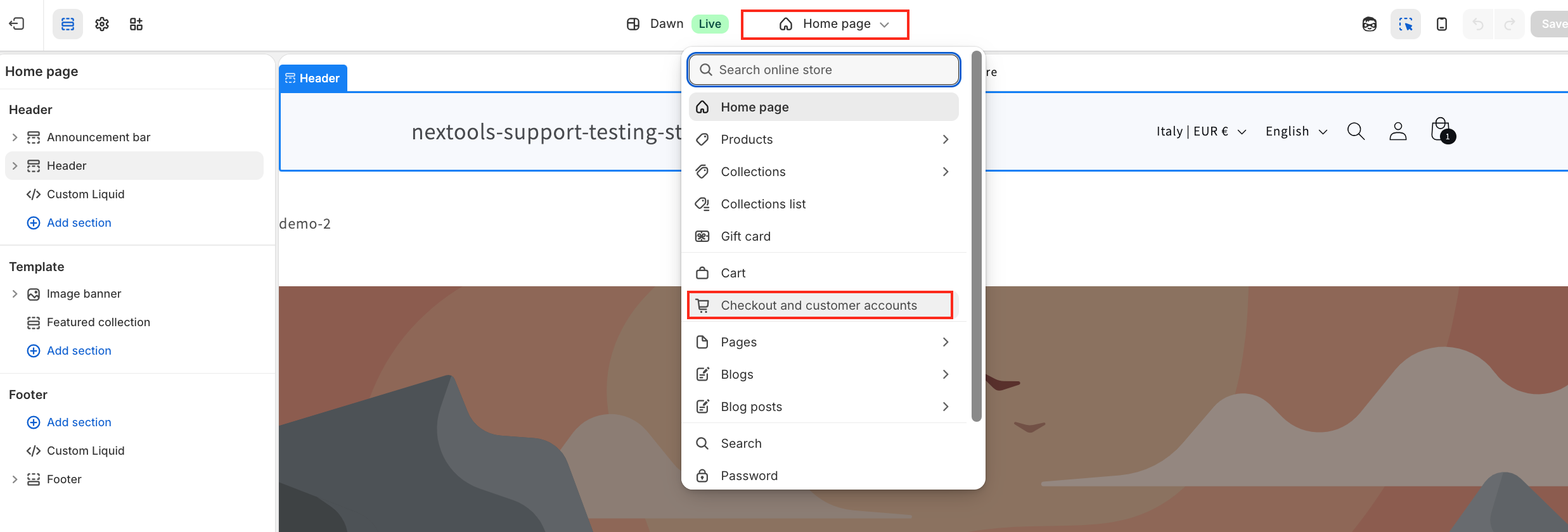
- From the top dropdown, select Checkout and Customer Accounts
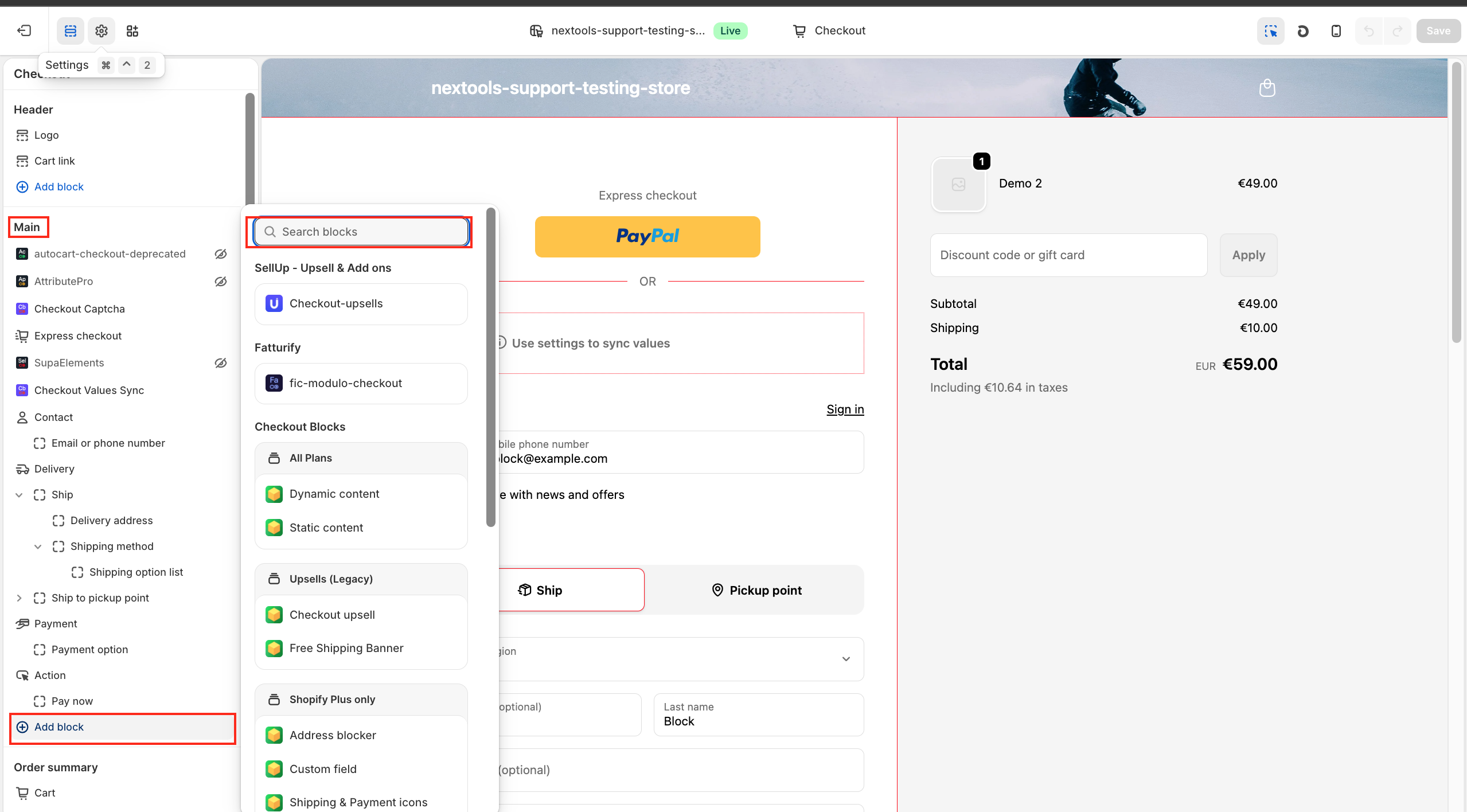
- In the Main part, scroll to the bottom and click Add Block
- Search for AttributePro and add it
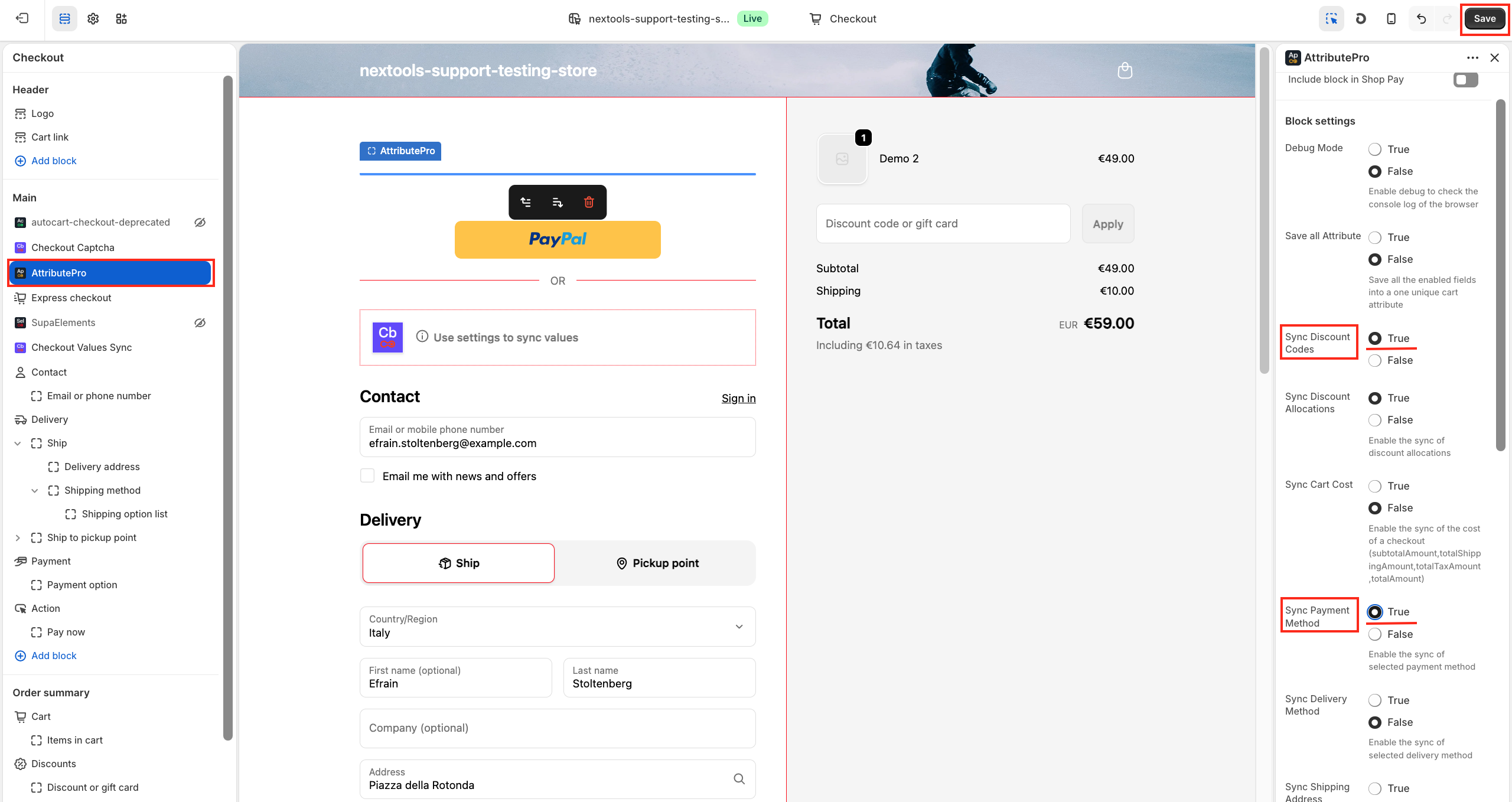
Configure the App Blocker:
- Sync Discount Code → True
- Sync Payment Method → True
Save your changes
Now, test the functionality on the frontend:
- Apply the discount code you have previously created. In this example NextoolsPro
- Verify that only the Credit Card payment option is visible
- All other payment methods should be hidden
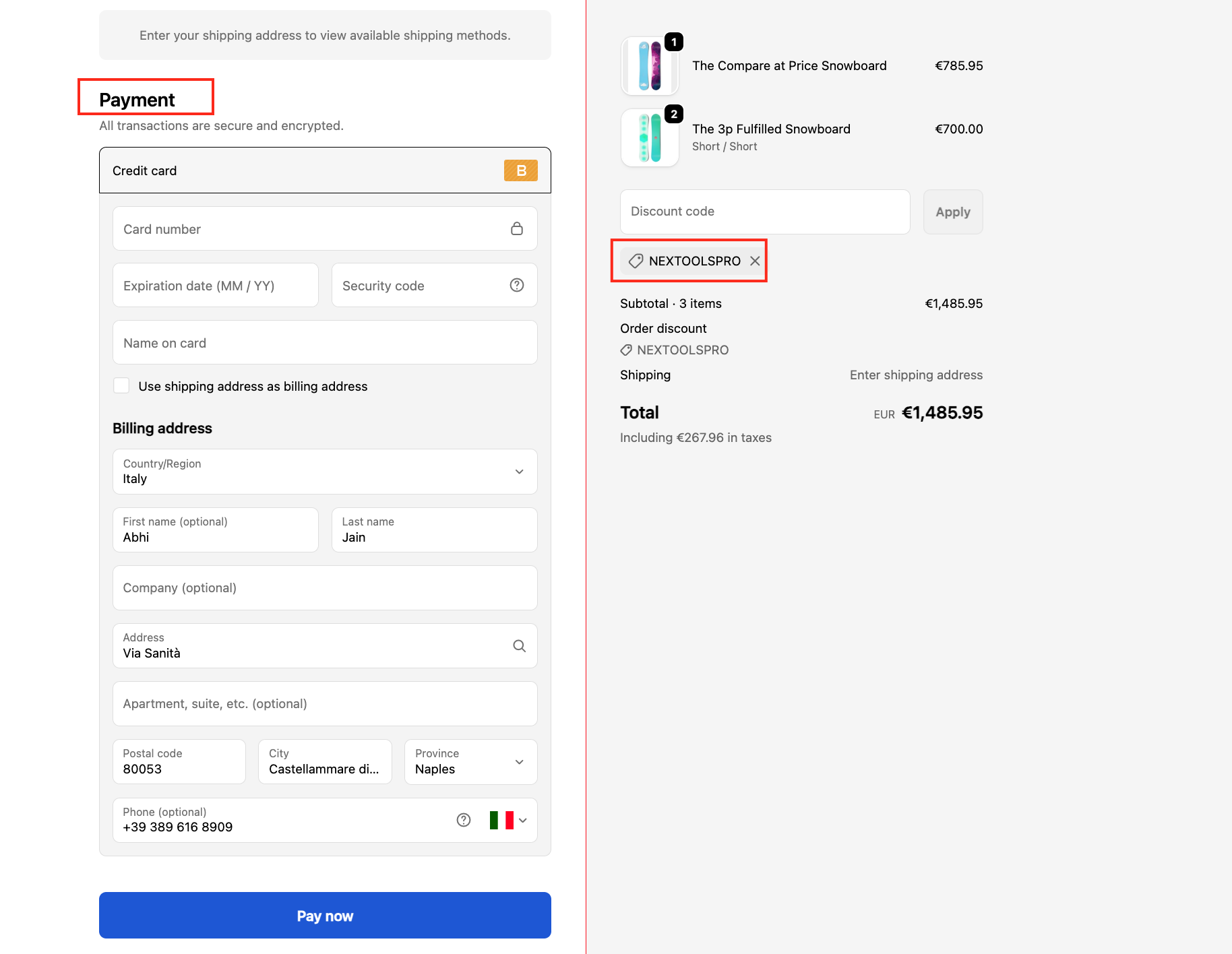
By integrating AttributePro with HidePay, you can create advanced, condition-based payment customisations tailored to your business needs.
This approach is especially useful for promoting specific payment methods or controlling checkout behaviour based on discounts.
Thank you for choosing Nextools and using the AttributePro and HidePay apps.
