
In this tutorial, you’ll learn how to use case-insensitive text matching in HideShip’s Advanced Customisations.
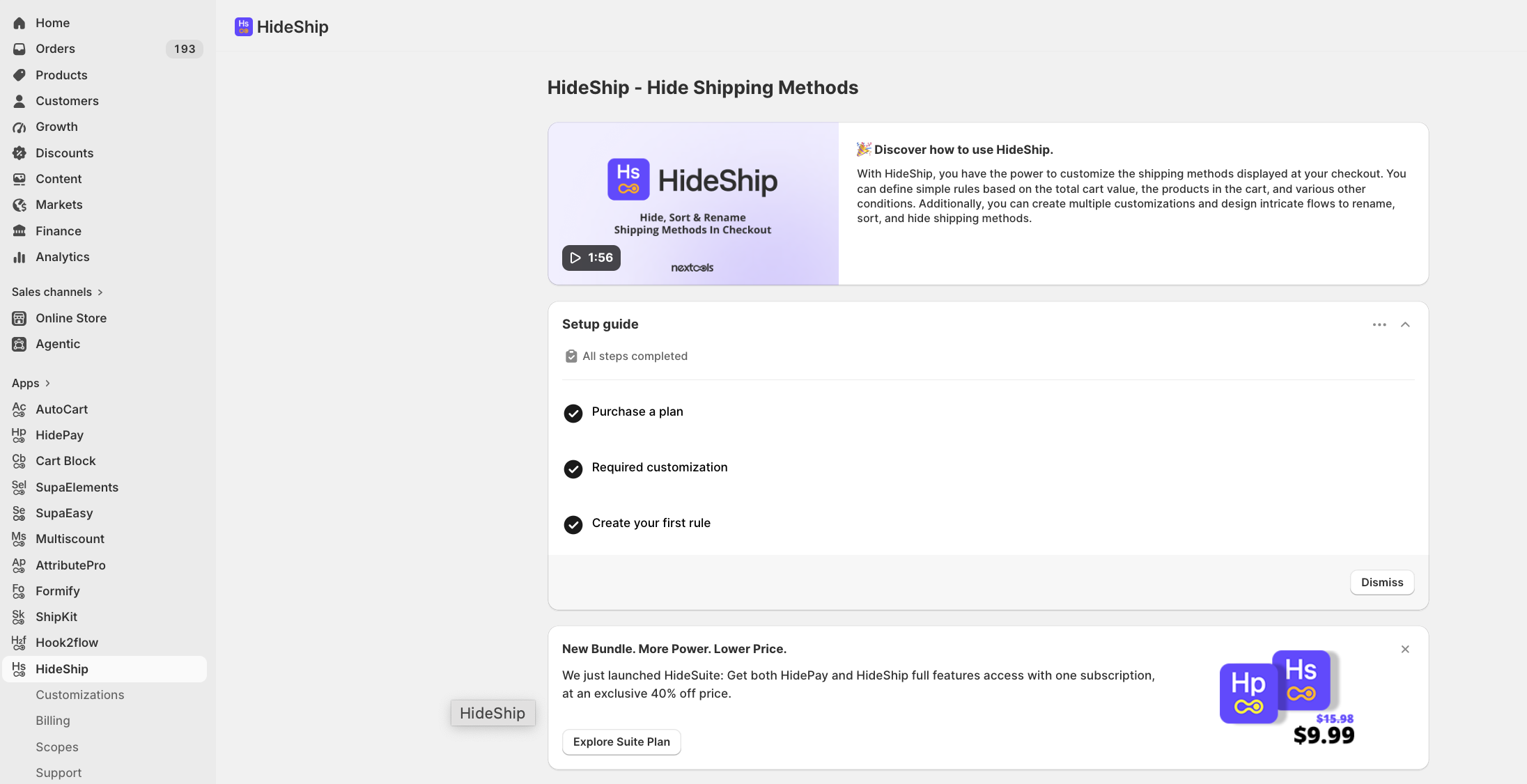
This feature allows your text-based conditions to match values regardless of whether uppercase or lowercase letters are used.
At the moment string comparison is case sensitive, so if enabled it becomes case insensitive
With HideShip, you can enable case-insensitive matching across all text conditions within an Advanced Customisation, helping you create more flexible rules without adding multiple versions of the same value.
Let’s begin.
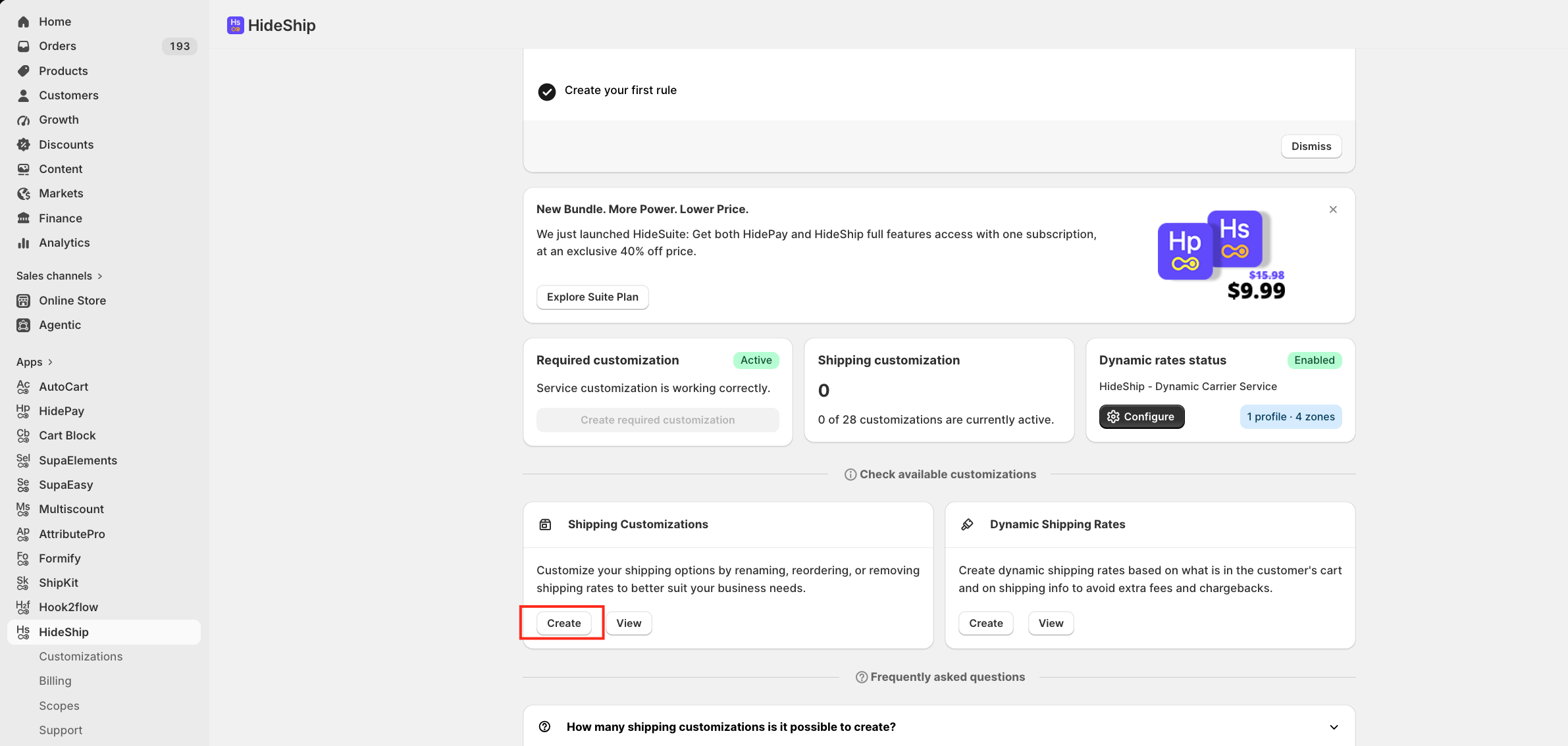
First, click on the Create button under Shipping Customisation to create a new rule in the HideShip application.
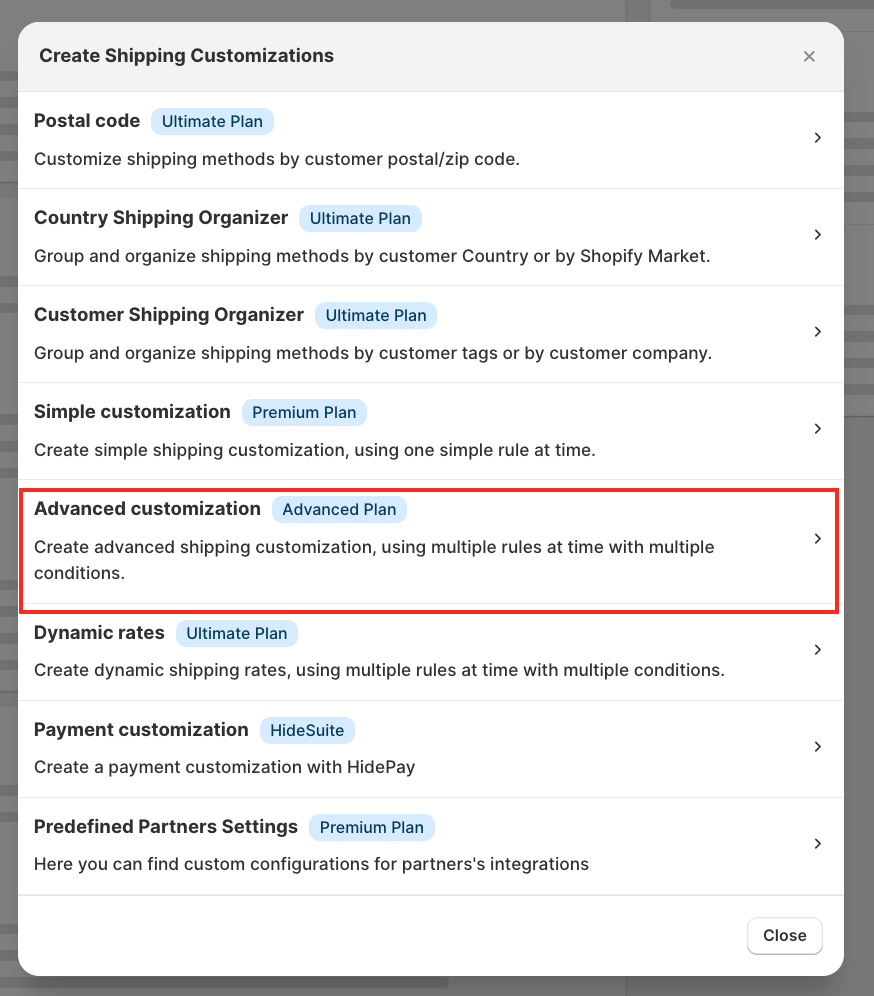
A pop-up window will appear; select Advanced Customisation.
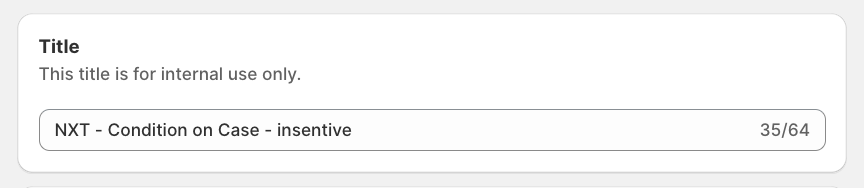
Once the customisation rule opens, enter a title for your customisation. This title is for internal use only.
Next, select the Function Input you want to use and configure the conditions required for your shipping customisation. For this tutorial, we are taking standard input.
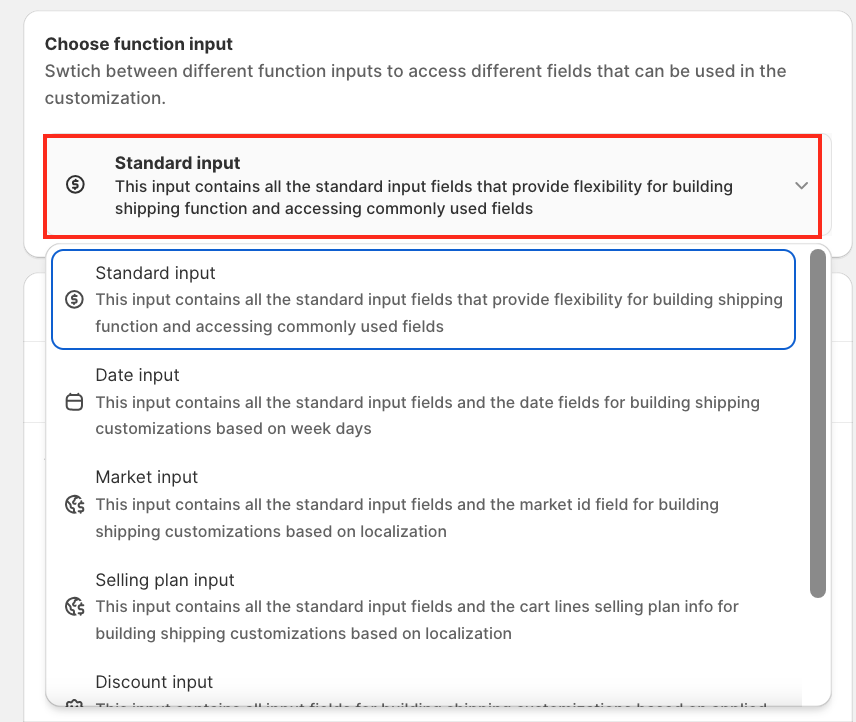
Important Note: You can select different inputs too, depending on your needs and the conditions you are looking for.
For example, you may want to create a condition based on the customer’s shipping address:
Shipping address (line 1) → Partially contains → po box
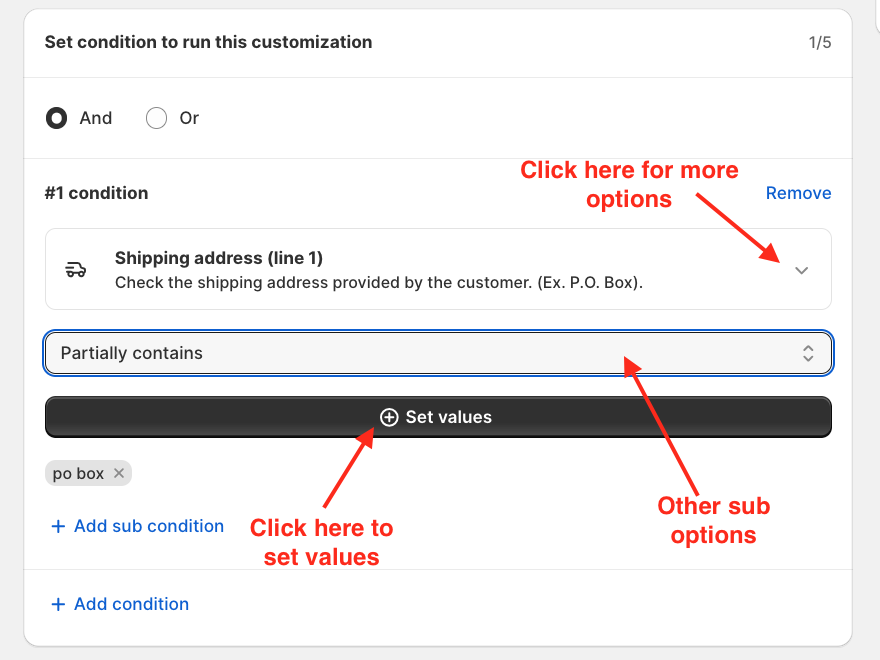
On the right-hand side of the Advanced Customisation editor, you will find the Text matching section.
Enable the following option:
Apply case-insensitive matching to all text conditions in this customisation.
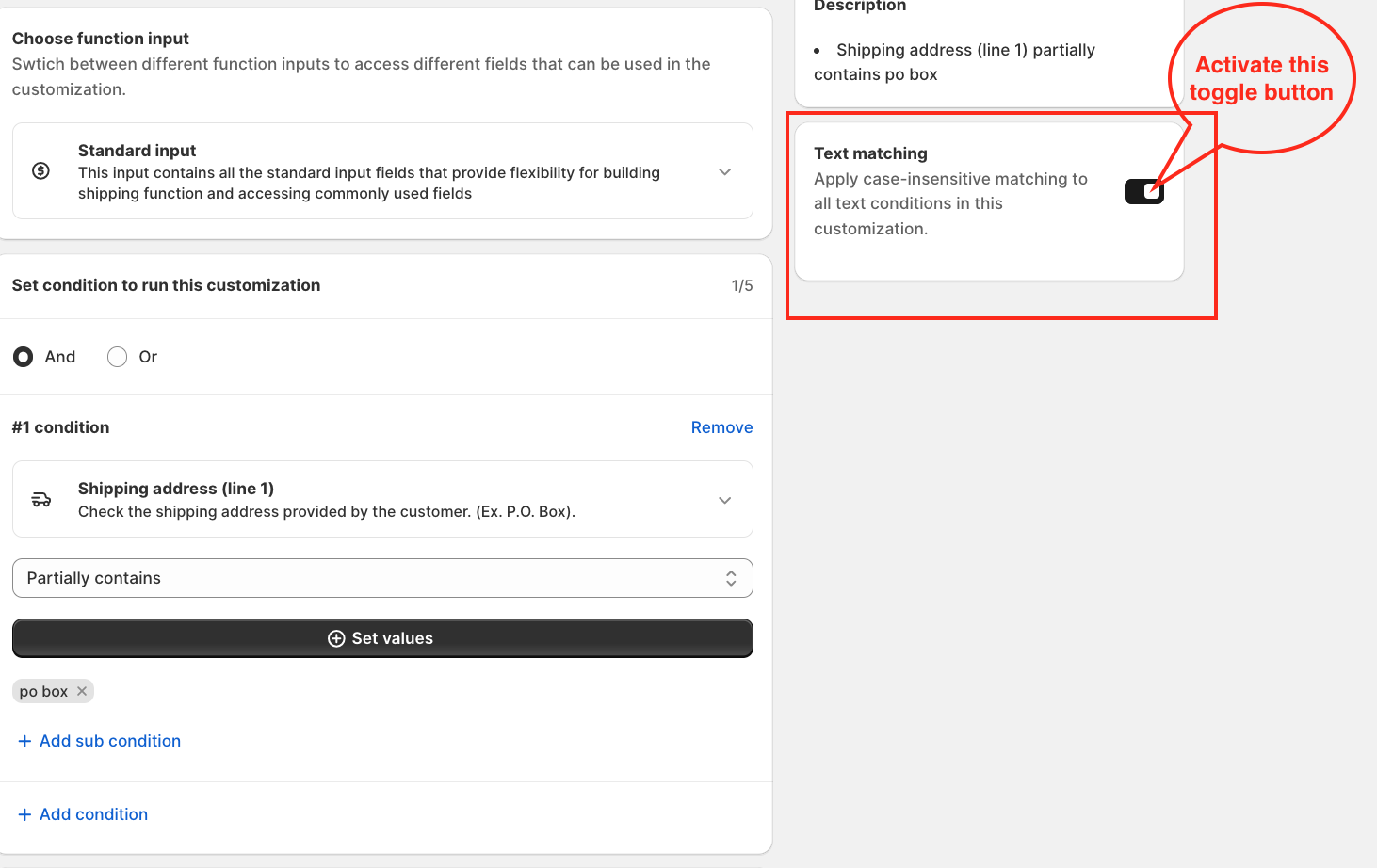
Once enabled, HideShip will ignore uppercase and lowercase differences when evaluating text conditions.
For example, if your condition contains the value:
po box
HideShip can also match:
- PO BOX
- Po Box
- PO Box
- po box
This means you do not need to manually add different uppercase and lowercase versions of the same text.
Important Note: Case-insensitive matching only ignores differences between uppercase and lowercase letters. It does not automatically match different spellings, punctuation, or spacing.
For example, the following are still considered different text values:
- po box
- p.o. box
- pobox
- post office box
If you want your customisation to recognise these different formats, you should add the required variations as separate values in your condition.
Important Note: The Text matching option applies to all text conditions within the same customisation. You do not need to enable it separately for each condition.
Once you have configured your conditions, select the shipping methods you want to hide, rename, or reorder based on your rule.
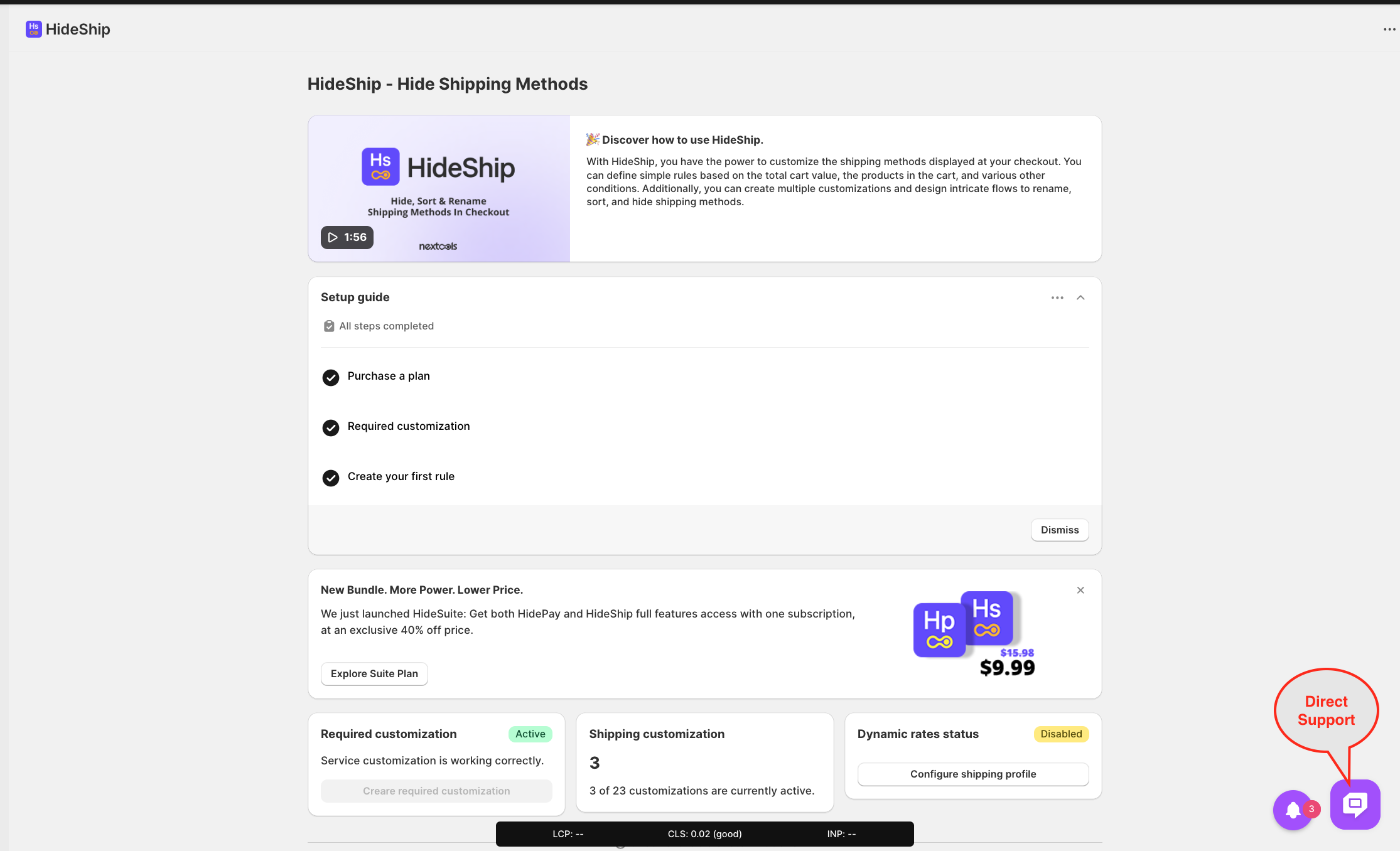
If you have any questions or need assistance during setup, our team is here to help. You can contact the Nextools Support Team anytime via the in-app live chat or by email. We’ll be happy to assist you.
We’re glad to support you with the HideShip application! 🚀
