
MultiScount allows you to specify exactly how many subscription orders should receive a discount.
The Recurring Cycle Limit gives you greater control when creating introductory subscription offers, limited-cycle promotions, or discounts that should apply only to the customer's initial subscription purchase.
For example, you can create promotions such as:
- 20% off your first subscription order
- 15% off your first 3 subscription deliveries
- 10% off your first 5 subscription orders
- A recurring subscription discount that continues indefinitely
This guide explains how to configure the Recurring Cycle Limit in Multiscount.
From the Multiscount dashboard, navigate to Tiered Discounts and click Create.
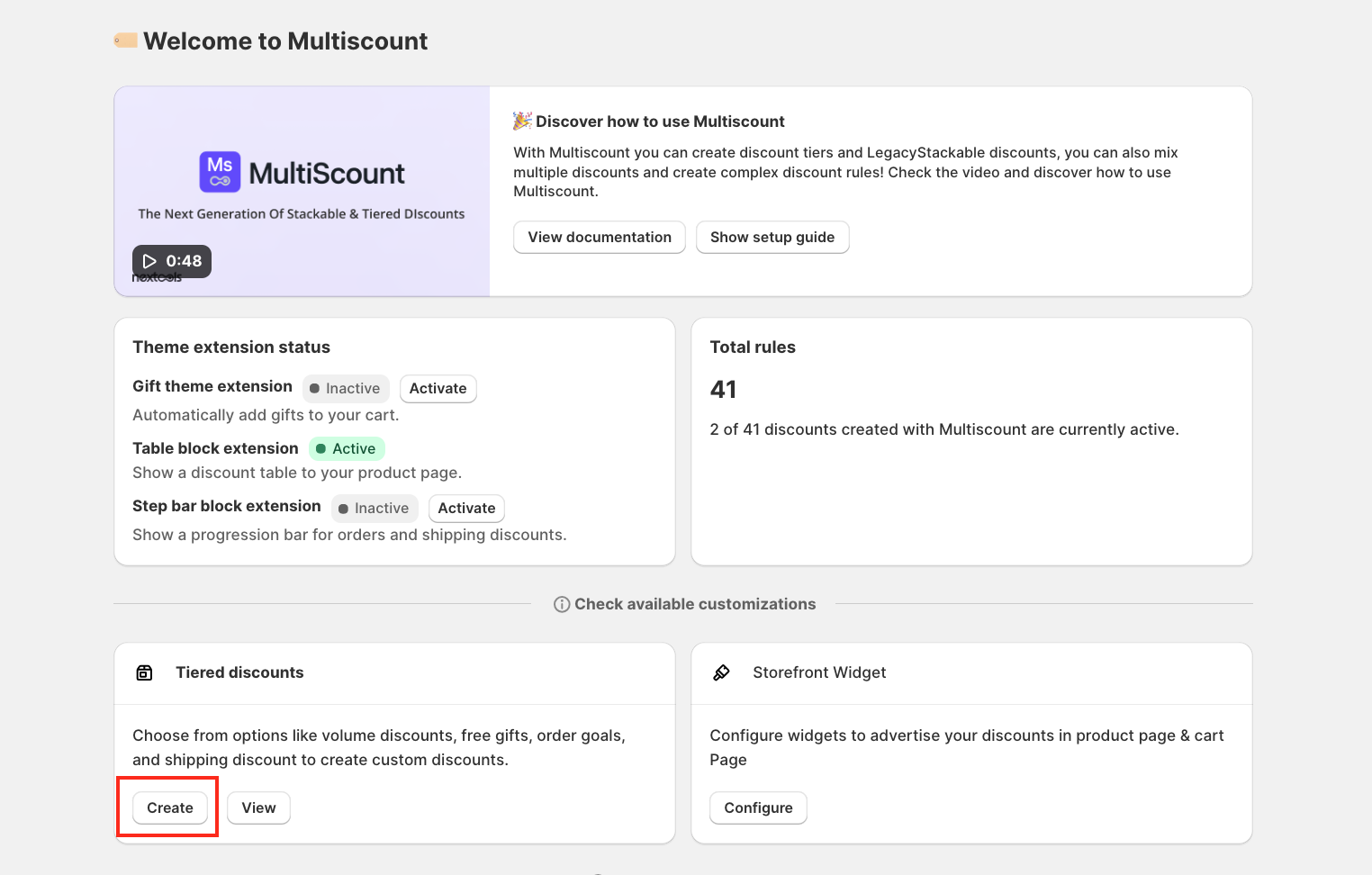
When the pop-up window appears, select the type of tiered discount you would like to configure.
For subscription recurring cycle limits, you can select any supported tiered discount type except Shipping Discount.
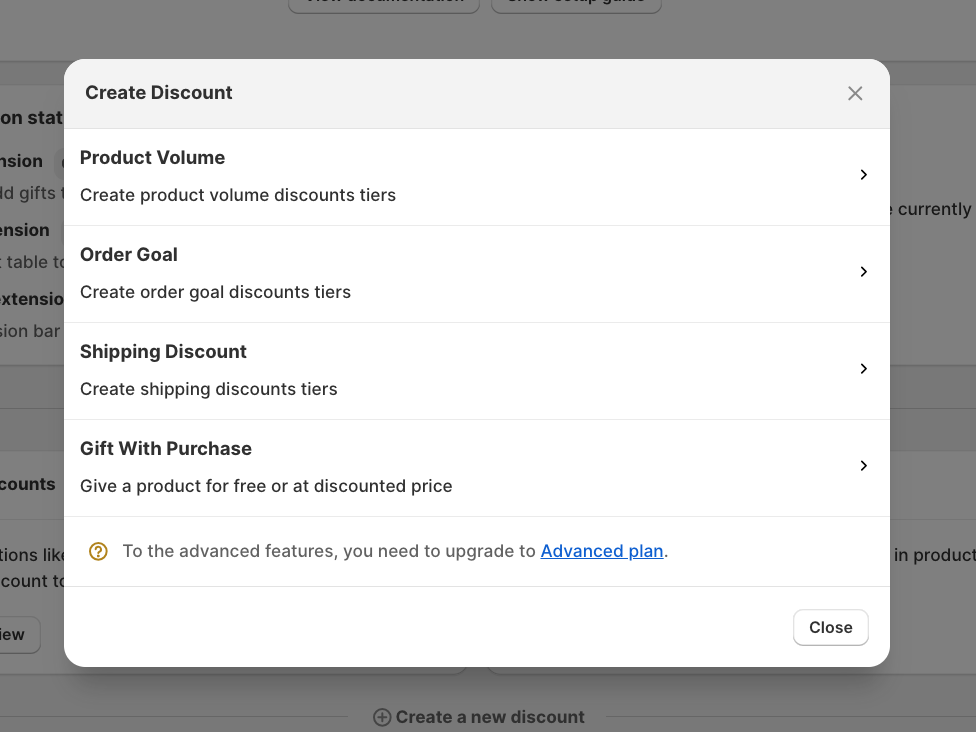
For this tutorial, we'll use a Product Volume Discount.
Depending on your Multiscount subscription plan, another window will appear where you can select either the Regular or Advanced configuration.
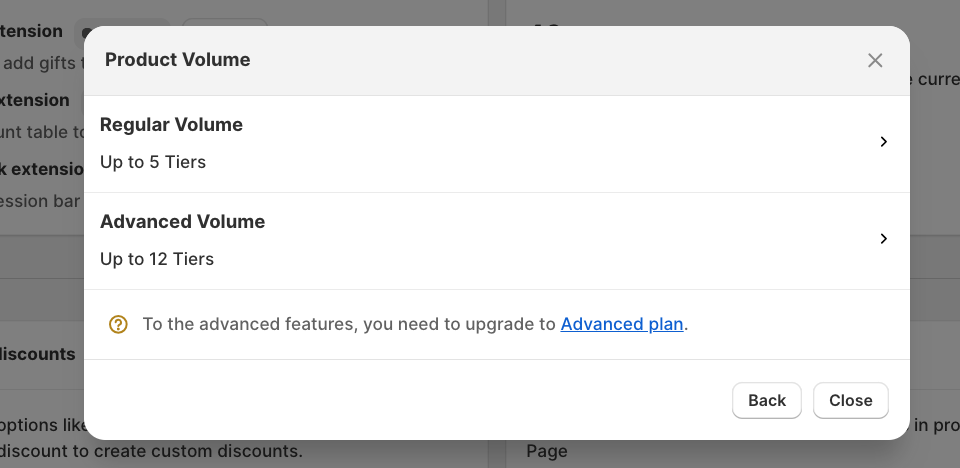
For this example, we'll select Regular Volume.
Choose how customers should receive the discount:
- Discount Code – Customers must enter the specified discount code at checkout.
- Automatic Discount – The discount is automatically applied when the configured requirements are met.
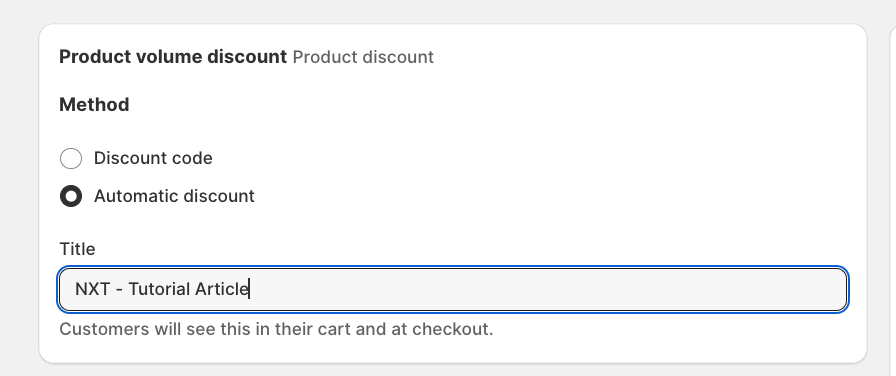
Important: When creating an automatic discount, choose a clear and customer-friendly title. This title can be displayed to customers on the cart and checkout pages when the discount is applied.
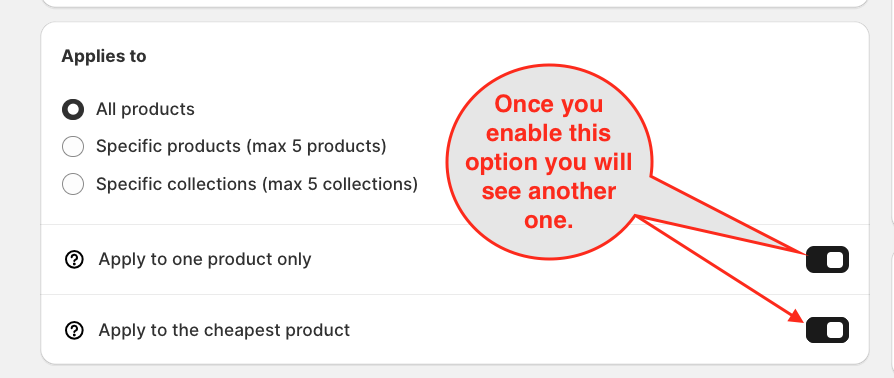
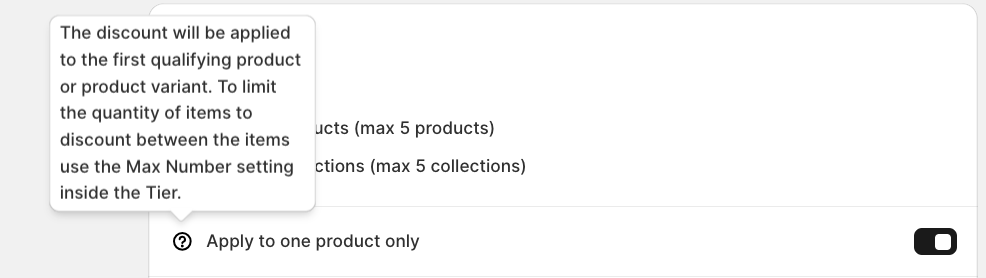
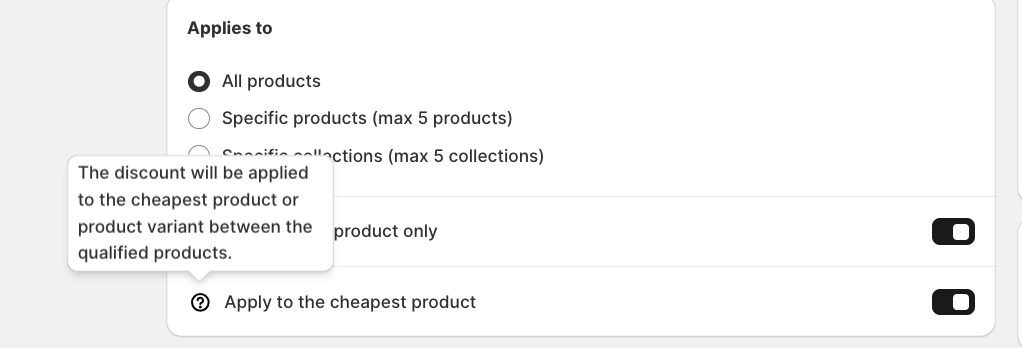
Next, specify which products should be eligible for the discount.
You can apply the discount to:
- All products
- Specific products
- Specific collections
Choose the option that best matches the products included in your subscription promotion.
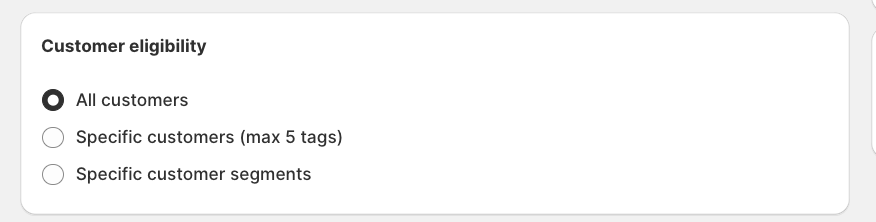
Next, configure which customers are eligible to receive the discount.
Select the appropriate customer eligibility settings according to your promotion requirements.
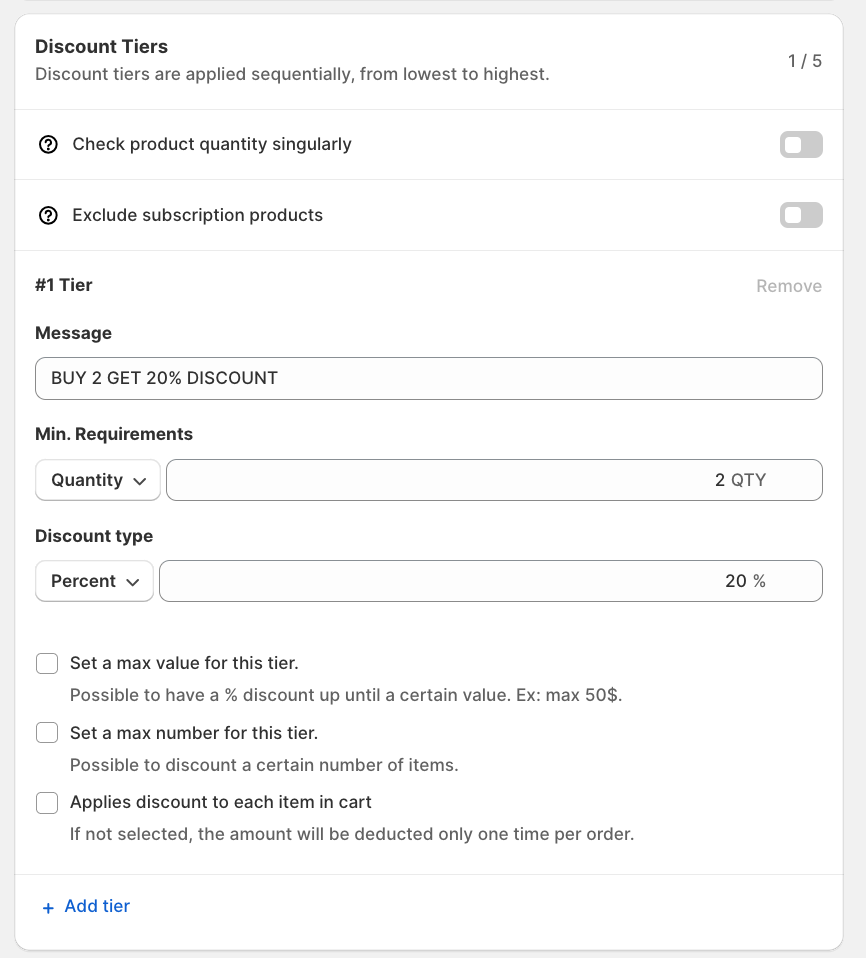
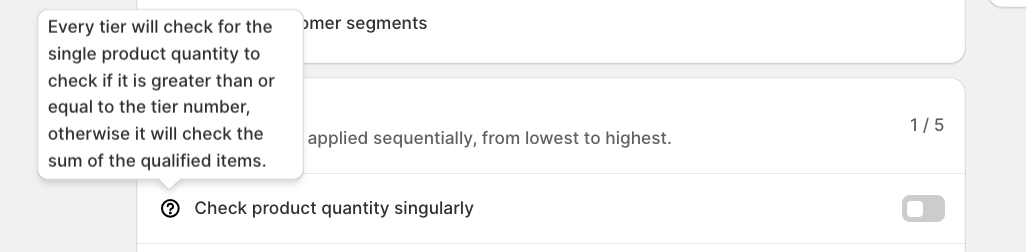
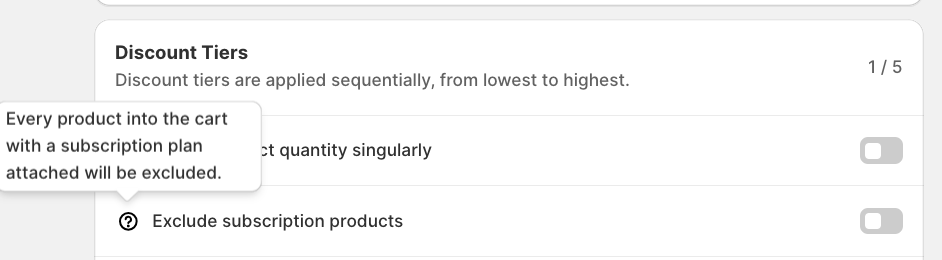
Scroll down to Discount Tiers and configure your promotion.
For this tutorial, we'll create the following offer:
Buy 2 products and receive 20% off
Set the Minimum Requirement to:
Quantity → 2
Then set the Discount Type to:
Percent → 20%
When the customer meets the configured quantity requirement, they will receive a 20% discount on eligible products.
Scroll down to the Maximum Discount Uses section.
Applies to subscriptions
Once this option is enabled, the discount can be applied to eligible subscription products and the Recurring Cycle Limit field becomes available.
The Recurring Cycle Limit determines how many subscription orders receive the discount.
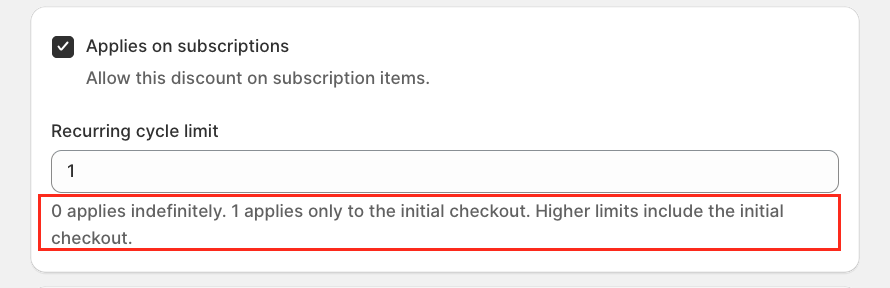
Enter the total number of subscription cycles for which you want the discount to apply.
A Recurring Cycle Limit of 0 means there is no cycle limit, so the discount can continue to apply indefinitely to eligible recurring subscription orders.
For example:
| Recurring Cycle Limit | Discount Behaviour |
|---|---|
| 0 | Discount applies indefinitely |
| 1 | Discount applies only to the initial subscription checkout |
| 2 | Discount applies to the initial checkout + 1 recurring order |
| 3 | Discount applies to the initial checkout + 2 recurring orders |
| 5 | Discount applies to the first 5 subscription orders in total |
Important: The customer's initial subscription checkout is included when calculating the Recurring Cycle Limit.
Suppose you want to create the following promotion:
Buy 2 products and receive 20% off your first subscription order.
Configure the Product Volume Discount as follows:
- Minimum Quantity: 2
- Discount: 20%
- Applies to subscriptions: Enabled
- Recurring Cycle Limit: 1
With this configuration, the customer receives the 20% discount on the initial subscription checkout only.
When the subscription renews for the next billing cycle, the discount will no longer apply.
If you change the Recurring Cycle Limit to 3, the discount will instead apply to the customer's first three subscription orders in total:
Initial checkout → First renewal → Second renewal
After those three subscription orders, the discount will stop applying.
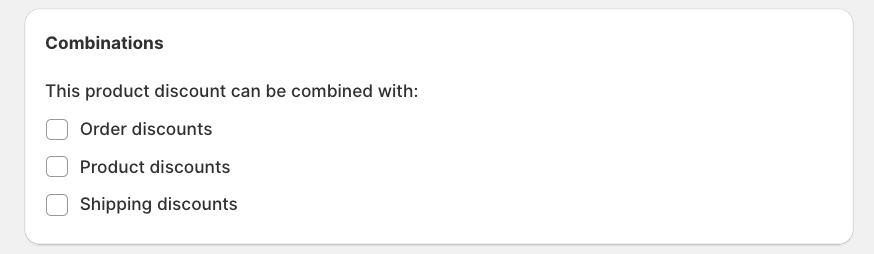
If required, you can specify whether your subscription discount can be combined with other discounts.
Available combination options include:
- Order discounts
- Product discounts
- Shipping discounts
Enable only the combinations required for your promotion.
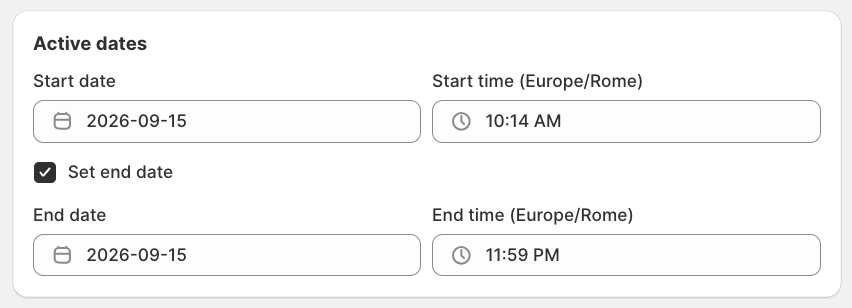
Configure the Start date and time for your discount.
If the promotion should only run for a specific period, enable Set end date and select when the promotion should end.
Once all settings have been configured, click Save.
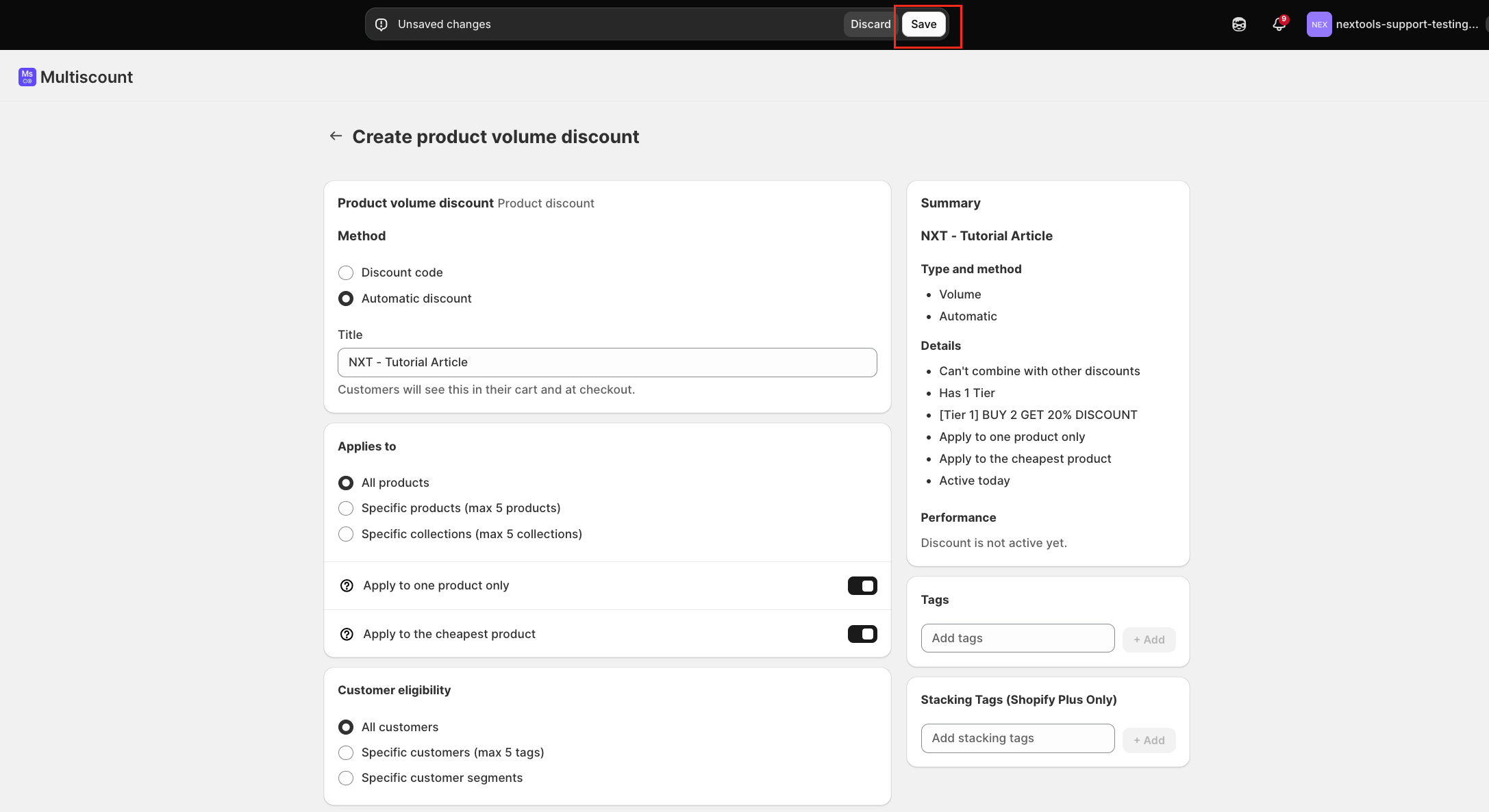
Your subscription discount will now follow the Recurring Cycle Limit you specified.
It is important to distinguish between the Recurring Cycle Limit and the general maximum usage settings of a discount.
The Recurring Cycle Limit controls how many subscription orders receive the discount. It does not represent the general number of times a customer can use the discount.
For example:
- Recurring Cycle Limit = 1 → Discount applies only to the initial subscription checkout.
- Recurring Cycle Limit = 3 → Discount applies to the first three subscription orders, including the initial checkout.
- Recurring Cycle Limit = 0 → Discount can continue indefinitely across eligible recurring subscription orders.
This makes the feature particularly useful for introductory and limited-cycle subscription promotions, such as “20% off your first subscription order” or “15% off your first 3 deliveries.”
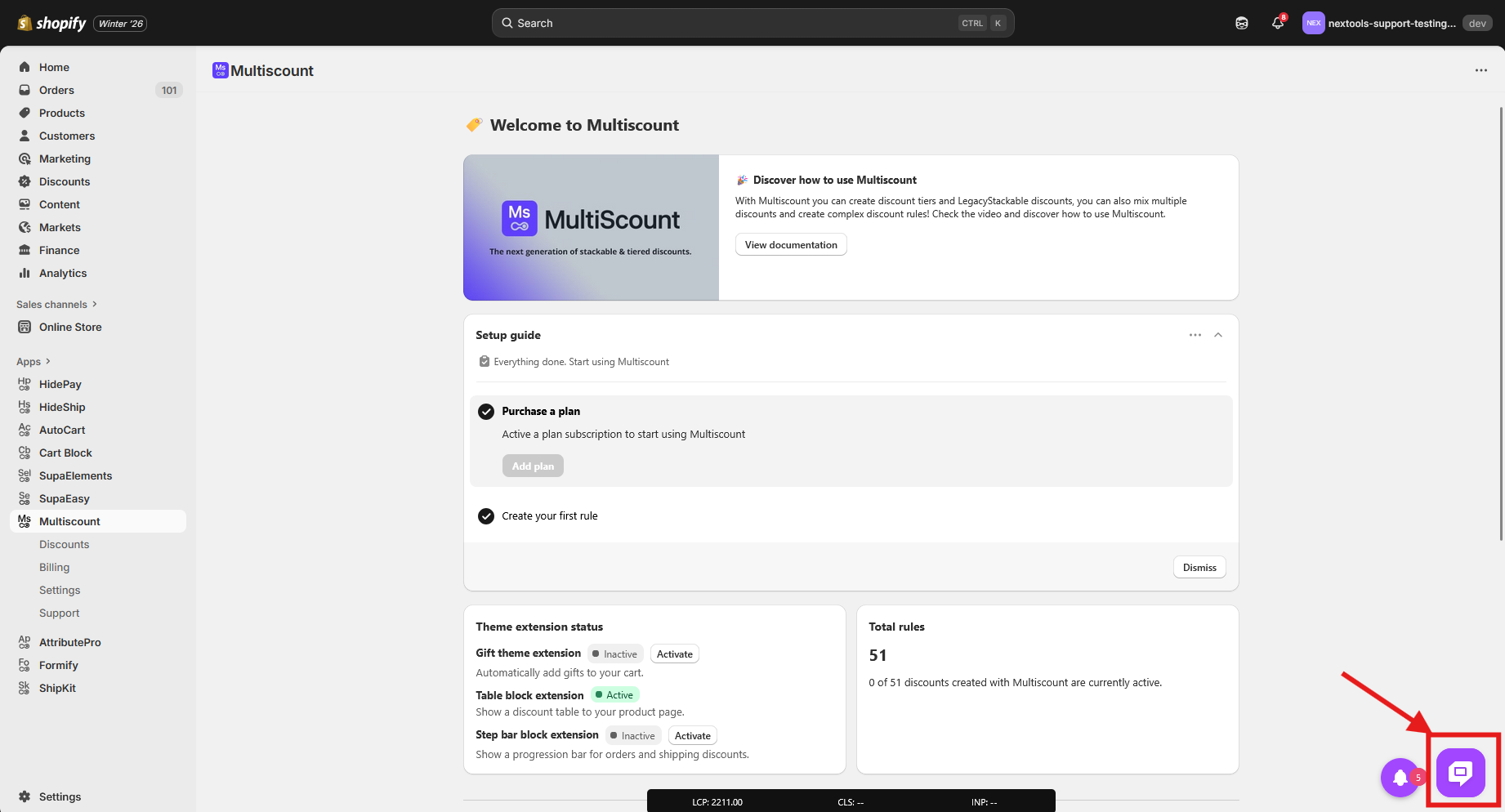
If you have any questions or need assistance during setup, our team is here to help. You can contact the Nextools Support Team anytime via the in-app live chat or by email. We’ll be happy to assist you.
Thank you for trusting Nextools and using the Multiscount application.
