
SupaEasy now supports combining multiple product discounts on the same cart line using a tag-based system. Assign a shared tag to two or more discount functions, and they will stack together automatically at checkout. No code required.
This feature is available on Shopify Plus plans only. If your store is not on Shopify Plus, the cart-line combination option will not appear in the discount function editor.
Before you start
- Your store must be on a Shopify Plus plan.
In case you are not on Shopify Plus plan The cart-line combination feature won't be available and you cannot save the configuration. -
Repeat this process for every discount function you want to include in the same combination group.
Open the discount function
Open the discount function you want to configure.
If you are creating a new one, complete your discount type and condition setup first before continuing with the steps below.
Open Discount settings
Click the Discount settings link in the upper-right area of the discount function editor. The Discount Settings popup opens.
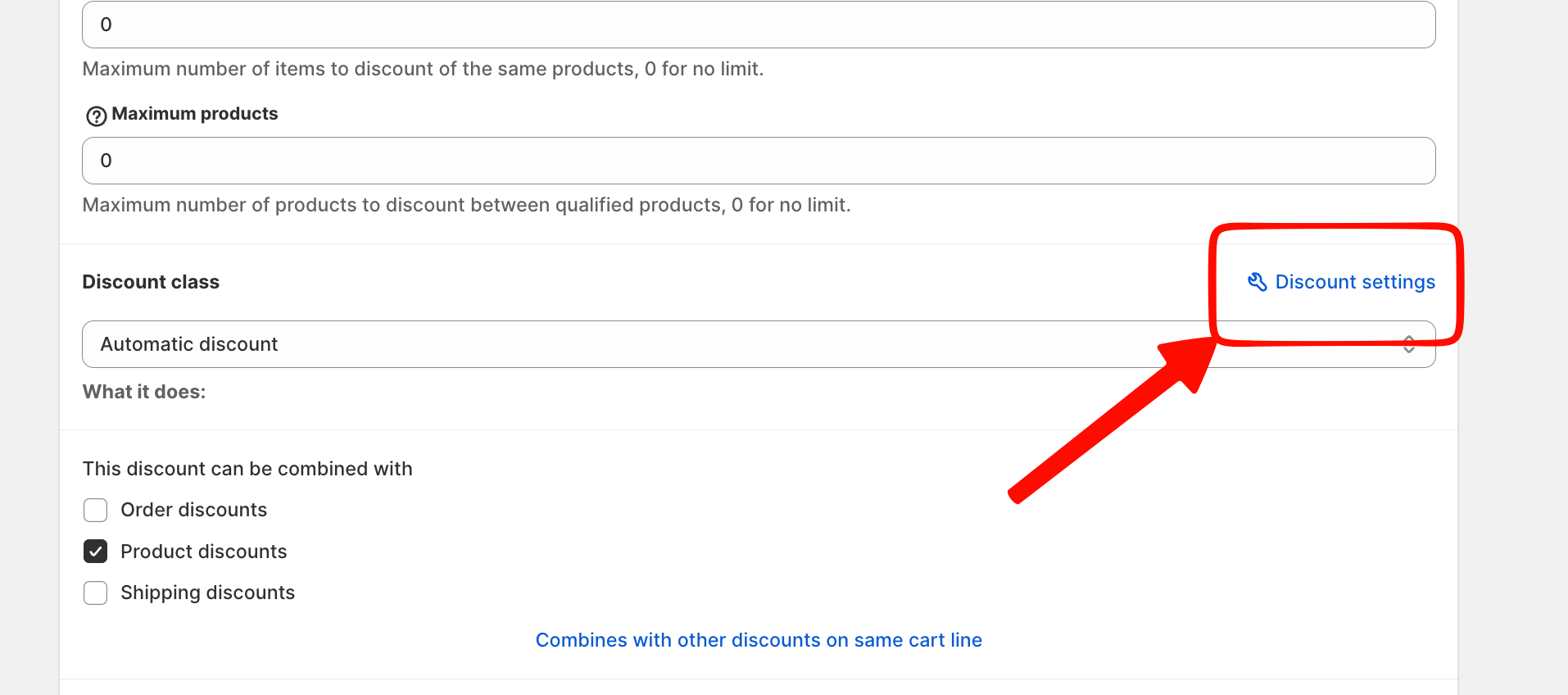
Add a combination tag
In the Discount Settings popup, scroll to the Tags section at the bottom. Enter your chosen tag name in the input field and click + Add tag.
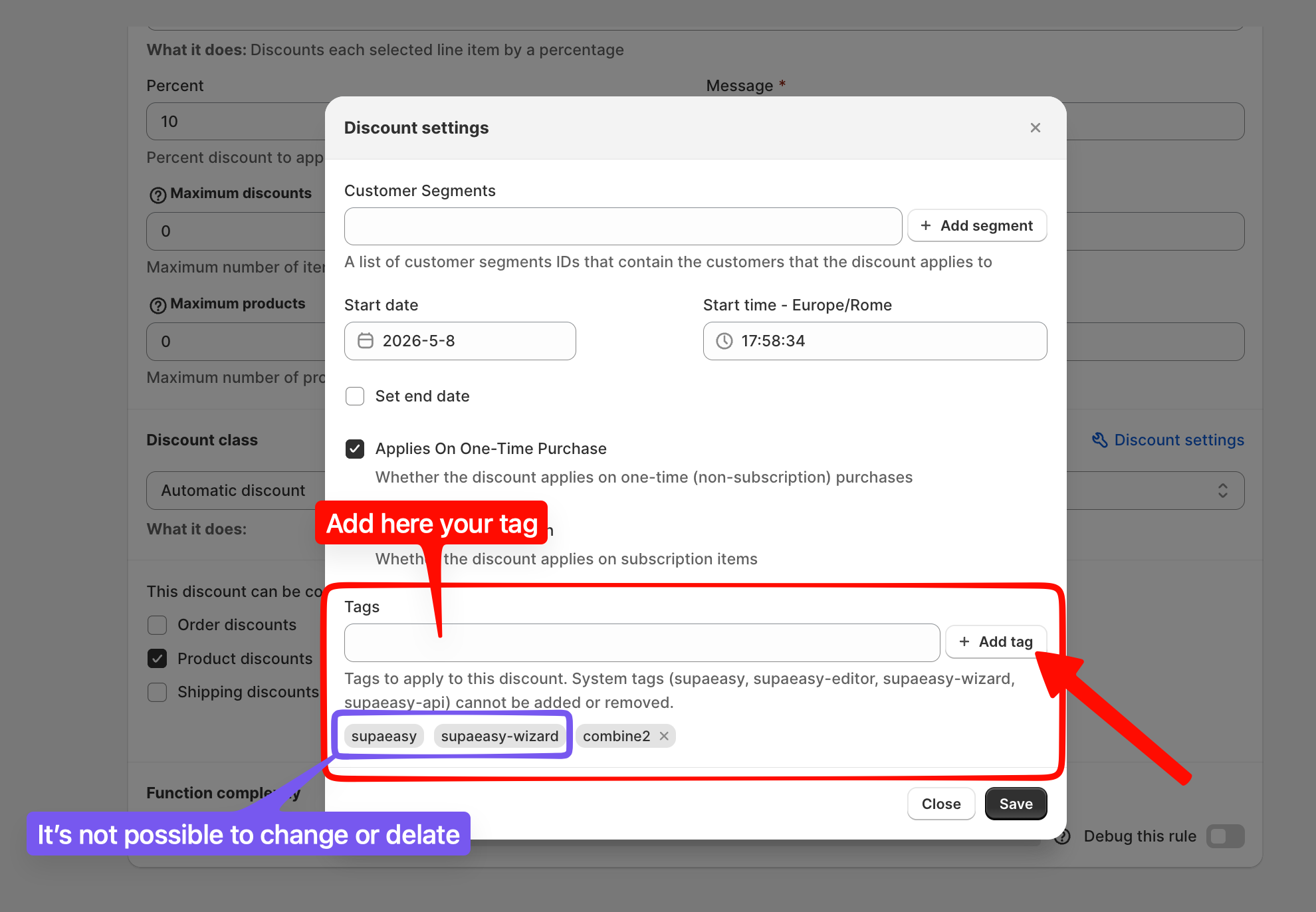
Save and close the popup
Click Save to apply the tag and to return to the discount function editor.
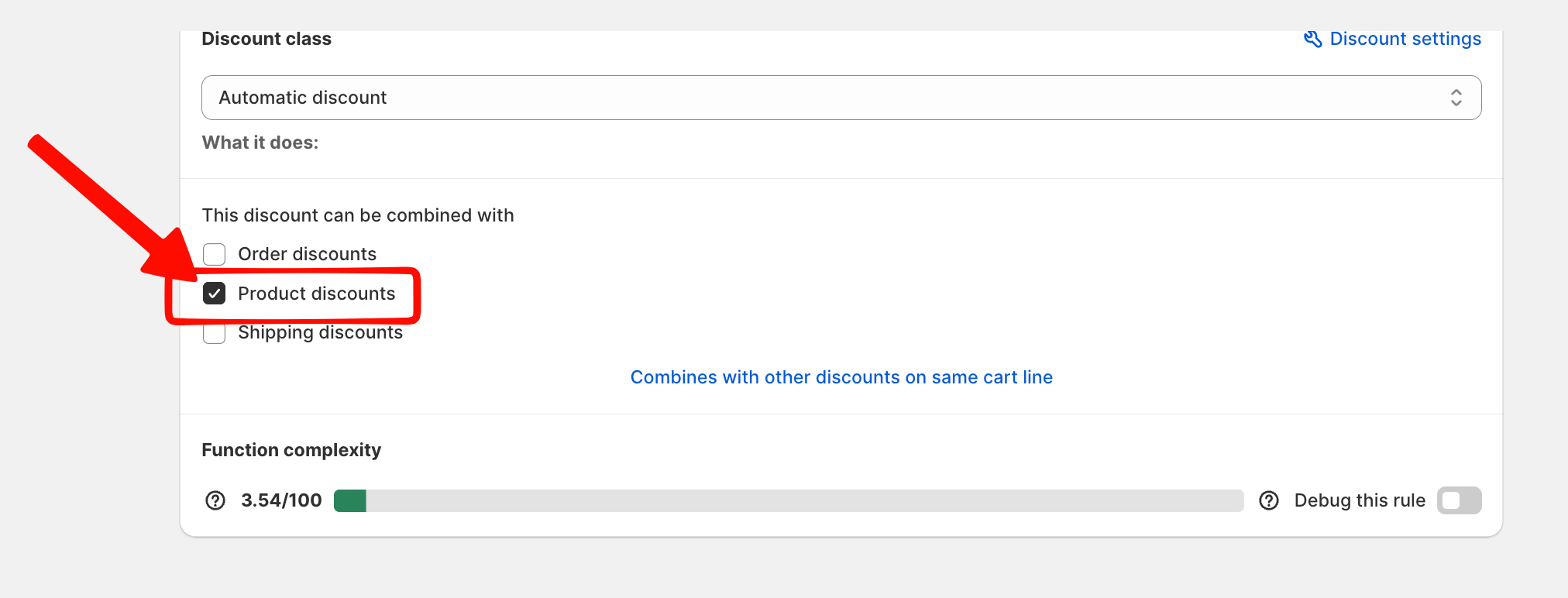
Enable Product discounts combination
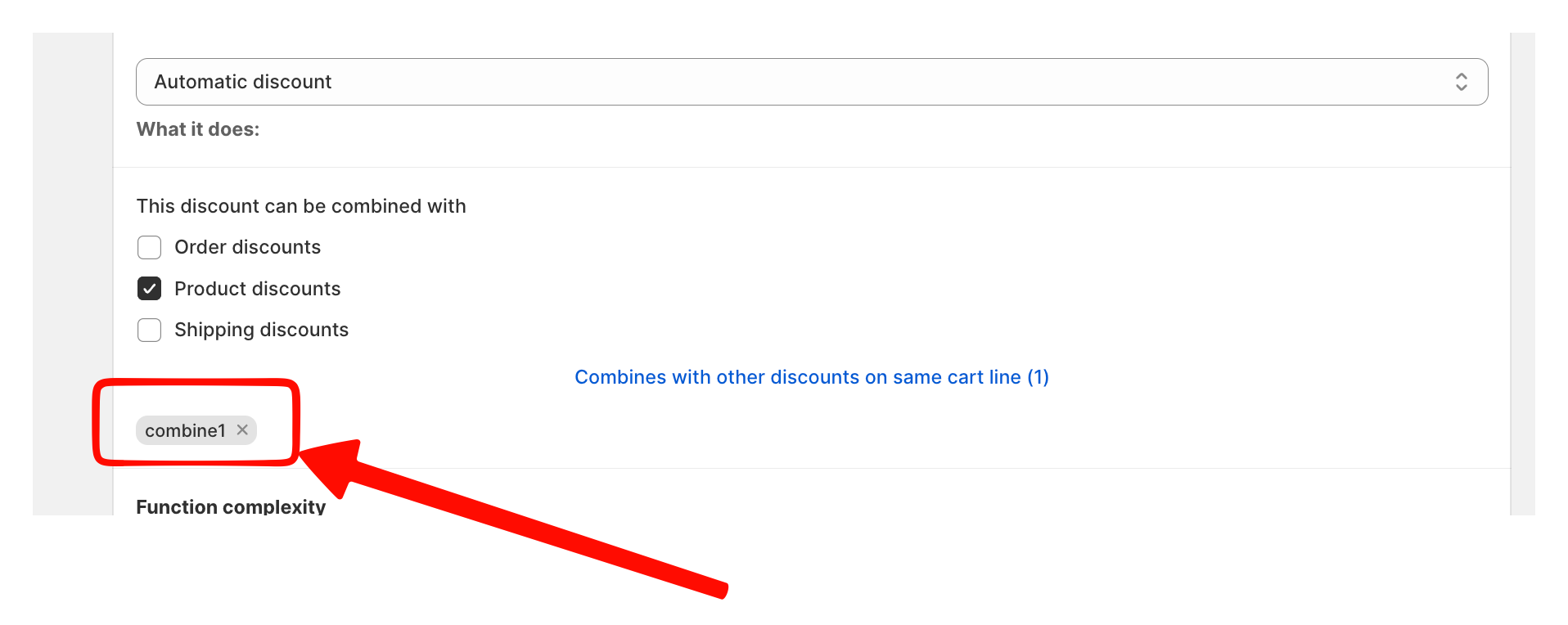
Back in the discount function editor, find the This discount can be combined with section. Check the Product discounts checkbox.
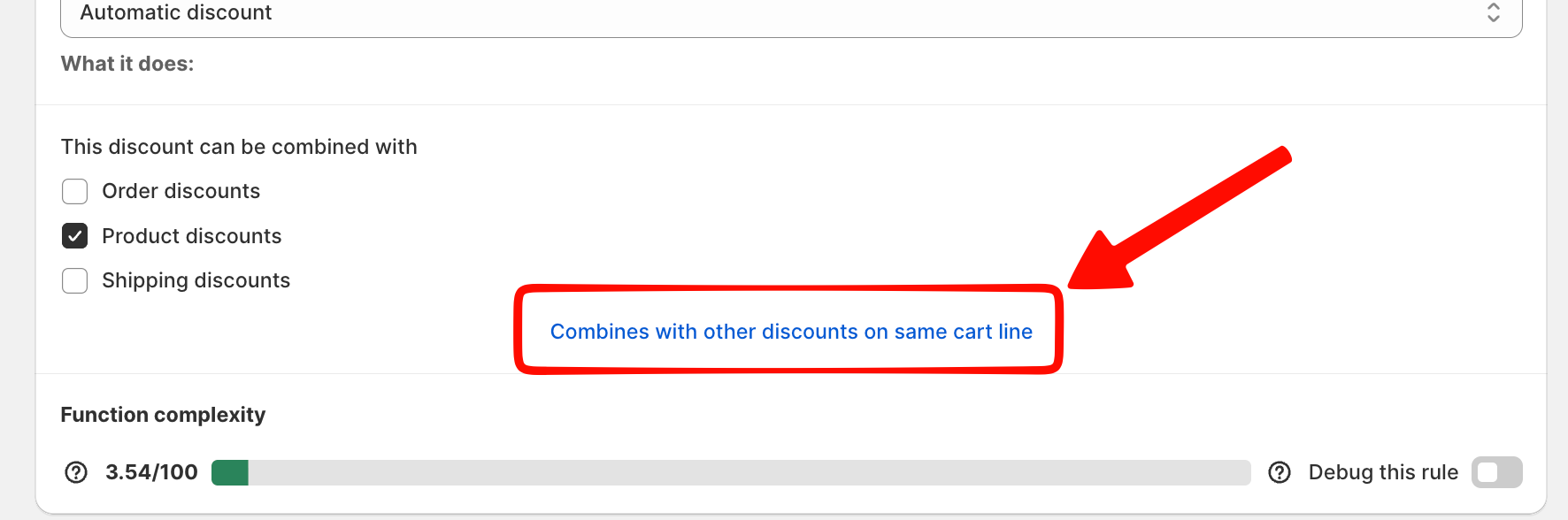
Open the cart-line combination settings
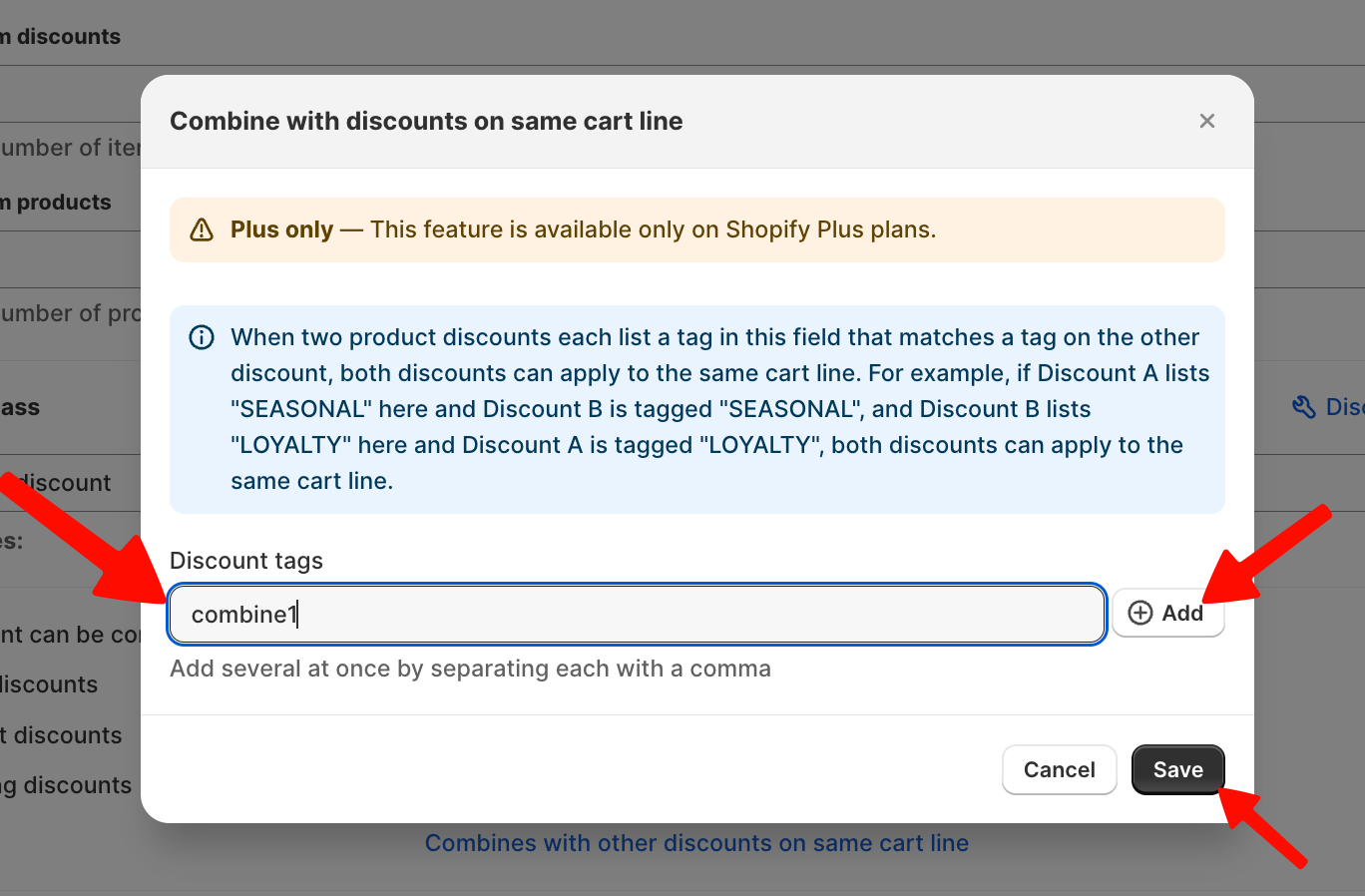
Click the Combines with other discounts on same cart line link at the bottom of the discount function editor. A new popup opens.
Enter the matching tag
In the Combine with discounts on same cart line popup, type the tag name of the other discounts you want to combine with into the Discount tags field, then click ⊕ Add. Click Save.
How tag groups work
Any discount function that shares the same tag is part of the same combination group. You can include as many product discounts as you need in one group simply assigning the same tag to each function, and all of them will stack together on the same cart line with a single shared tag.
There is no limit to the number of discounts in a group.
We'll be happy to assist you.
