
Bulk Create Discount Codes
Create multiple code-based coupon discounts at once in SupaEasy. The Bulk Create tool lets you define code patterns, quantity, prefixes/suffixes, and more, then generate up to 10,000 unique codes in one go. Follow these steps to set up and run a bulk code generation job, then track and manage the results!
Create or open an existing code discount function
If you already have a discount function, open it; otherwise click Create Function and choose Discount as the function type. On the next screen, set Discount Class to Code Discount. You can also enter any other qualifiers or settings as needed for this discount
Click Bulk Create
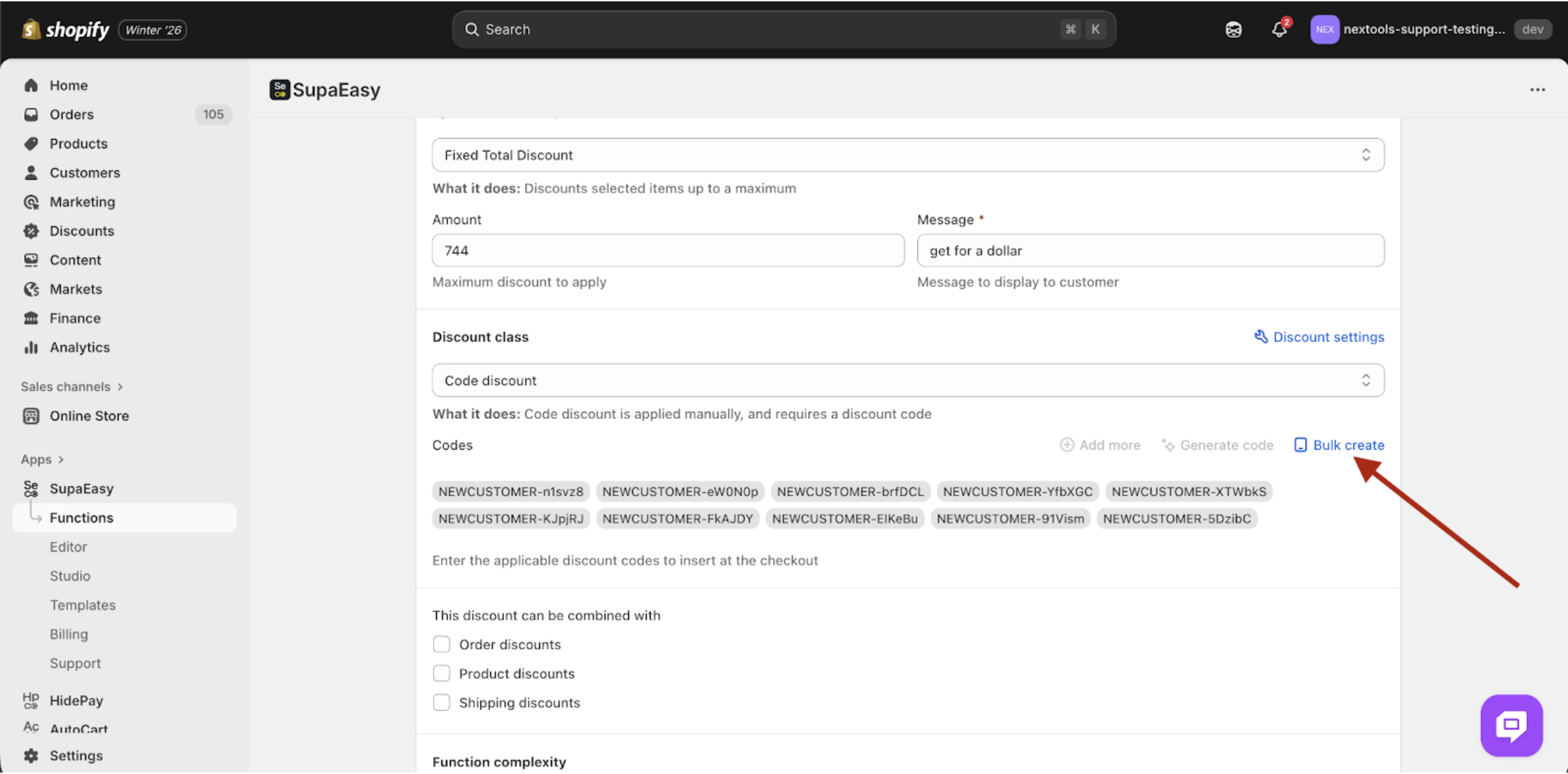
With the function set to Code Discount, click the Bulk Create button on the function page. This opens the Bulk Code dialog where you will configure how your codes are generated.
Set code parameters
In the Bulk Create dialog, fill in the fields for your code batch. Specify each option to shape how the codes will look:
-
Pattern: Choose a character set (e.g. letters, numbers, or alphanumeric) for the code characters.
-
Quantity: Enter how many codes to generate (up to 10,000 at once).
-
Length: Set the total length of each code (for example, 8 characters).
-
Prefix / Suffix: (Optional) Enter any fixed text to add at the start or end of each code (e.g. a promotion name or number).
-
Letter Casing: Select whether codes should be upper-case, lower-case, or mixed.
Each setting helps customize your codes. For example, you might generate 1,000 codes of length 6, consisting of letters and numbers, with a prefix like “SUMMER-” on each.
Confirm and start the job
Once all fields are filled, click Create to start the code generation. SupaEasy will begin processing this as a background job. You should see a confirmation that the job has been queued.
Monitor the job status
Click the Jobs icon to open the jobs list. The Bulk Create task will appear here with its status (for example “In Progress” or “Completed”). SupaEasy processes the codes in the background, so you can close the dialog and work on other tasks while the codes are being generated.
View and manage generated codes
After the job completes, Scroll down and you will see a list of all codes that were generated. Use the options here to manage them:
-
Download: Click the download/export button to save all codes as a CSV file for sharing or printing.
-
Delete: Select one or more codes and click the delete icon to remove them from this function.
You can also run Bulk Create again on the same function if you need additional codes. The Codes view gives you full control to export or delete codes as needed.
