
In this tutorial, we'll guide you through the process of restricting the payment methods during checkout using CartBlock by Nextools.
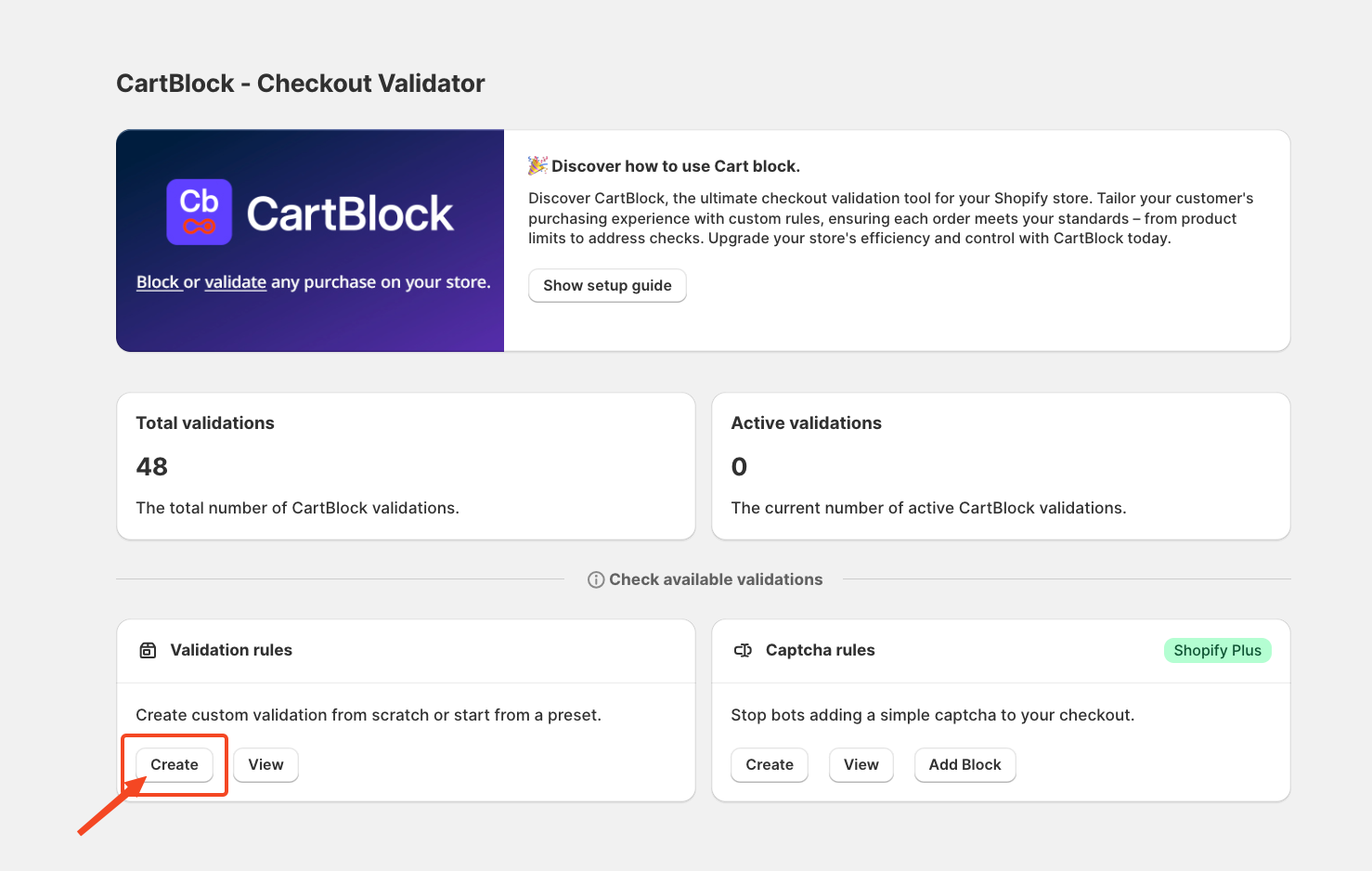
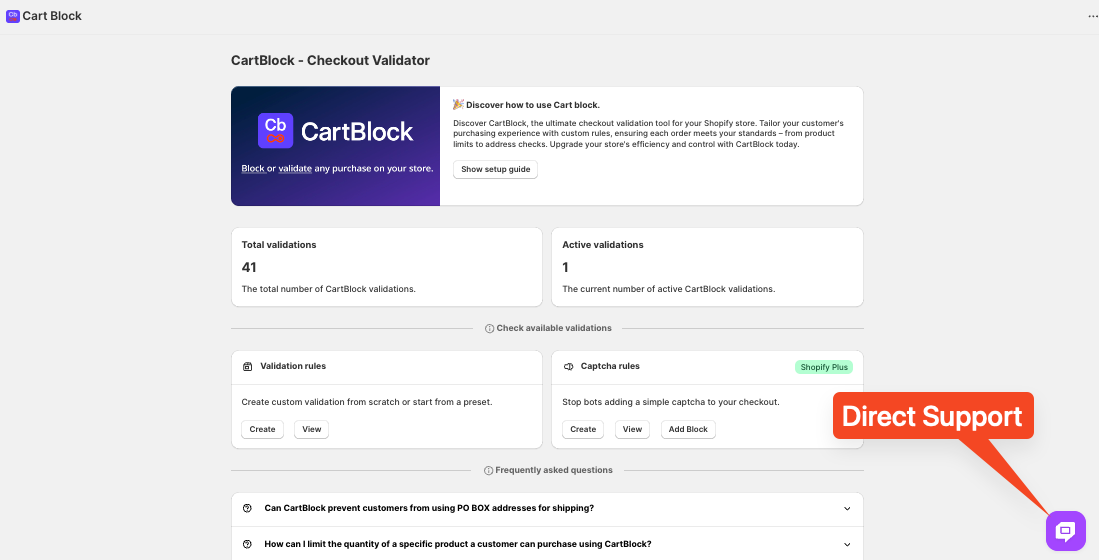
To begin, navigate to Validation Rules and click the Create button.
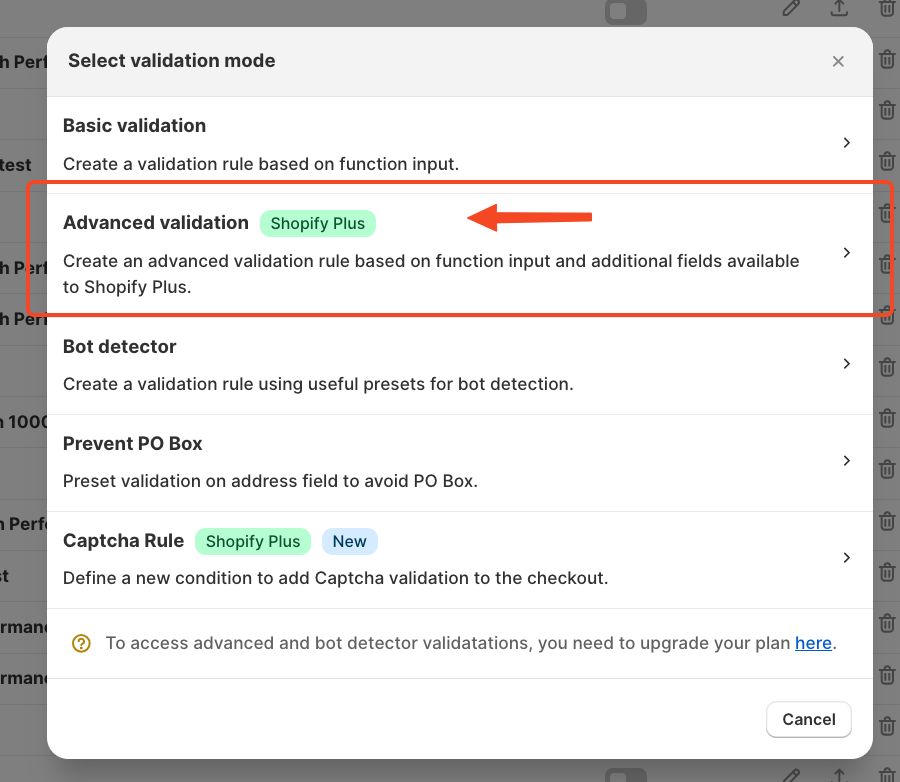
Once you select "Create," a configuration window will appear, asking you to choose a validation mode. For this tutorial, we will proceed with Advanced Validation.
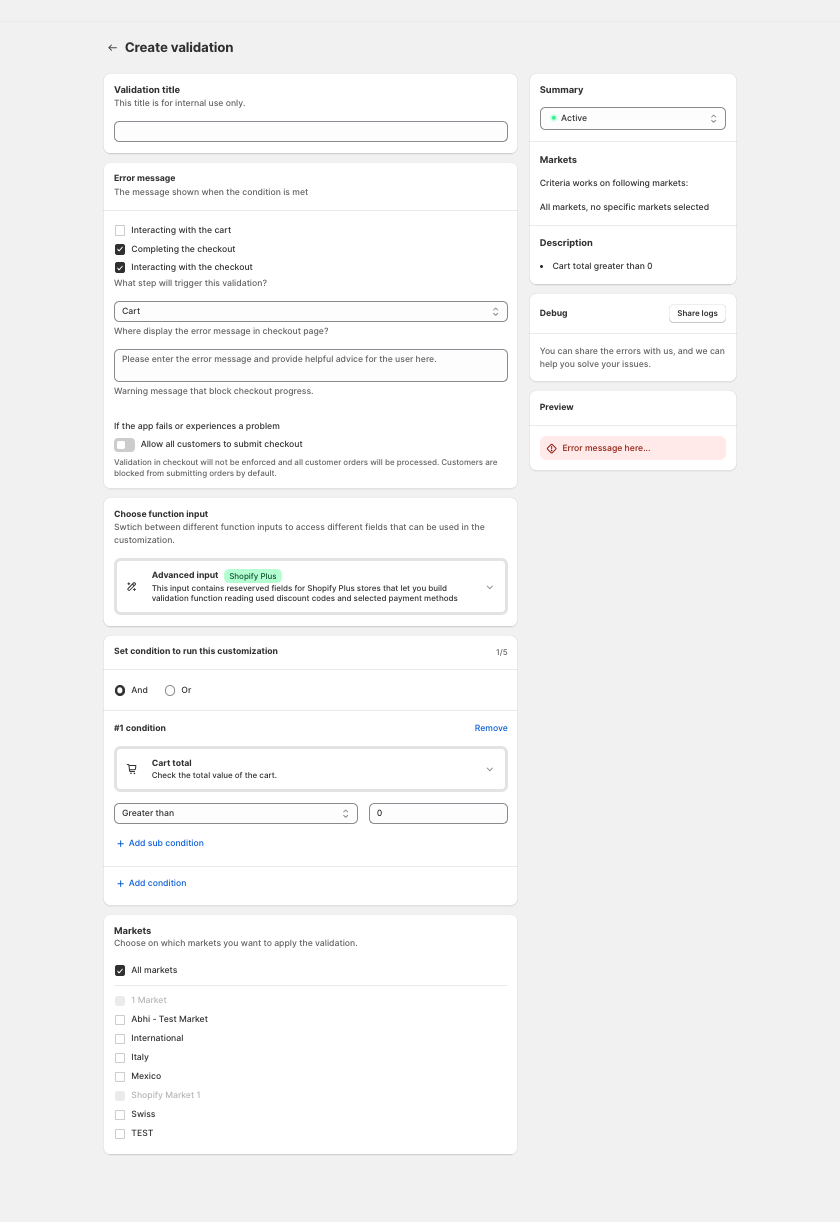
After choosing Advanced Validation, you'll be directed to the validation setup page, which provides several customisation options.
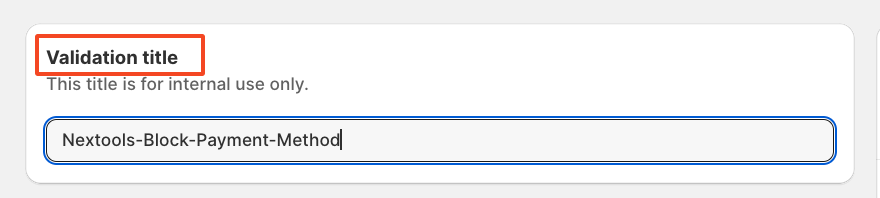
The first step is to assign a Validation title. This title is for internal reference only and will help you manage your rules more efficiently.
In the next step, we will define the Error Message
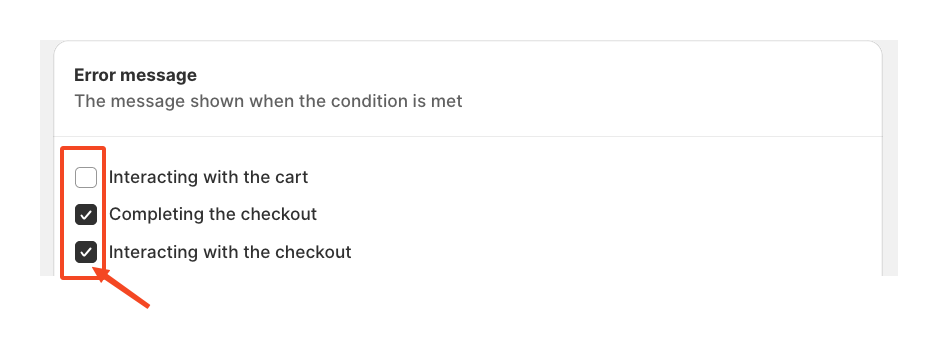
Next, determine where the validation should be applied. CartBlock offers three scopes: interactions with the cart, checkout completion and interaction within the checkout process. You can enable one, two or all three, depending on your requirements.
For example, we will enable completing the checkout and interacting with it.
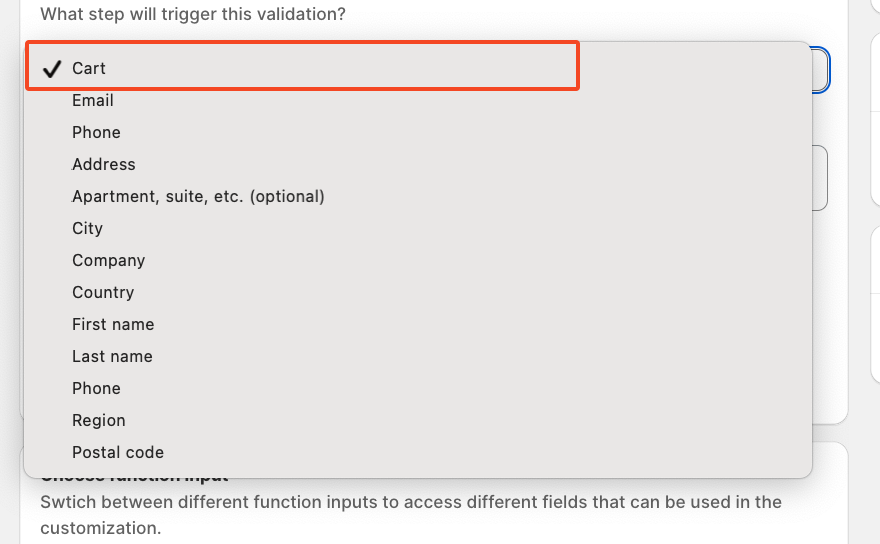
Following this, decide which part of the checkout flow should be restricted. The app provides multiple points of control, but for this tutorial, we will apply the block at the Cart level.
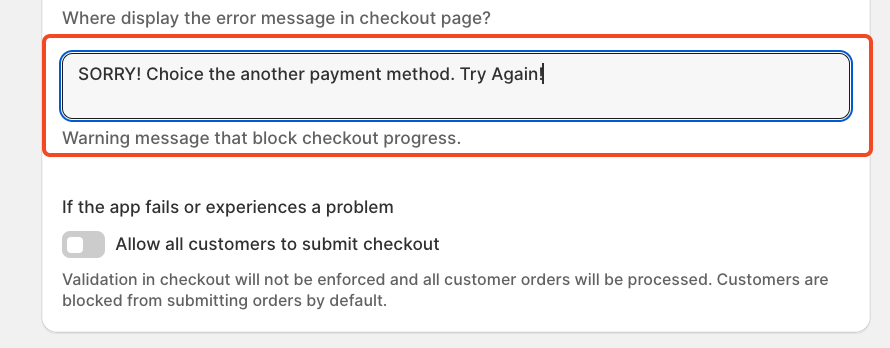
Finally, configure a custom error message. This message will appear on the checkout page whenever a shopper tries to proceed with a payment method that is restricted.
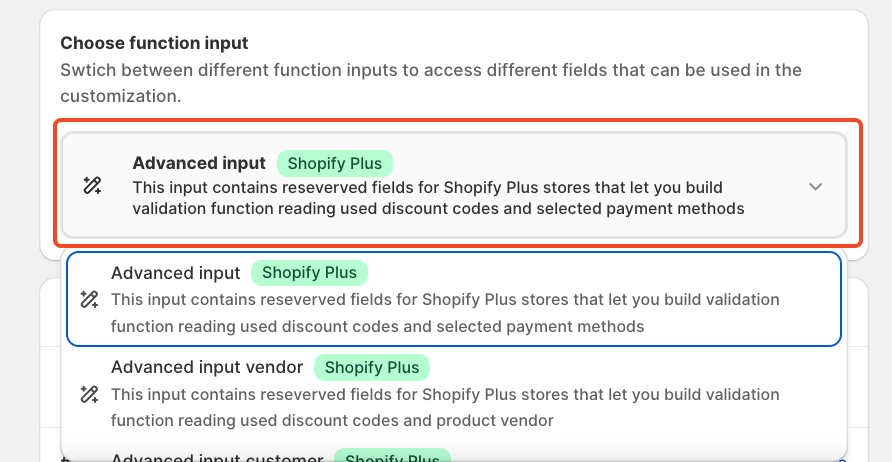
In this step, you'll need to define the Function Input. This setting determines which data fields can be used to customise your rule.
Each Function Input offers a more specific condition related to the Function Input title.
Since our goal is to restrict the payment method, we can use a specific Payment Input or, in this case, select Standard Input.
Next, configure the conditions that will trigger this rule.
CartBlock allows you to set up to five conditions within a single validation rule. You can apply either AND or OR logic to determine how multiple conditions should work together.
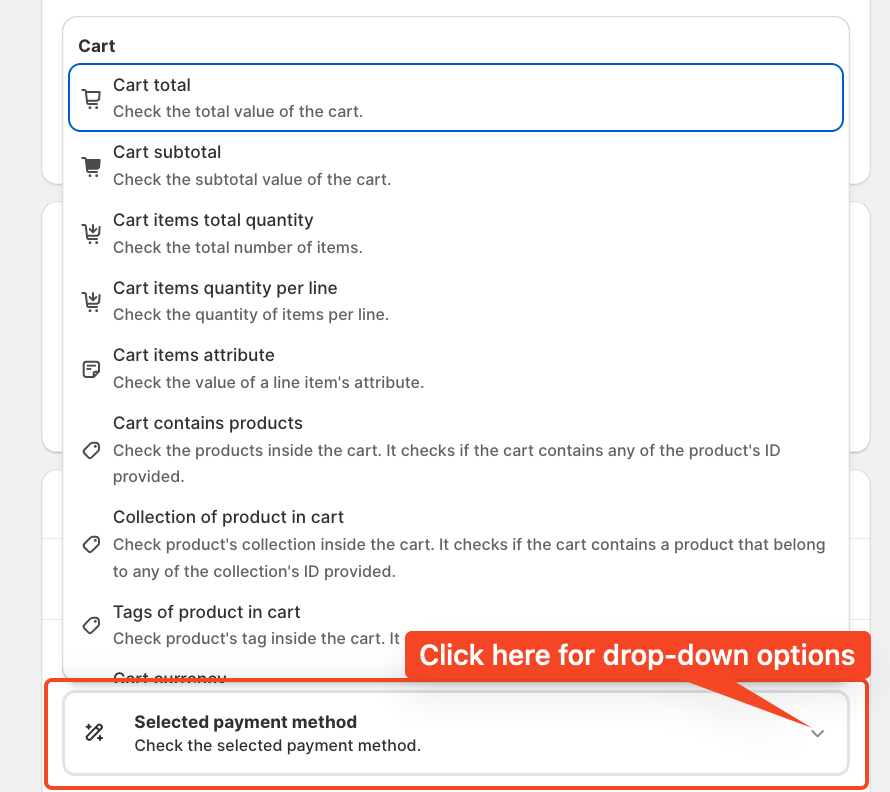
Adding conditions is straightforward; simply click the button to reveal a drop-down menu of available options.
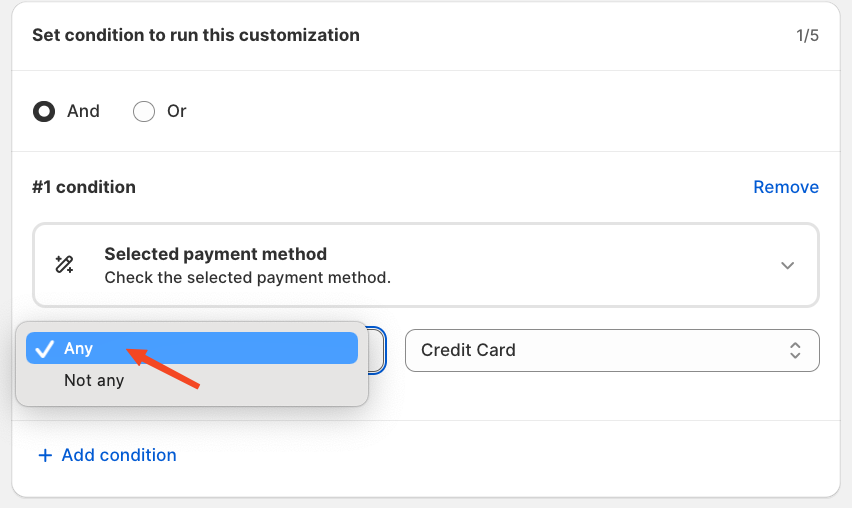
You can also select between "any" or "not any"
And payment method options are;
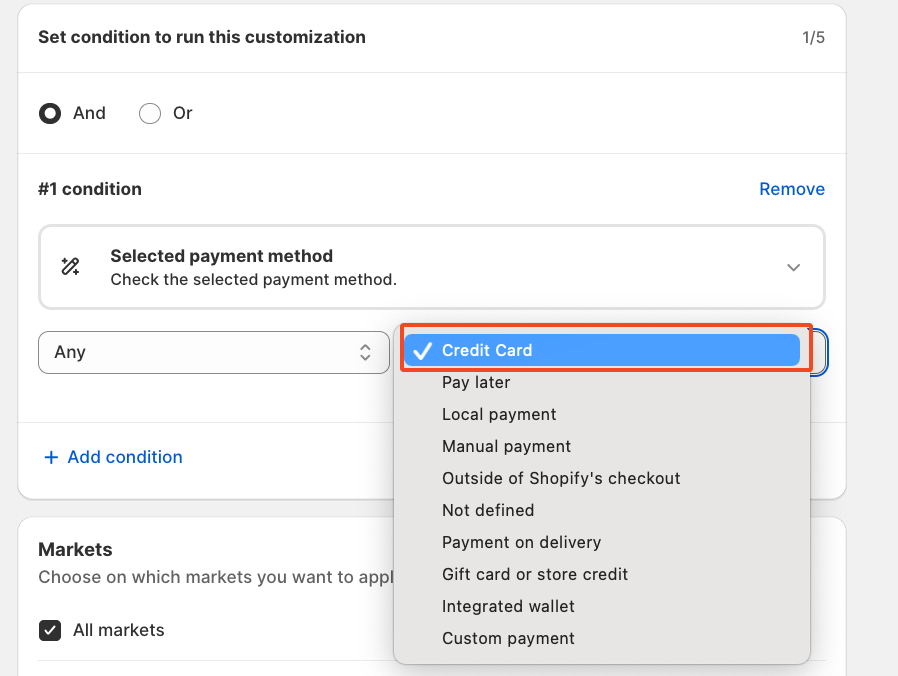
For this tutorial, we'll keep it simple by creating a single condition: blocking the checkout for the payment method in the Credit Card.
If a shopper selects Credit Card as a payment method, then the checkout will be blocked and show an error message.
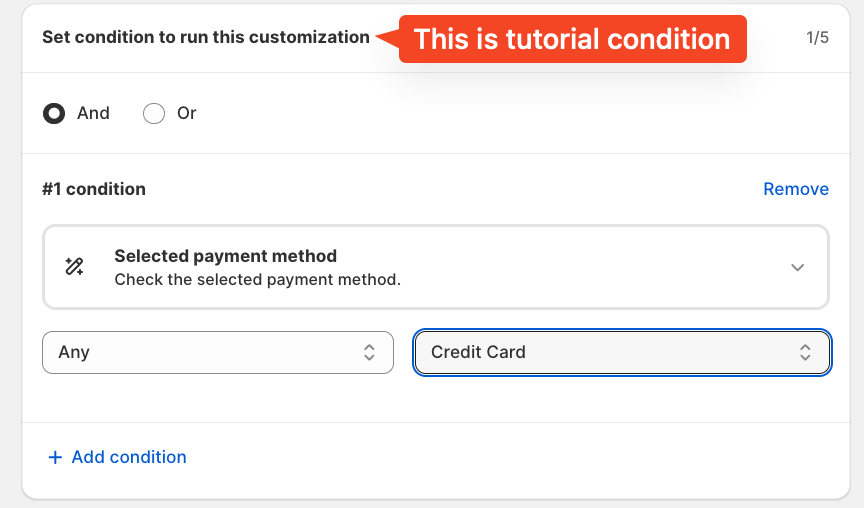
As you configure conditions, a summary panel appears just below the Save button, providing a clear overview of the rules you've set.
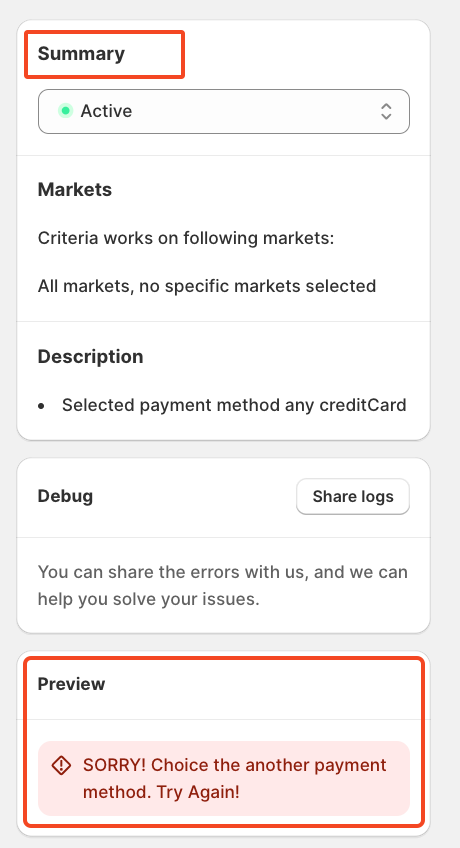
Once you're done setting everything up, click Save to apply the rule.
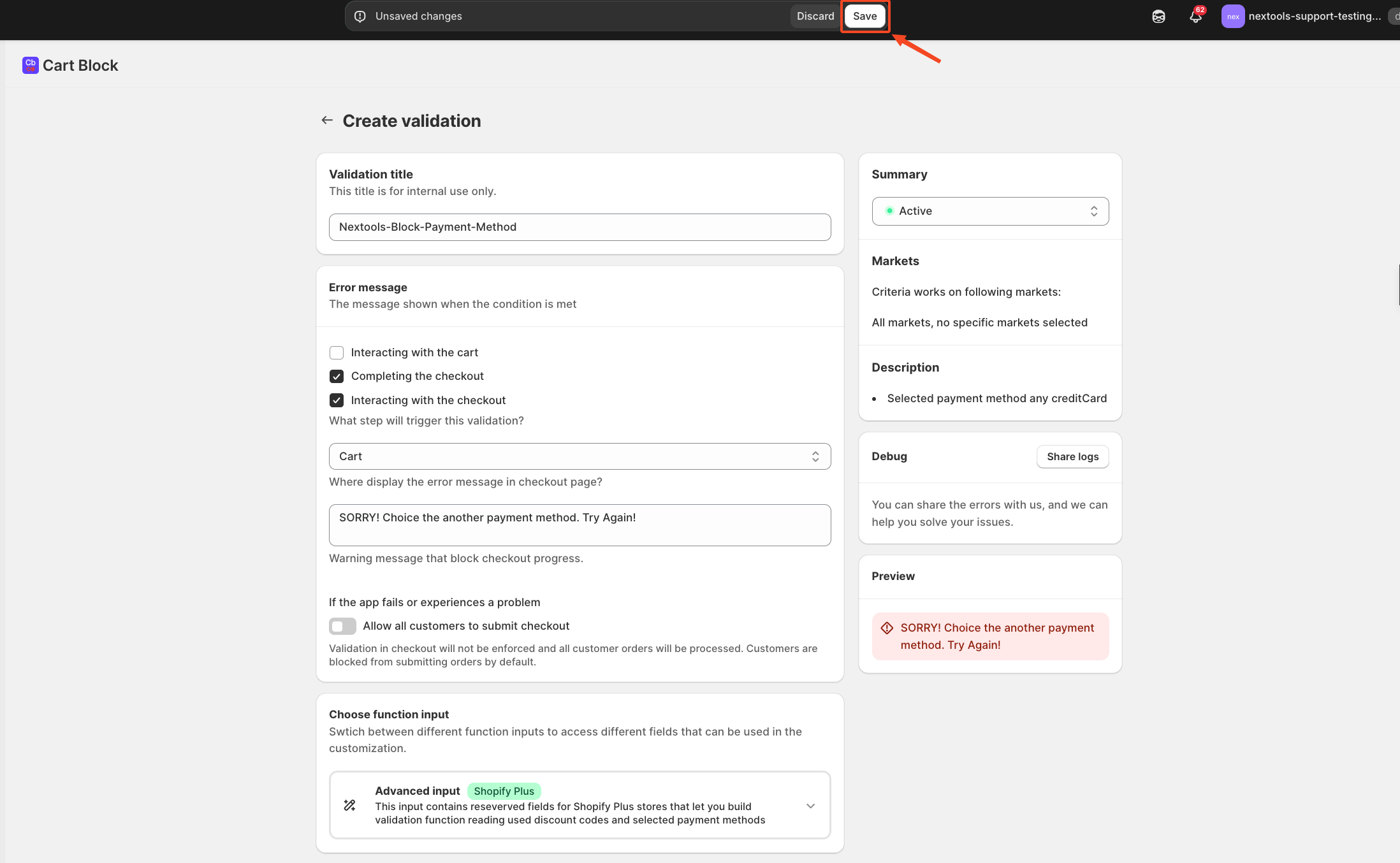
Once the validation is saved in the CartBlock, we are going to add the app blocker on the theme side at the checkout page.
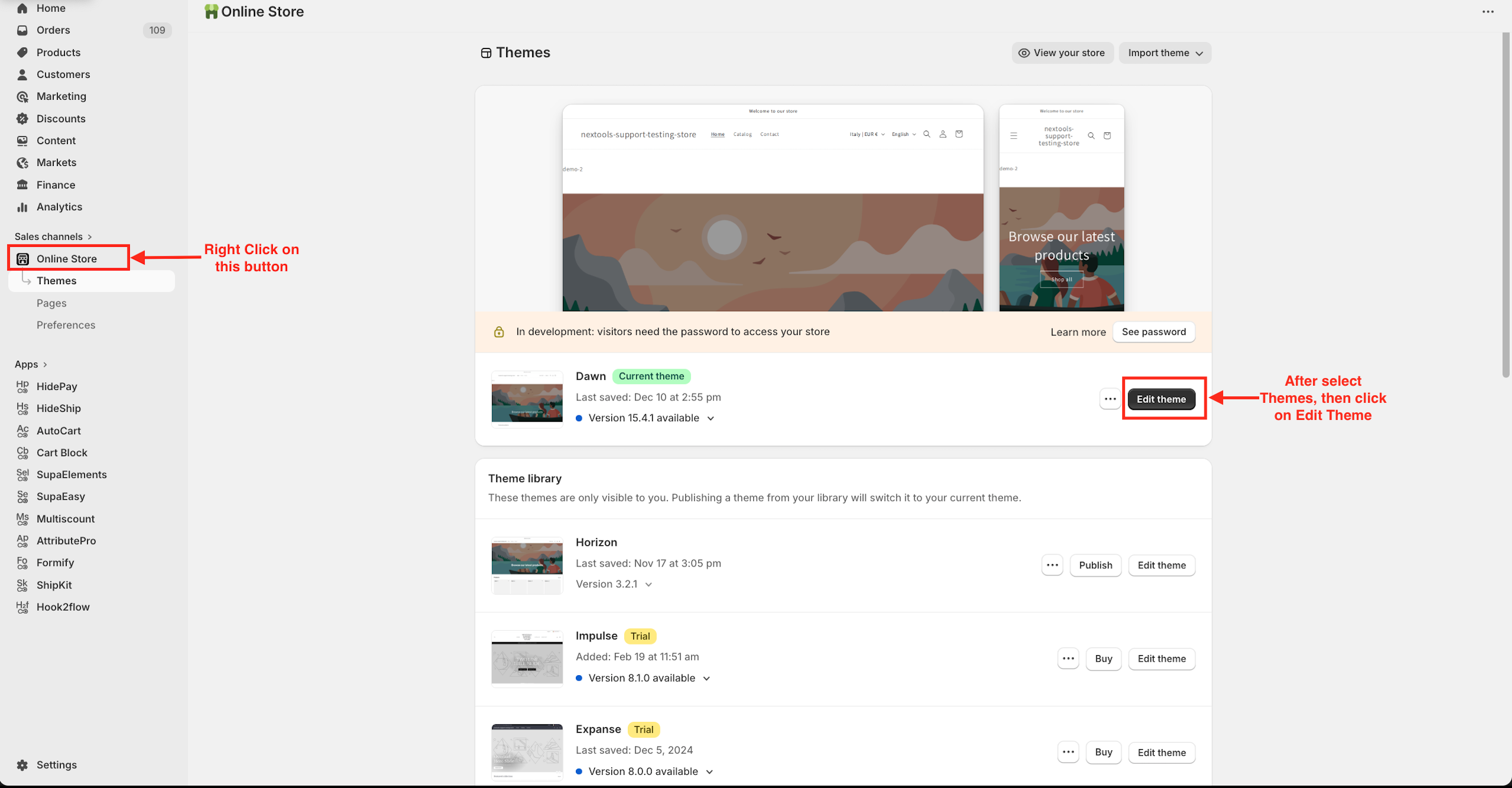
Once you click on Online Store, a submenu will appear. Select Themes from the available options, then click Edit Theme to continue.
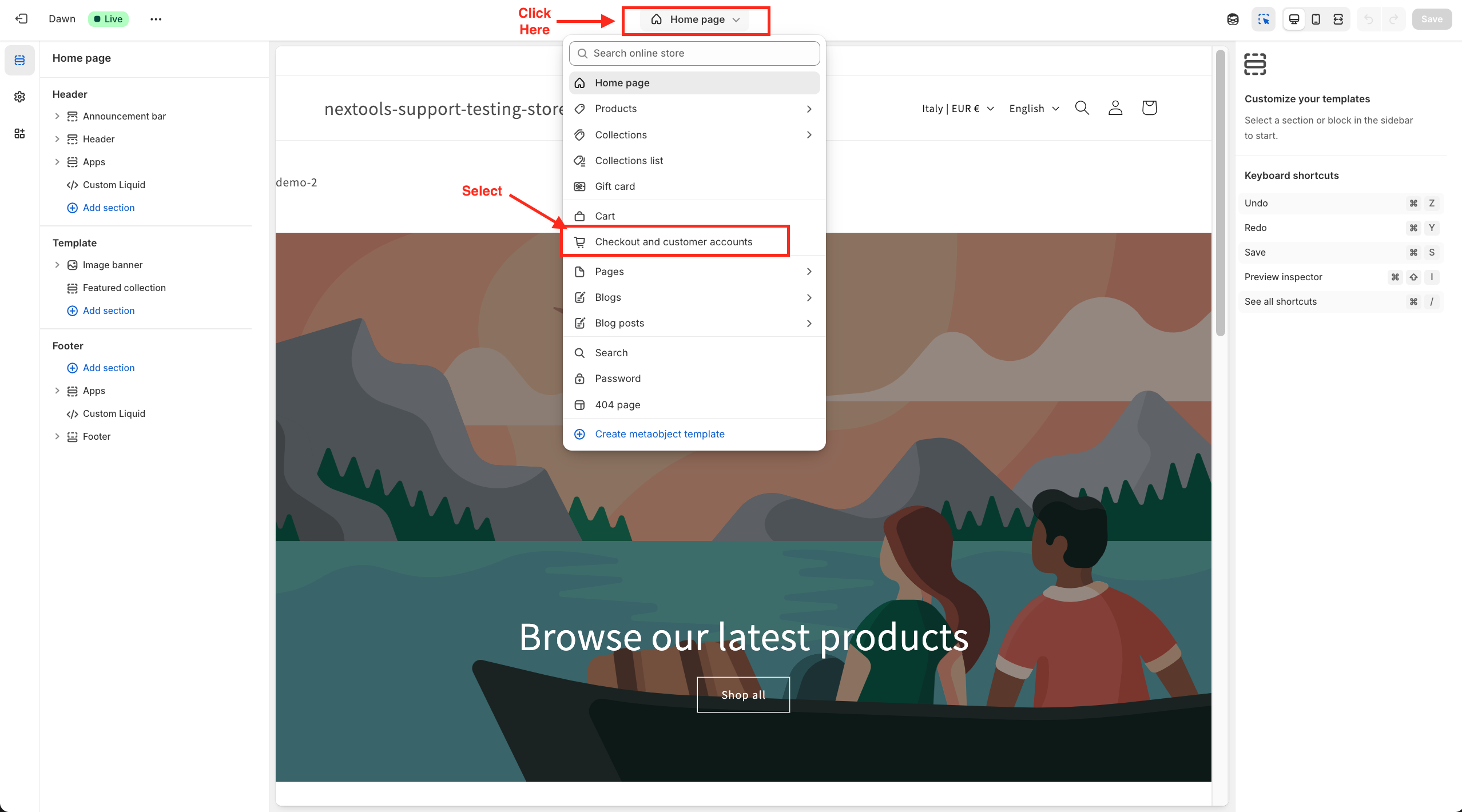
Next, click on Home Page, select Checkout, and configure the account settings, as illustrated in the image below.
Now, we are going to add the app blocker to the checkout page. Follow the instructions as per the image below:
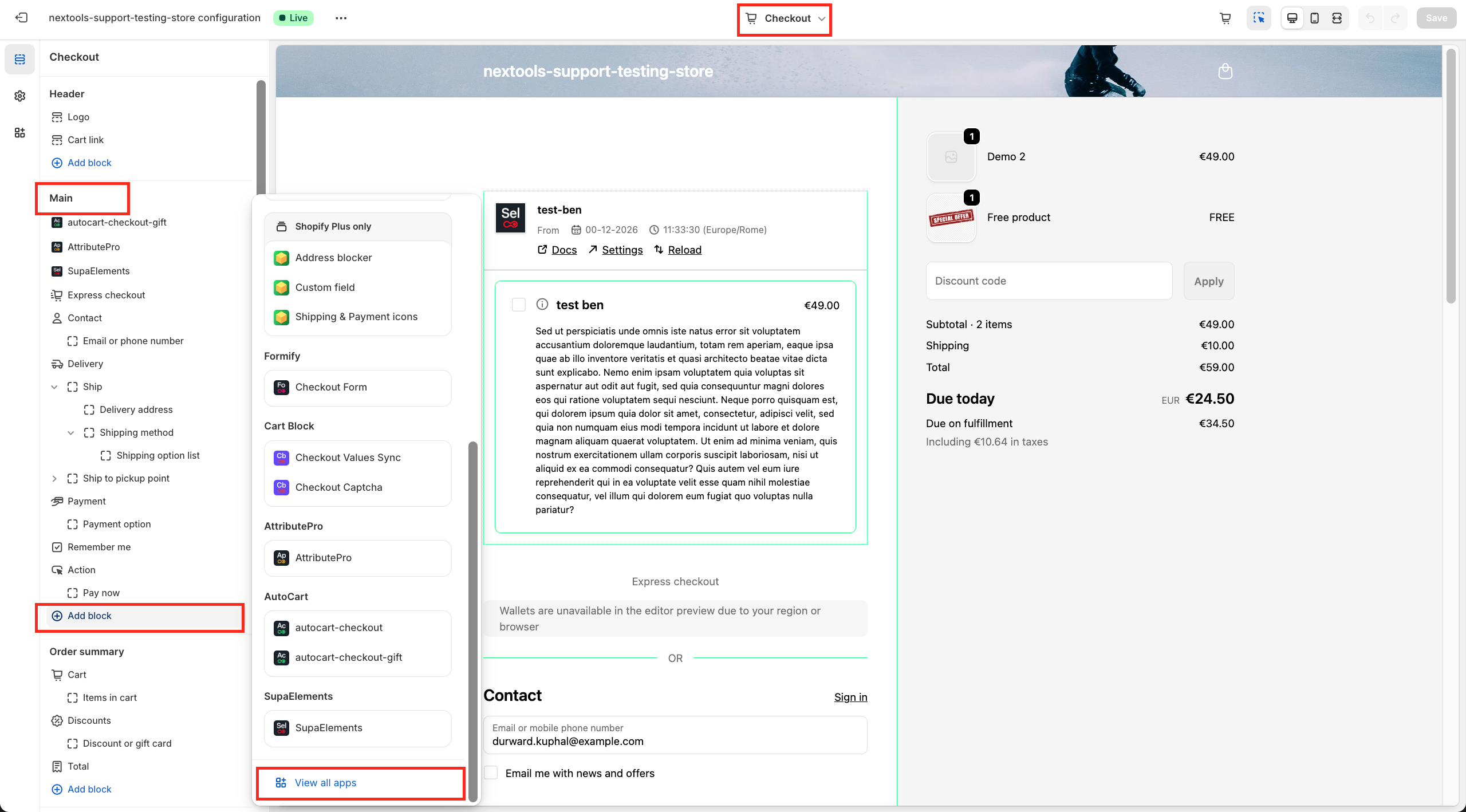
After selecting View all apps, browse the list of applications to find CartBlock. You may need to scroll down, depending on your screen.
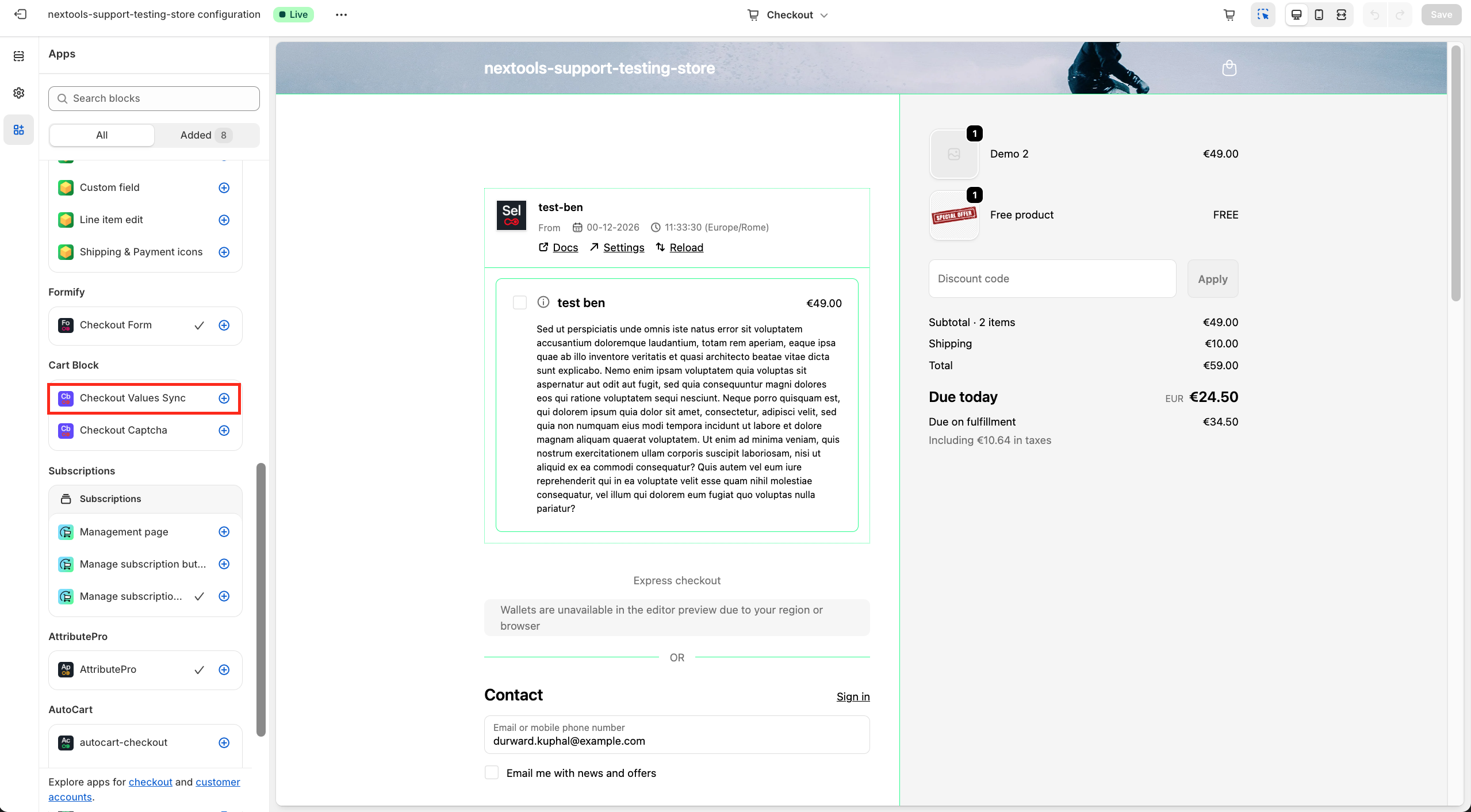
Click the plus (+) icon to add the CartBlock app block.
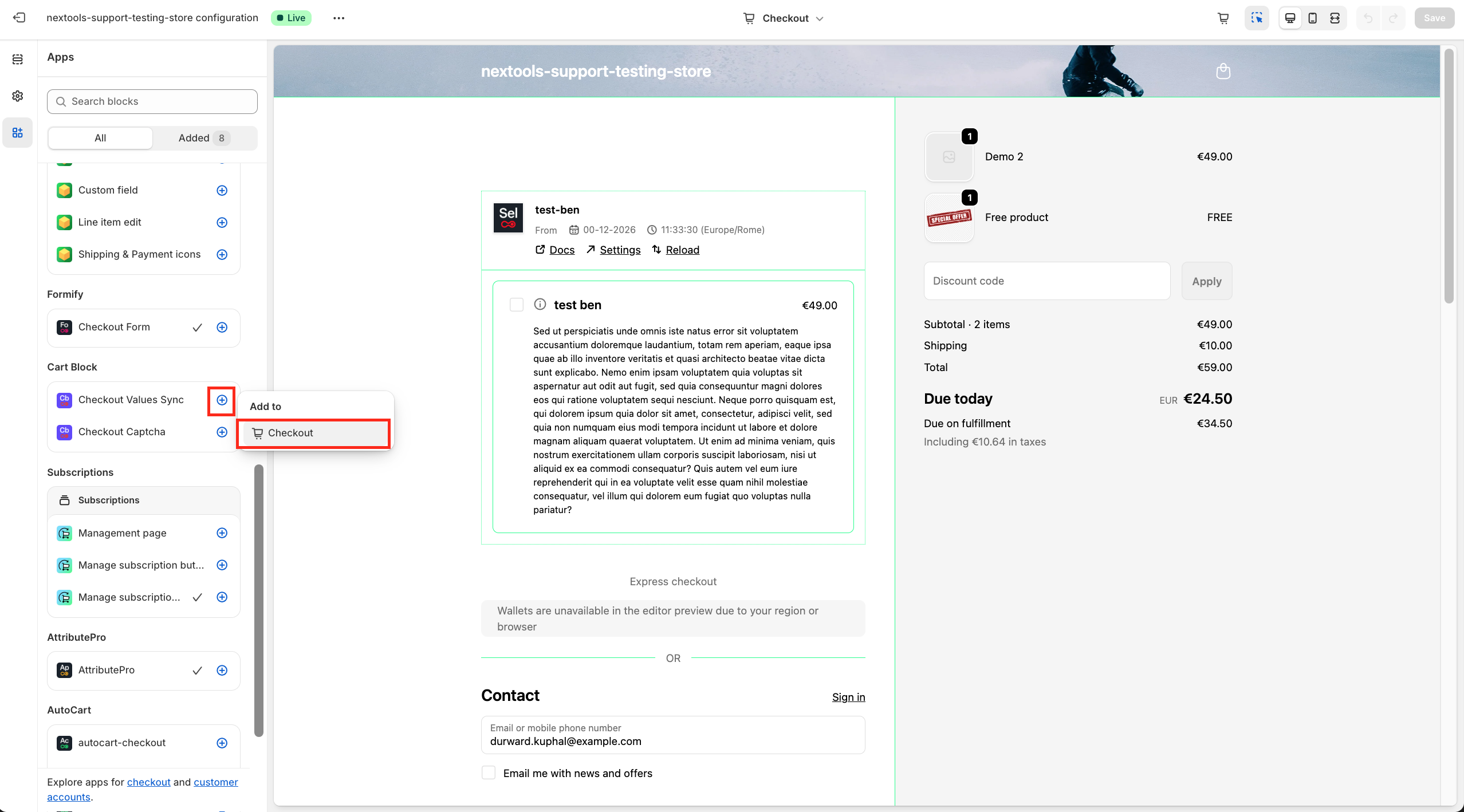
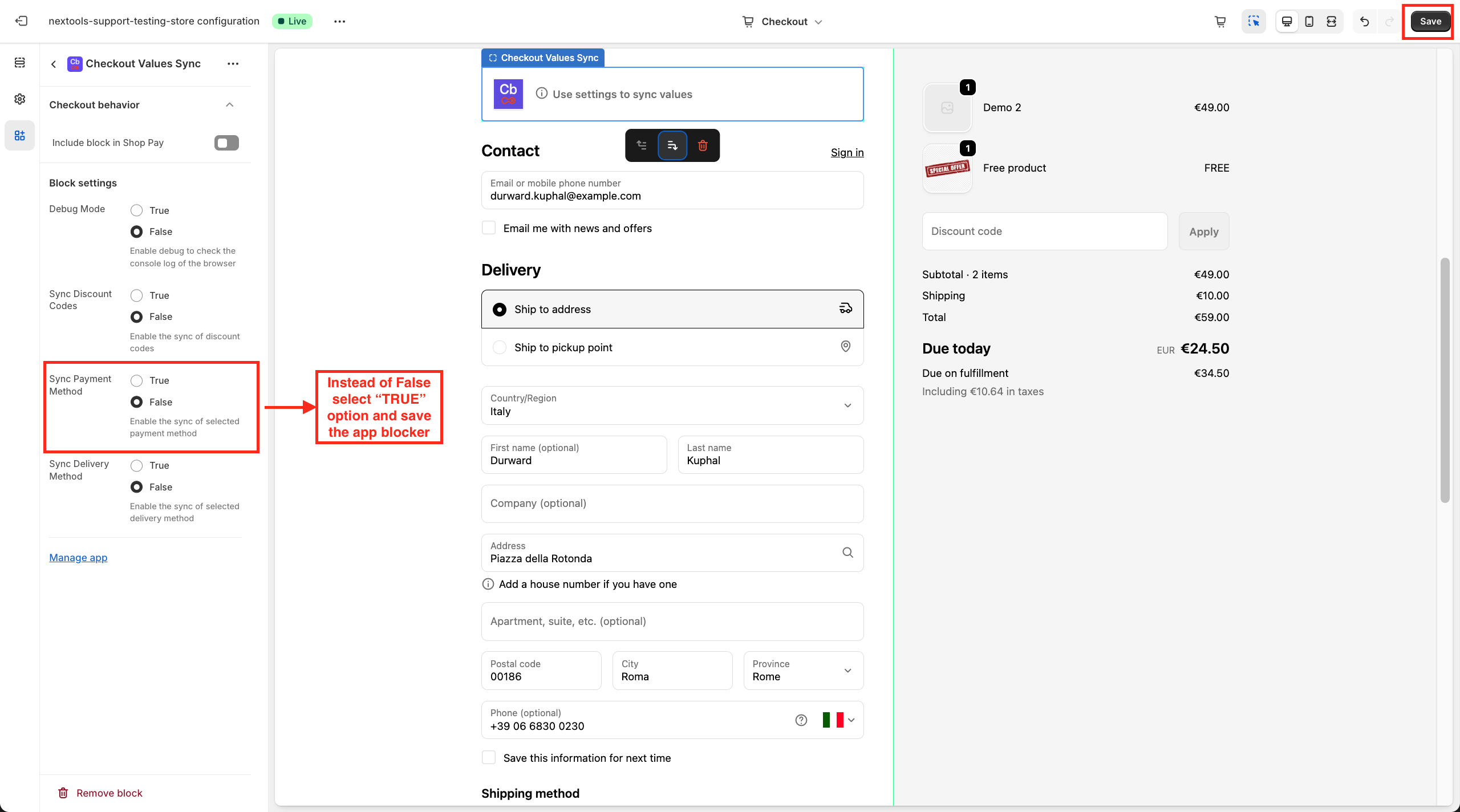
Under Sync Payment Method, choose True rather than False and save the rule. After saving, the rule will be applied successfully and will block the selected payment method as required.
Thank you for trusting Nextools and using the CartBlock application.
