
Formify makes it easy to collect additional customer information directly from the customer account page. You can create custom fields based on the information your business needs and display them directly within the customer's profile.
In this guide, we'll walk you through the complete process—from creating your customer form and adding custom fields to connecting it to your Shopify theme and verifying the final result on your storefront.
Important: Customer Account Forms require the Formify Advanced plan. Make sure your store is subscribed to the Advanced plan before starting this setup.
Create a New Form: Open the Formify app from your Shopify admin.
From the Formify dashboard, click Create form to begin creating your customer form.

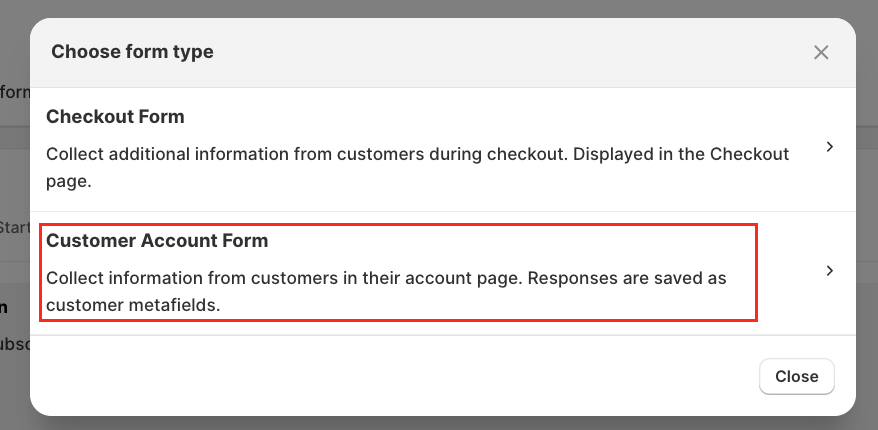
After clicking Create form, a pop-up window will appear with the available form options.
Select the appropriate Customer Account Form option to create a form that can be displayed within the customer's Shopify account.
Once the form builder opens, you can start adding the fields you want to collect from customers.
Choose a field from the available Input and Selection options, then simply drag and drop it onto the form.
For this tutorial, we'll use a Text Field. Drag the Text Field option and drop it onto the white form area.

After adding the field, select it and open the General settings on the right-hand side.
Under Field Label, replace the default Text Field label with the name you want customers to see. For this example, we'll rename it to Nickname.
You can repeat this process to add and customise additional fields according to the information you want to collect.

Once you've added and configured your fields, click Save to store your changes.
Your customer form is now created and ready to be connected to your Shopify customer account.

Return to the Formify dashboard, where you'll see the form you just created.
Locate the Form ID and copy it. You'll need this ID when configuring the Formify app block in Shopify.
Keep the Form ID copied to your clipboard for the next steps.

Now, navigate to your Shopify theme extension. From your Shopify admin, go to:
Online Store → Themes → Edit theme
Once the theme extension opens, use the page selector at the top and navigate to:
Checkout and customer accounts → Profile
This will open the customer Profile page, where you can add the Formify form

On the Profile page, locate the Main section in the left-hand sidebar and click Add app block. Select the Formify app block from the available options.
After adding the block, paste the Form ID you copied earlier into the corresponding Form ID field.
This connects the customer form you created in Formify with the Shopify customer Profile page.

After adding the Formify app block, you can choose where the form appears on the customer Profile page.
Simply drag and drop the Formify app block to your preferred position within the available sections.
For example, you may want the custom fields to appear directly below the customer's account information or above their order history.
Once you're happy with the position, click Save.

You can return to Formify whenever you need to reorganise or update the fields within your form. Drag and drop the fields into your preferred order so that the most important information appears first.
Keeping the form clear and logically organised can make it easier for customers to complete.
Remember to click Save after making any changes.

The final step is to make sure everything is working as expected.
Open your storefront and sign in to a customer account. Navigate to the customer's Profile page and refresh the page.
Your newly created Formify custom fields should now appear in the position you selected.
Check that:
- The Formify form is displayed correctly.
- All custom fields are visible.
- Field labels are correct.
- The form is positioned where you intended.
- Customers can enter and save their information correctly.
If everything works as expected, your Formify Customer Account Form is ready to use.

If you have any questions or need assistance during setup, our team is here to help. You can contact the Nextools Support Team anytime via the in-app live chat or by email.

We’re always here to help you get the most out of Formify! 🚀
