
With our Advanced Discount, you can create powerful discount rules that run only on Shopify POS, keeping your storefront promotions completely separate.
This is especially useful if you want to:
-
Run in-store promotions only
-
Offer exclusive retail discounts
-
Test special pricing for physical locations
-
Avoid conflicts with online campaigns
Below is a step-by-step guide to creating a POS-exclusive advanced discount.
Step 1: Create a New Discount
-
Go to Discounts from the left navigation menu.
-
Click Create in the top-right corner.
-
Choose the discount type you want to create:
-
Product discount
-
Order discount
-
Shipping discount
-
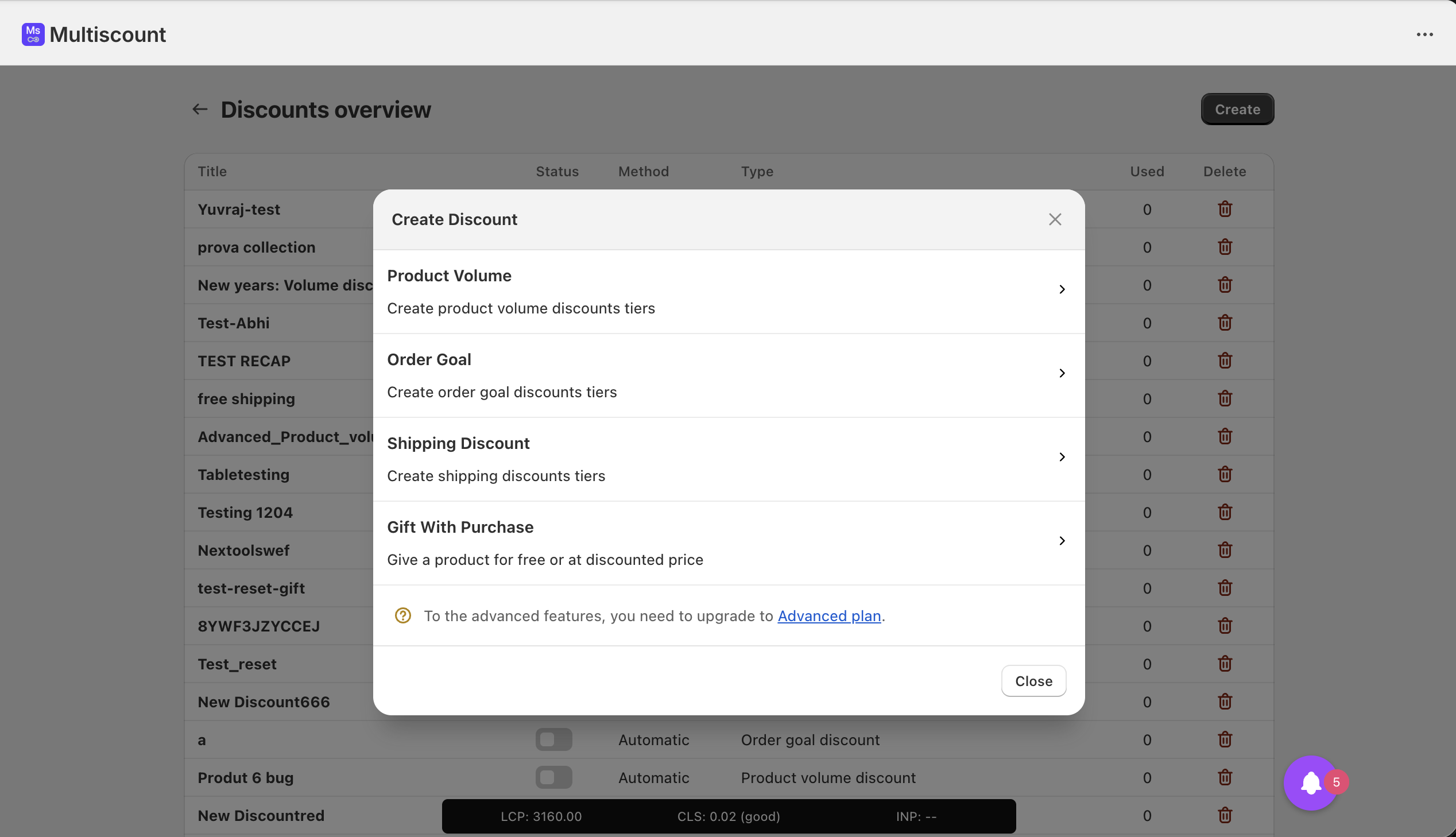
👉 For POS-exclusive setups, you must select Advanced Order/Product Discount.
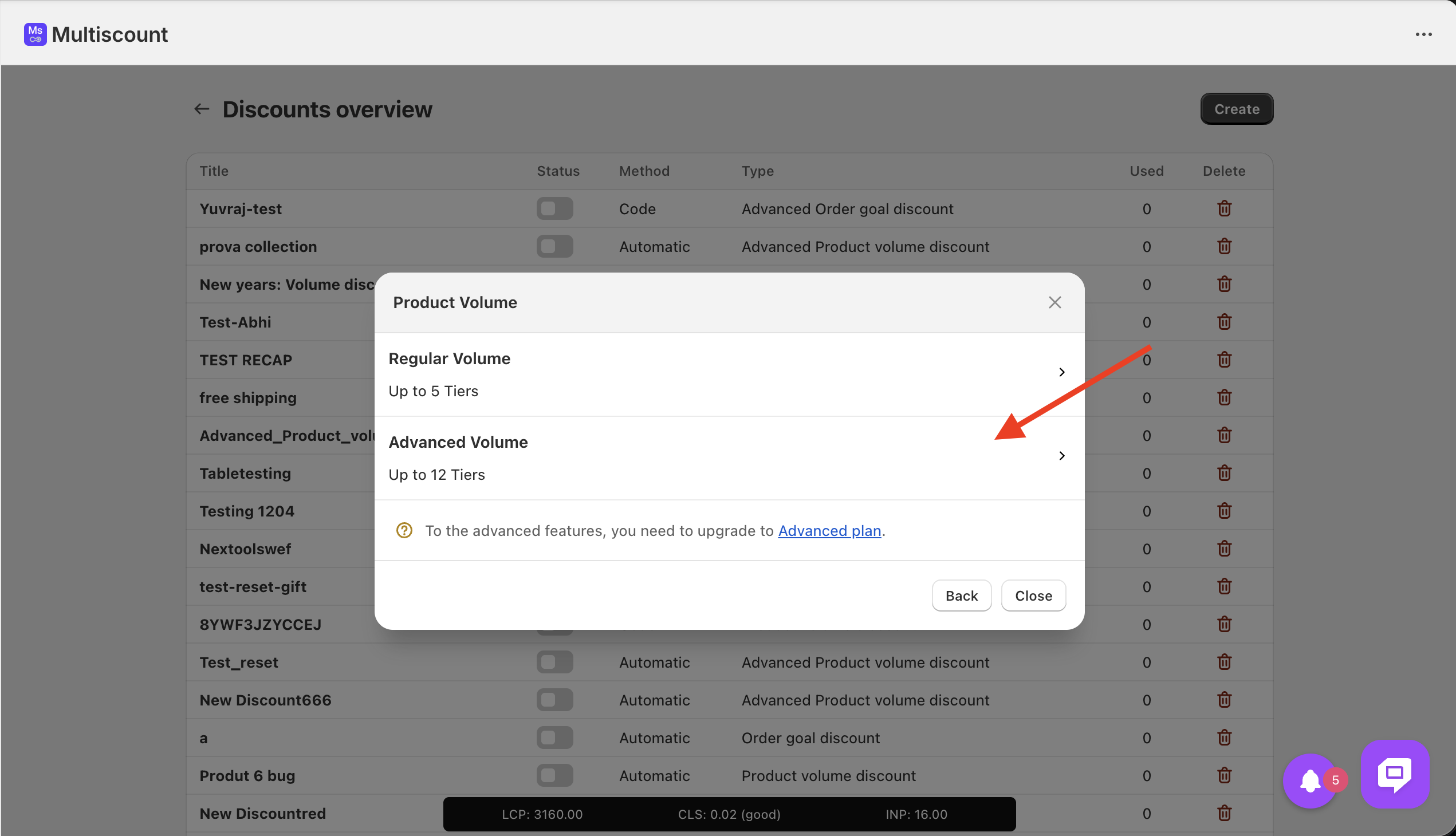
Step 2: Make the Discount POS-Exclusive
Let's go with Advanced Order Discount for this example. Look at the options on the right side.
To make the discount run only on POS:
-
Uncheck the “Storefront” option
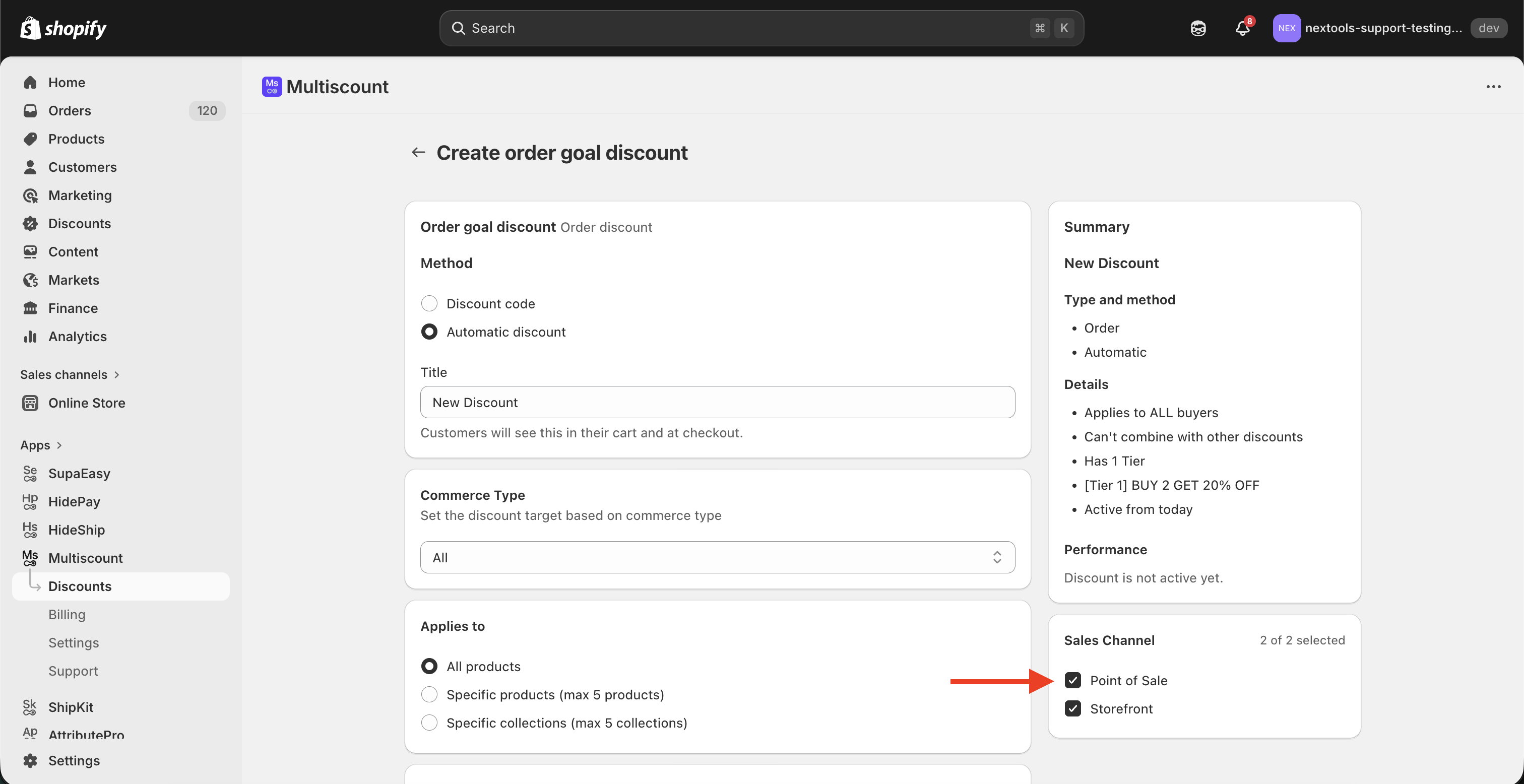
This ensures the discount will not apply online and will only be available on Shopify POS.
Step 3: Choose Discount Type
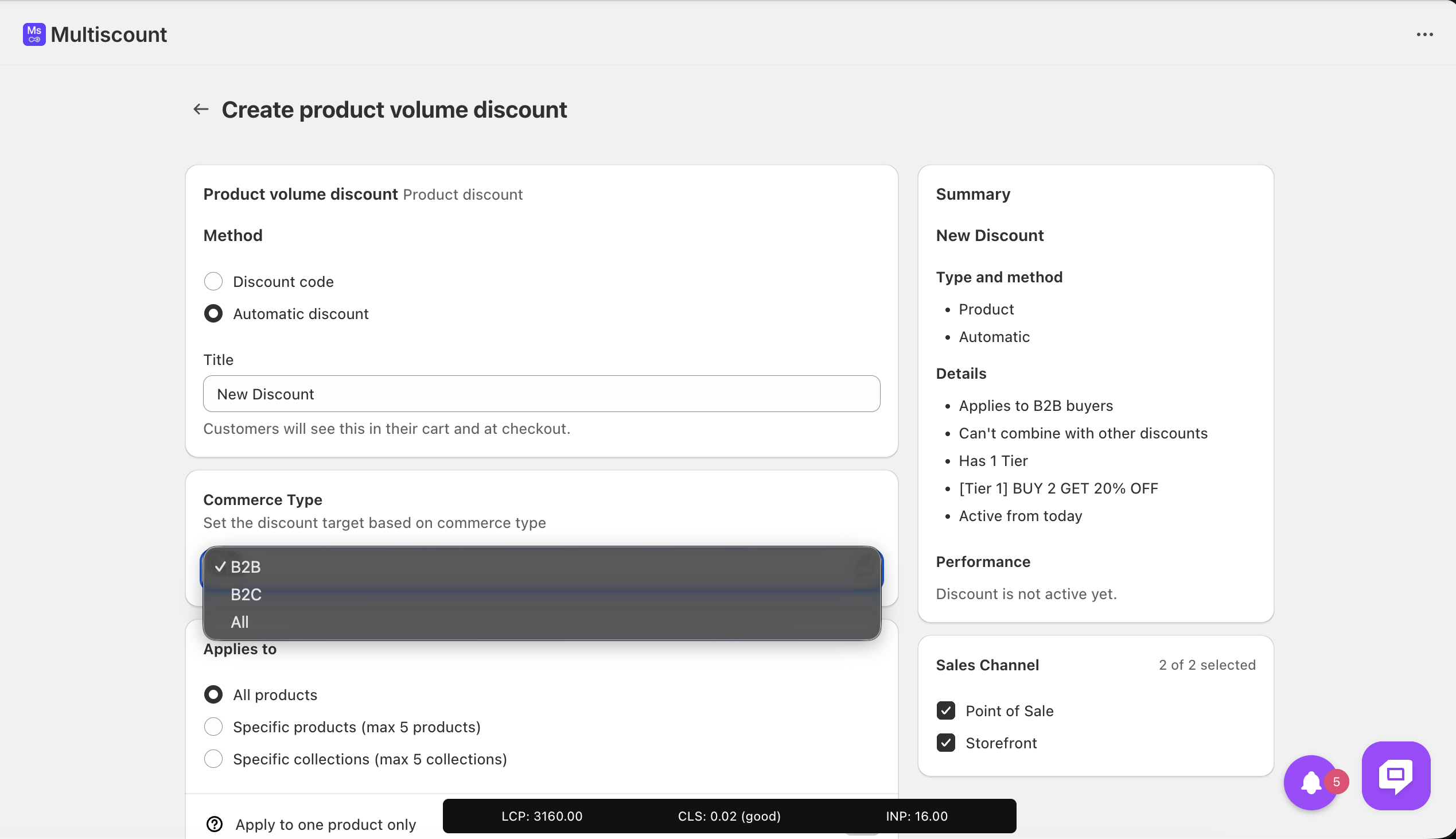
You can decide how the discount is applied:
-
Automatic discount (applied automatically at checkout)
-
Discount code (staff must enter a code)
For most in-store campaigns, Automatic discount is the fastest option.
You can also select the Commerce Type:
-
B2B
-
B2C
-
ALL
If the promotion applies to everyone, select ALL.
Step 4: Set the Discount Title
The title is visible to staff and (in some cases) customers.
💡 We recommend using a clear and descriptive name, such as:
-
“POS Volume Discount”
-
“In-Store Special”
-
“Retail Exclusive 20%”
This makes it easy to identify during checkout.
Step 5: Set Eligibility Rules
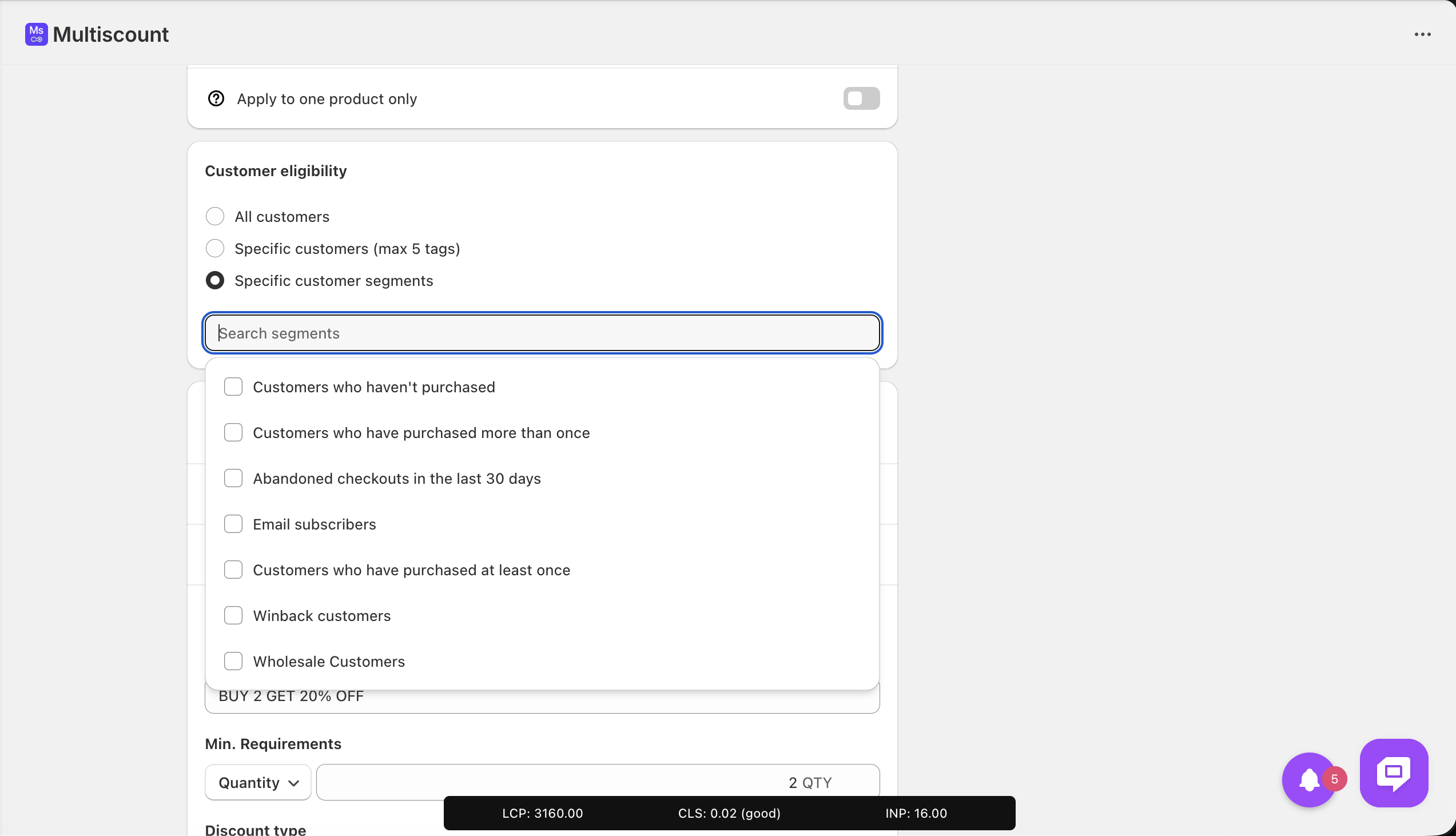
You can control who can use the discount:
-
Tagged customers (only customers with specific tags)
-
Customer segments (created in Shopify’s Customers section)
-
All customers
If you want the promotion to apply to everyone in-store, select All customers.
Step 6: Create Discount Tiers
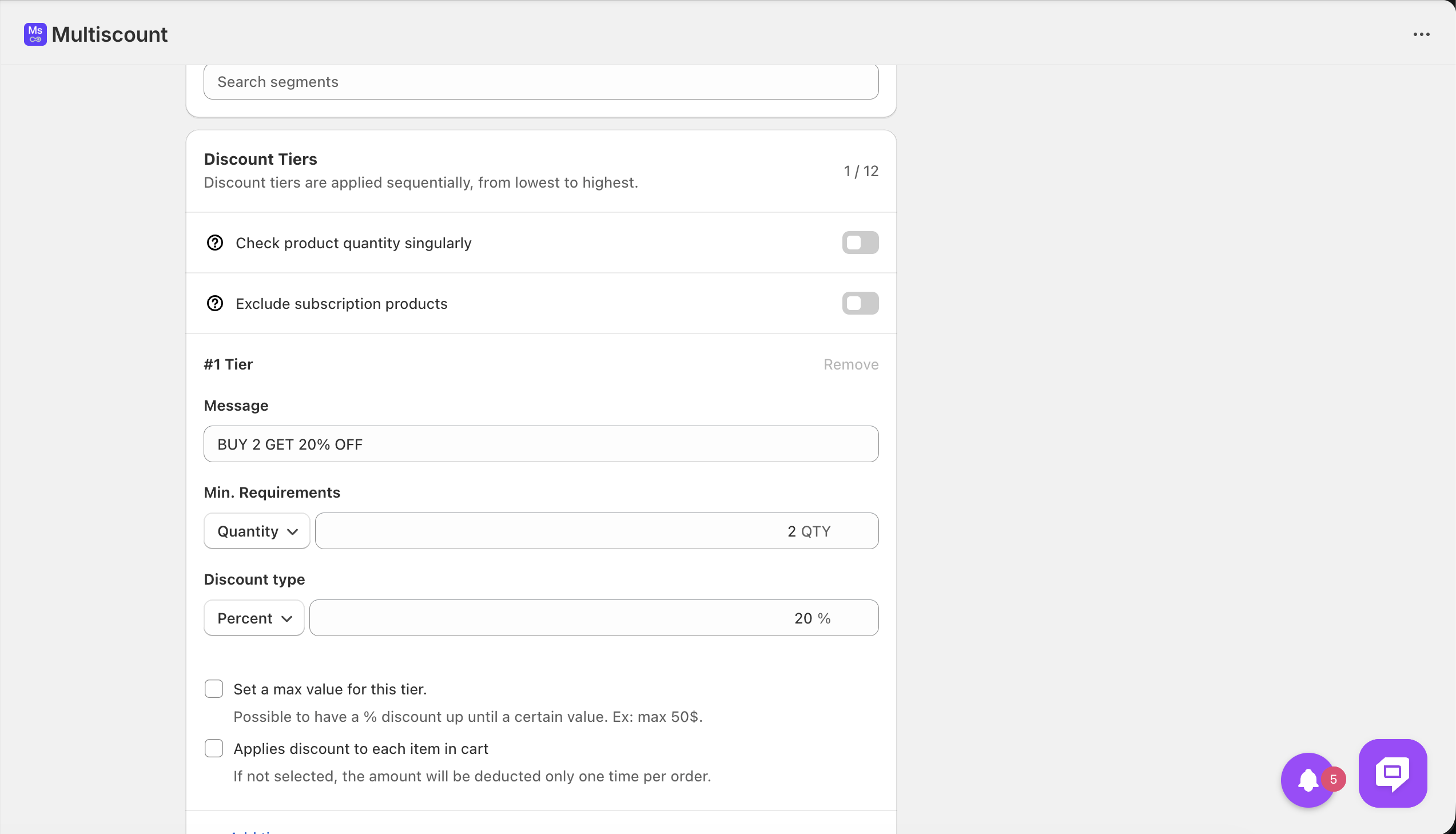
This is where Advanced Discounts shine.
You can build tiered volume discounts, for example:
-
Buy 2 items → Get 20% off
-
Buy 5 items → Get 50% off
You can choose between:
-
Percentage discount
-
Fixed amount discount
This gives you full flexibility depending on your campaign strategy.
Step 7: Save the Discount
Once everything is configured:
-
Click Save
-
Your POS-exclusive discount is now active
The discount will apply only on Shopify POS and will not affect your online storefront.
When to Use POS-Exclusive Discounts
Running discounts exclusively on POS is ideal when:
-
You want to reward walk-in customers
-
You are running an in-store flash sale
-
You want different pricing strategies online vs offline
-
You need retail-only promotions without affecting eCommerce margins
If you have any questions or need help setting up complex tier rules, feel free to reach out to our Support Team via the in-app chat or email us at support@nextools.tech anytime - we’re always happy to help 🚀
