
This tutorial explains how to stack multiple discounts on the same line item using the Multiscount application.
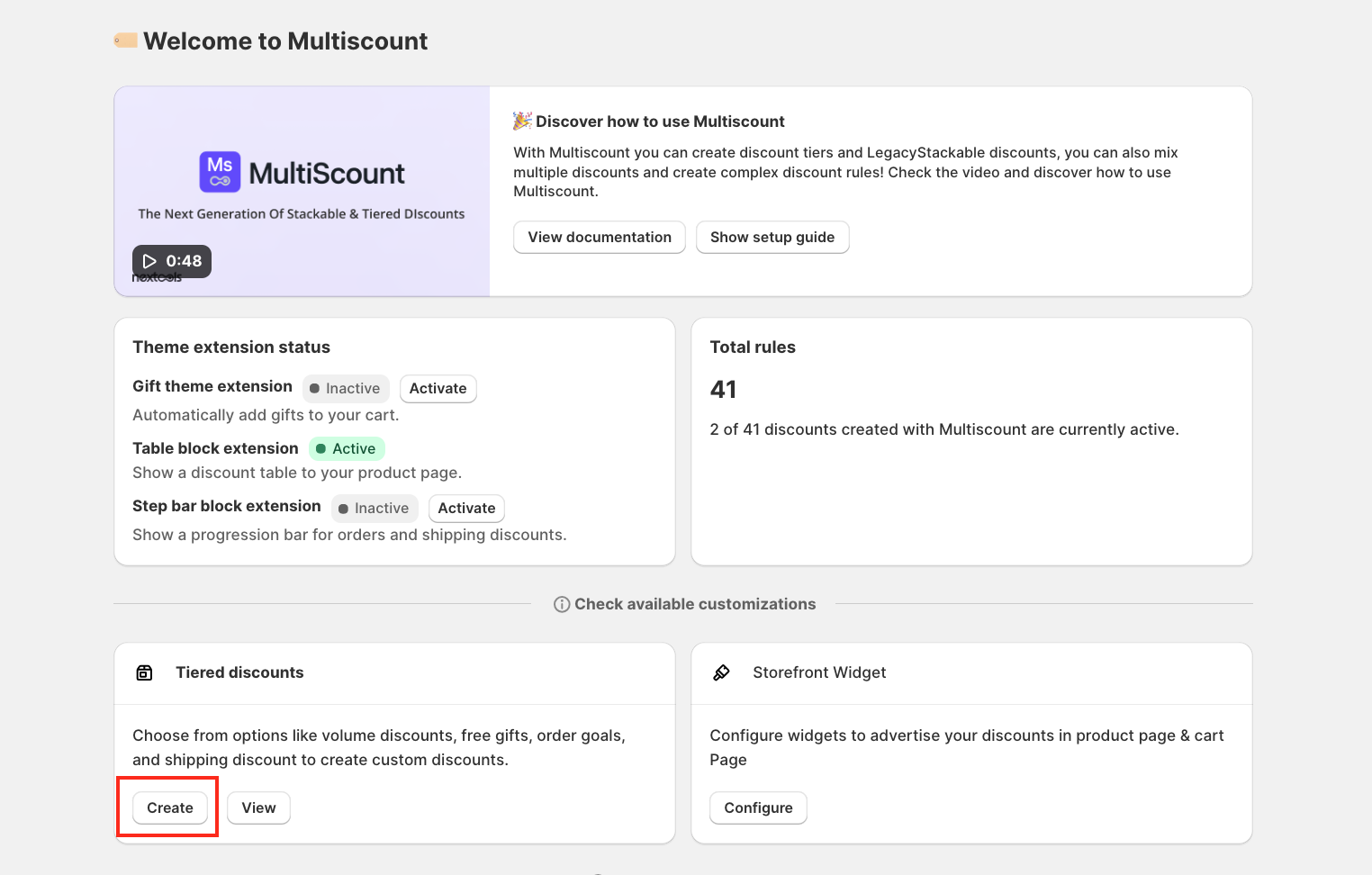
Navigate to Tiered Discounts and click Create.
Important Note: This feature is available only for Shopify Plus stores.
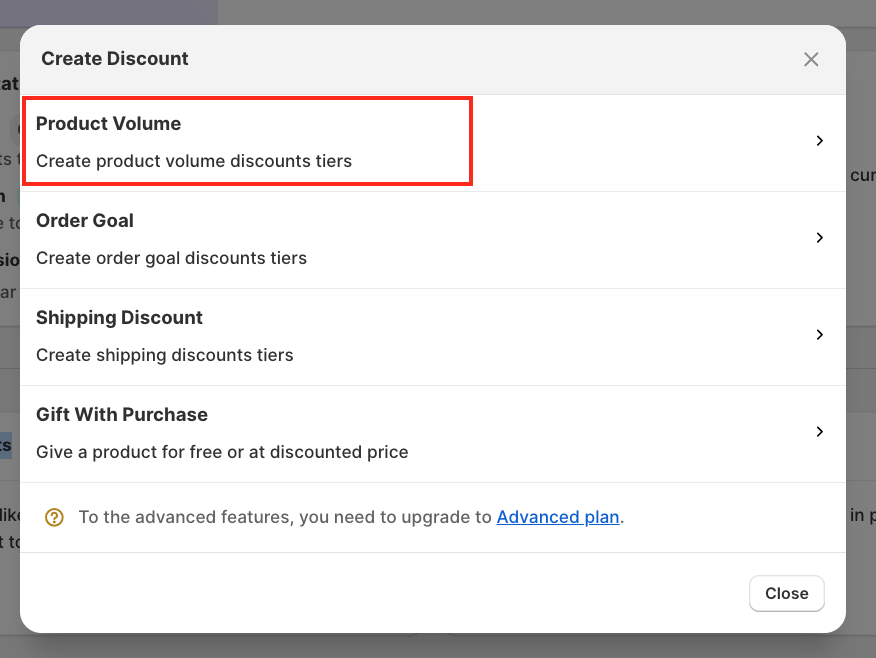
When the pop-up window appears, select Product Volume.
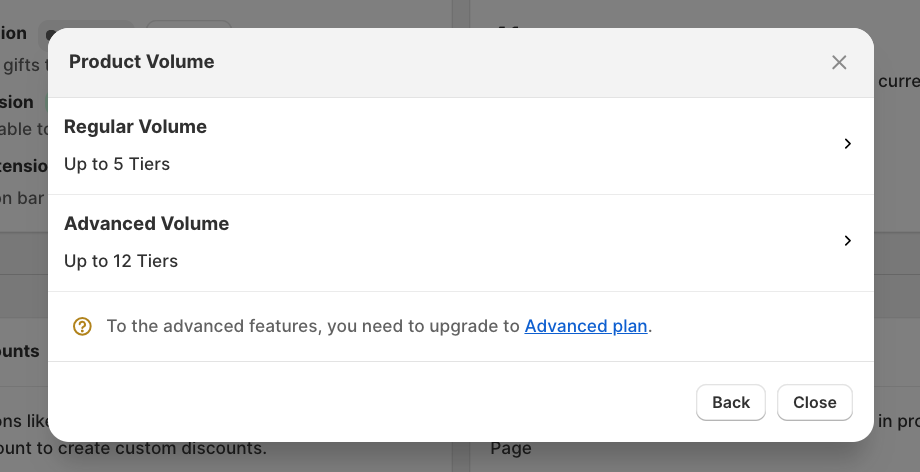
A second window will appear based on your current Multiscount plan:
- Premium Plan → Regular Volume
- Advanced Plan → Advanced Volume
For this tutorial, we'll use Advanced Volume to demonstrate the most flexible configuration.
Important: The primary differences between the Premium and Advanced plans are the number of available discount tiers, POS support, and Commerce Type support (B2B, B2C, or both).
Next, choose how you want the discount to be applied.
You can select either:
- Automatic Discount
- Discount Code
If you choose Automatic Discount, enter a title that will be displayed to customers on the storefront when this discount is stacked with another discount.
For this tutorial, we'll use an Automatic Discount.
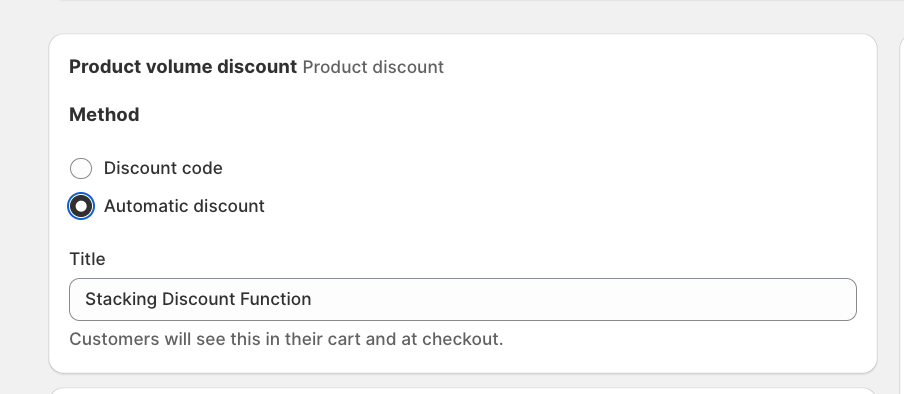
If you choose Discount Code, enter a custom discount code or click Generate to create one automatically. You will need to enter this code during checkout to receive the additional discount.
By default, the discount applies to all products, but you can limit it to specific products or collections.
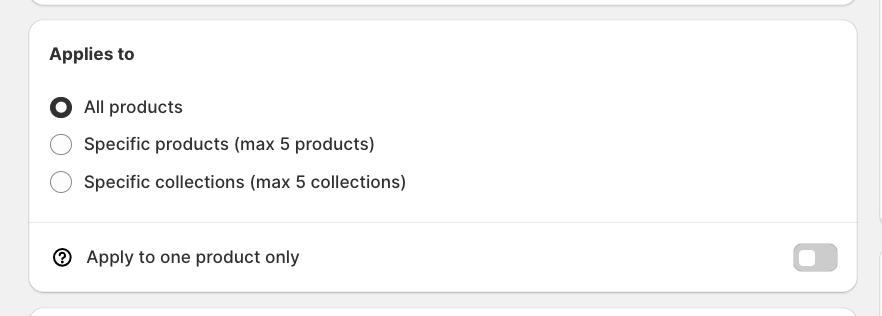
Important: You can select a maximum of 5 products or collections, regardless of whether you're using the Premium or Advanced plan.
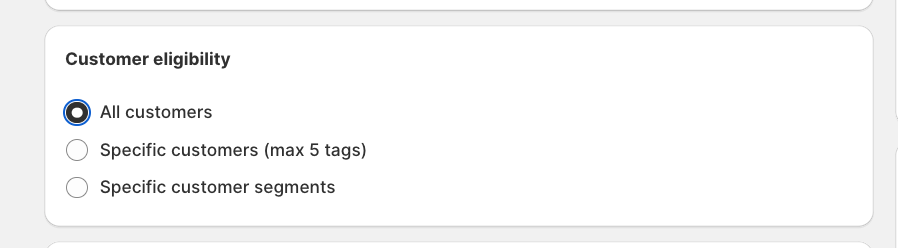
Next, configure the customer eligibility by selecting one of the following options:
- All customers
- Specific customer tags
- Customer segments
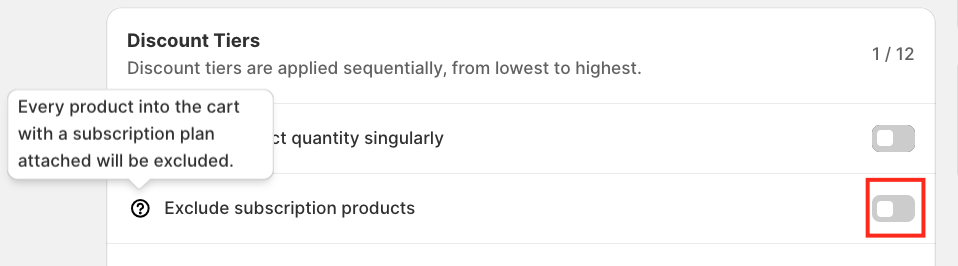
If required, enable the following options:
- Check Product Quantity Individually
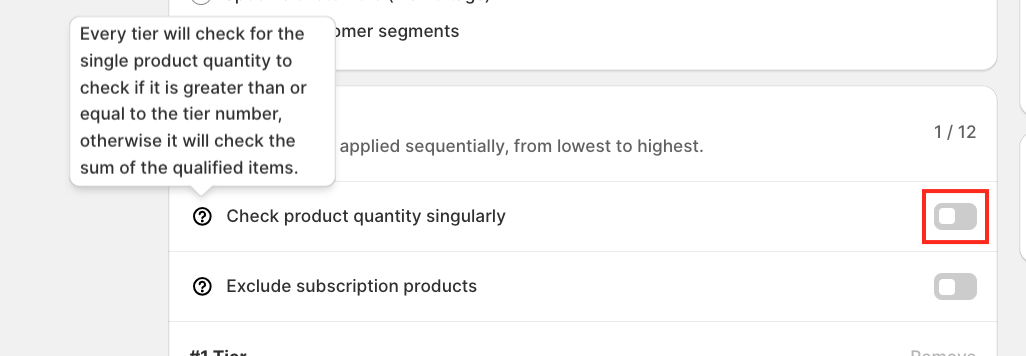
- Exclude Subscription Products
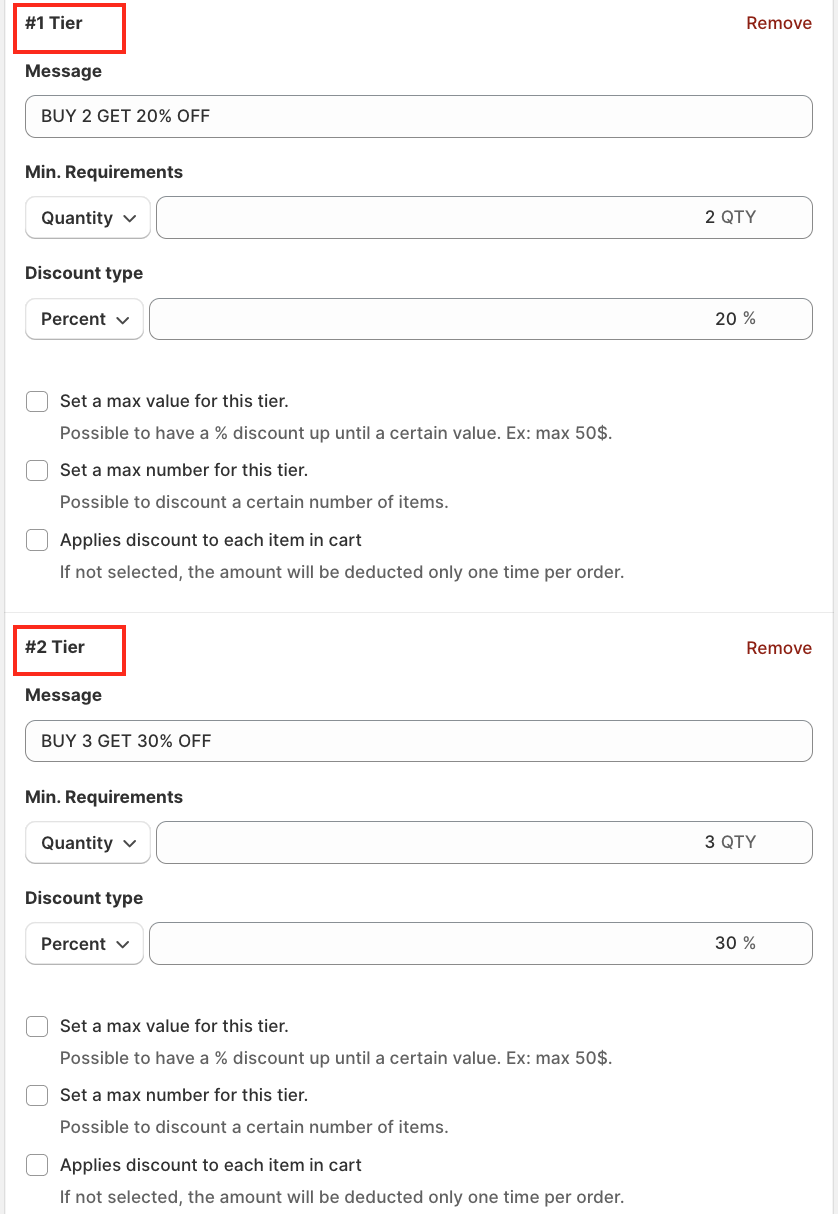
Create the pricing tiers according to your promotion.
You can customise both the minimum requirement and the discount type.
For the minimum requirement, choose either:
- Quantity
- Subtotal
For the discount type, choose either:
- Percentage
- Fixed Amount
Configure each tier according to your promotional requirements.
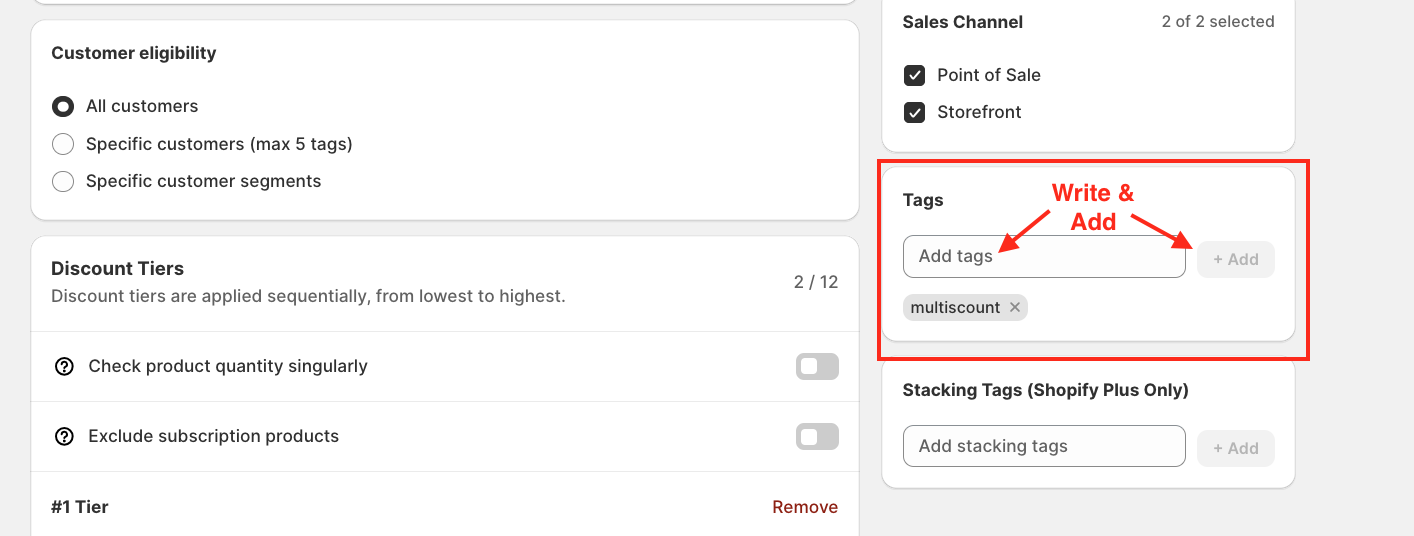
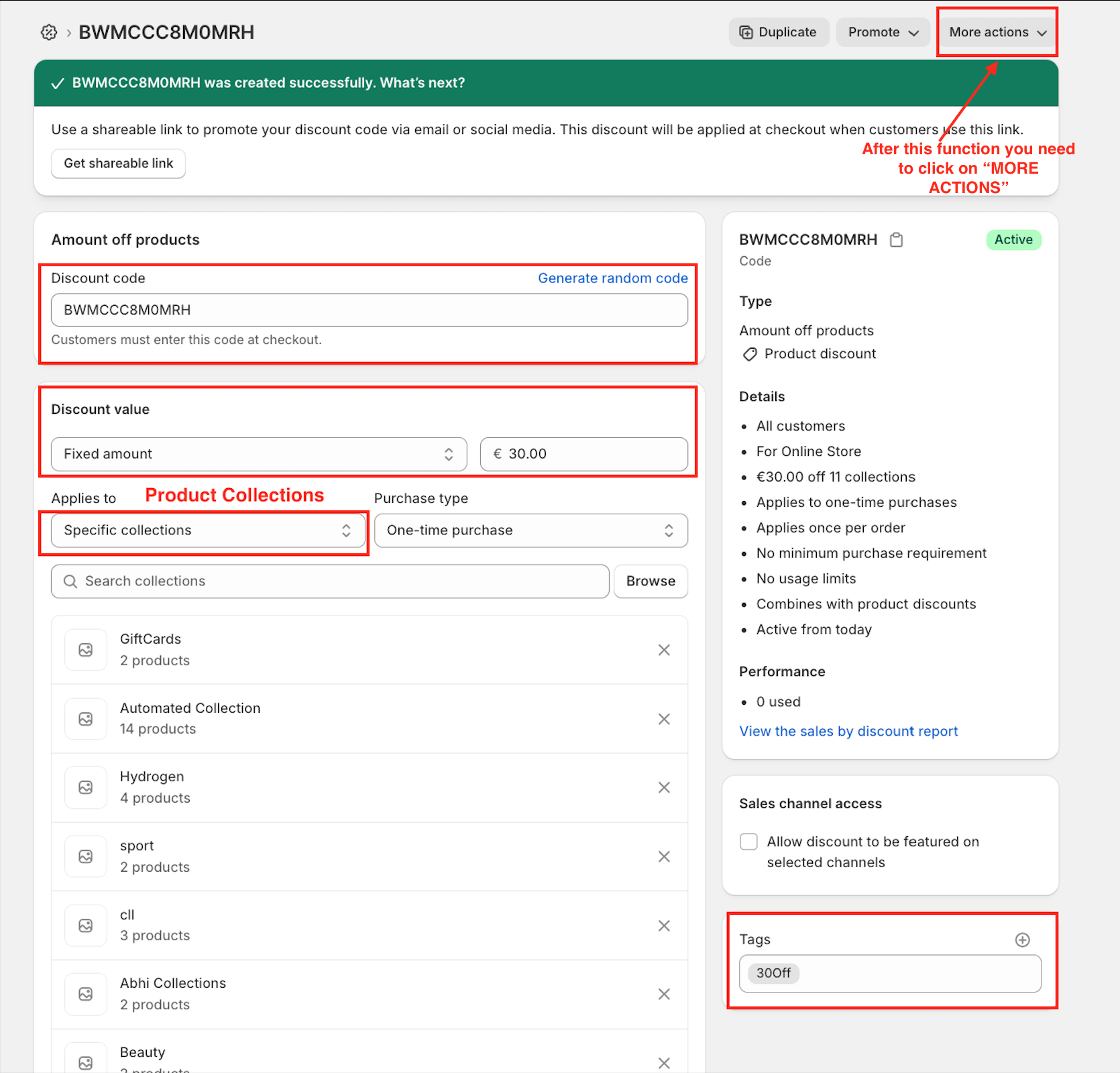
To identify this discount for line item stacking, enter a Required Tag.
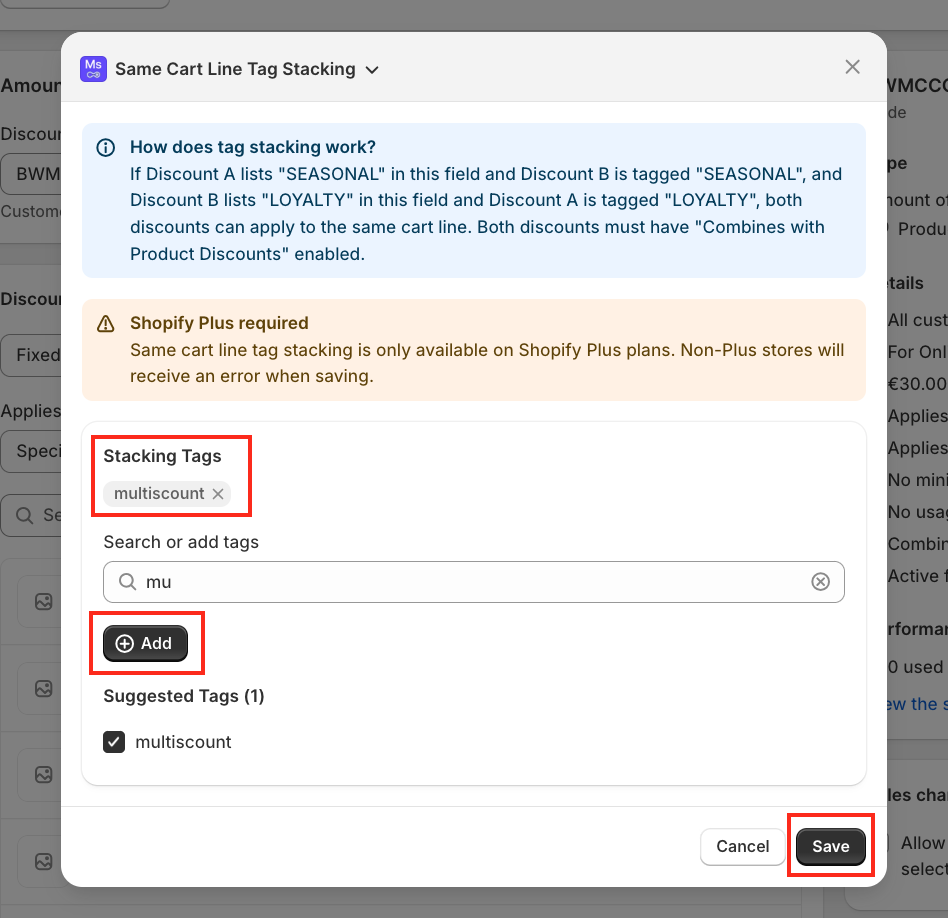
For example: multiscount
This tag will later be used to connect both discounts.
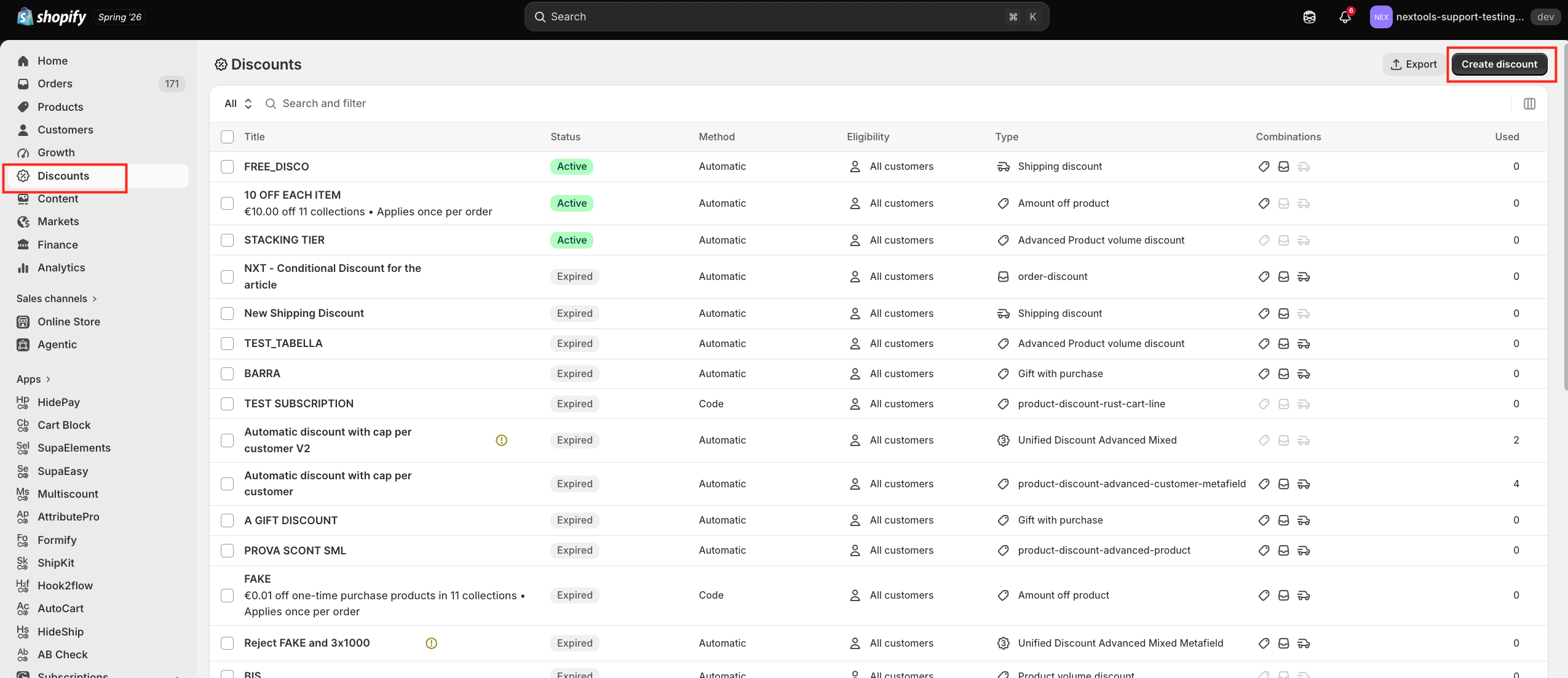
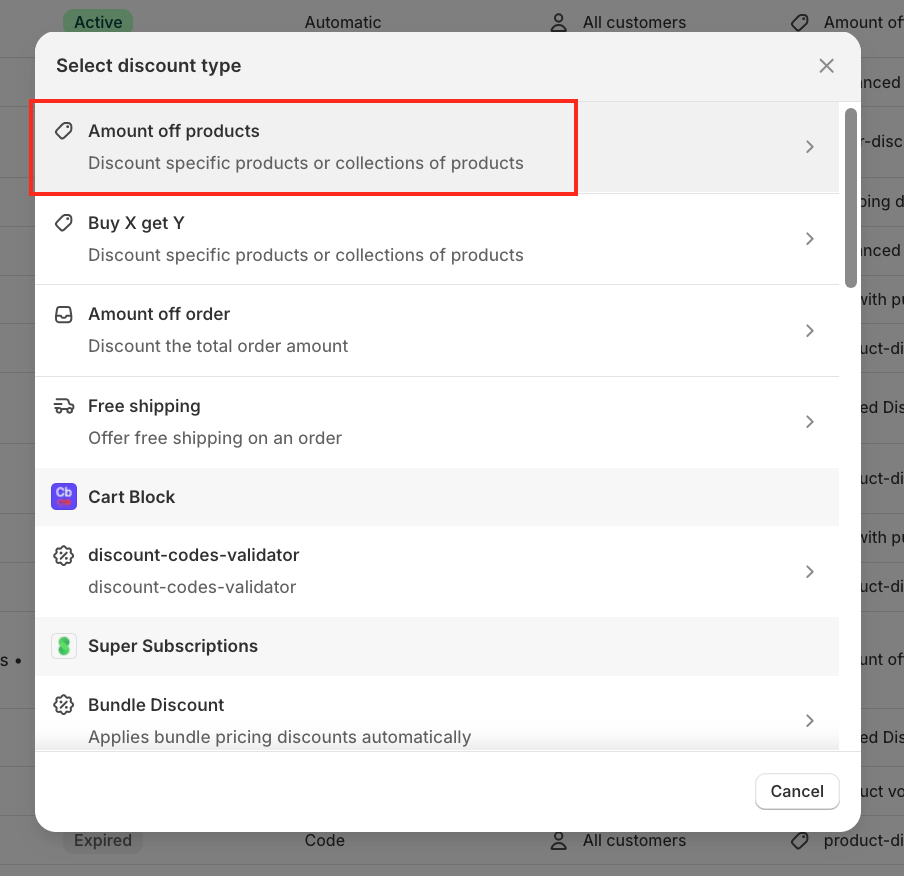
Choose the Discounts page and click Create Discount.
From the available discount types, select Amount Off Products.
After configuring your discount, click Save. Once the discount has been saved, click More Actions.
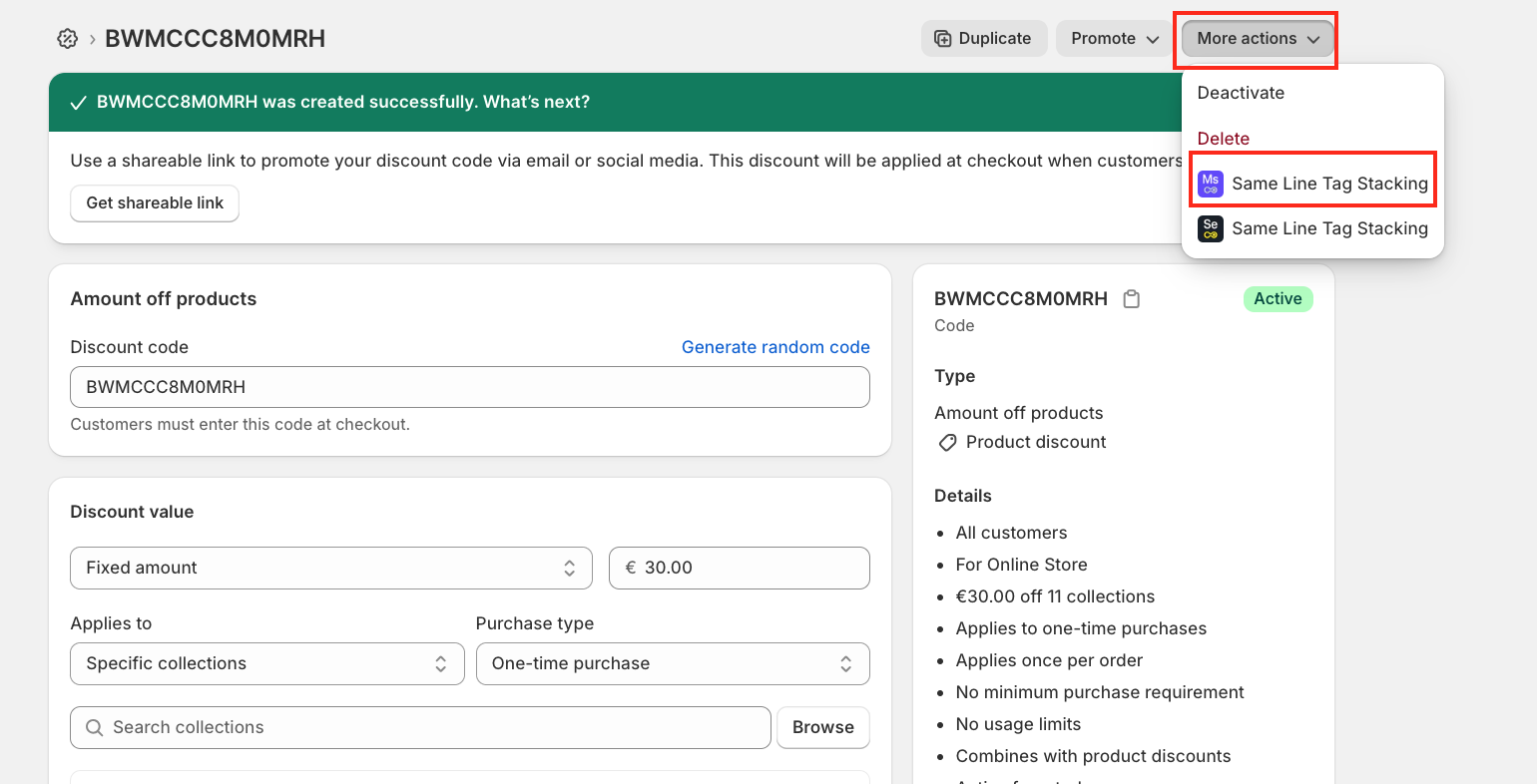
From the available options, select Same Line Tag Stacking with the Multiscount logo.
Add the same stacking tag that you created earlier (for example, multiscount), then click Add followed by Save.
Return to your Product Volume discount in Multiscount.
In the Required Tag field, enter the exact same tag that was added to the second discount. Both discounts must use the same stacking tag to combine on the same product line.
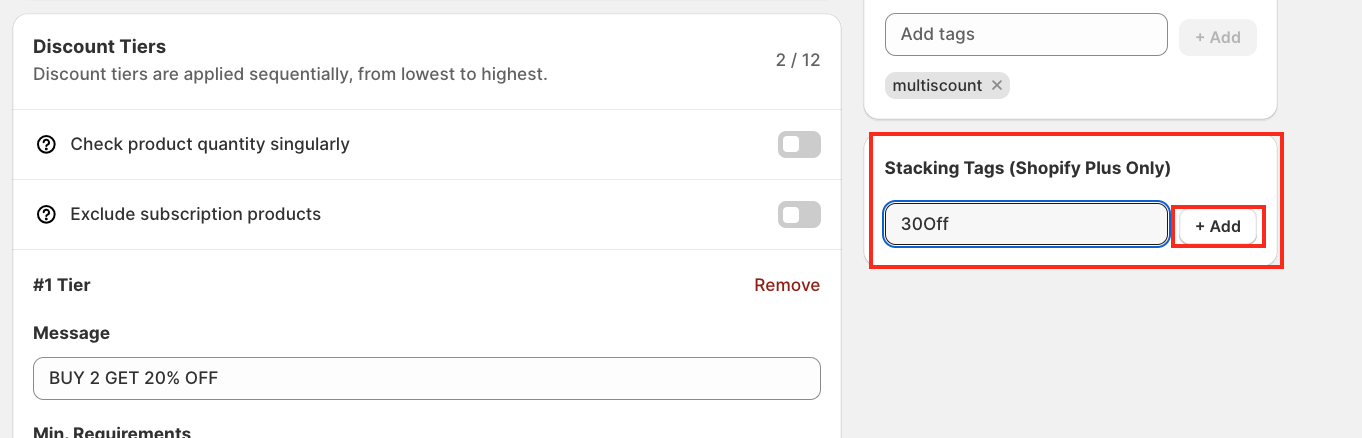
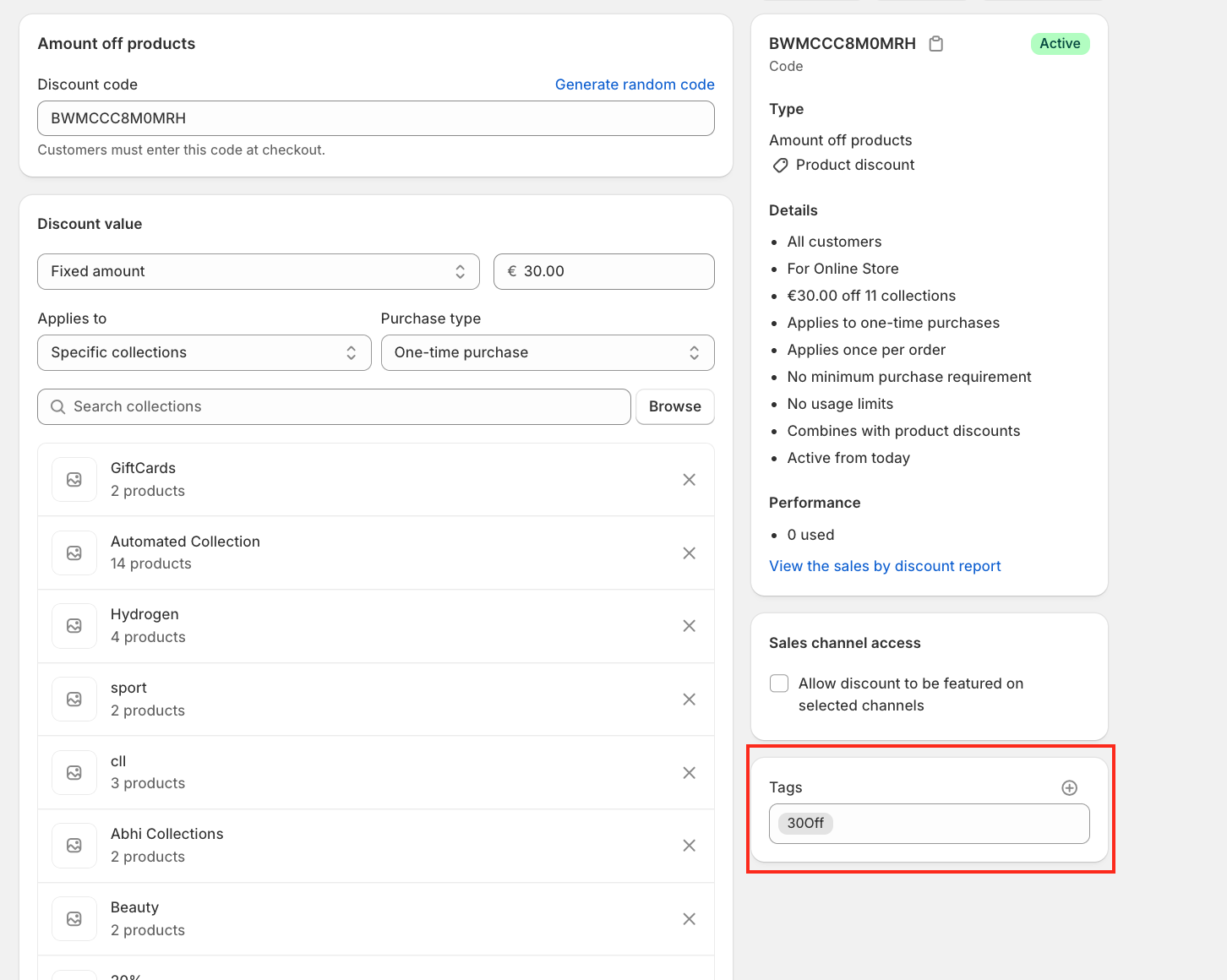
Important: Remember to enable Product Discount Combinations in both discounts. Without this setting, the discounts will not stack together.
Once both discounts share the same stacking tag and product discount combinations are enabled, Shopify will allow the discounts to stack on the same line item.
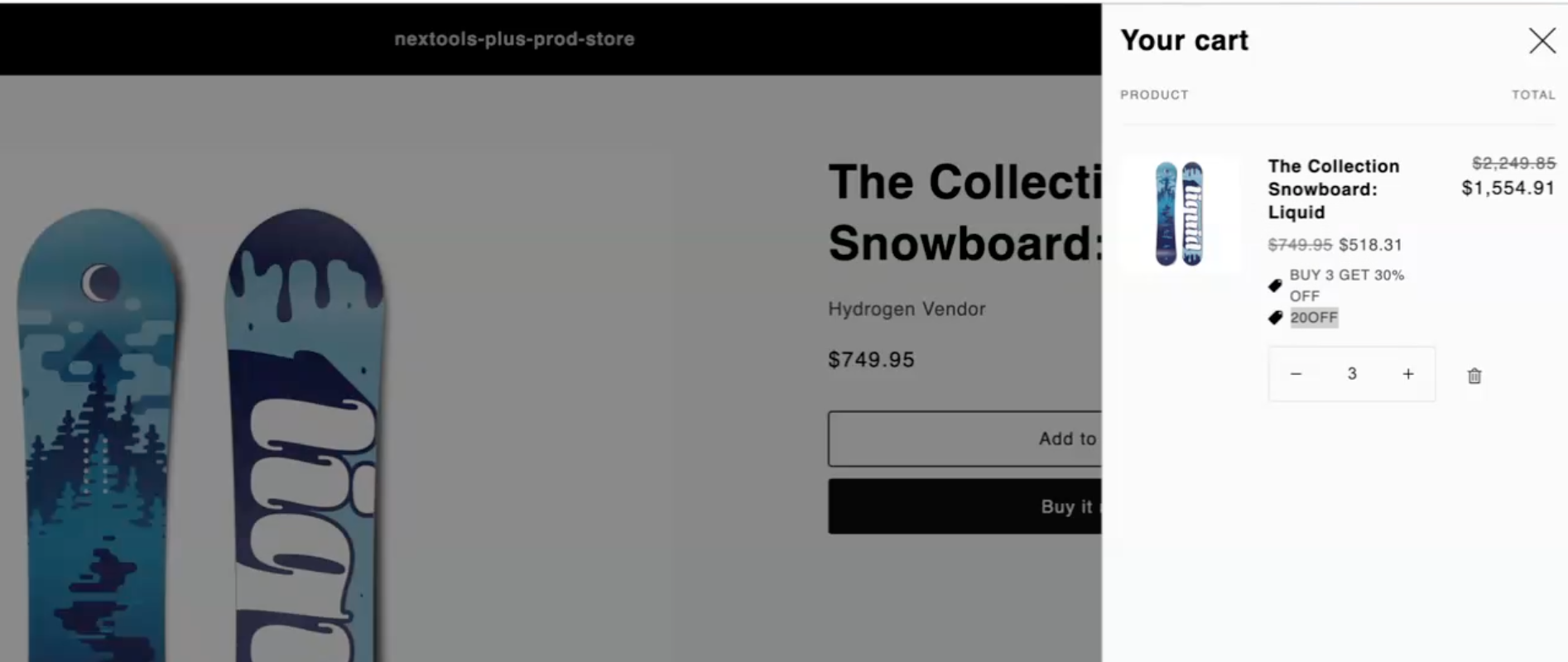
Your customers will now receive both discounts on the same product, resulting in the combined discount amount.
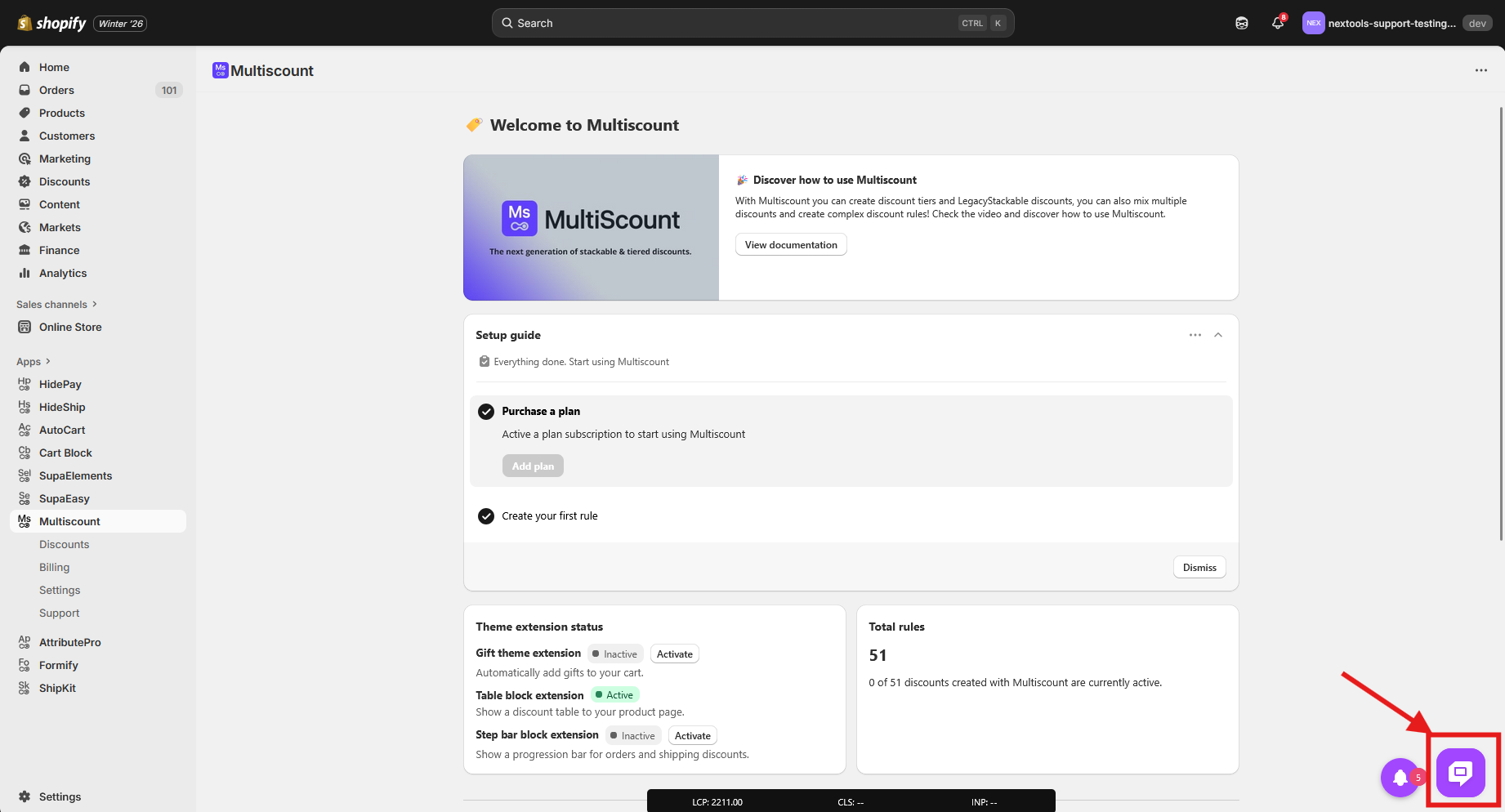
If you have any questions or need assistance during setup, our team is here to help. You can contact the Nextools Support Team anytime via the in-app live chat or by email. We’ll be happy to assist you.
Thank you for trusting Nextools and using the Multiscount application.
