
In this tutorial, we'll walk you through the step-by-step process of creating a Discount Recap with the "Static Banners" feature using the SupaElements application by Nextools.

Let's see how to set up the rule!
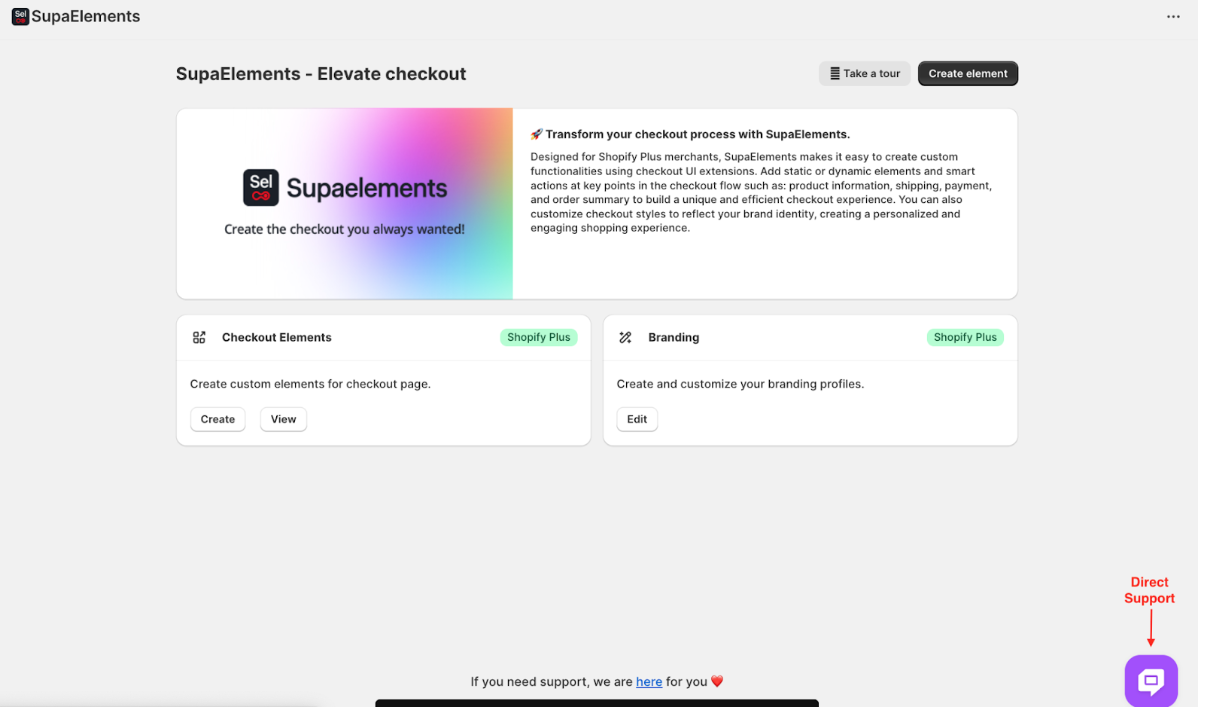
Click on "create element" and the "create" button in the highlighted part.

A pop-up window will appear. From there, select “Static Elements”
Select Discount Recap and then click Use Resources to start creating the configuration.

Start Creating the Element Configuration
Title: Enter any title as per your need. Please note, this is for internal use only and will not be visible on your live Shopify store.

Set Element Activation Rules
After naming your SupaElements rule, you'll configure the Element Activation Rules. You can choose between AND / OR logic based on your specific requirements.
Use AND logic when you want multiple conditions to be true simultaneously.
For example, if the cart total is greater than 0 and the total cart quantity is greater than 5.

Use OR logic when you want any one of the conditions to be true. In this case, the same conditions apply to a cart total greater than 0 or a cart quantity greater than 5, but they are evaluated independently.
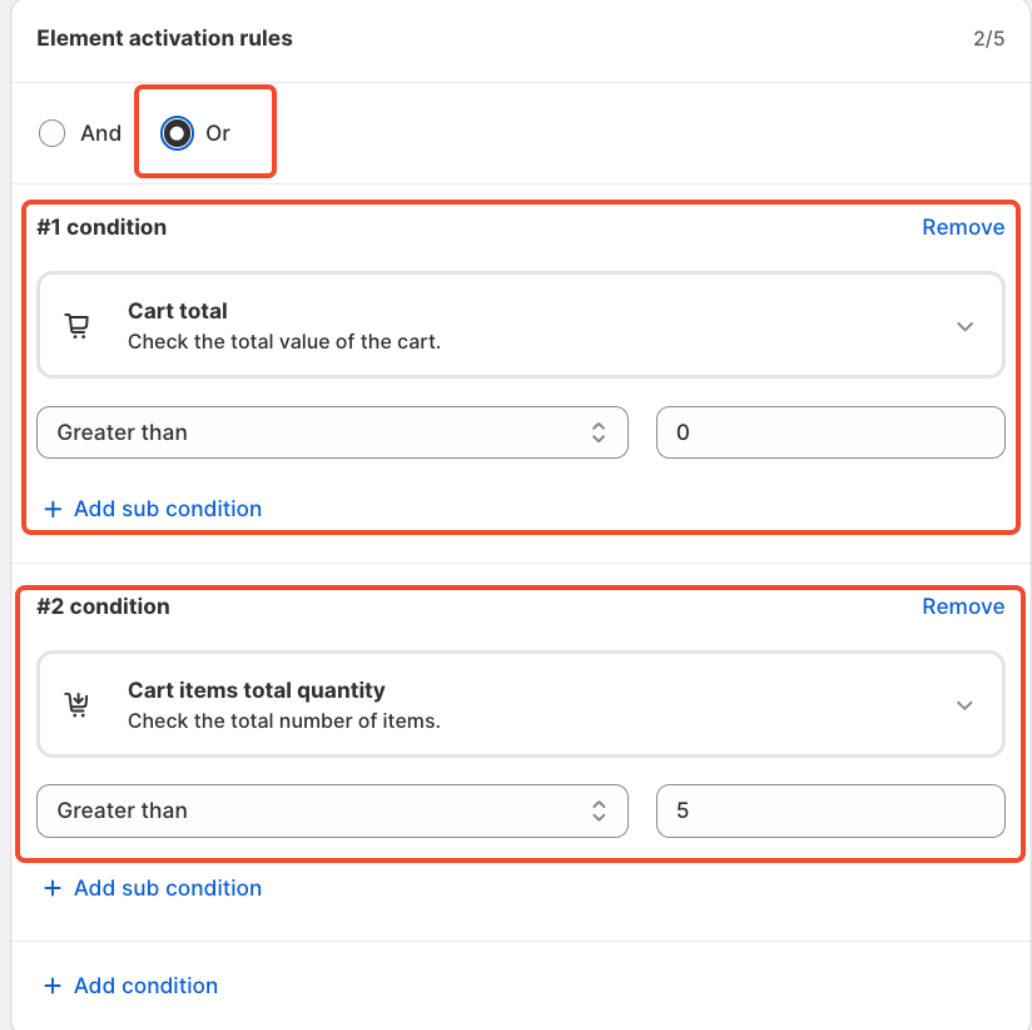
Each rule contains up to five conditions, and you can also create sub-conditions for more detailed targeting.
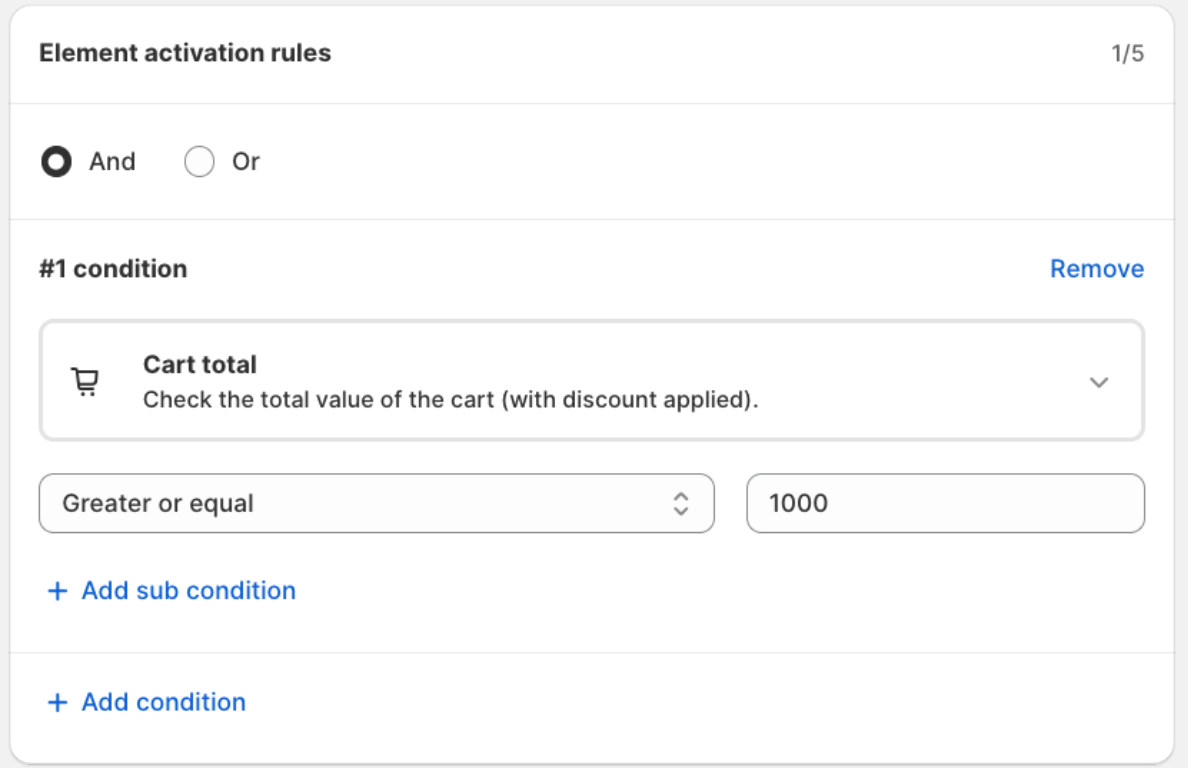
For this tutorial, we'll use the condition: Cart total greater than 1000. And a single condition.
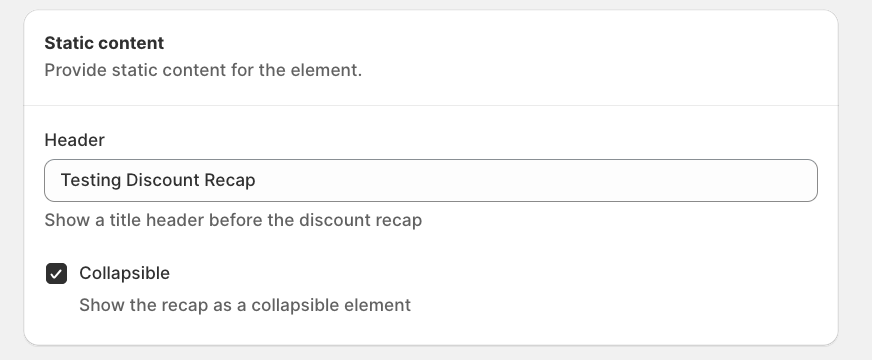
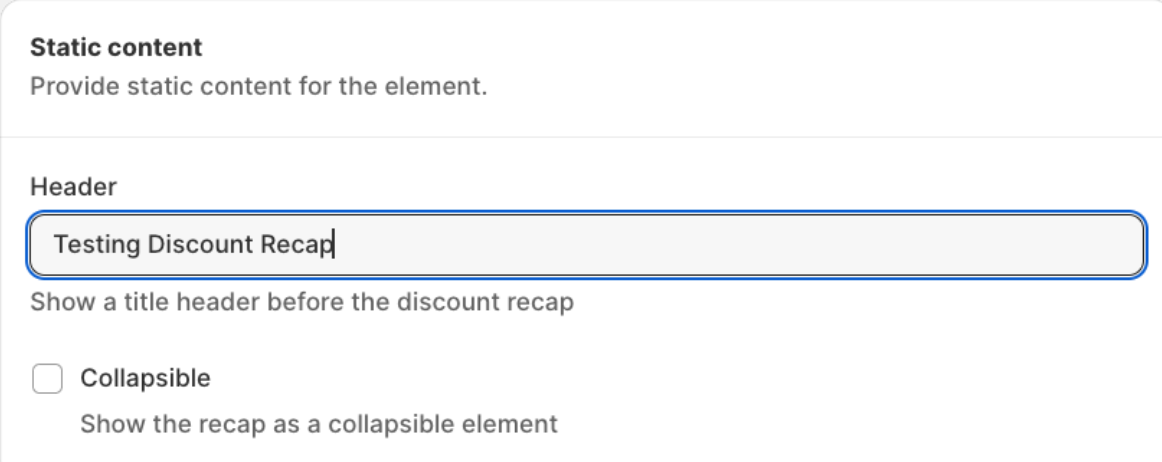
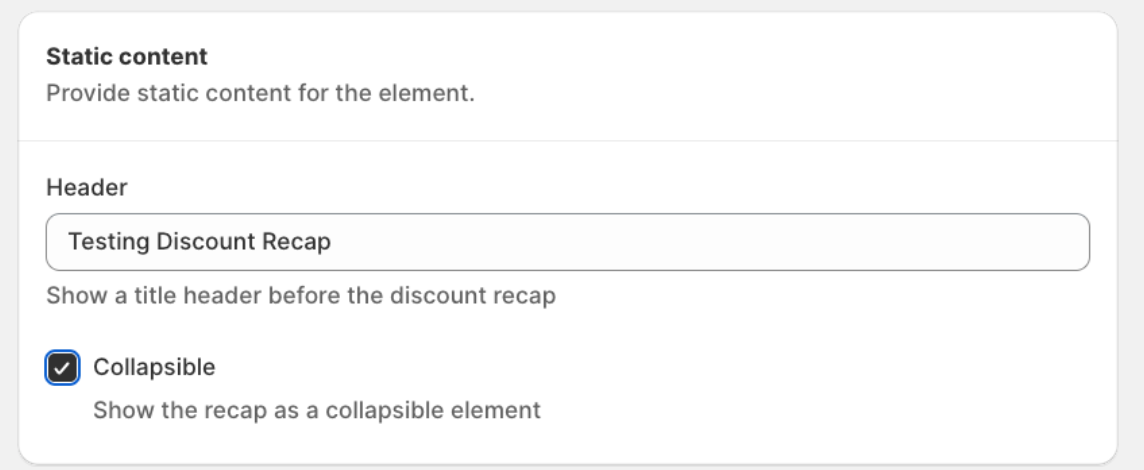
Static content
Here, you will create the static content for the discount recap on the checkout page.
In the header part, you can write as per your needs. Also, we have provided the flexibiity how you want to show with or without Collaposible Element.
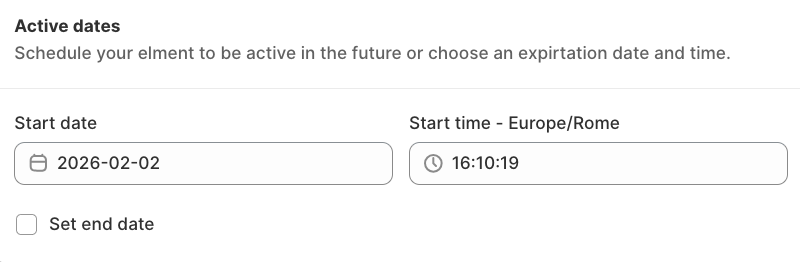
You can set the start and end dates, along with the time, to control when the discount recap appears.
Finally, review the summary, activate the rule, and save it.
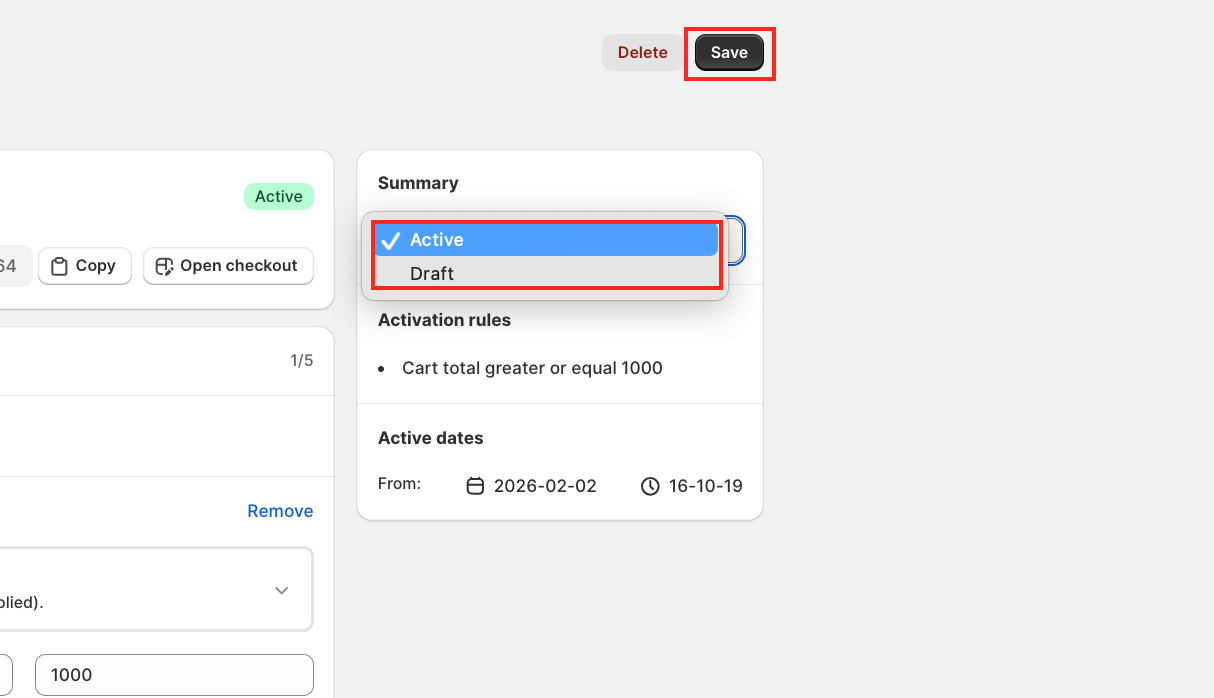
After saving and activating the rule, the final step is to choose where to display your discount recap. To do this, go to your store's checkout page customisation section and add the SupaElements app block (if it's not already added).
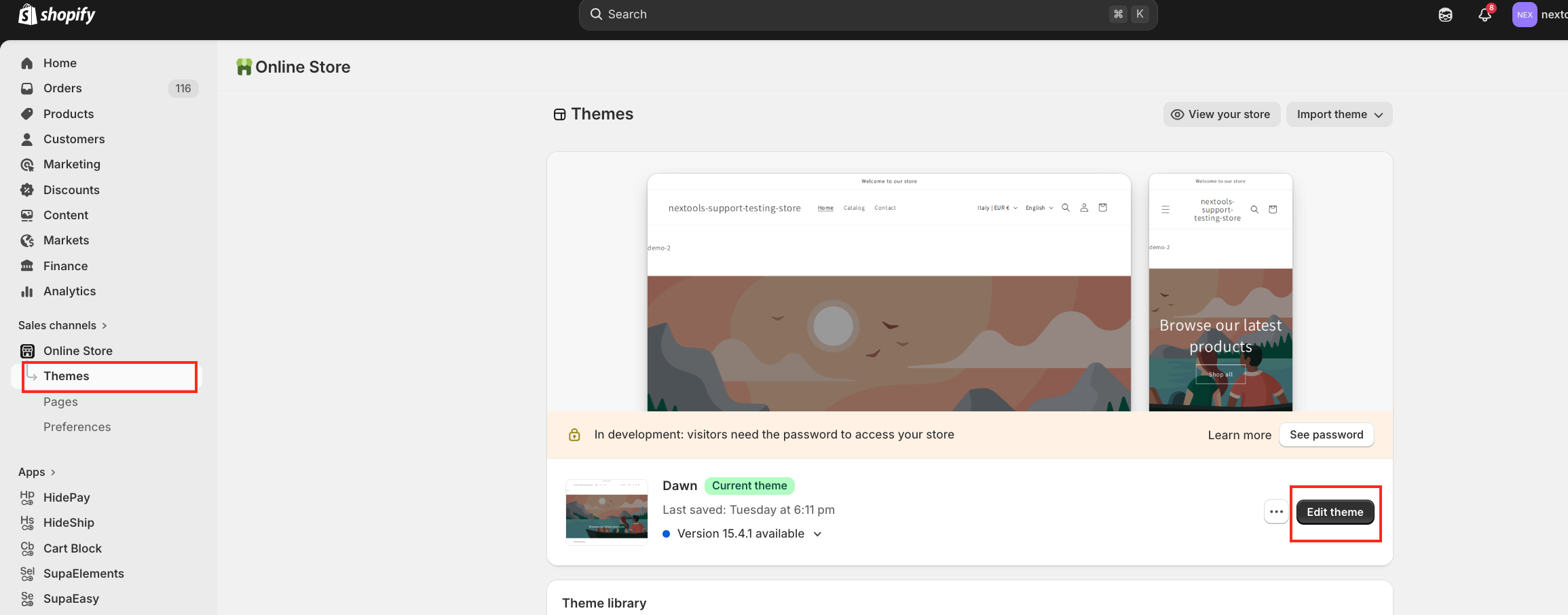
Then,
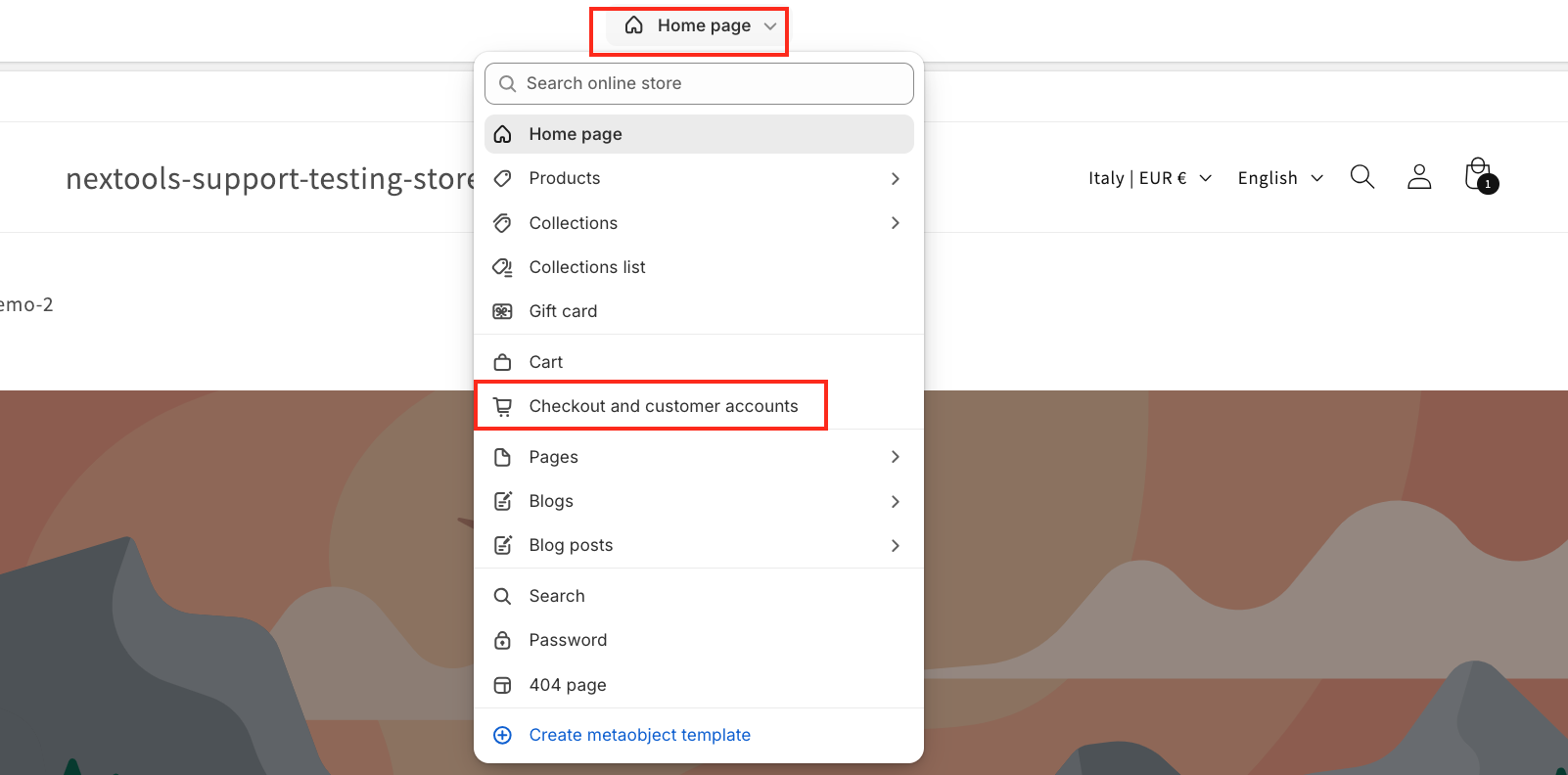
Then, go to the corresponding page to continue the setup. In our case, we placed the element at the top of the checkout page.
However, you can drag and drop the element to position it anywhere you'd like the banner text to appear.
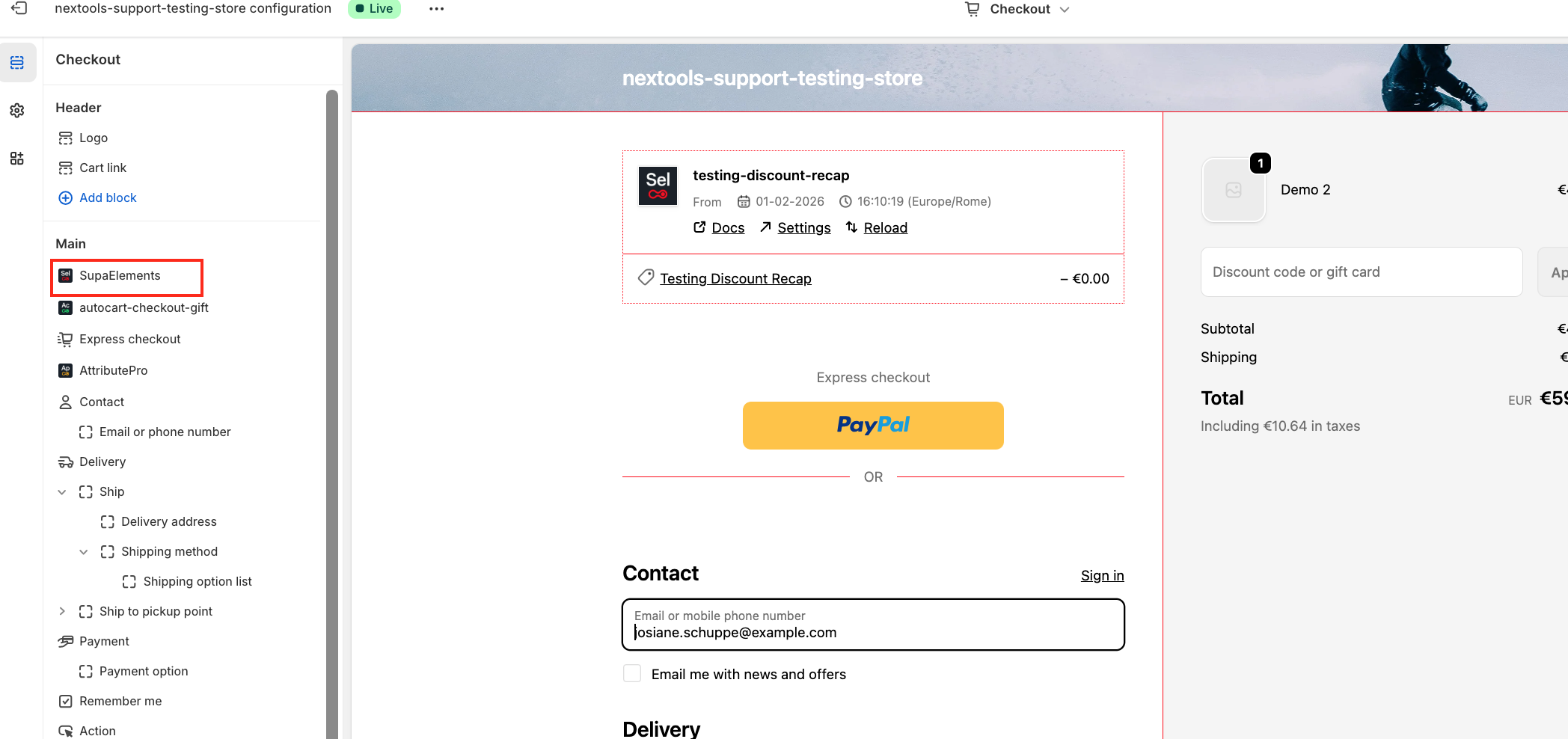
Next, open the element, and add the name of the elements you have created in the “Element Name” field.
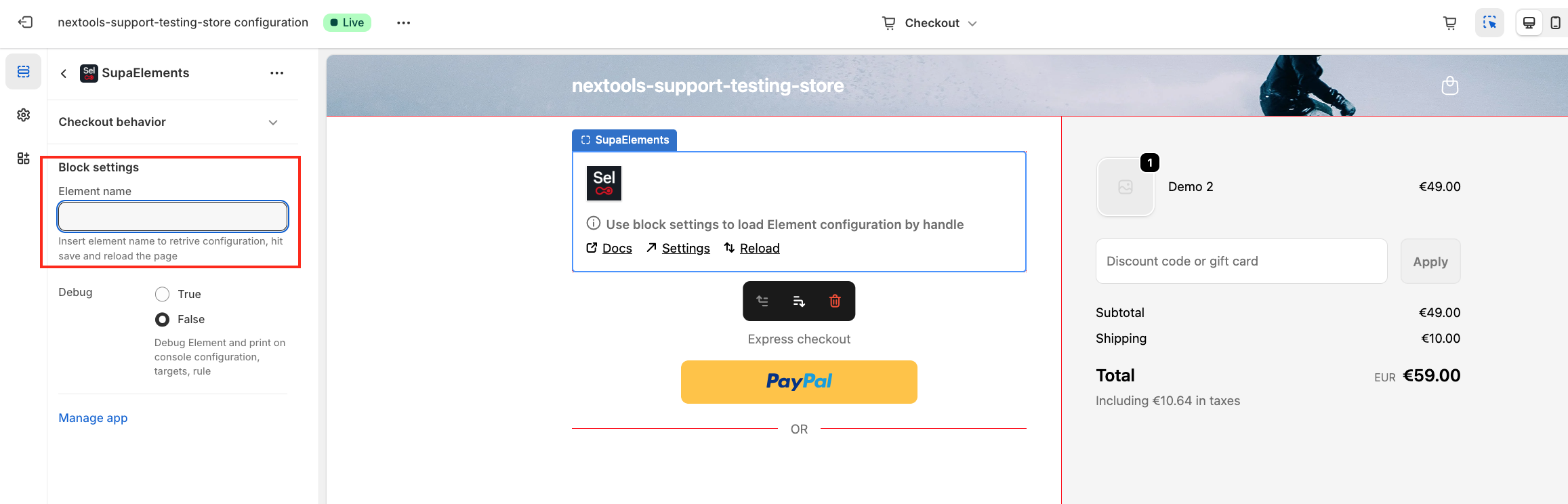
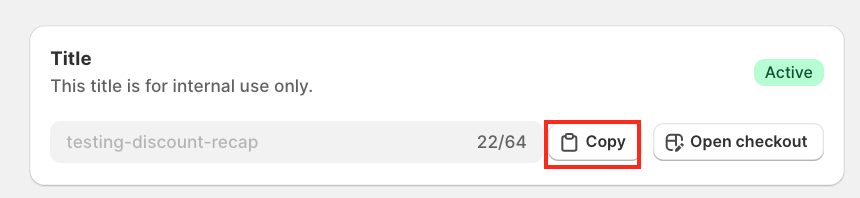
You have three options on how you can get the correct name:
- Copy it from the configuration page,
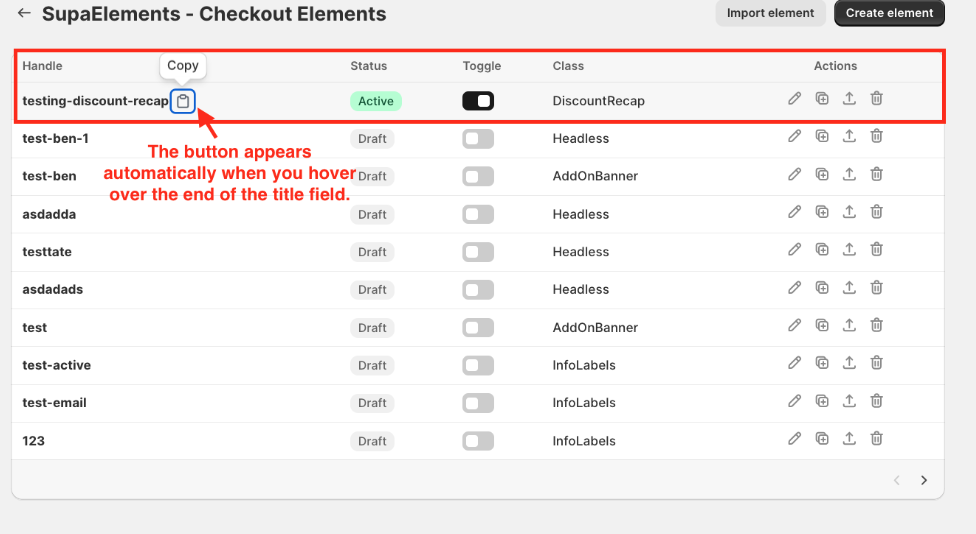
- Copy it from the dashboard
- Manually type the name.
OR from Dashboard
Enter the title of the newly created element, which exactly matches the name used in the configuration, then save the page.
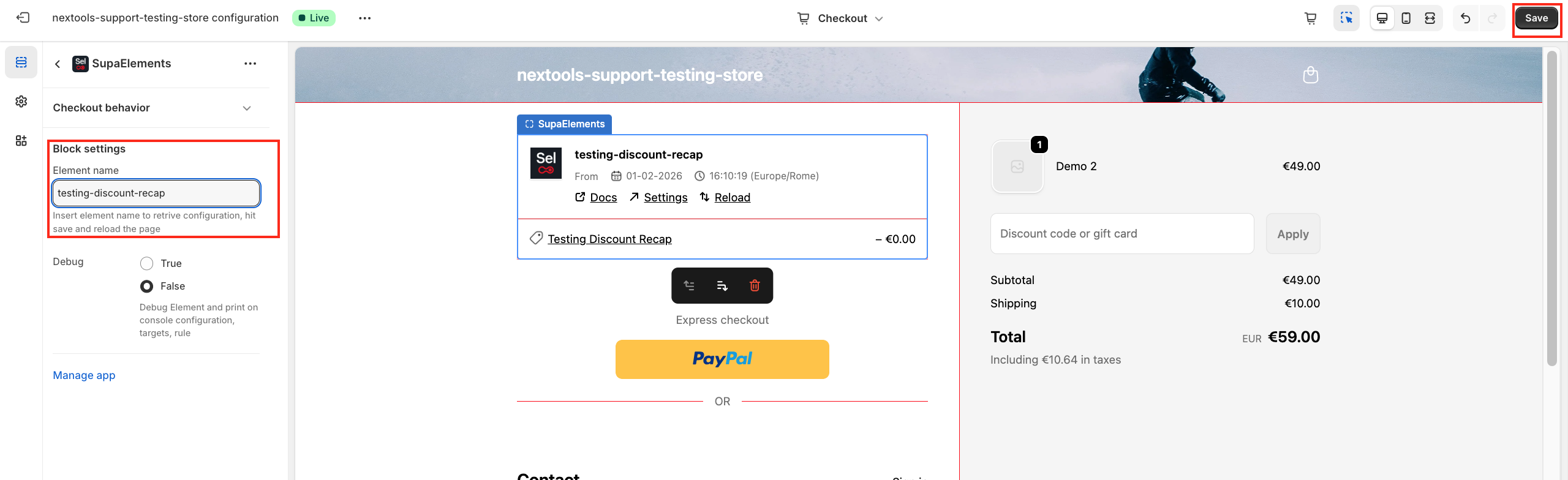
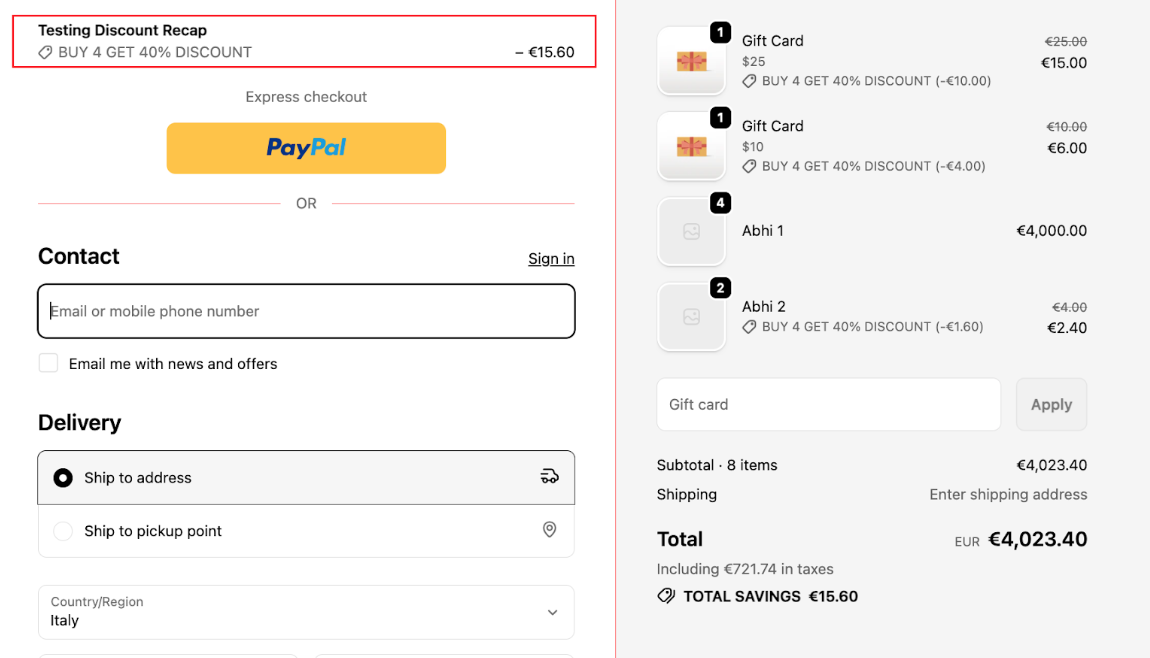
Without a collapsible element
The result will be shown like this
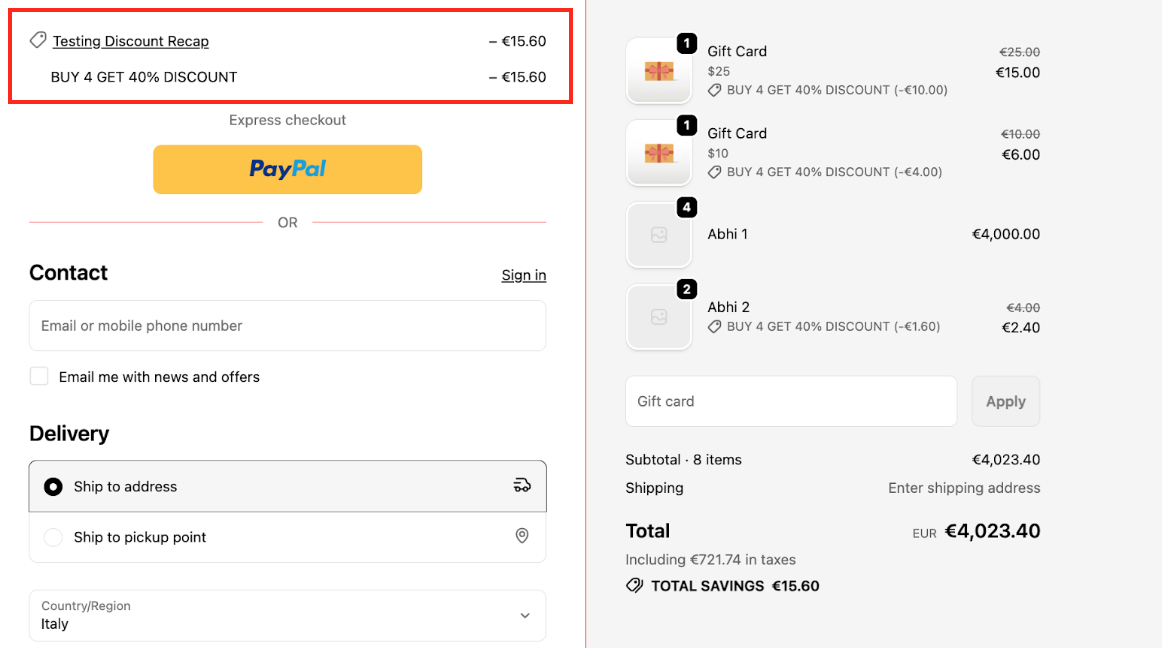
With a collapsible element
 The result will be shown like this
Ready to enhance your customers' shopping experience?
Want to know how to get SupaElements for free or at a discount? Please take a look at our FAQ for all the details!
If you need further assistance, feel free to contact us via support email or connect with us directly through HelpCrunch.
We are always happy to assist you with any questions or concerns.
Thank you for trusting Nextools and using the SupaElement application.
