
Offering every payment method on high-value orders can increase processing fees or liability risks. By setting up automated conditions in SupaEasy, you can dynamically control which payment gateways appear during checkout. In this guide, you will configure a Flow function to hide selected payment options whenever a cart total reaches or exceeds a specific threshold.
What You'll Need
-
Admin access to your Shopify store
-
SupaEasy installed in your store with the Subscription active
-
The names of the payment gateways you want to filter (such as PayPal, Shop Pay, or Bank Deposit)
-
About 5 minutes
Open SupaEasy and select Payment functions
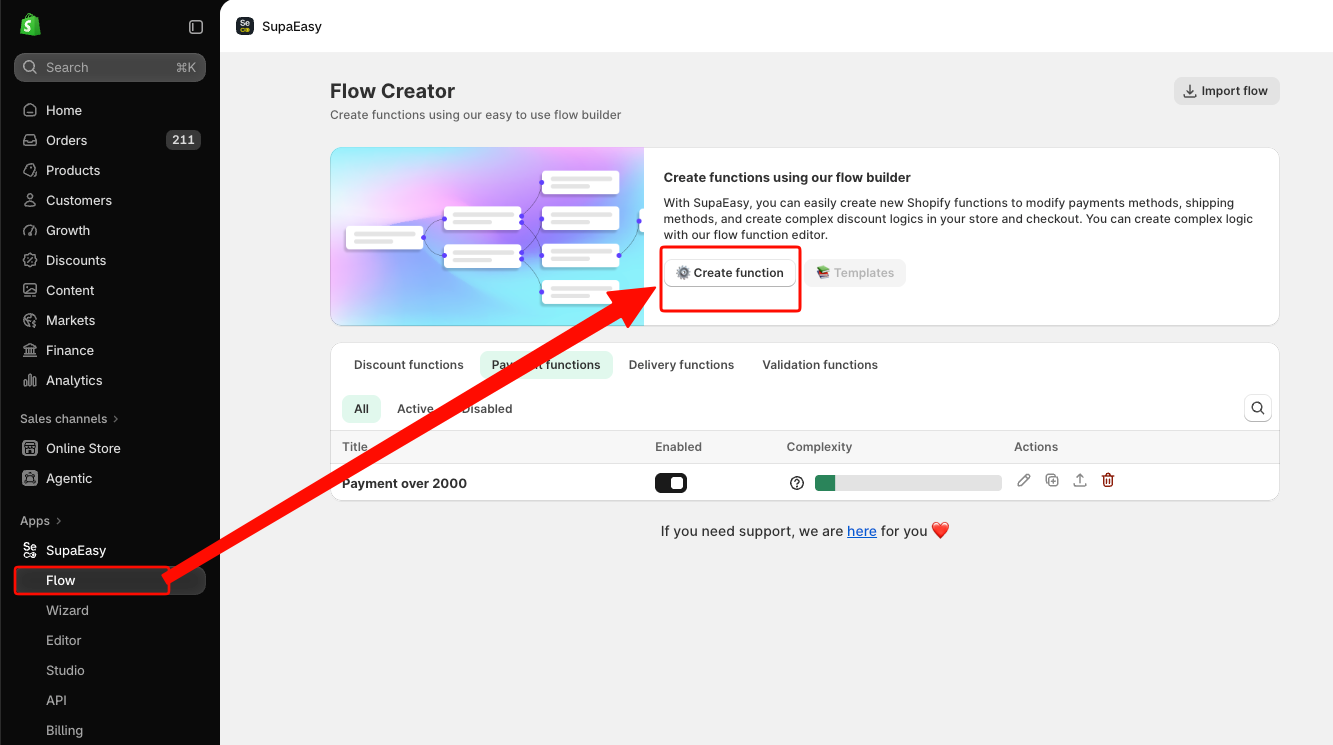
In your Shopify admin, open SupaEasy from the Apps section in the sidebar and click Flow. lick Create function to start setting up a new rule.
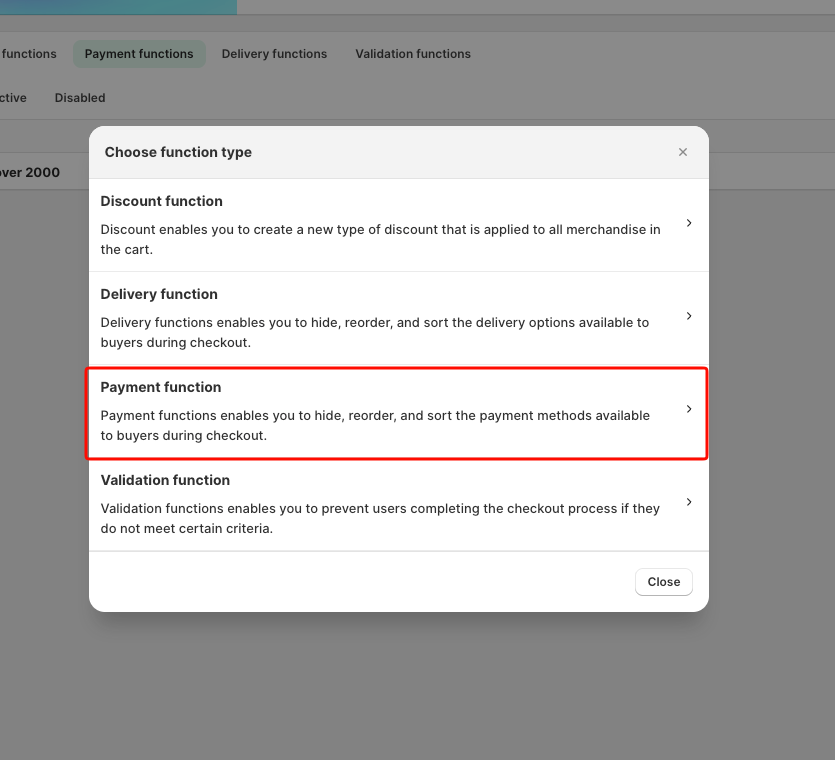
In the pop-up window, select Payment function as the type.
Name your payment flow
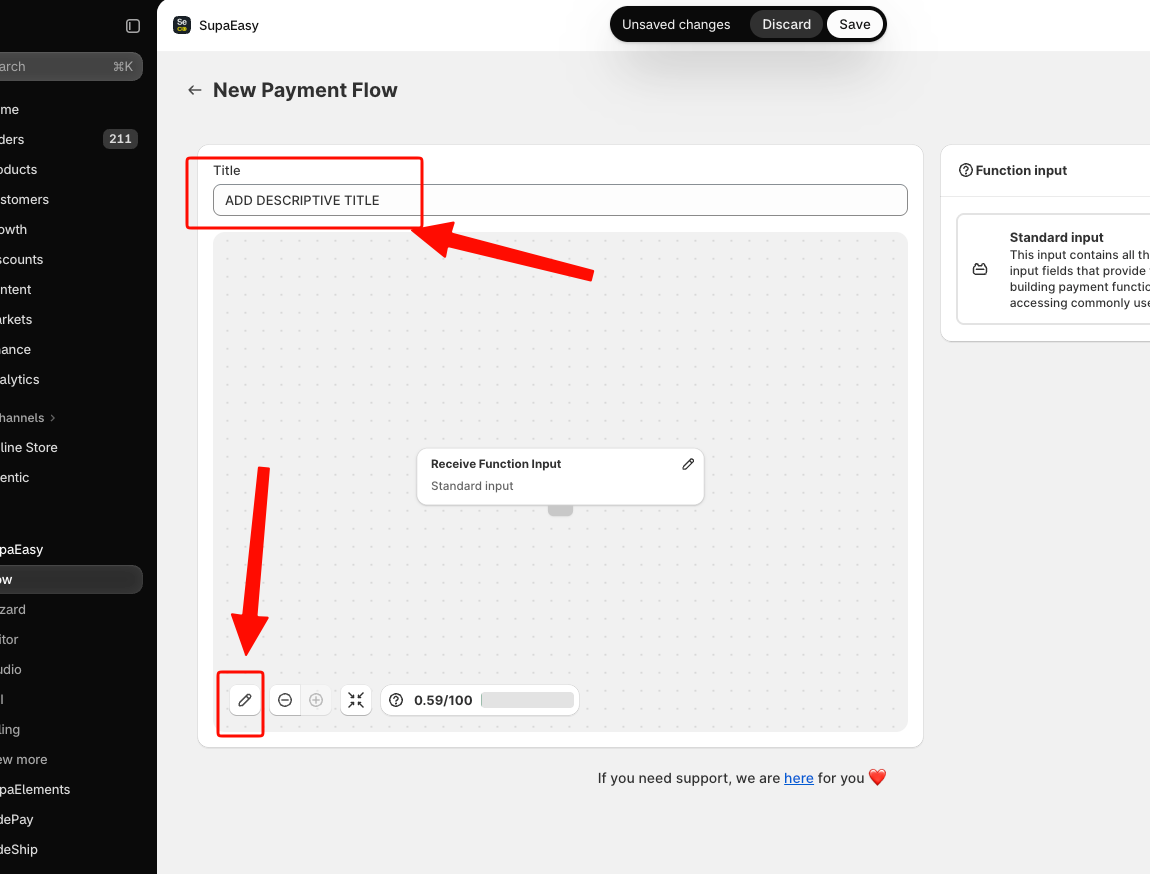
Click the Title field and enter a descriptive name. A clear name helps you identify the rule later in your function list. Then hit the pen icon on the bottom left corner to enter the Canva.
Add a cart condition
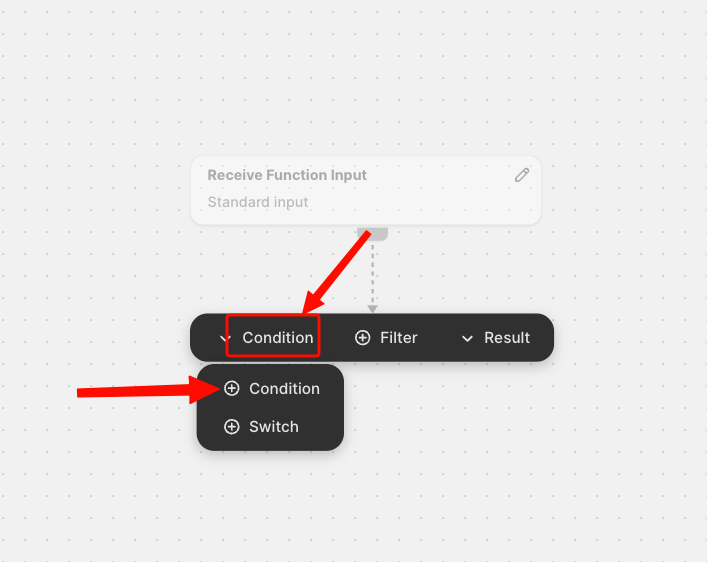
On the canvas, click the + icon below the Receive Function Input node and select Condition. Click the edit icon on the new condition node to open its settings panel.
Configure the cart total threshold
In the condition settings, click + Rule. Set the first dropdown to Cart total, choose Greater or equal as the operator, and enter what you want to set in the value field.
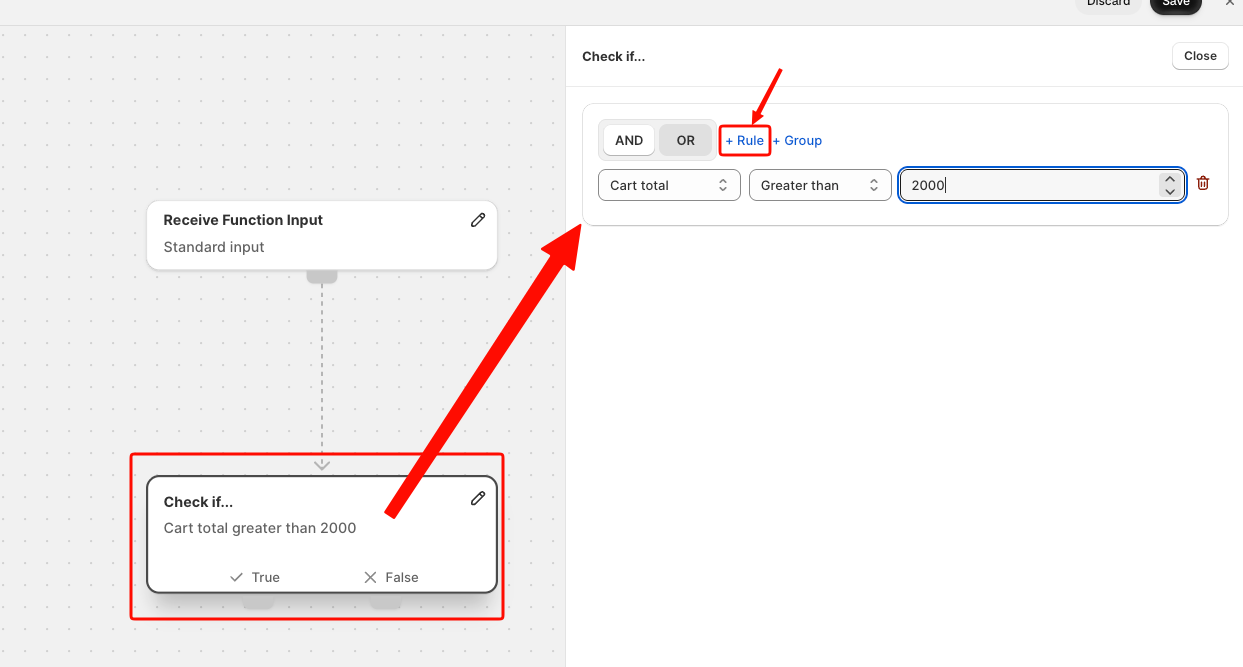
Filter payment methods on the True branch
Click the + icon under the True branch and select Filter. Open the filter node settings, set Source to Initial Cart or Current Cart, and set Target to Payments. Set the rule criterion to Gateway name, click Set values, and add PayPal and Shop Pay.
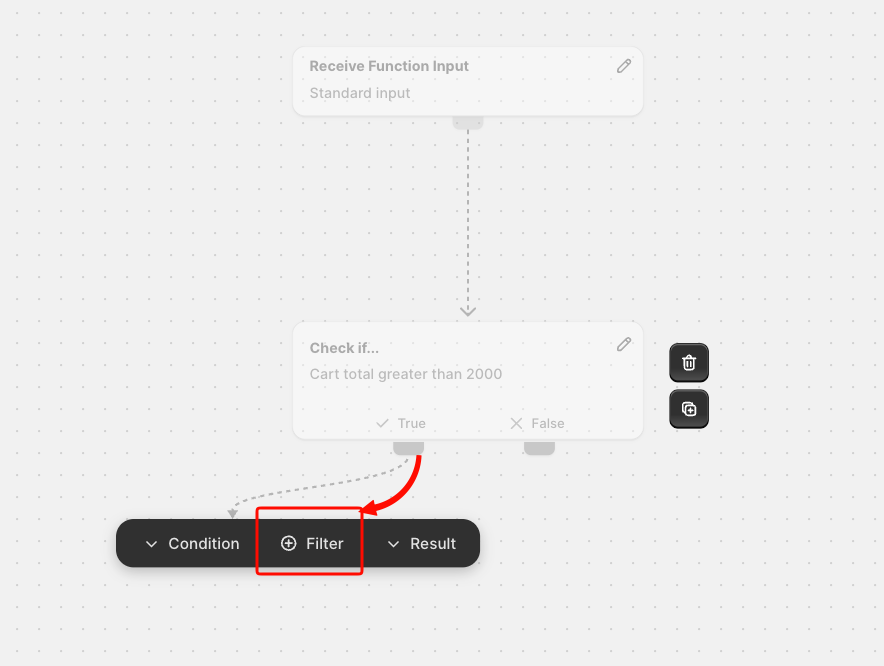
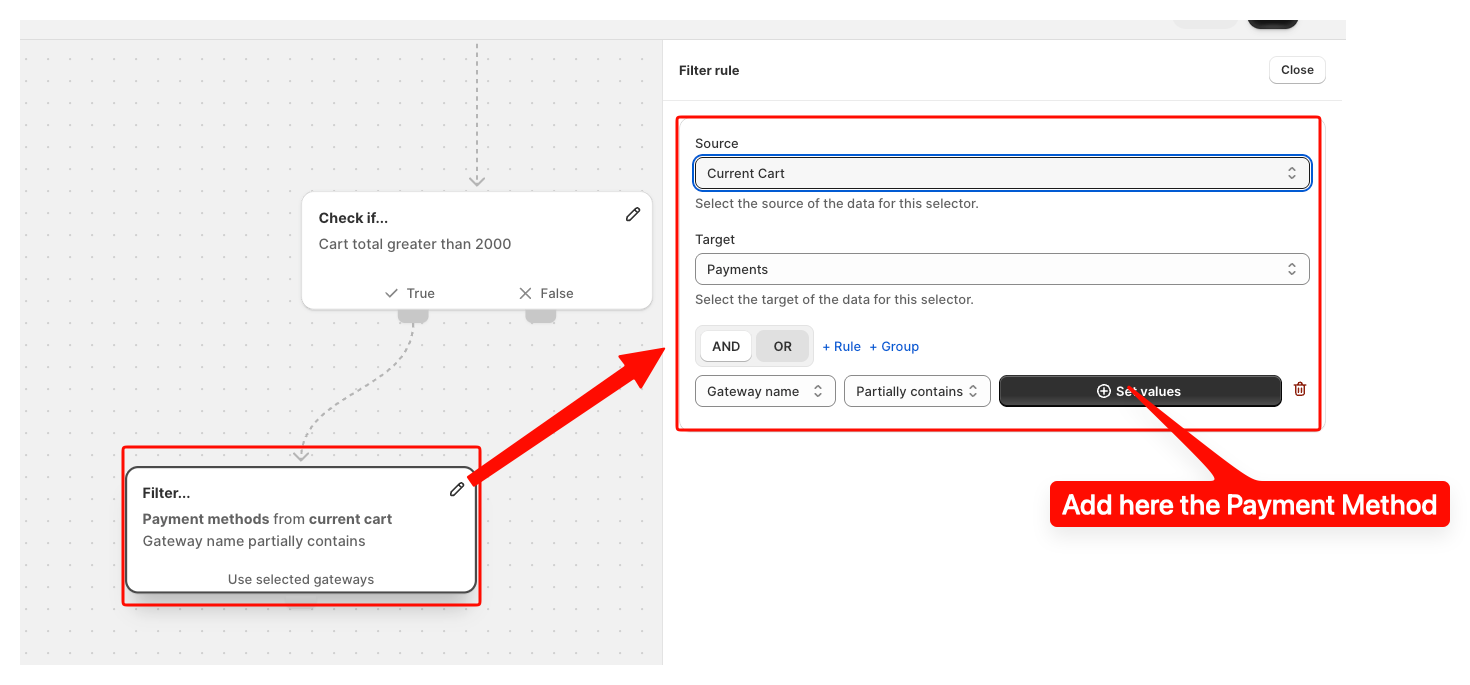
Hide selected gateways
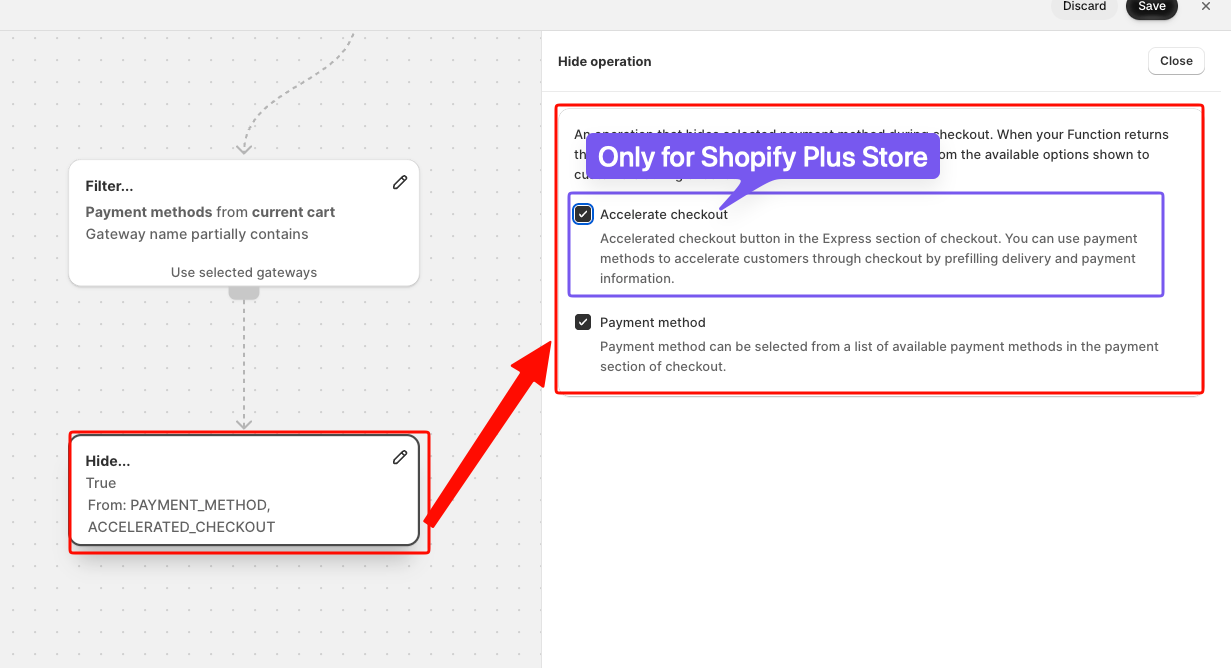
Click the + icon below the filter node and choose Result, then select Hide. Edit the node to confirm that both Payment method and Accelerate checkout are checked.
Note: To hide the Accelerate checkout you need to be on Shopify Plus account
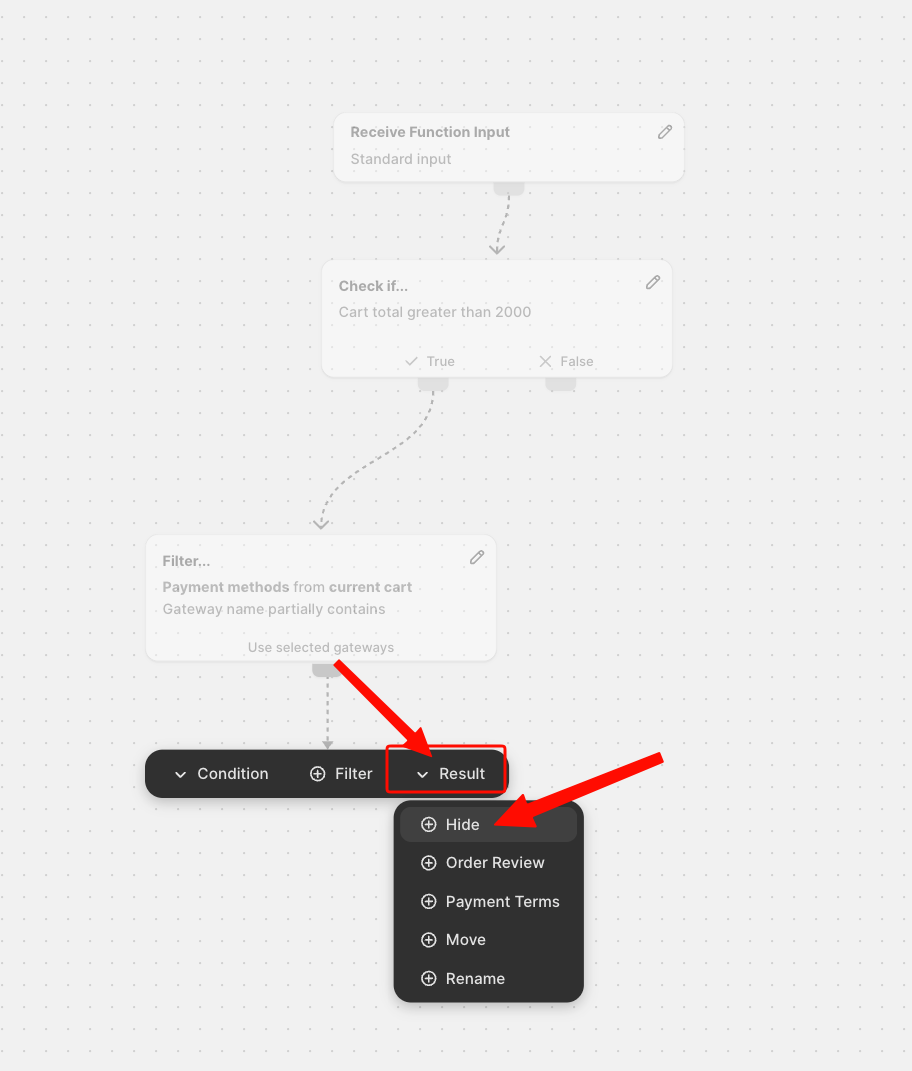
Configure filtering for the False branch
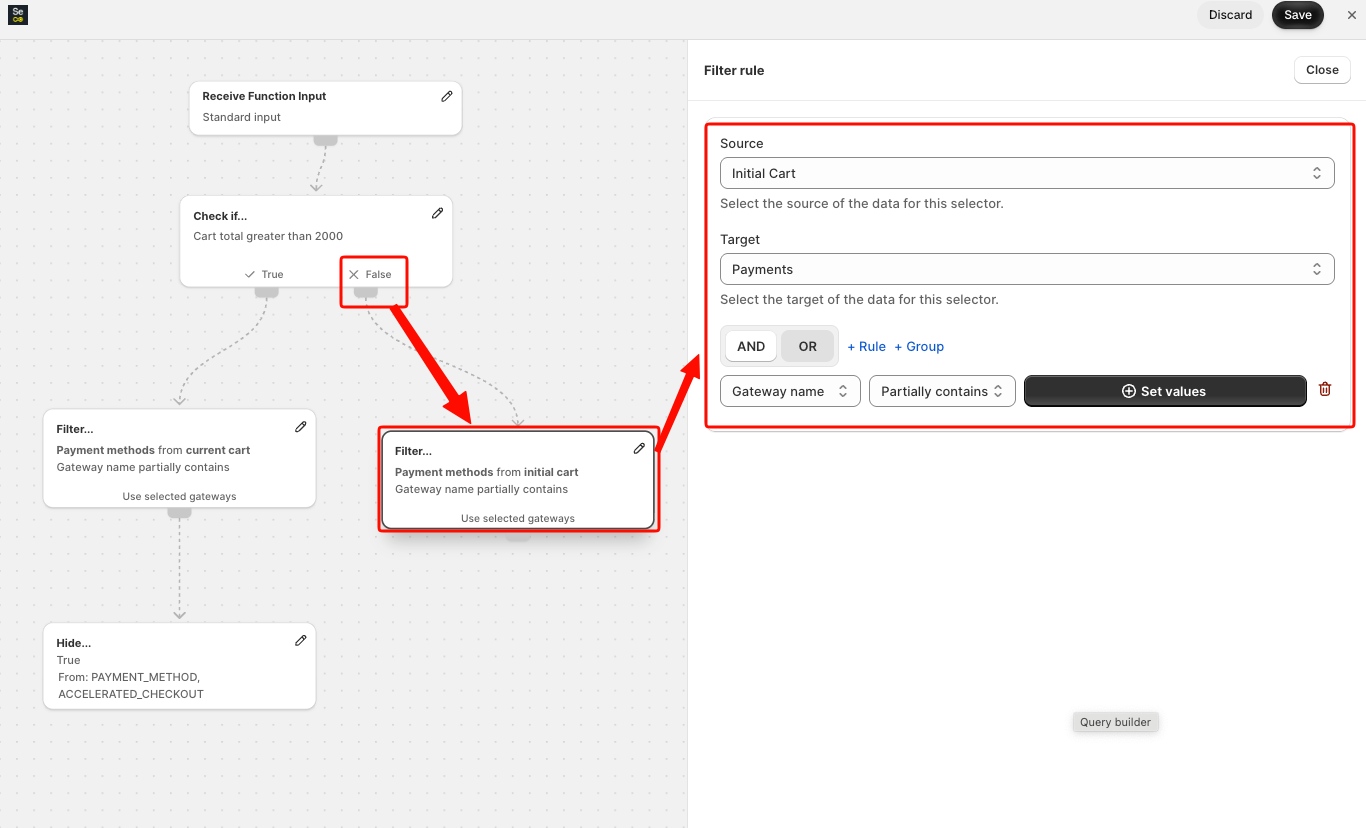
Under the False branch, click the + icon and select Filter. Set Source to Current Cart and the criterion to Gateway name. Click Set values and add Bank Deposit.
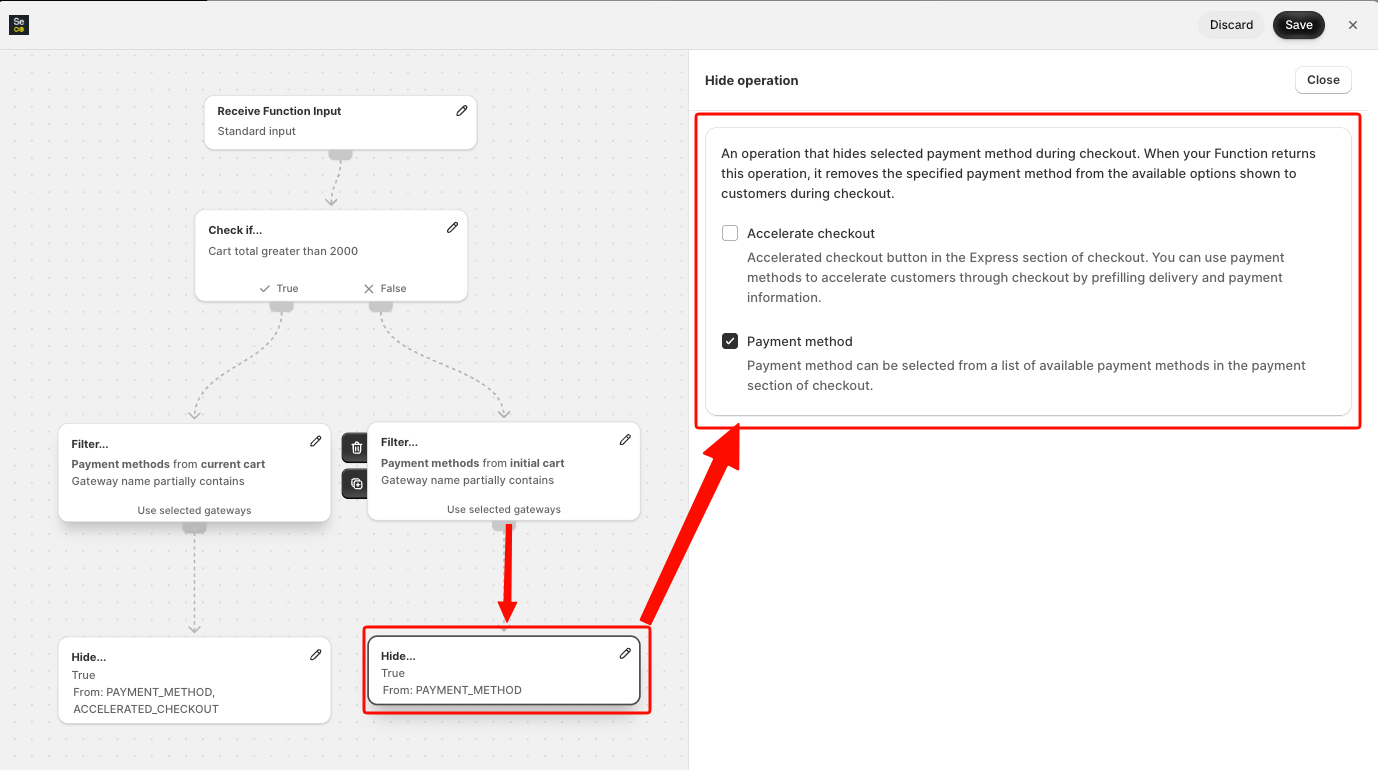
Then set the Result Node to confirm the action.
Save and activate the flow
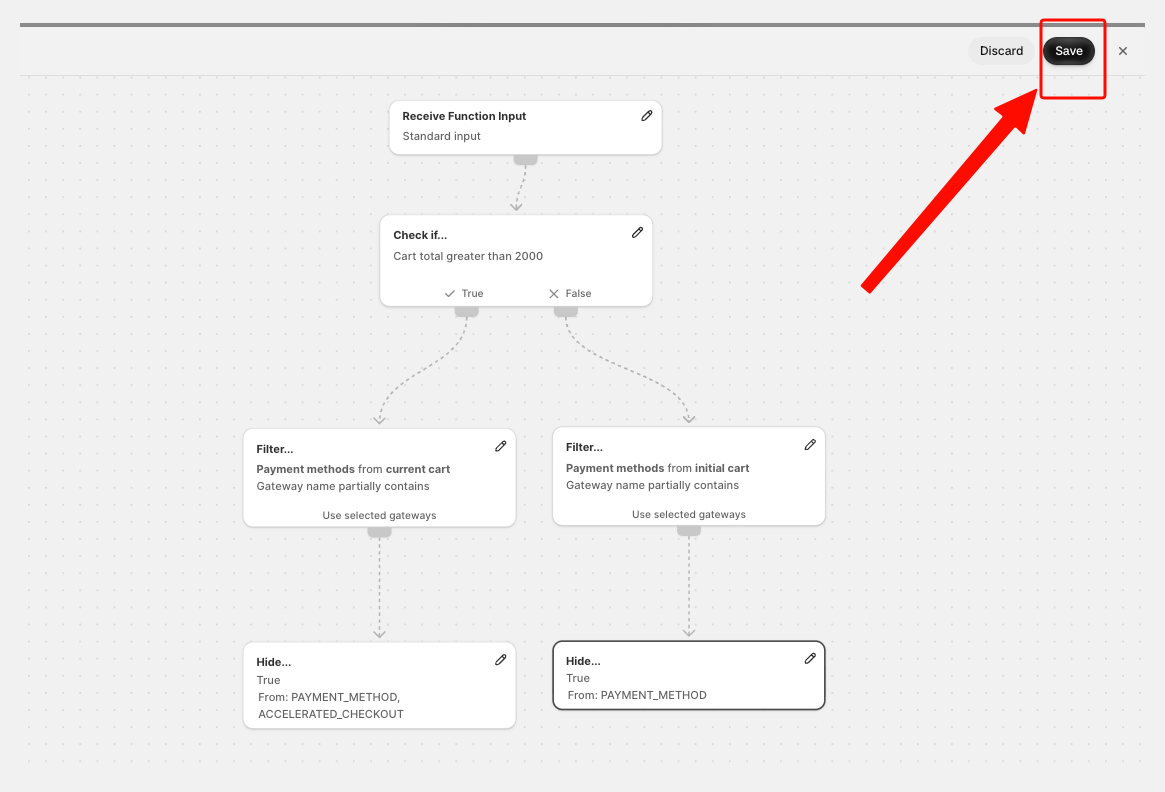
Click Save in the top right corner of the canvas. Once saved, click Activate to enable your new payment function.
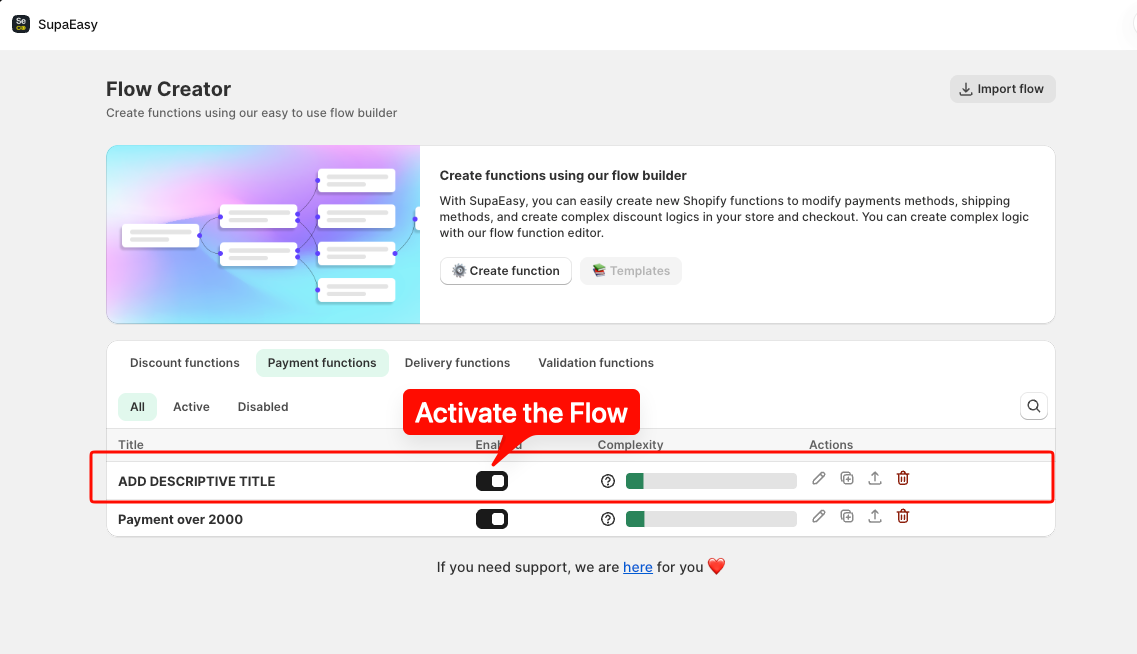
⚠️ Warning: A flow that is saved but not activated will not affect your checkout process. Always ensure the flow status is set to active.
Tips and Best Practices
-
Use specific titles for your functions so team members understand their purpose at a glance.
-
Test your checkout in an incognito window with carts above and below the threshold to verify both branches.
-
Ensure gateway names match exact labels used by your payment providers in Shopify.
ℹ️ Support: If you have any questions or need assistance during setup, our team is here to help. You can contact the Nextools Support Team anytime via the in-app live chat or by email on: support@nextools.tech. We’ll be happy to assist you.
